Finalise an assessment
To finalise a planned assessment in Deciris and move it to the green section for review, follow these steps:
Check the action item: Before finalising, make sure all required actions are clearly indicated under the active item. In the top right corner, the “1/1” counter indicates that all items planned for the assessment have been addressed.
Finalise the assessment: Click on the “Finalise” button at the bottom of the page. This indicates that you have finished and are ready to move on to the next step.
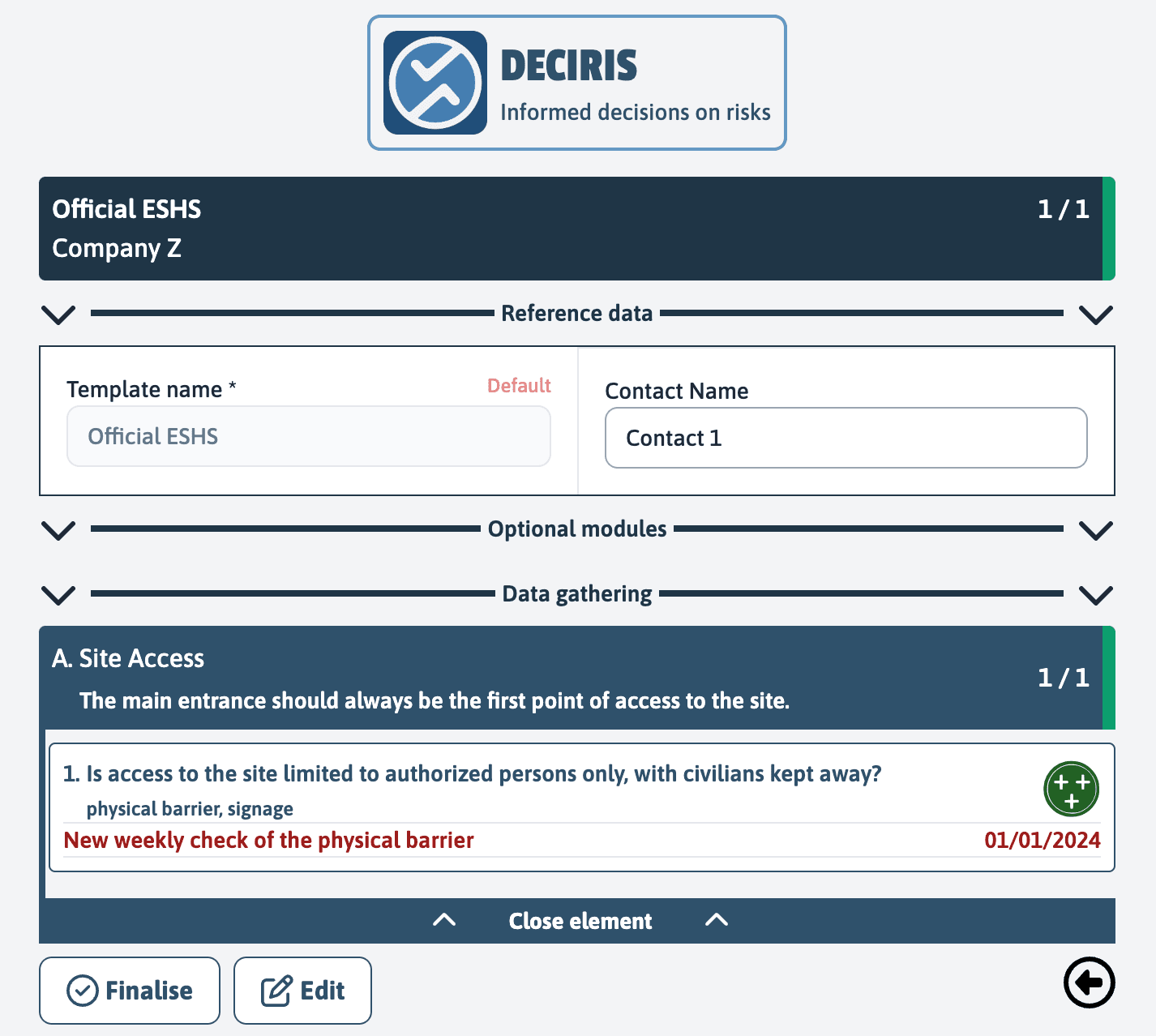
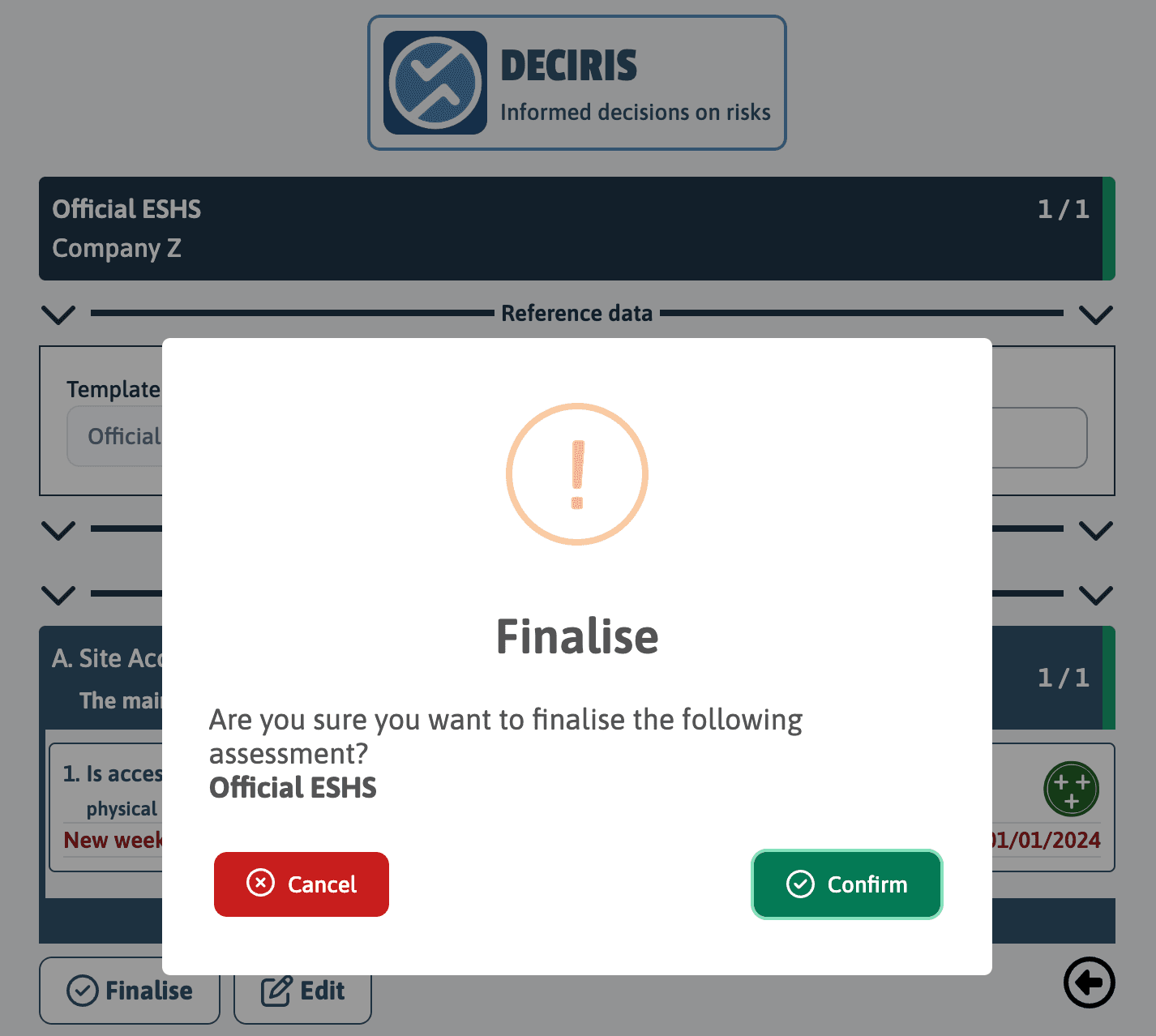
Confirm finalisation: Once you click on “Finalise”, a pop-up window will appear to confirm your action. Read the message carefully to make sure you are ready to finalise. It will ask you: “Are you sure you want to finalise the following assessment? Official ESHS”.
Confirm or cancel: If you are finished and everything is correct, click on “Confirm” to proceed. If you need to review or modify something, click on “Cancel” to return to the assessment.
Once confirmed, the assessment will move to the green section of the application, where you can review the assessment. It is important to ensure that all necessary information is complete and accurate before finalising, as this will be saved in the final report.