Split Screen View
The split screen feature allows you to view and work with multiple assessments simultaneously.
Main Interface
When you click the “Split screen” button at the bottom of your assessment page, the interface divides into two main sections:
Left Panel
- Add assessment: Create a new assessment directly from the split view
- Add file: Upload various file types (PDF, images, MP4, CSV) as reference material
- Start remote video call: Initiate a video call for remote assessments
Right Panel
- Shows your current assessment
Top Bar
- Close split screen: Close left or right panel (X icon)
- Switch panels: Switch between left and right panel (left/right arrow icon)
- Independent scrolling: Scroll through the left or right panel independently (up/down arrow icon with lock)
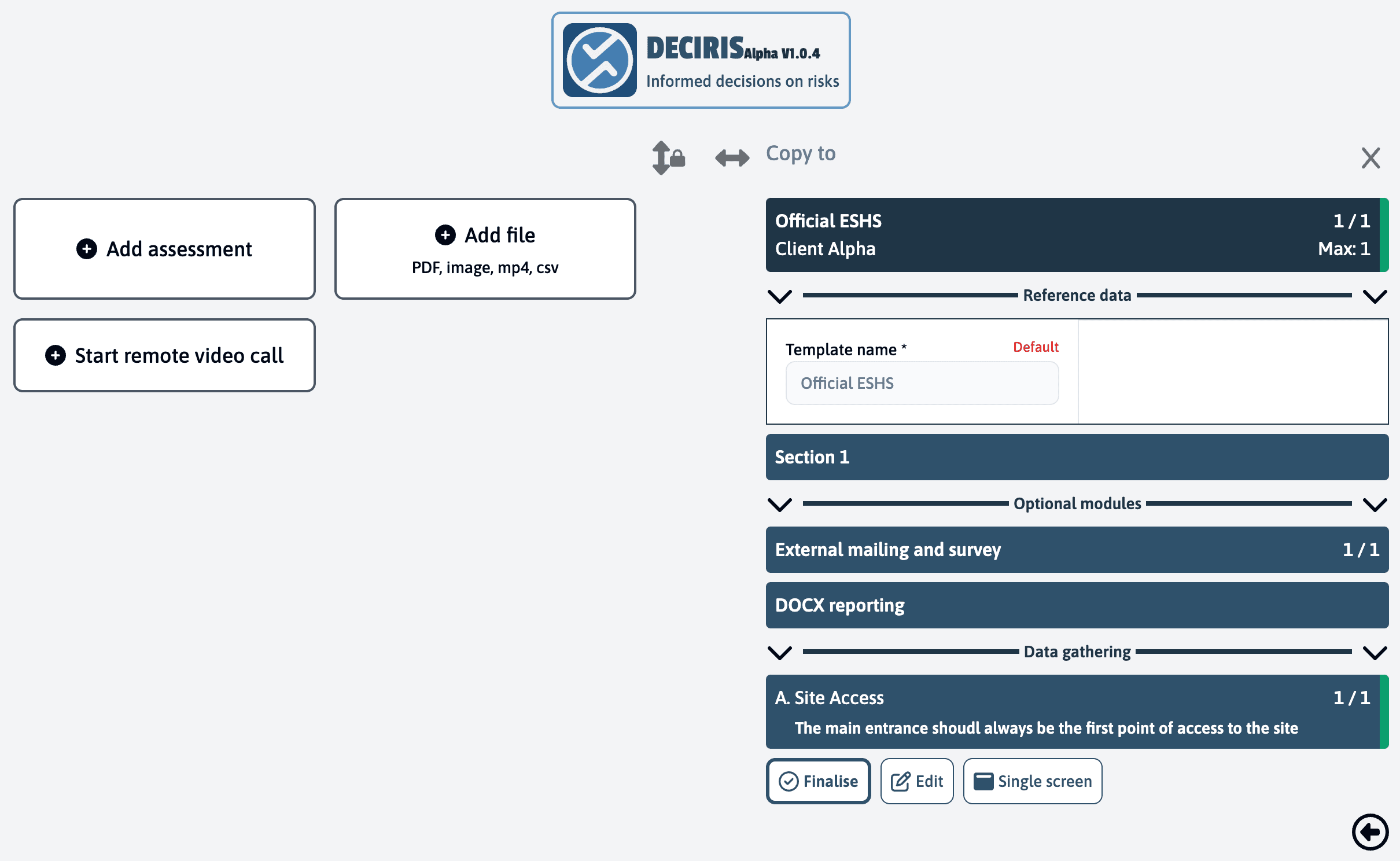
The split screen view maintains all functionality of the regular view while allowing you to reference or work with multiple assessments at once.
Last updated on