Prepare a new assessment from a template
Here is the step-by-step guide to prepare your first assessment from a template.
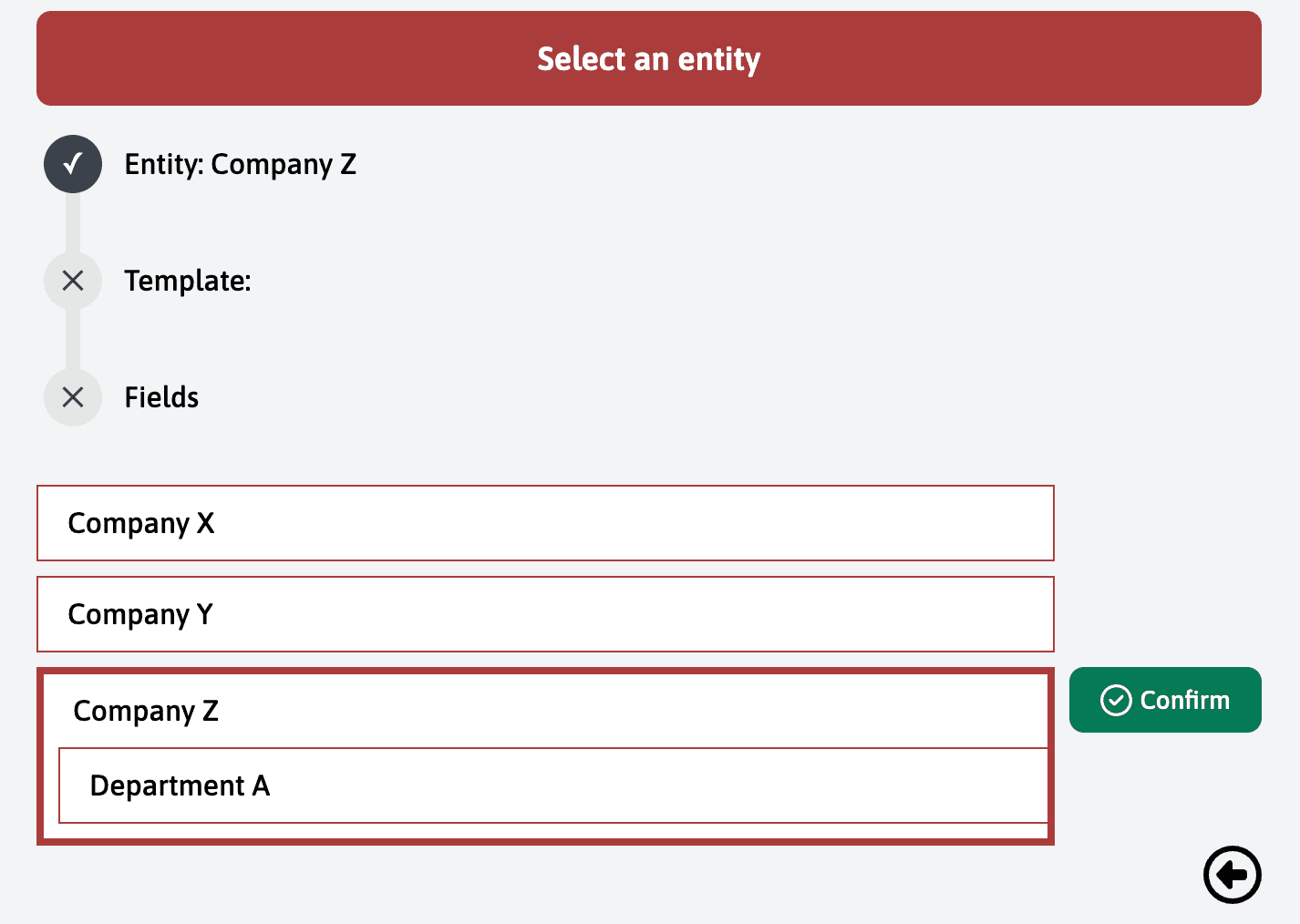
Start by selecting an entity for your assessment. On the home screen, choose “Company Z” by selecting it from the list, then click on “Confirm”.
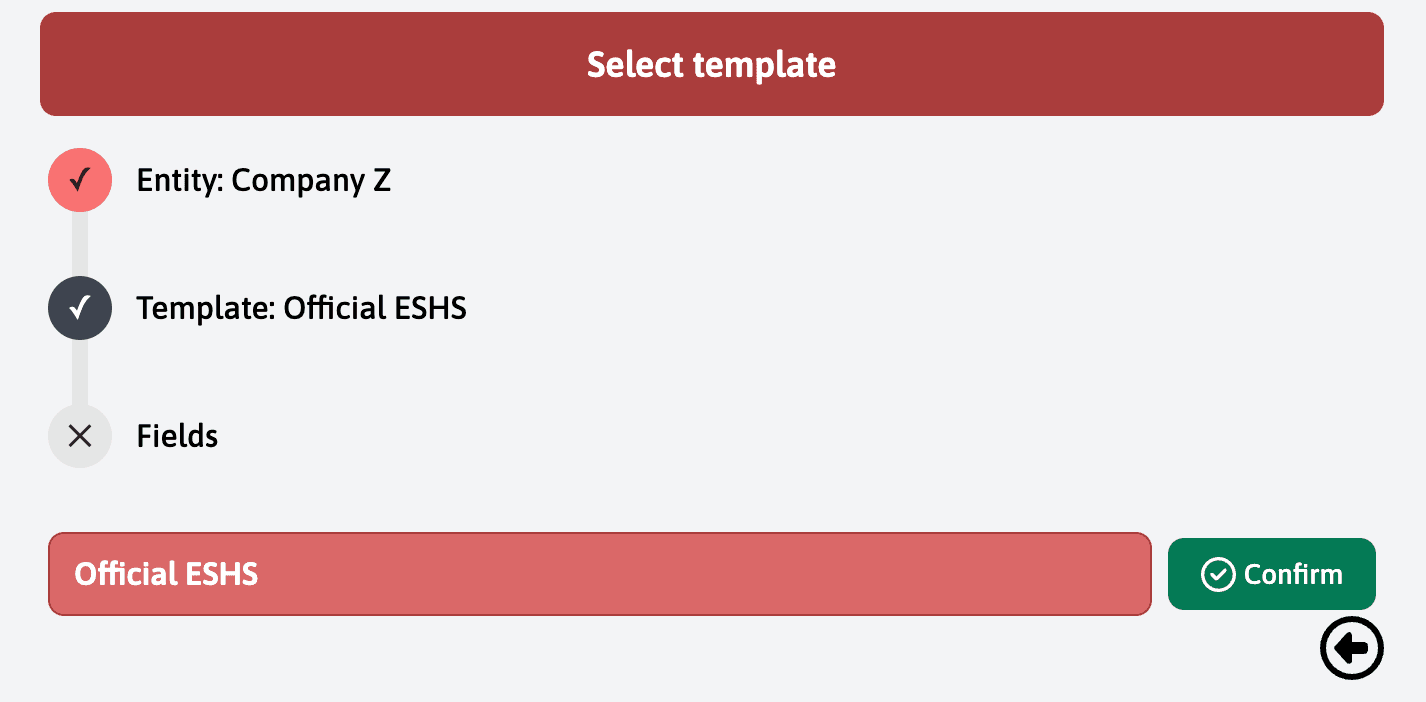
Once the entity is selected, you need to choose a template. On the next screen, click on the “Official ESHS” template and confirm your choice by clicking again on “Confirm”.
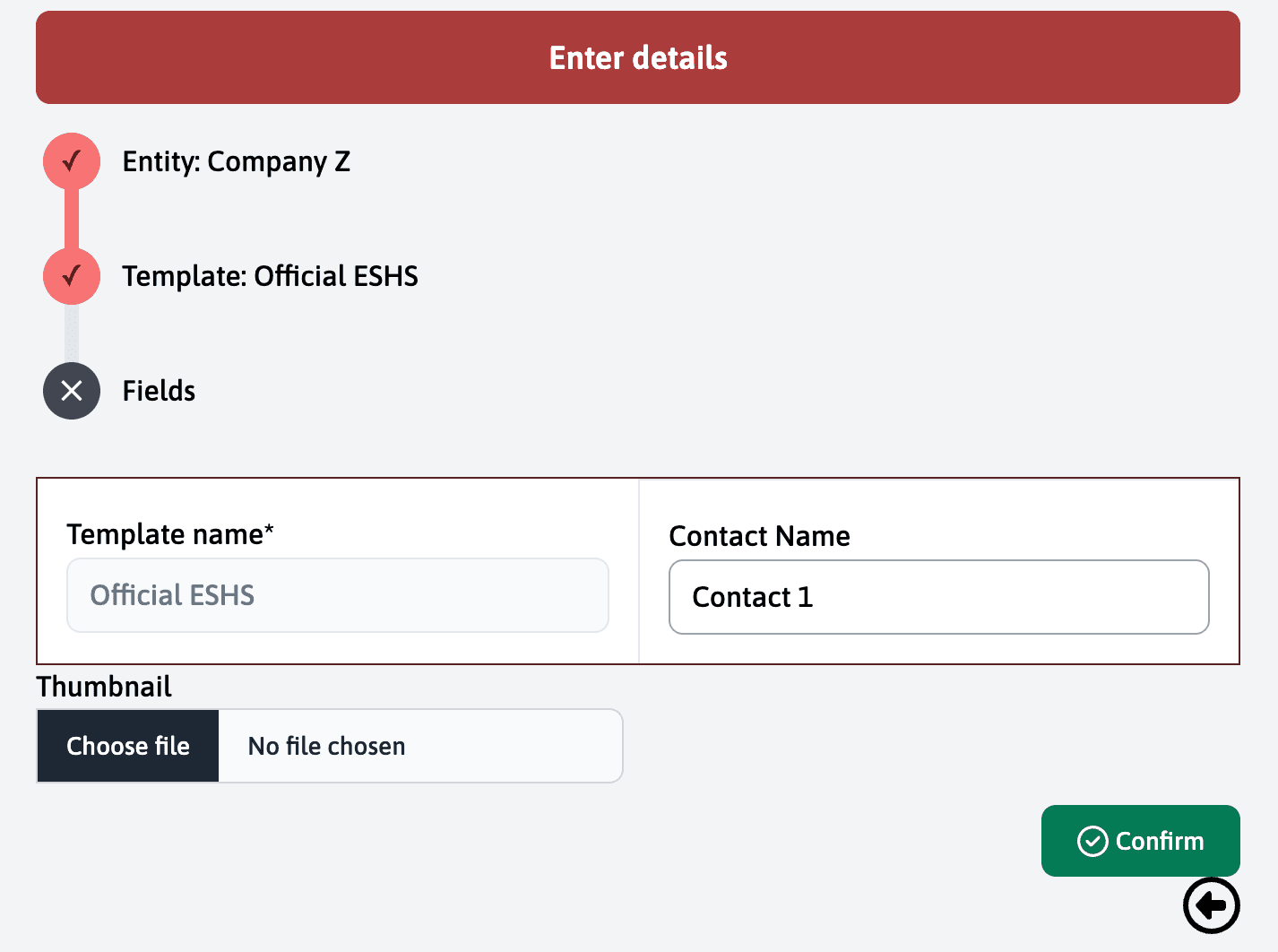
After selecting the template, it is necessary to fill in the fields associated with the template. Note that the “Contact Name” field is automatically filled with “Contact 1” because it is common to the template and the entity you previously chose. If necessary, you can modify this information. Once you have filled in all the fields, click on “Confirm”.
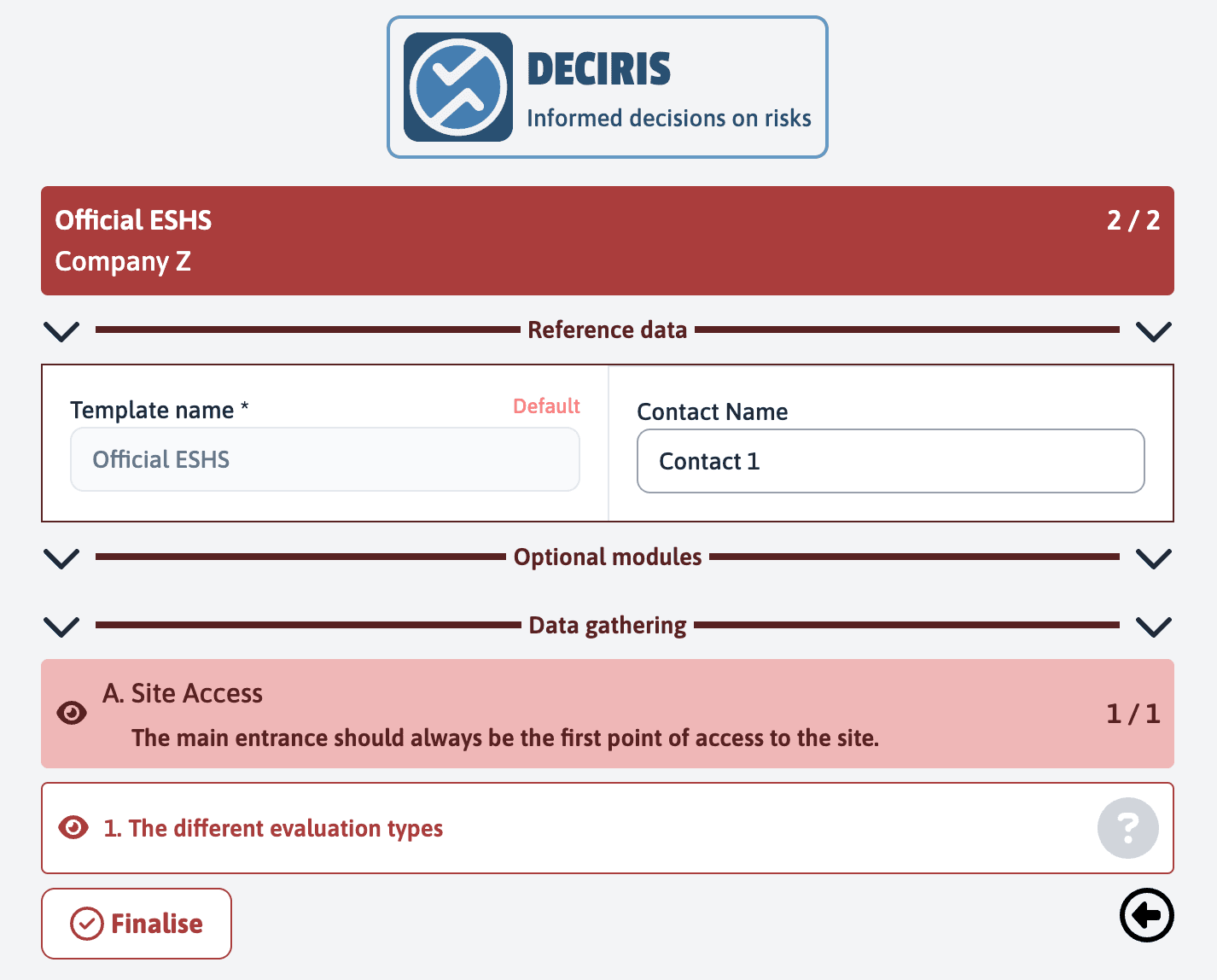
You arrive on a page presenting the assessment and the specific data of the assessment. You cannot modify the content of the original template at this stage, but you can filter certain elements. This feature is presented later in the tutorial. You can finalise the preparation of the assessment by clicking on “Finalise”. The assessment will be available in the blue menu, “Perform an assessment”.