Different types of evaluation
For each active element, you have the option to choose a different type of evaluation for data collection. We will present them to you below.
Icon rating
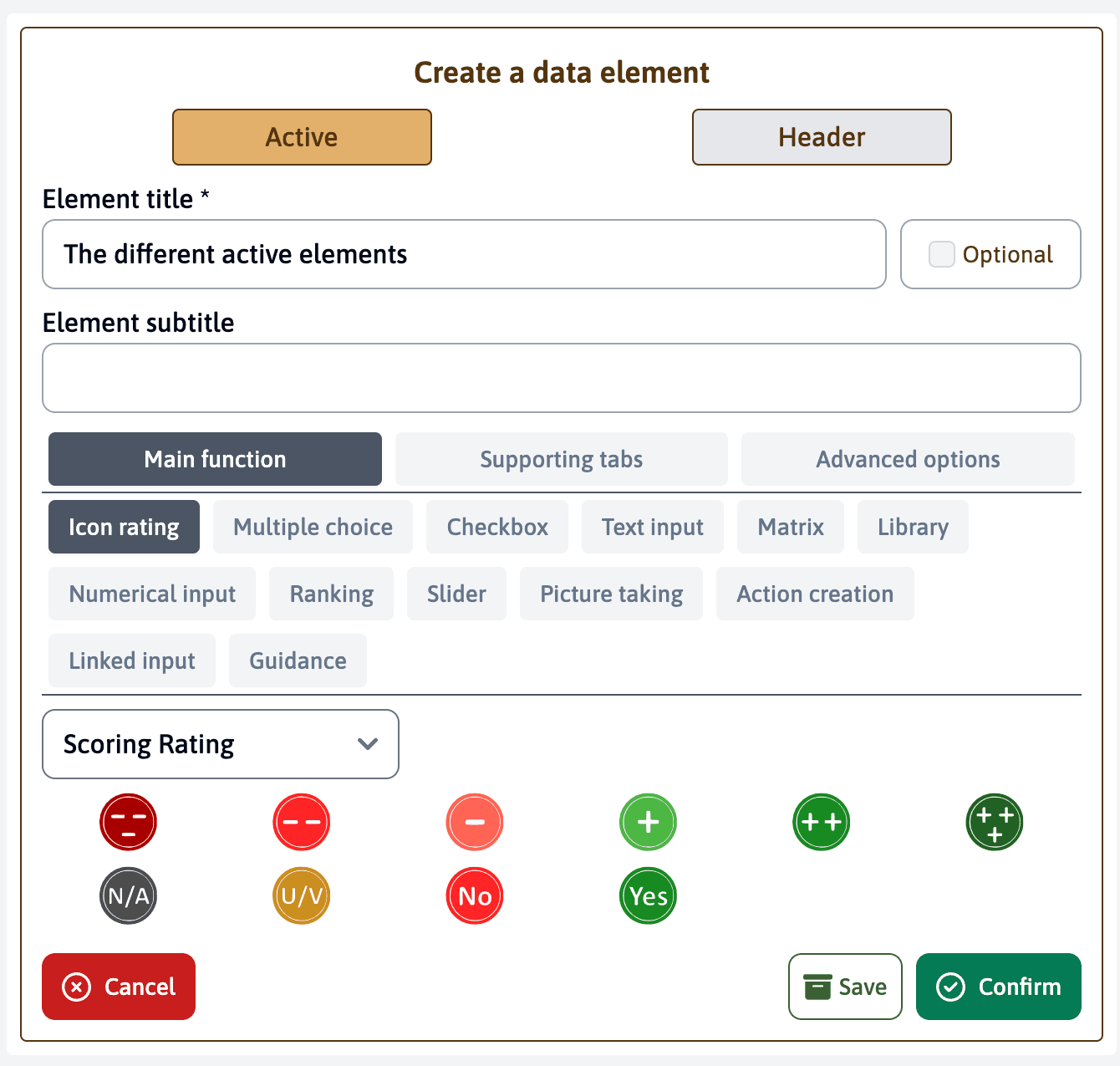
This option allows you to evaluate a response using icons to indicate different levels of compliance. For example, you can have icons ranging from very negative (—) to very positive (++), including intermediate levels. Other icons are available, for example “Yes”, “No”, “N/A” (not applicable).
Multiple choice
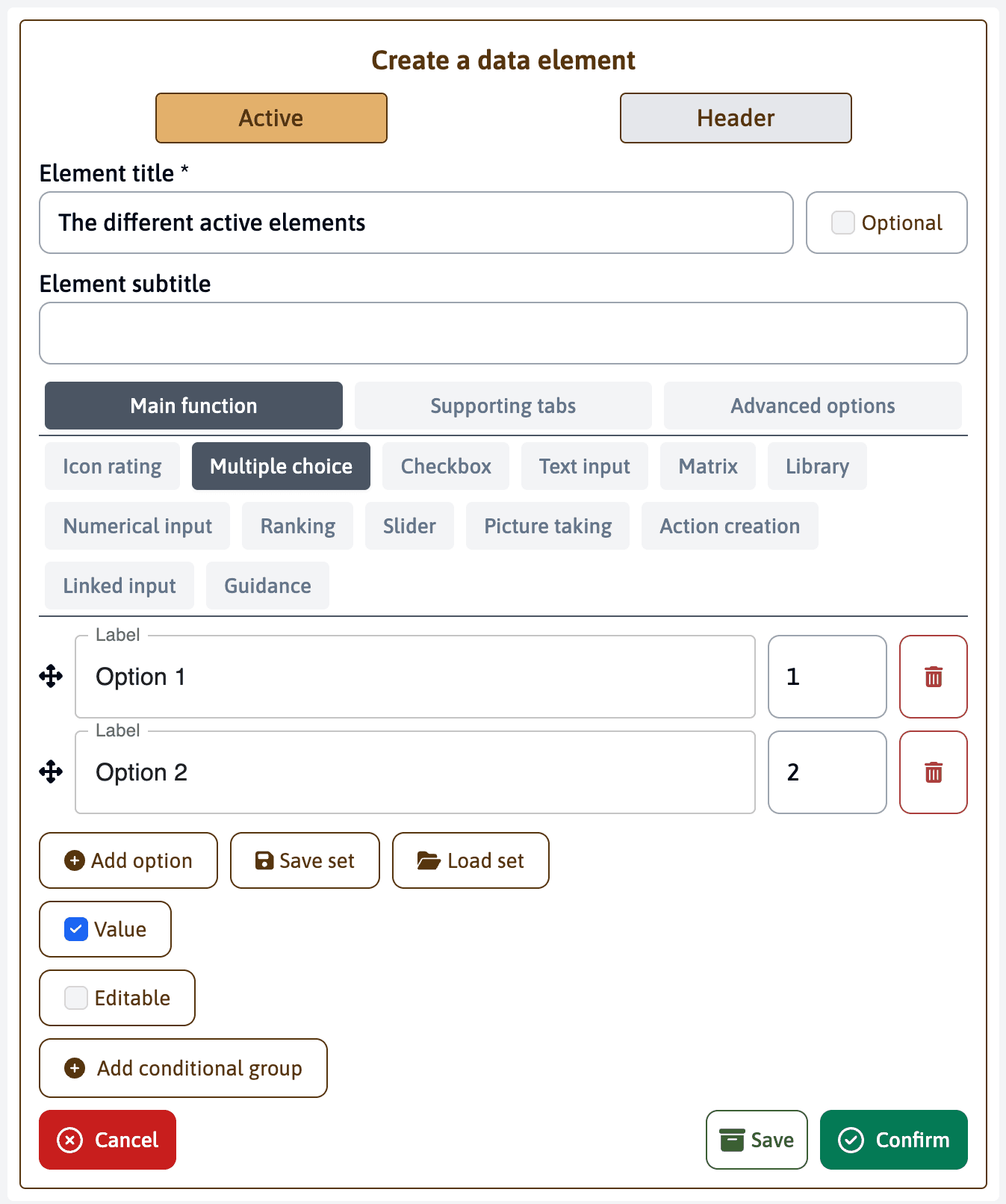
This option allows users to select a unique option from a predefined set. You can add as many options as necessary by clicking on “Add” and assign numerical values to each choice if you wish to quantify the responses. To do this, check the “Numerical value” box.
Checkboxes
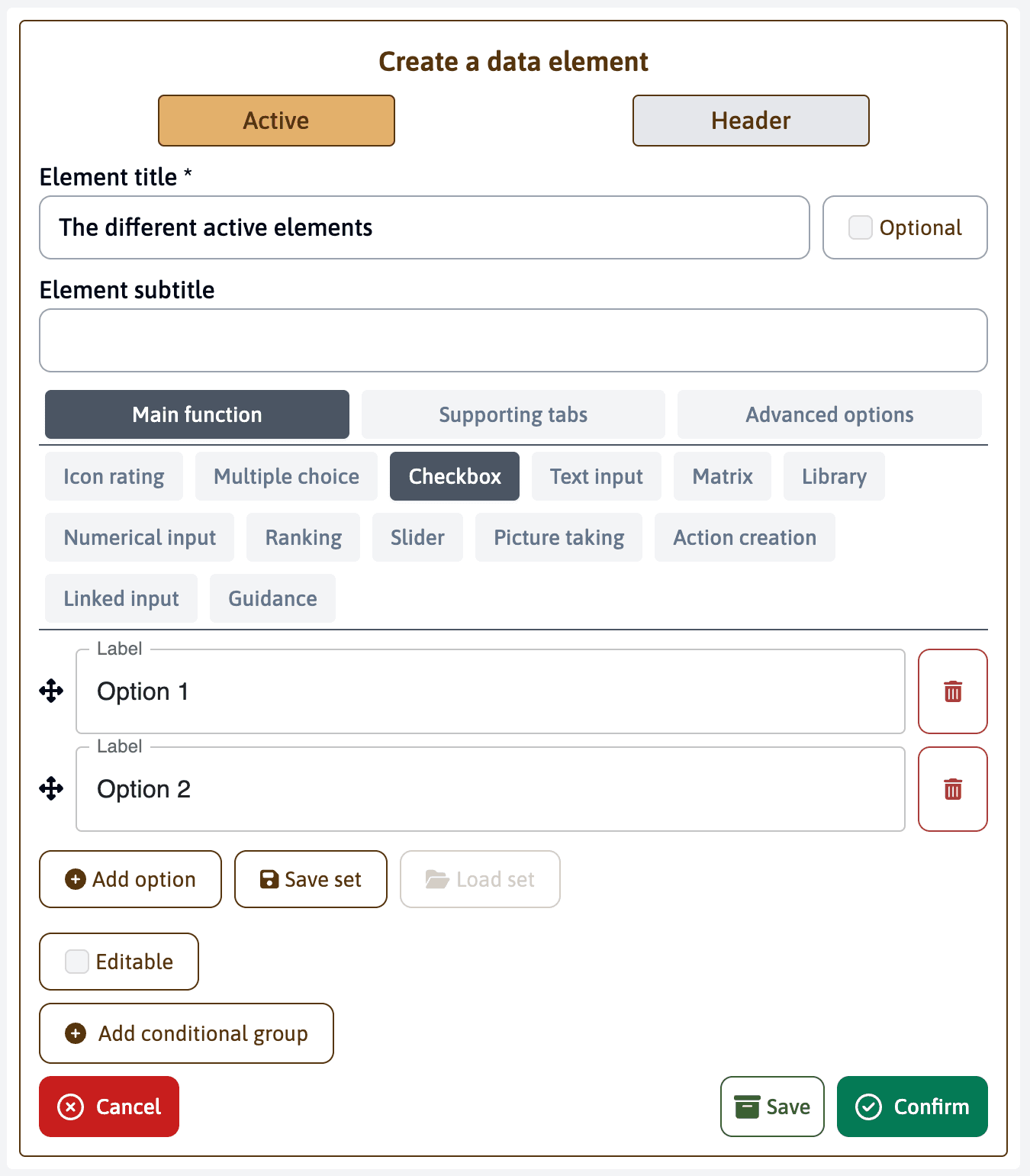
This option allows you to select multiple responses from the proposed options. Unlike “multiple choice”, checkboxes are generally used to indicate all applicable options rather than selecting a single response.
Text input
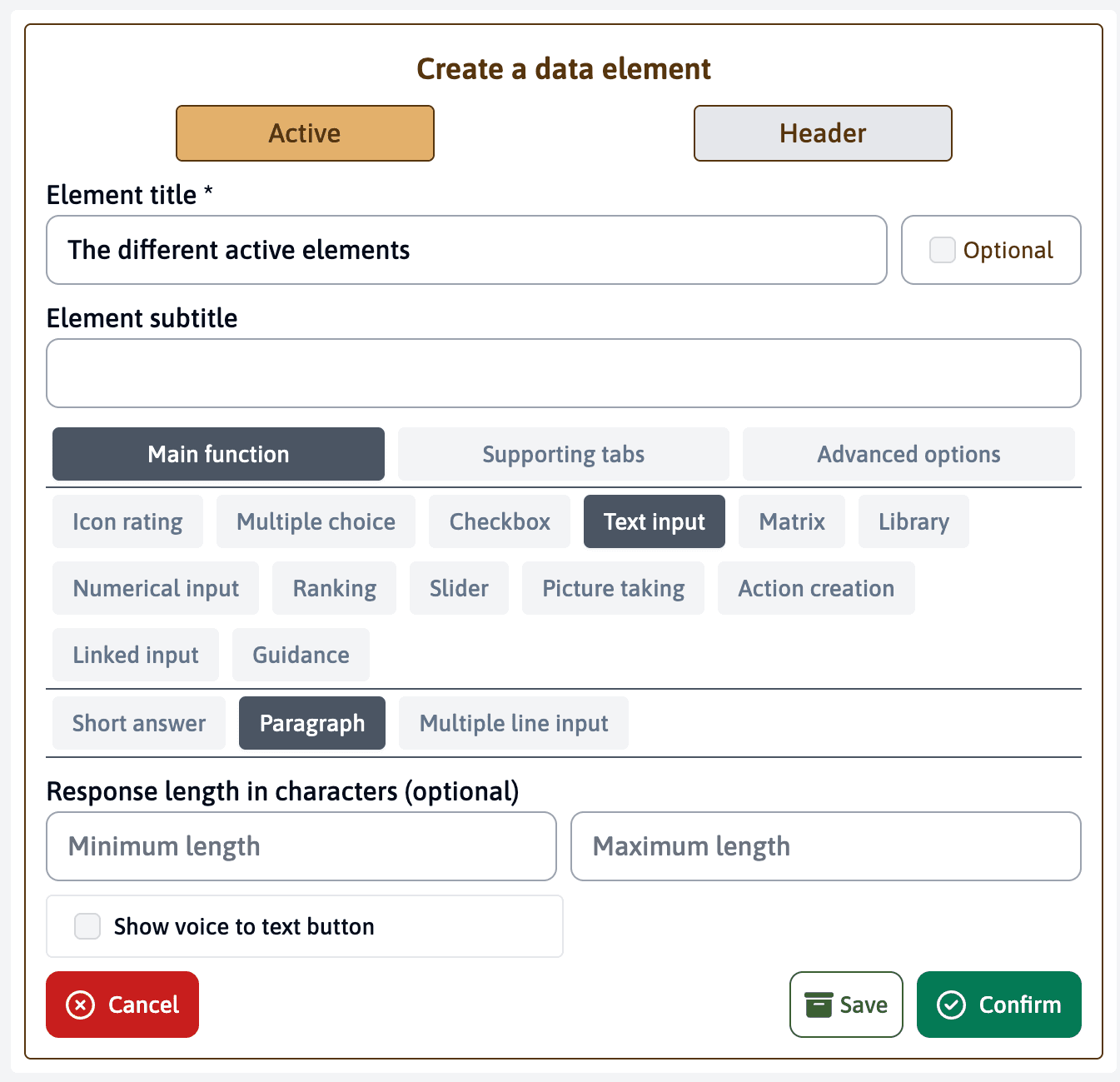
This option allows you to collect text input from the user. It offers three different types of text input:
- Short answer: This field offers a free text space for a single line of text.
- Paragraph: This field offers a free text space for multiple lines of text.
- Multiple line input: This field offers a free text space for multiple lines of text. This option can later be used for the linked element.
For each text input type, you can:
- Set minimum and maximum character limits to control response length
- Enable a voice-to-text button that allows users to dictate their response instead of typing
Matrix
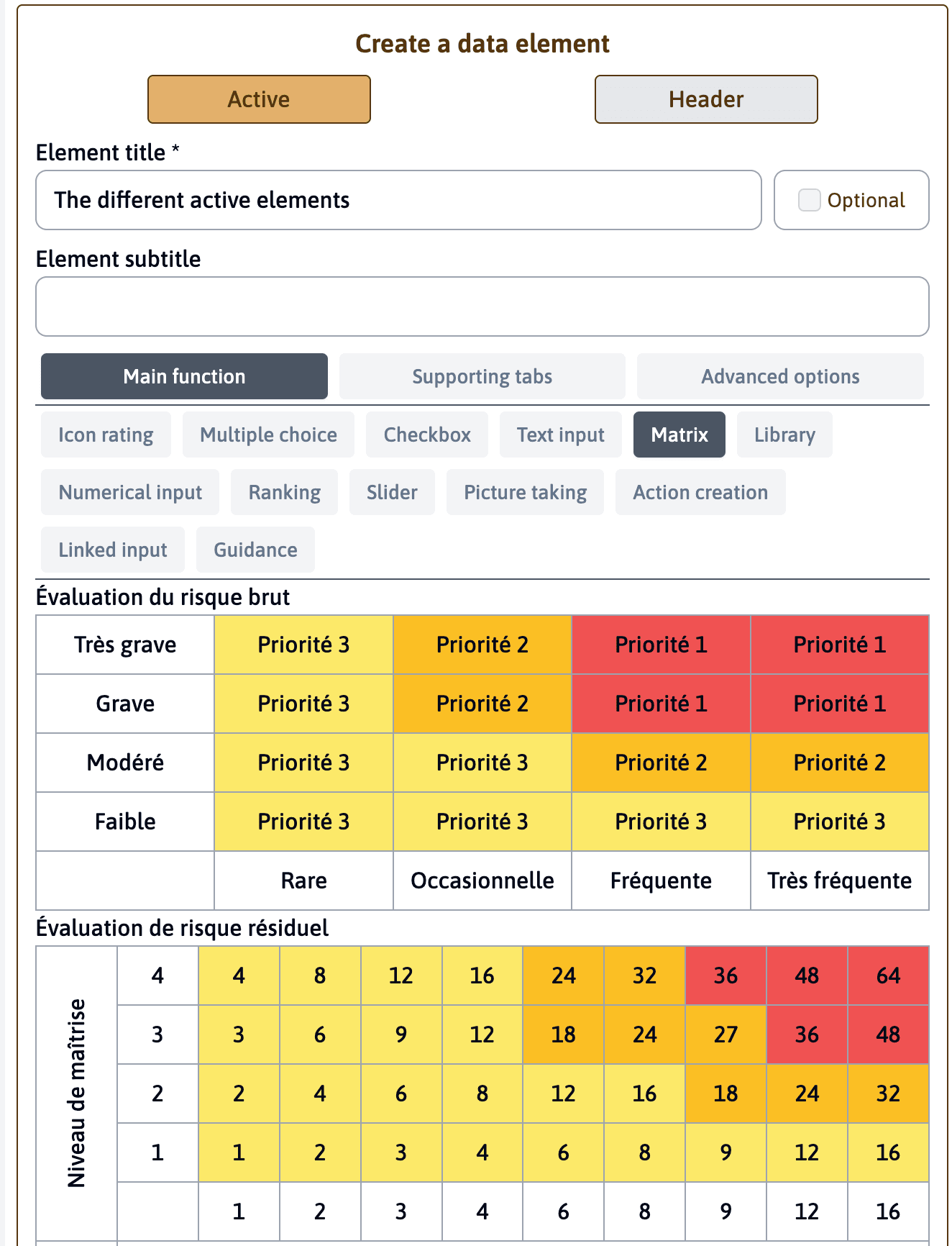
This matrix option allows a cross-evaluation based on several criteria. The user must select an option in two mandatory axes, “Severity” and “Frequency”, to evaluate the risk. A third axis, “Level of mastery”, allows to complete the evaluation. Depending on the choices made in the matrix, a priority level (P1, P2, P3) is automatically calculated, allowing a quick visualization of the risk level. Currently, the options or axes of this matrix are predefined and can be modified on request.
Library
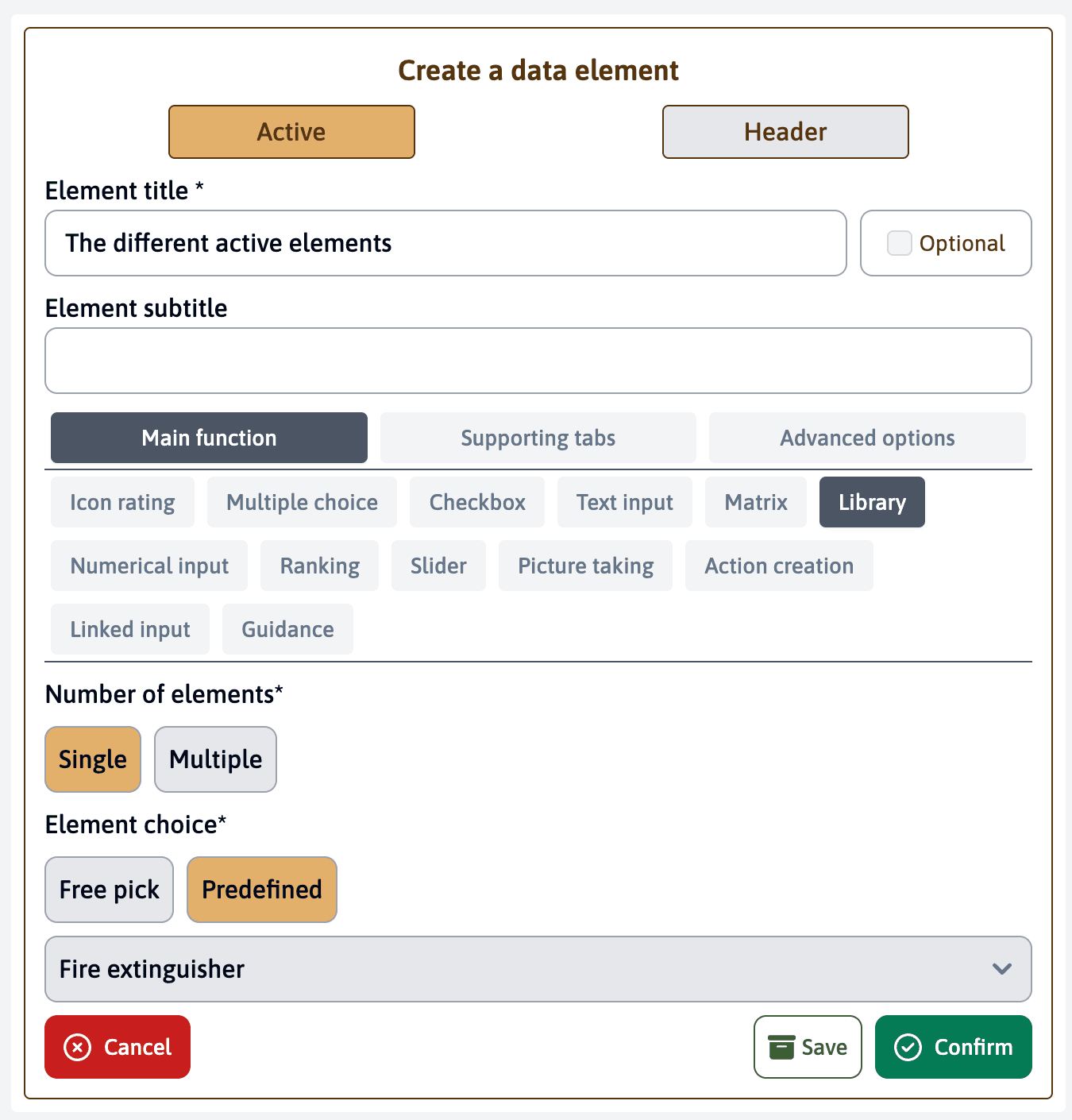
This active element allows you to add an element from the library during both the preparation and the assessment.
Number of elements that can be added
- Single: Allows for a single element to be added from the library
- Multiple: Allows for several elements to be added from the library
Library element choice
- Free pick: Manually select elements from the complete library
- Predefined: Choose from pre-organized library element
If you have chosen Predefined, you can choose a specific element from a dropdown menu. This feature is particularly useful for:
- Maintaining consistency across different templates
- Saving time by reusing commonly used elements
- Ensuring standardization in your evaluations
- During surveys where the quantity of items is variable and is not known beforehand
- Limit the amount of elements and simplify the structure of your template
It is also possible to select a header element from the library. This will allow you to create a new element with the same structure as the selected element.
Numerical input
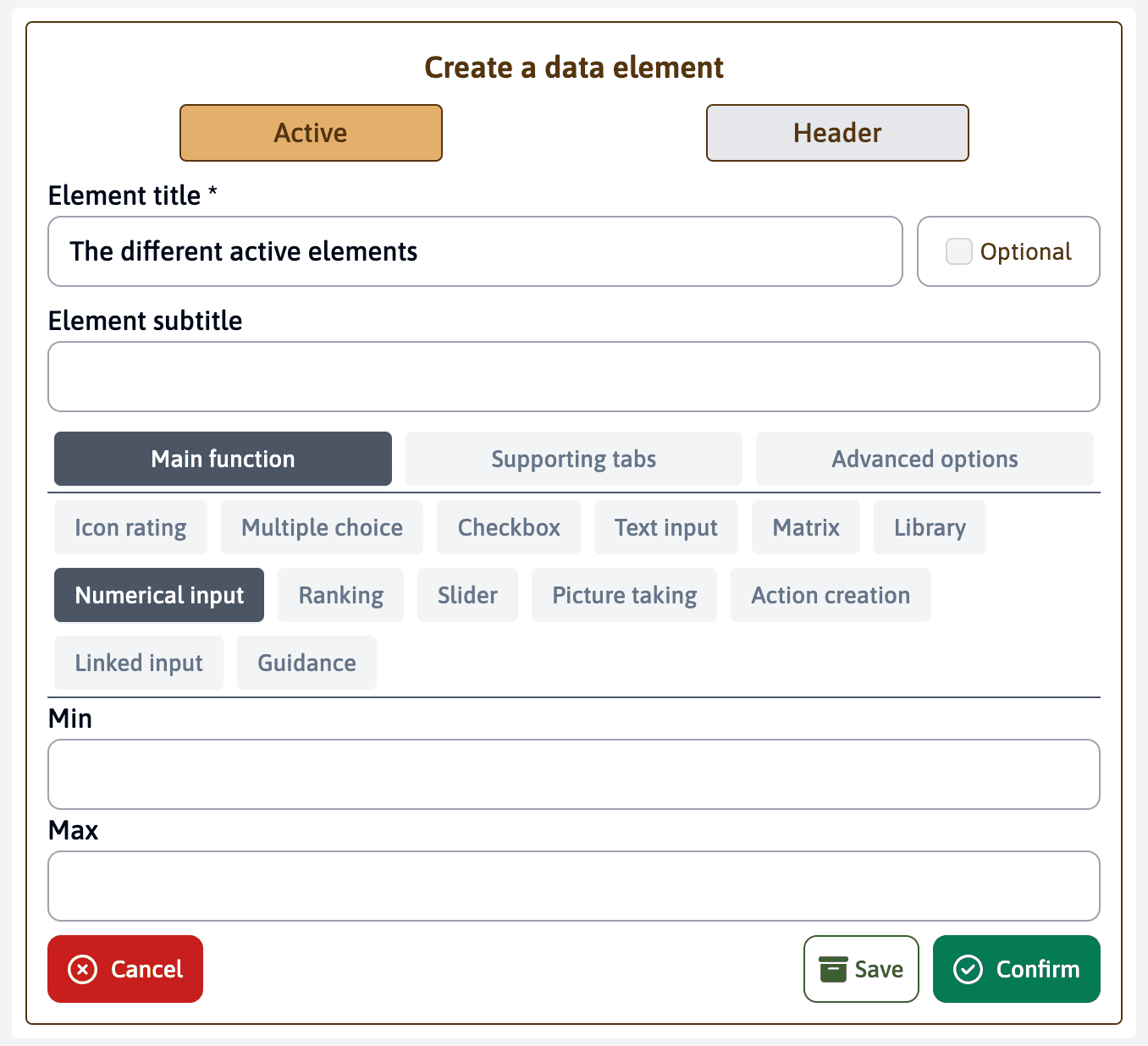
This option allows you to collect numerical data from users and optionally configure minimum and maximum values to set acceptable ranges. If you have configured a minimum and maximum value, the user will not be able to enter a value outside of this range. This type of input is particularly useful when you need to collect specific numerical data like measurements, quantities, or scores.
Ranking
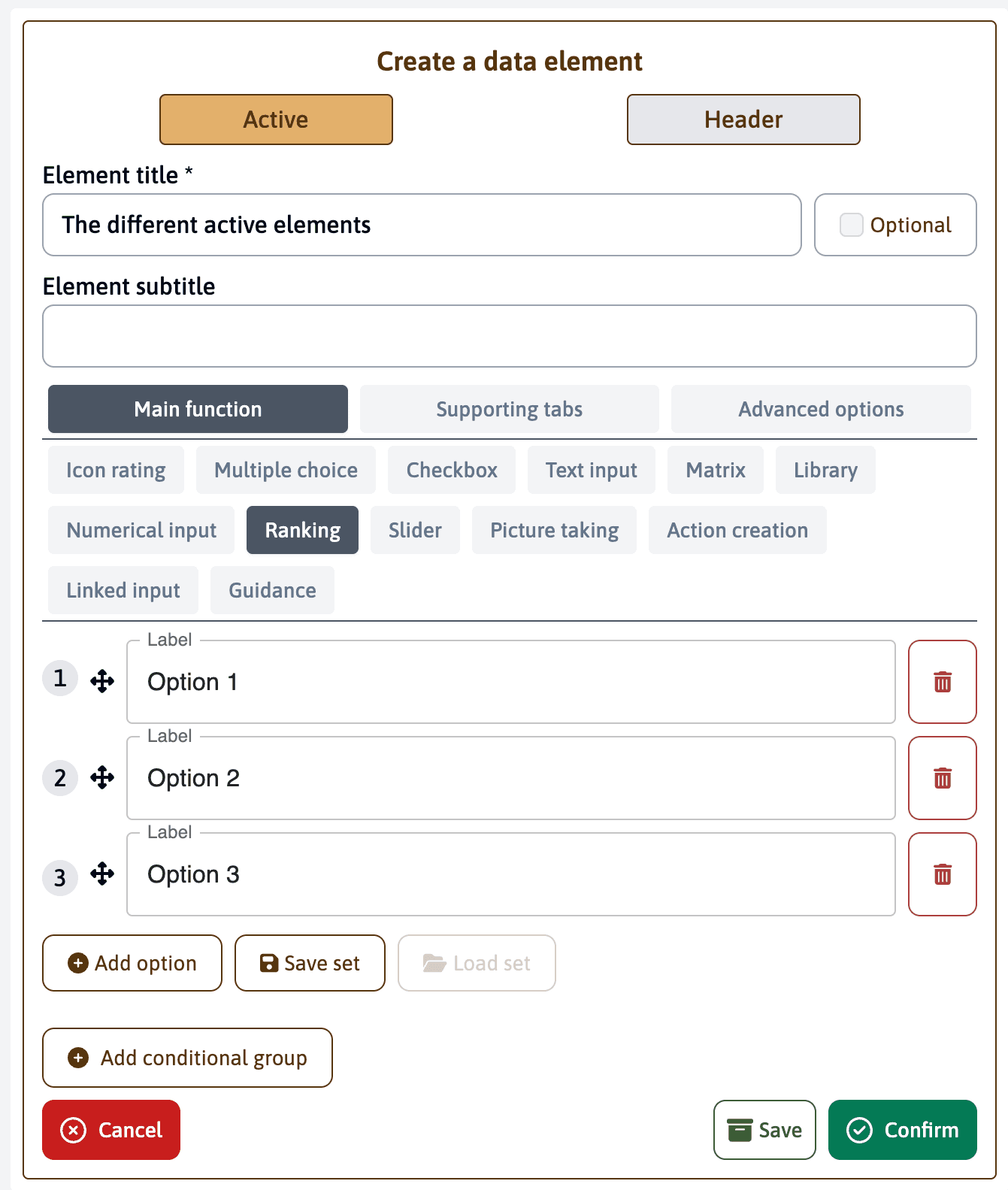
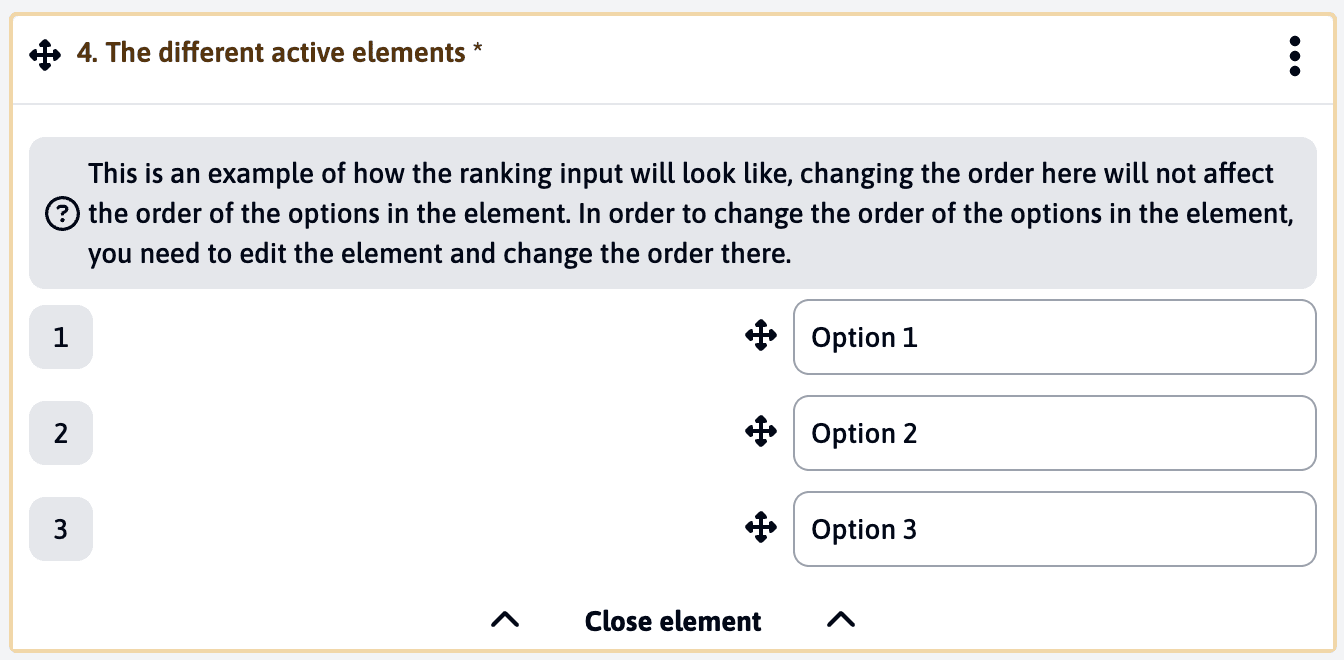
This option allows you to create a list of items that users can rank in order of preference or priority. Users can drag and drop items to reorder them according to their ranking. You can:
- Add multiple options to be ranked
- Save sets of options for reuse
- Load previously saved sets
- Add conditional groups
When users interact with a ranking element, they’ll see an interface where they can easily reorder the options. Note that changing the order in the response view won’t affect the original order of options in the element configuration.
Slider
This option provides a sliding scale for users to select values within a defined range. When configuring a slider, you can set:
- Minimum and maximum values
- Step size for increments
- Optional labels for minimum and maximum values
- Display orientation (horizontal or vertical)
- Option to show or hide value labels
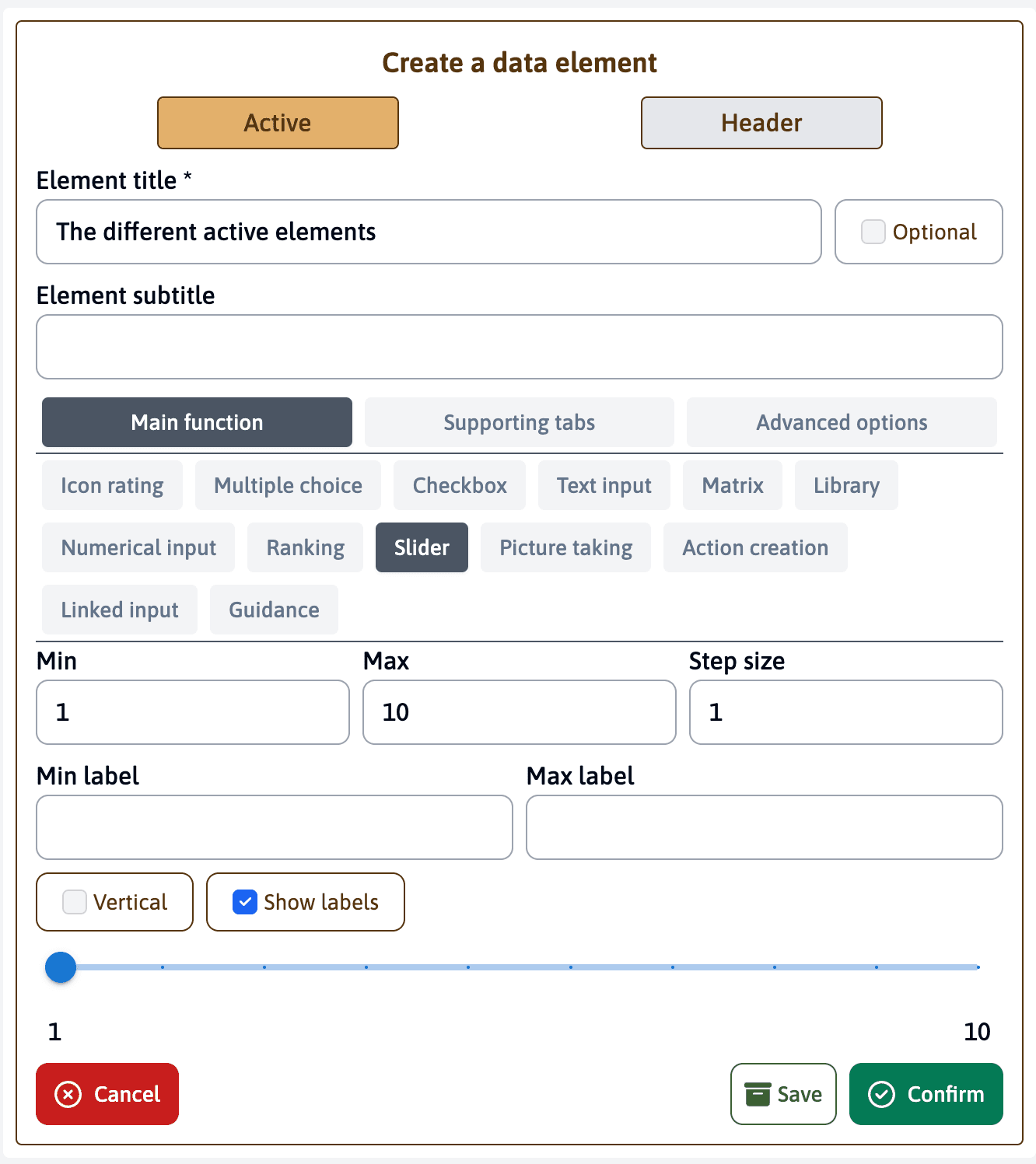
At the bottom of the configuration panel, you’ll see a live preview of how the slider will appear to end users. This preview updates in real-time as you adjust the settings, allowing you to test the slider’s functionality and appearance before finalizing your configuration. The preview shows the exact same interface that users will interact with, complete with the min/max values and any labels you’ve defined.
Picture Taking
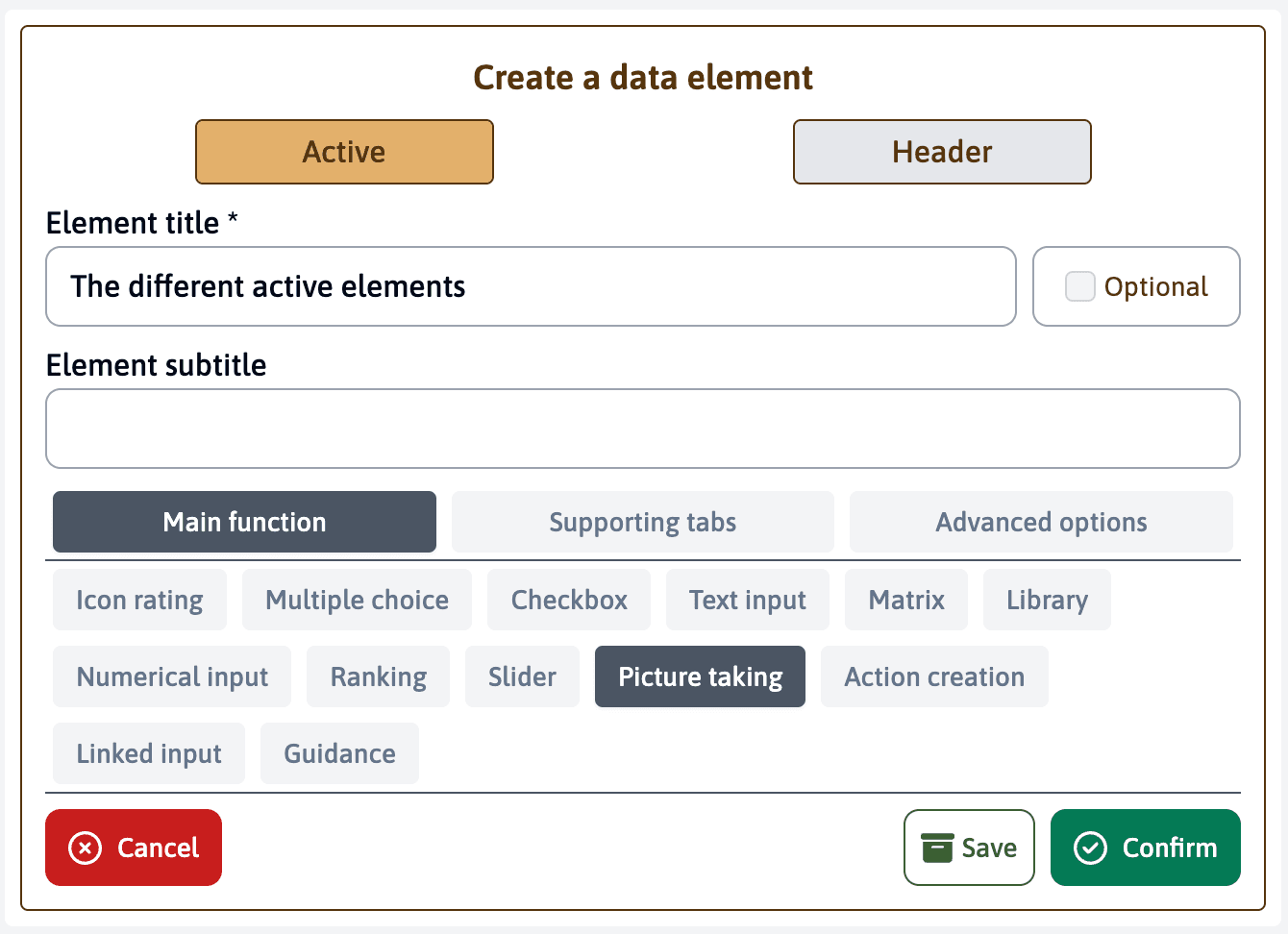
This simple element allows users to capture and upload images directly through the interface. Users can take one or multiple pictures using their device’s camera or upload existing images. There are no additional configuration options needed for this element type.
Action Creation
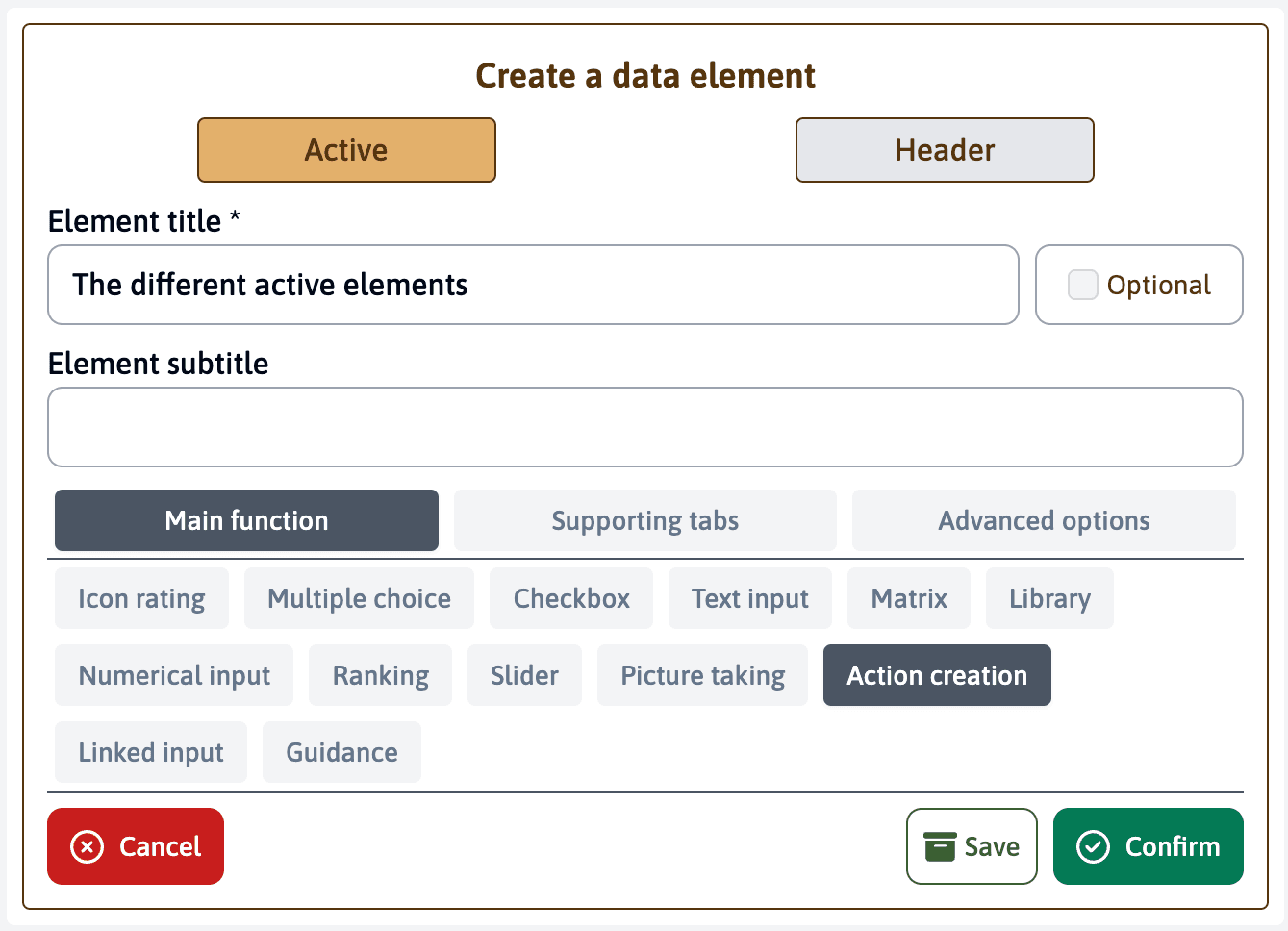
This element enables users to create actions directly within their assessment. These actions can later be reviewed and managed in the action plan module. It’s a straightforward element with no additional configuration needed - users can simply create actions that will be automatically tracked in the system.
Linked Input
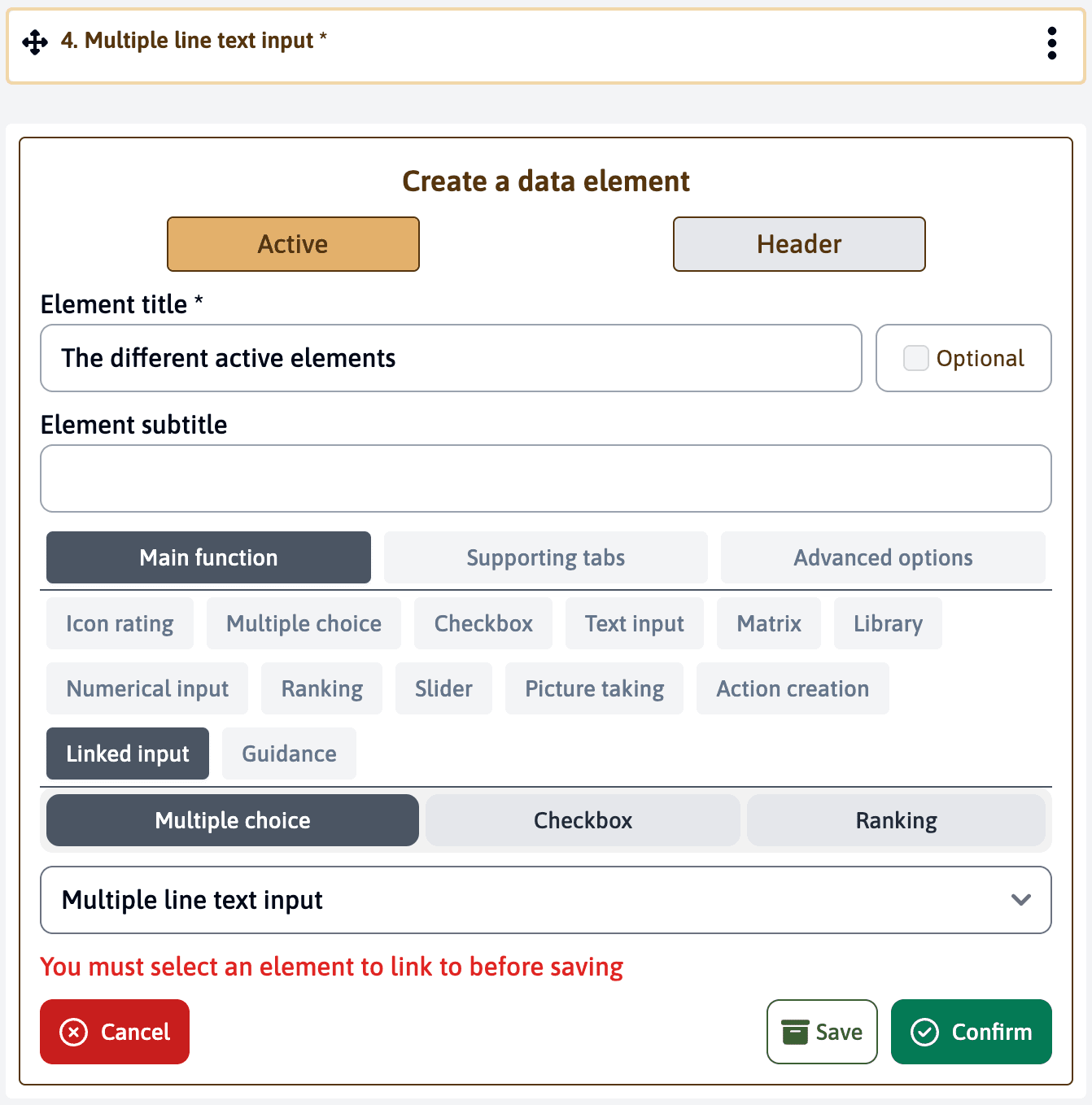
This advanced element type creates a dynamic connection between two elements in your template. It requires:
- A multiple line text input element (source element) where each line will become an option
- A linked element that can be either:
- Multiple choice
- Checkbox
- Ranking
The linked element automatically uses the responses from the source element as its options. This creates a dynamic, two-step evaluation process.
How it works
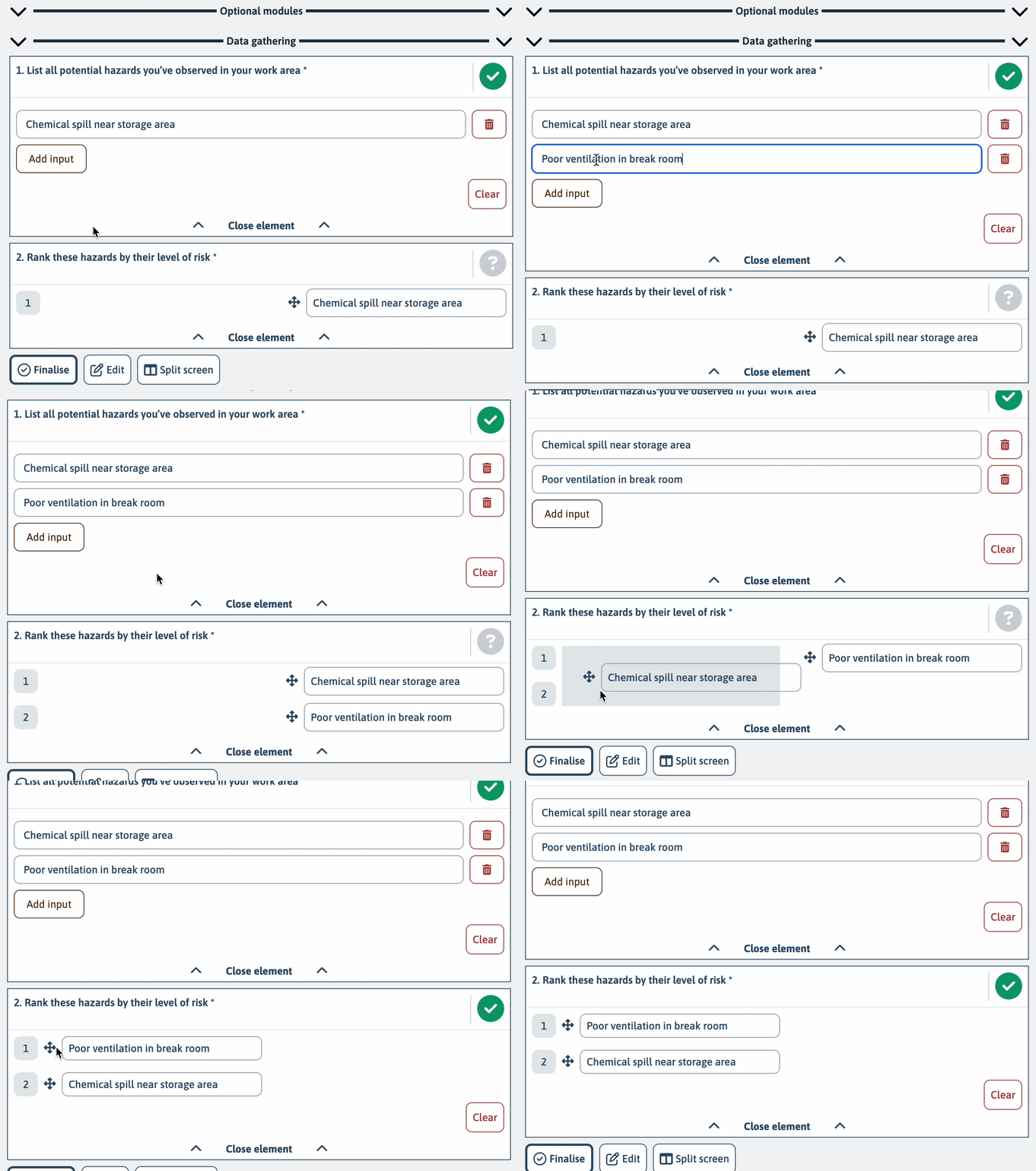
- Users first complete the multiple line text input element
- The system uses each line of their response as an option in the linked element
- Users can then evaluate or rank these options in the linked element
Practical Example in ESHS
Consider evaluating workplace hazards:
-
First Element (Multiple line text input):
- Question: “List all potential hazards you’ve observed in your work area”
- User might enter:
Chemical spill near storage area
Loose electrical wiring in office space
Blocked emergency exit in warehouse
Poor ventilation in break room
-
Second Element (Linked ranking):
- Question: “Rank these hazards by their level of risk”
- The system automatically creates a ranking element using the user’s hazards
- Users can then prioritize these hazards based on severity
This approach ensures that evaluations are specific to each workplace’s unique conditions rather than using predetermined options that might not capture the real situation.
The linked element must be placed after the source multiple line text input element in your template for the connection to work properly.
Guidance
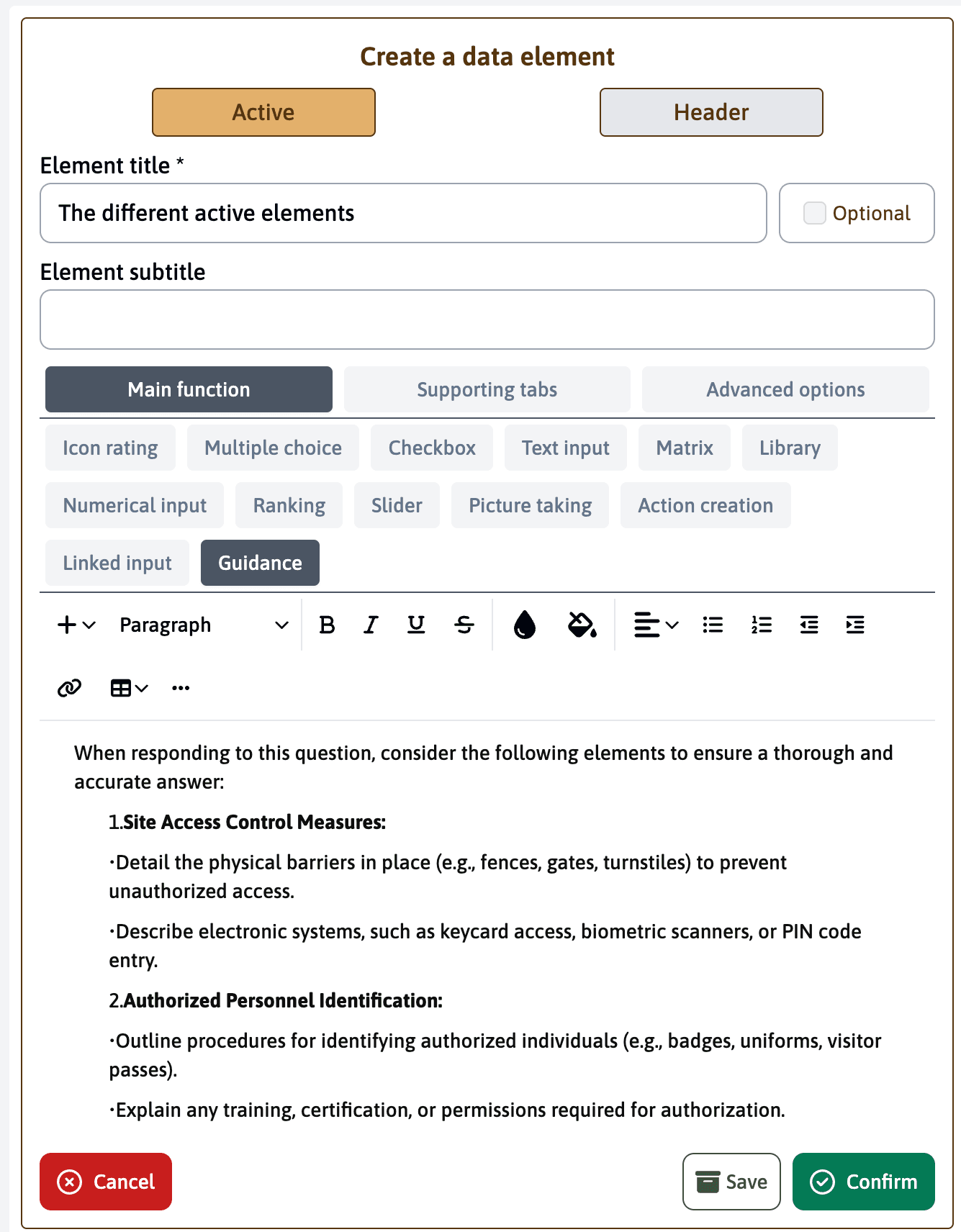
This element allows you to provide detailed instructions or important information to users before they begin their assessment. Users must acknowledge reading the guidance before proceeding. You can:
- Add formatted text using rich text editing tools
- Include bullet points and numbered lists
- Insert images for visual guidance
- Apply text styling (bold, italic, underline)
- Create structured sections with headings
Common Uses
- Providing context for the assessment
- Explaining technical terms
- Outlining safety procedures
- Detailing required documentation
- Specifying measurement units or standards to use
Place guidance elements strategically at the beginning of sections where users might need additional context or instructions. This helps ensure data quality and consistency in responses.