Conditional Elements
Conditional elements allow you to create dynamic forms that adapt based on previous responses. This feature helps streamline your assessments by showing only relevant questions to users.
Use Cases
Conditional elements are particularly useful when:
- Follow-up questions are only relevant based on specific previous answers
- Certain sections should be skipped based on initial responses
- You want to create branching logic in your forms
Example Scenario
If you have a question “Would you like a coffee?” and follow-up questions about your coffee preferences, those follow-up questions are only relevant if the answer was “Yes”.
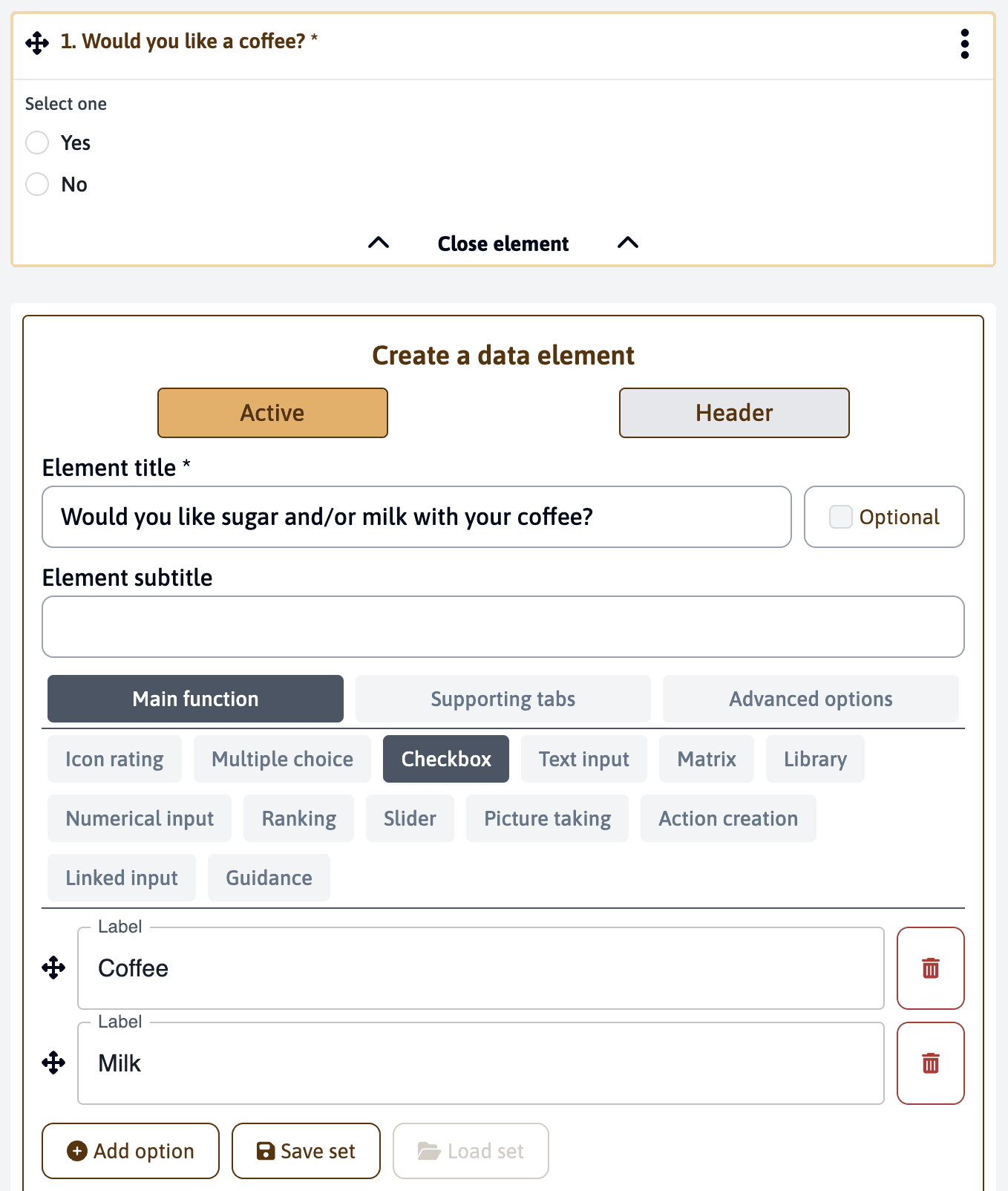
Setting Up Conditions
To make an element conditional:
- Click on “Advanced options” in the element’s settings
- Activate the “Activate conditional element” option
- In the source element, use the blue condition checkboxes beside each option that should trigger this element
- Confirm your selection
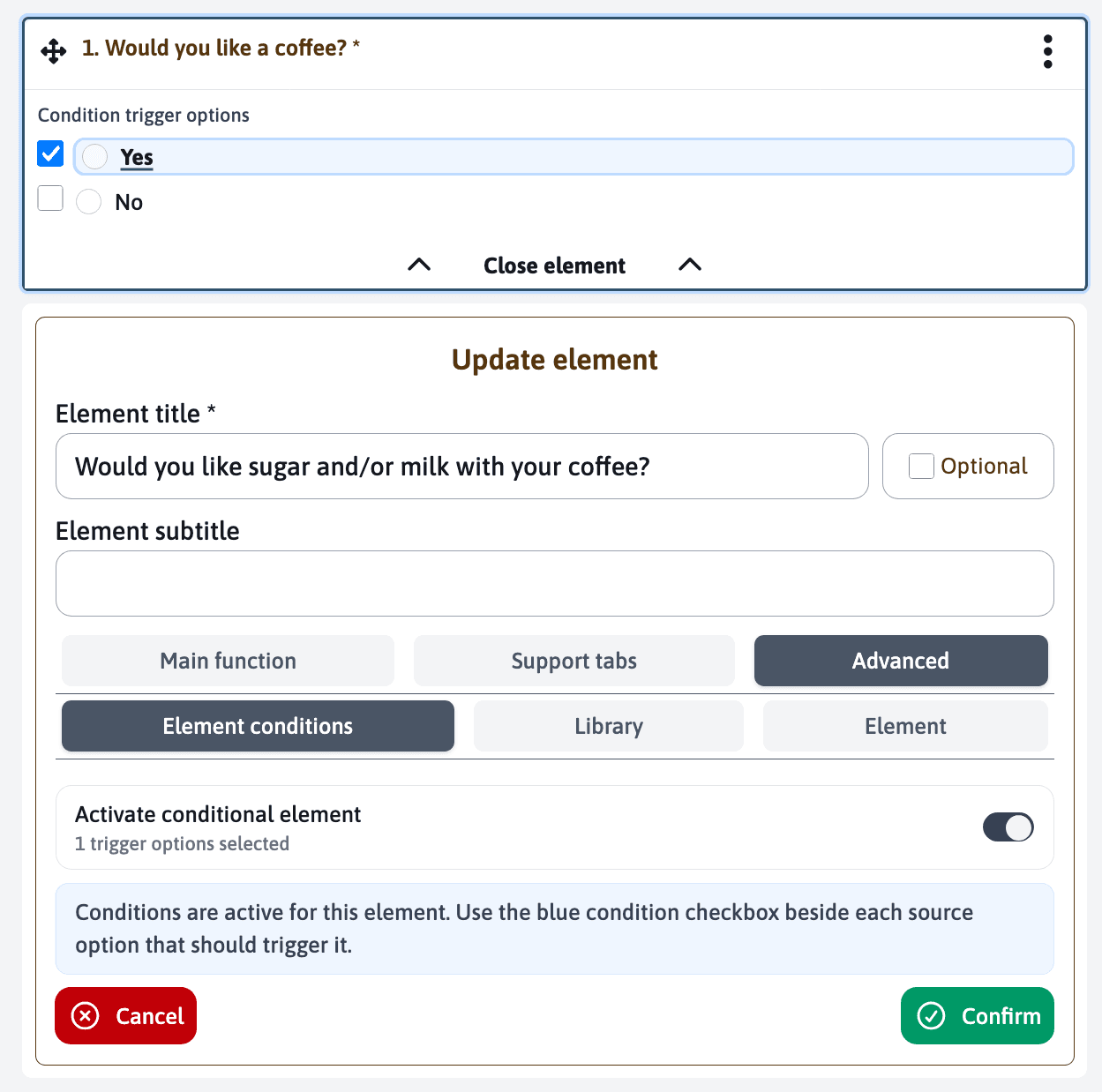
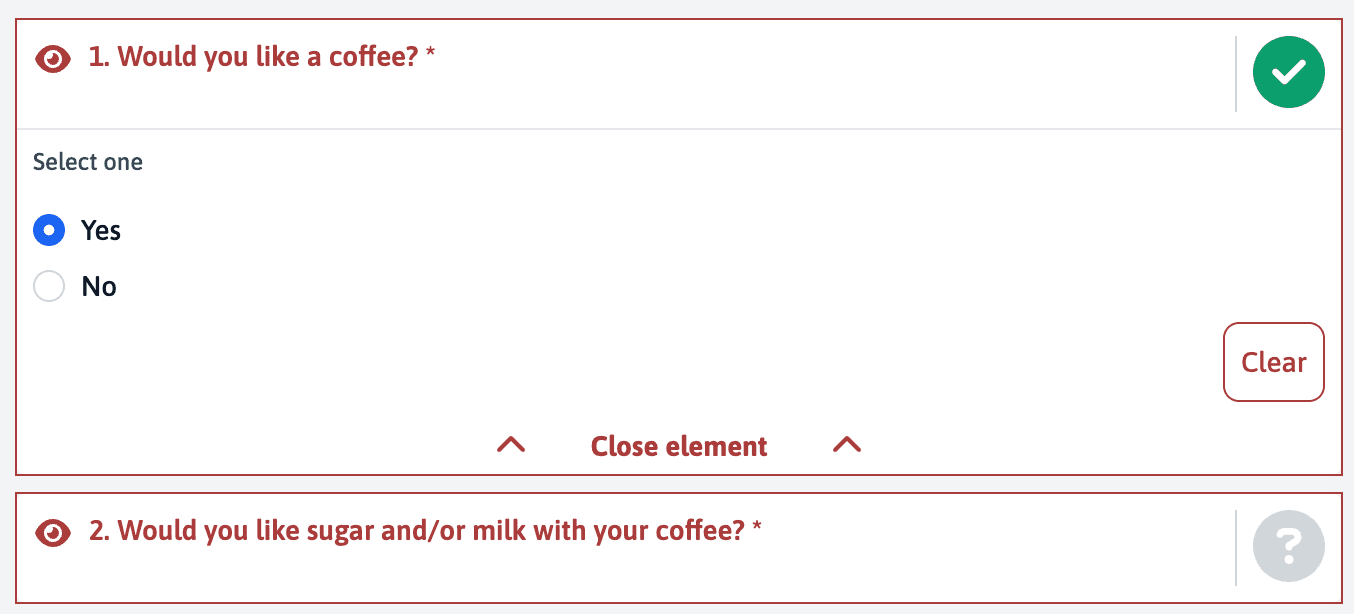
The element will only be shown during the assessment if one of the selected trigger options is met. Otherwise, it will be automatically skipped.
Multiple Conditions
You can select multiple trigger options for a single conditional element:
- Check each source option that should display the element
- The element will appear if at least one selected option is met
- The selected checkboxes remain visible, making it easier to verify that all required trigger options have been included
Make sure your conditional logic makes sense to users. Avoid creating complex dependencies that might confuse respondents or make the form difficult to follow.
Best Practices
When using conditional elements:
- Keep the logic simple and intuitive
- Test your form thoroughly to ensure conditions work as expected
- Consider using section headers to group related conditional elements
- Provide clear context for why certain questions appear
Example
Here’s how conditional elements look in practice:
Initial Question
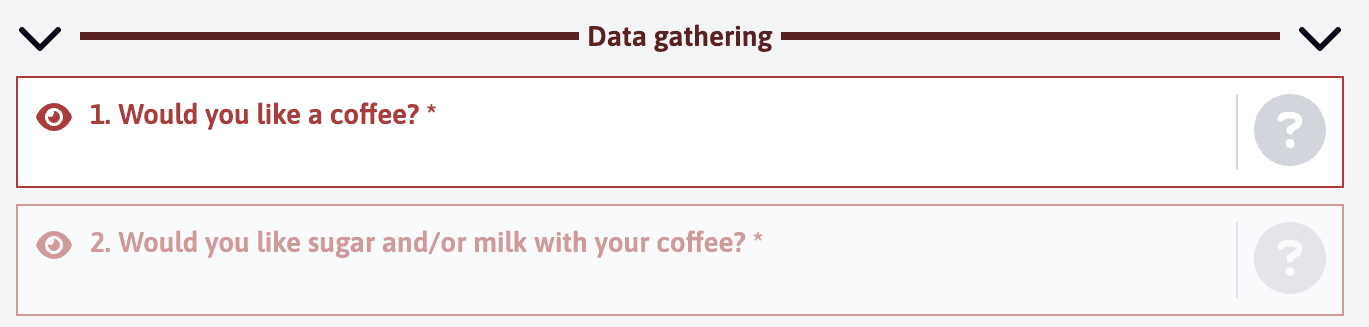
Follow-up Question (appears only if “Yes” was selected)
Header Elements
You can also create conditional header elements. This is particularly useful when you want to group related questions that should appear together based on a condition:
- Create a new header element
- Open the “Conditional” tab
- Activate the “Activate conditional element” option
- In the source element, use the blue condition checkboxes beside each option that should trigger this header
- Confirm your selection
When the condition is met, the header and all its child elements will be displayed.
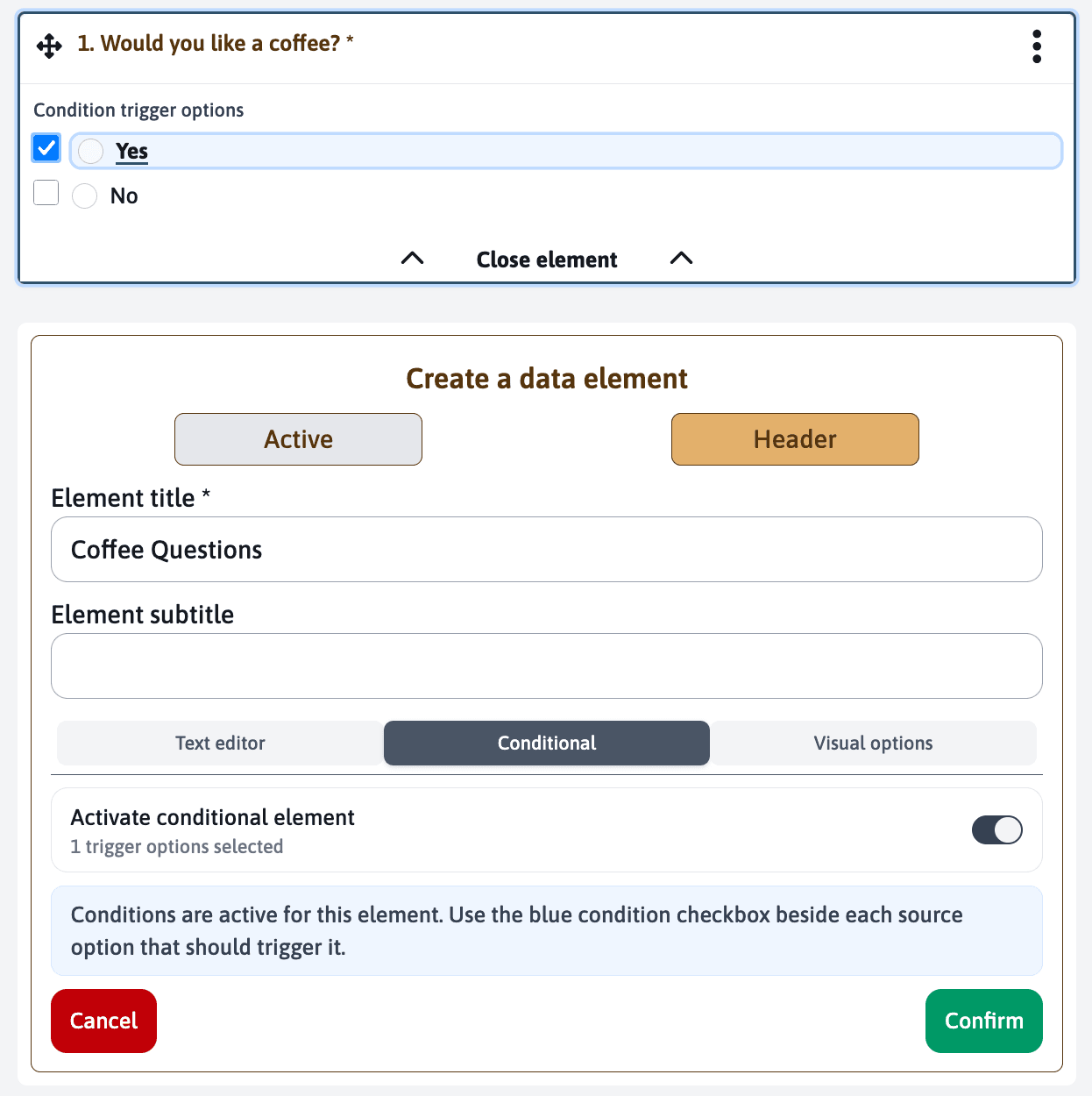
When a header is conditional, all elements under that header will follow the same condition, creating a logical grouping of related questions.