Tag Library
The tag library allows you to create and manage reusable tags that can be applied across different templates and assessments. Tags help organize and categorize your content for easier filtering and reporting.
The tag library can be accessed through “Set the reference framework” => “Libraries and modules” => “Library” => “Tags”
Managing Tags
The tag library interface provides a centralized view of all your tags:
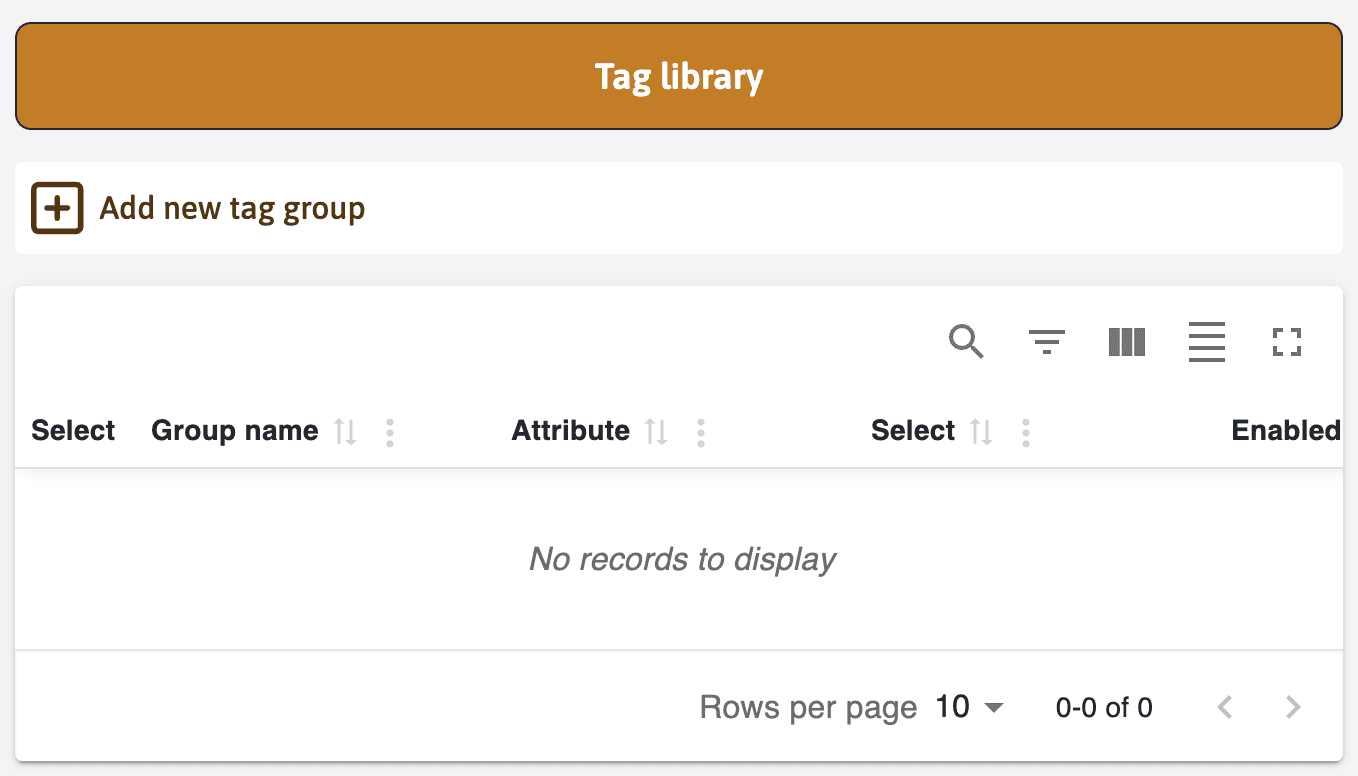
The interface includes:
- A “Add new tag group” button to create tag categories
- A table view showing:
- Group name
- Attributes
- Selection options
- Enabled status
- Actions
Creating Tag Groups
To add a new tag group:
- Click the “Add new tag group” button
- Fill in the tag group form:
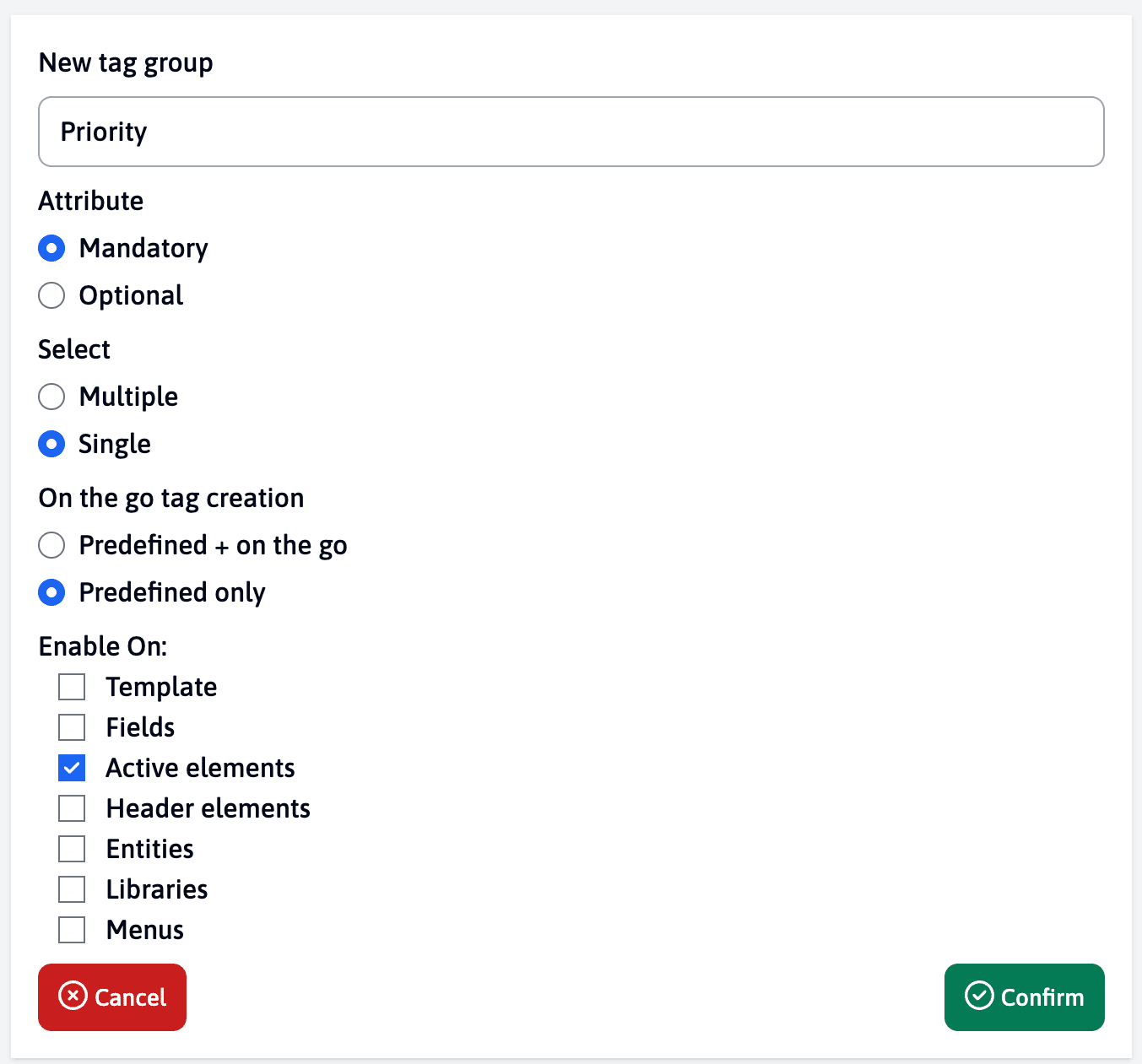
Tag Group Settings
-
Group Name: Give your tag group a descriptive name (e.g., “Priority”)
-
Attribute: Choose how the tag group behaves when used:
- Mandatory: Users must select a tag when this group is available
- Optional: Users can choose whether to apply a tag from this group
-
Selection Type: Define how many tags can be selected:
- Single: Only one tag from the group can be selected
- Multiple: Users can select several tags from the group
-
Tag Creation: Control how new tags can be added:
- Predefined only: Tags can only be created and managed in the library
- Predefined + on the go: Users can create new tags while working in templates
-
Enable On: Choose where this tag group can be used:
- Templates
- Fields
- Active elements
- Header elements
- Entities
- Libraries
- Menus
Consider carefully which options you enable. For example, making a tag group “Mandatory” and “Single” ensures consistent categorization, while “Optional” and “Multiple” offers more flexibility.
Using Tags
Tags can be used in several ways:
- Categorizing templates
- Filtering assessments
- Organizing library elements
- Generating reports based on tag criteria
Consider your tagging structure carefully, as it will affect how easily you can find and filter content later. A well-planned tag hierarchy makes navigation and reporting more efficient.
Managing Individual Tags
Once you’ve created a tag group, you can add and manage tags within it:
- Select the tag group in the upper table
- The lower table will display all tags in that group
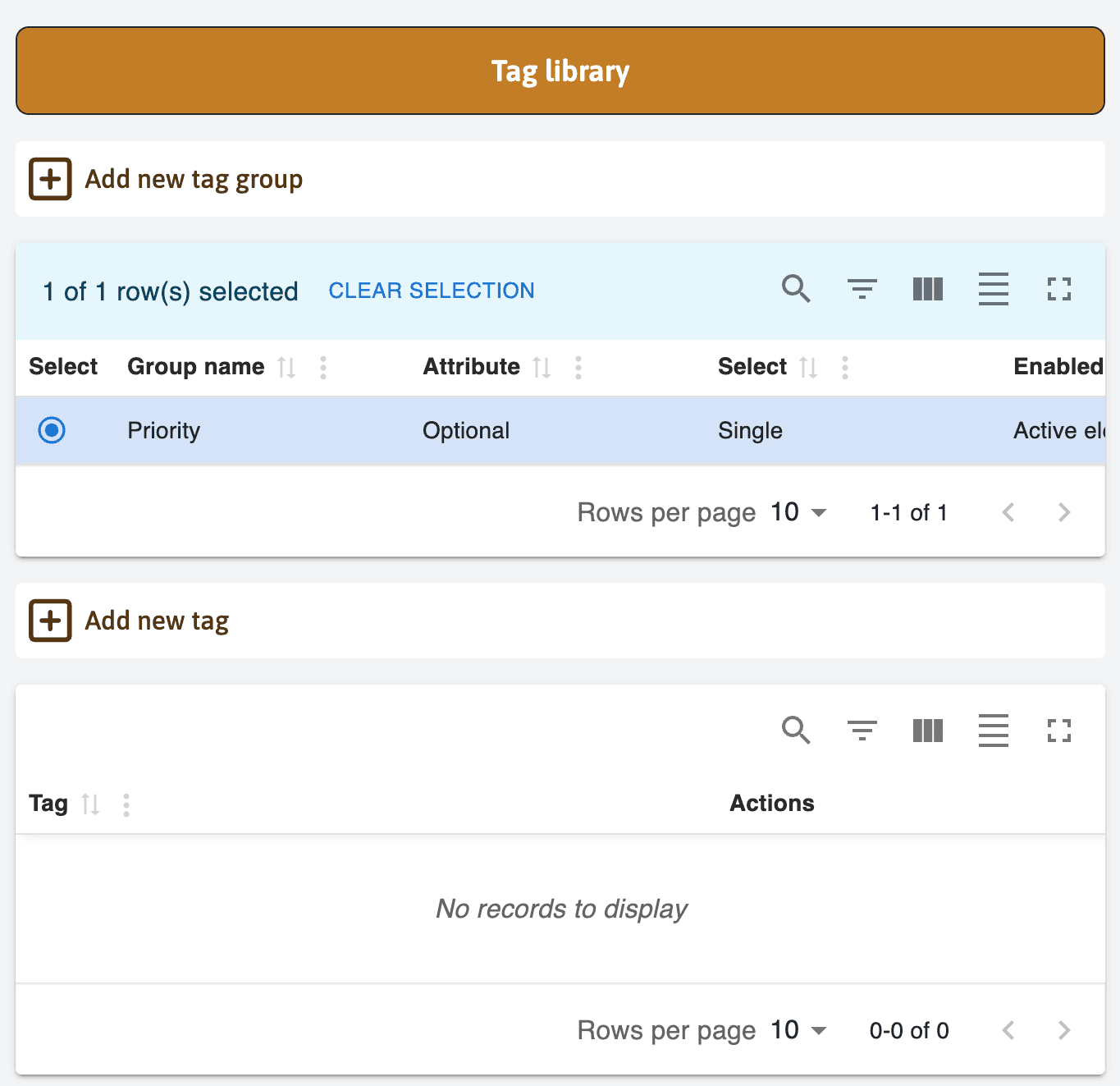
Adding Tags
To add a new tag to a group:
- Click the “Add new tag” button
- Enter the tag title in the form
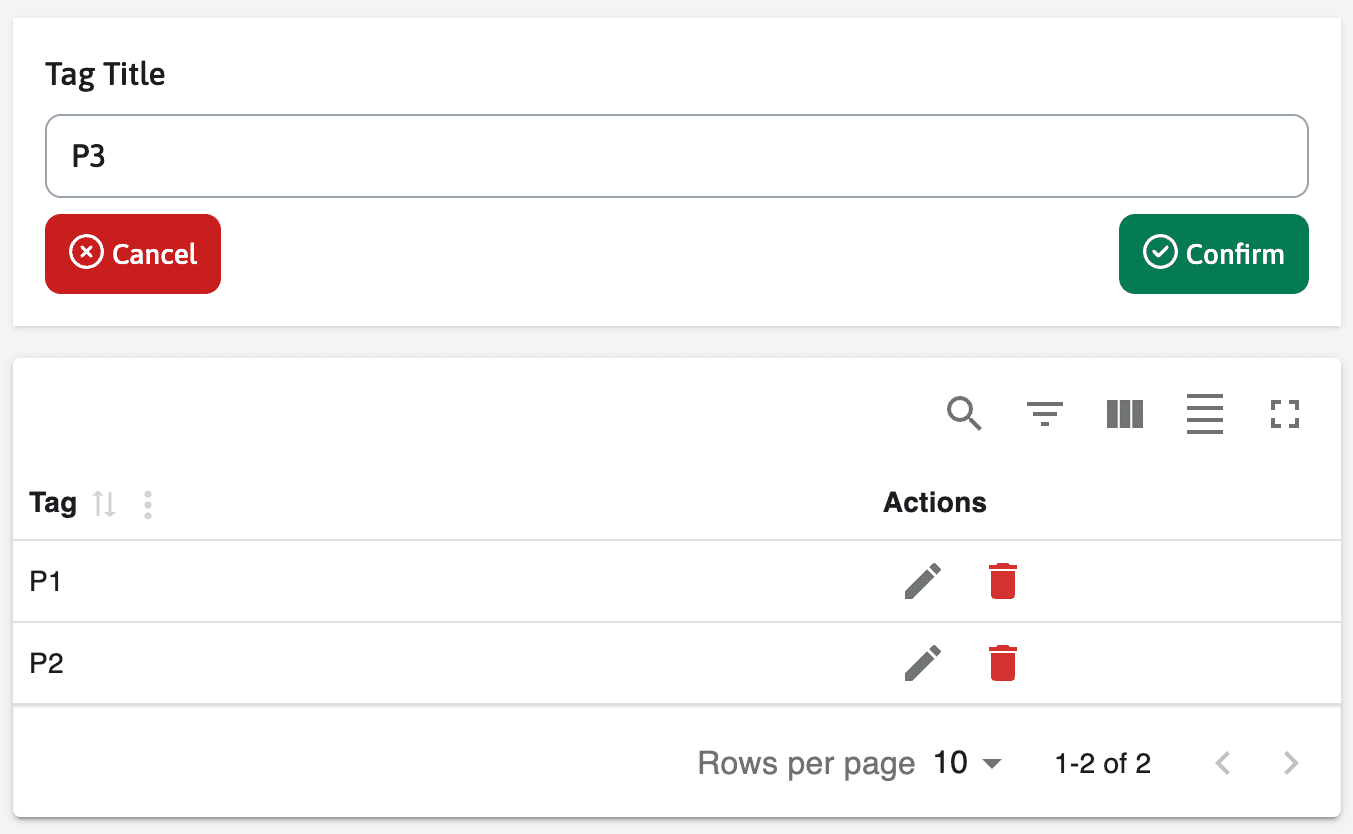
- Click “Confirm” to save the tag
Tag Management Options
For each tag, you have several management options available in the Actions column:
- Edit: Modify the tag title
- Delete: Remove the tag from the group
Before deleting a tag, ensure it’s not being used in any templates or assessments, as this could affect existing categorizations and reports.
Example Tag Structure
A common use case might be a “Priority” tag group with tags like:
- P1 (High priority)
- P2 (Medium priority)
- P3 (Low priority)
This allows for consistent priority labeling across your templates and assessments.
To learn how to use these tags in your templates, see the Adding Tags to Elements guide.