Add fields to an entity
This section requires having created generic fields, click here to see how to create generic fields.
To add a field to an existing entity in your system, please follow the steps below:
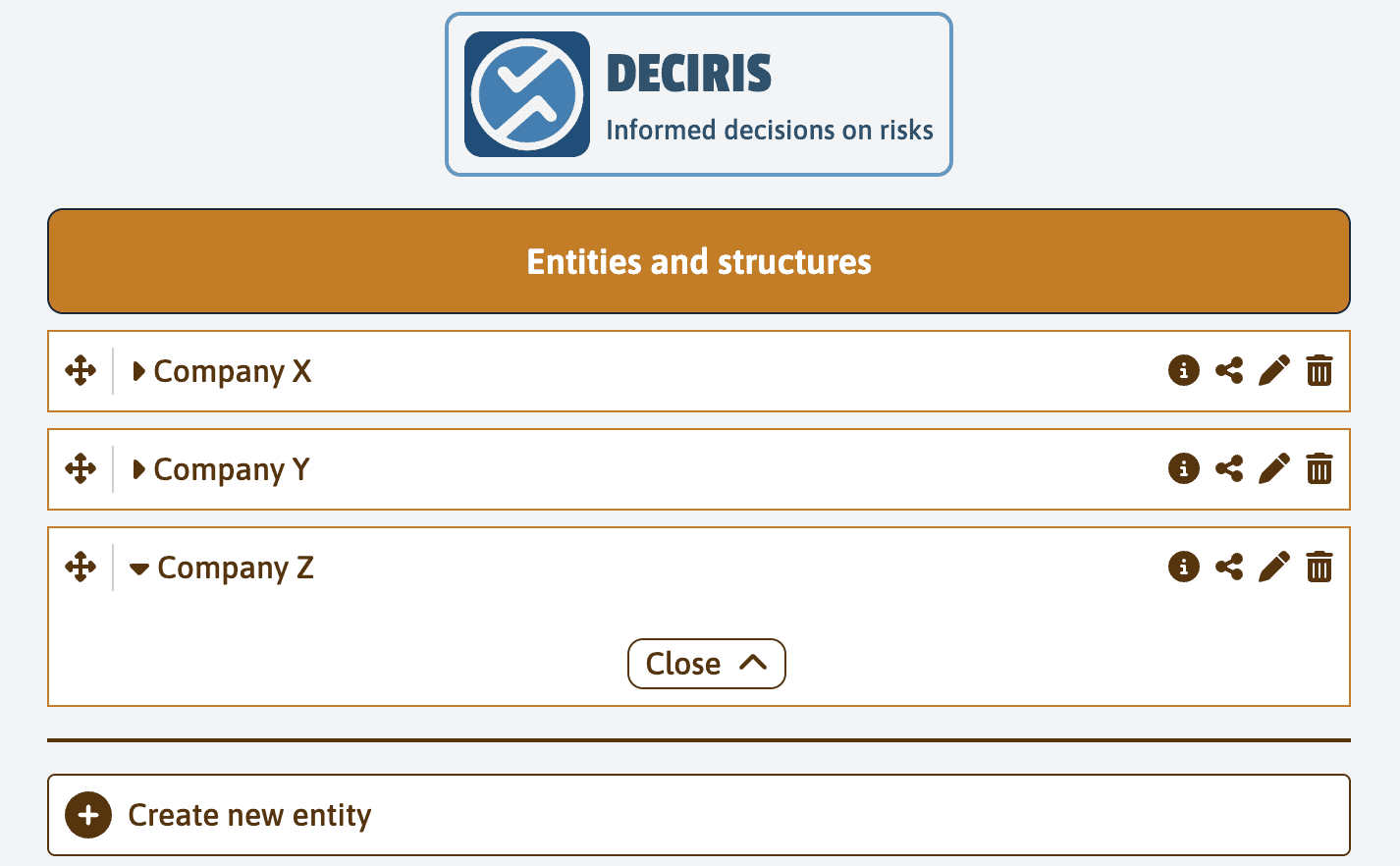
On the “Entities and Structures” screen, locate the “Company Z” entity. Click on the (i) icon next to the entity to access its details and be able to add additional fields.
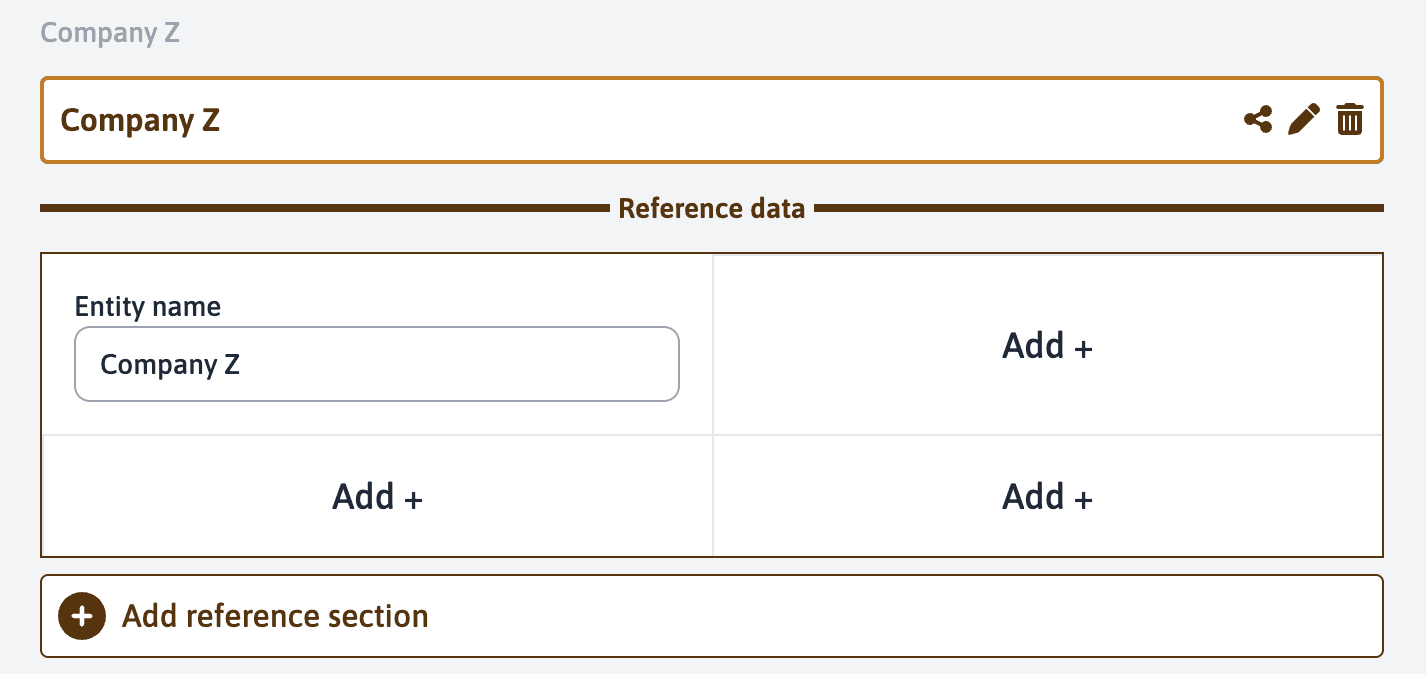
In the “Reference Data” section, click on the “Add +” button located next to the existing fields.
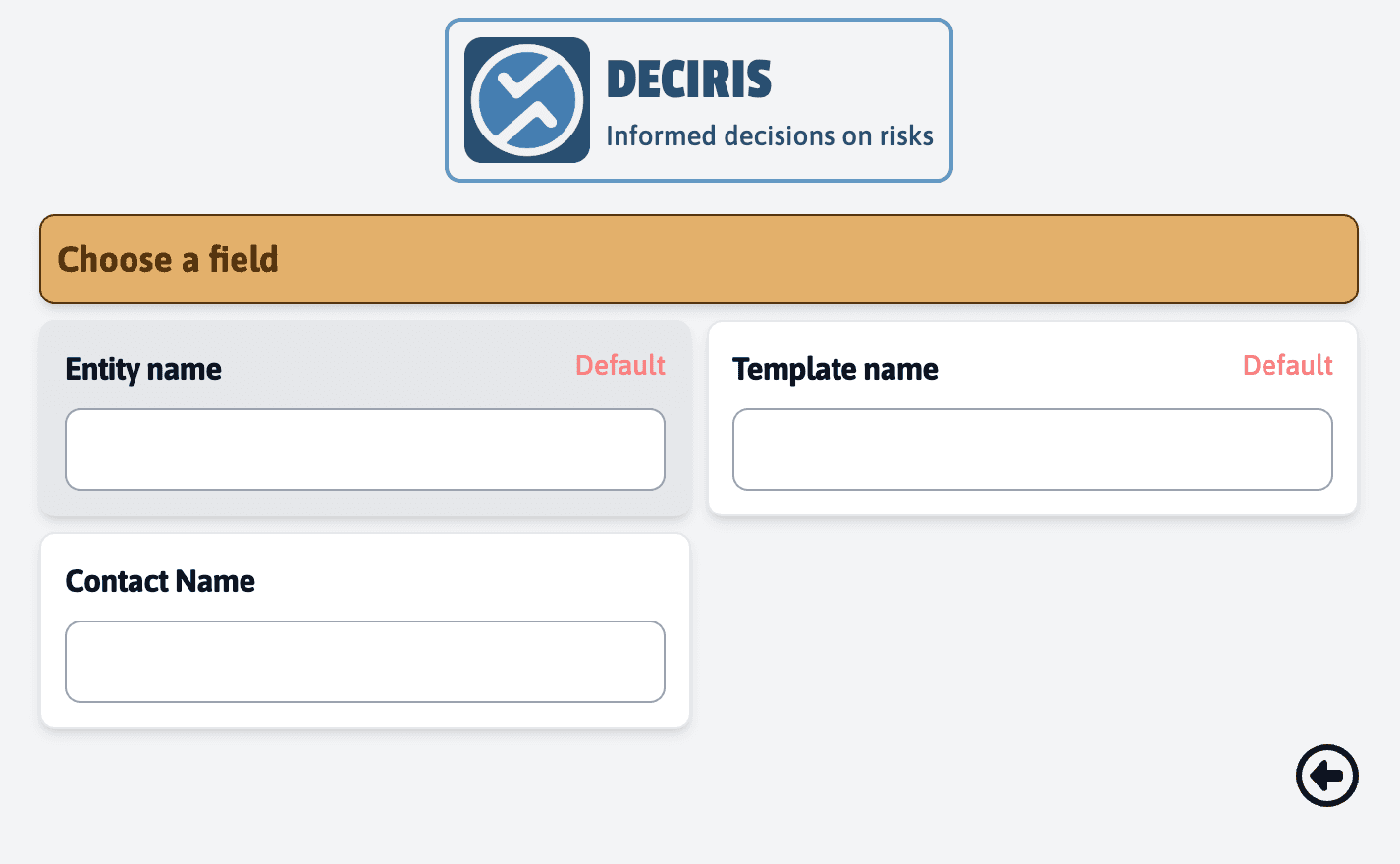
A list appears with the available fields that you can add to the entity. Select the desired field, such as “Contact Name”.
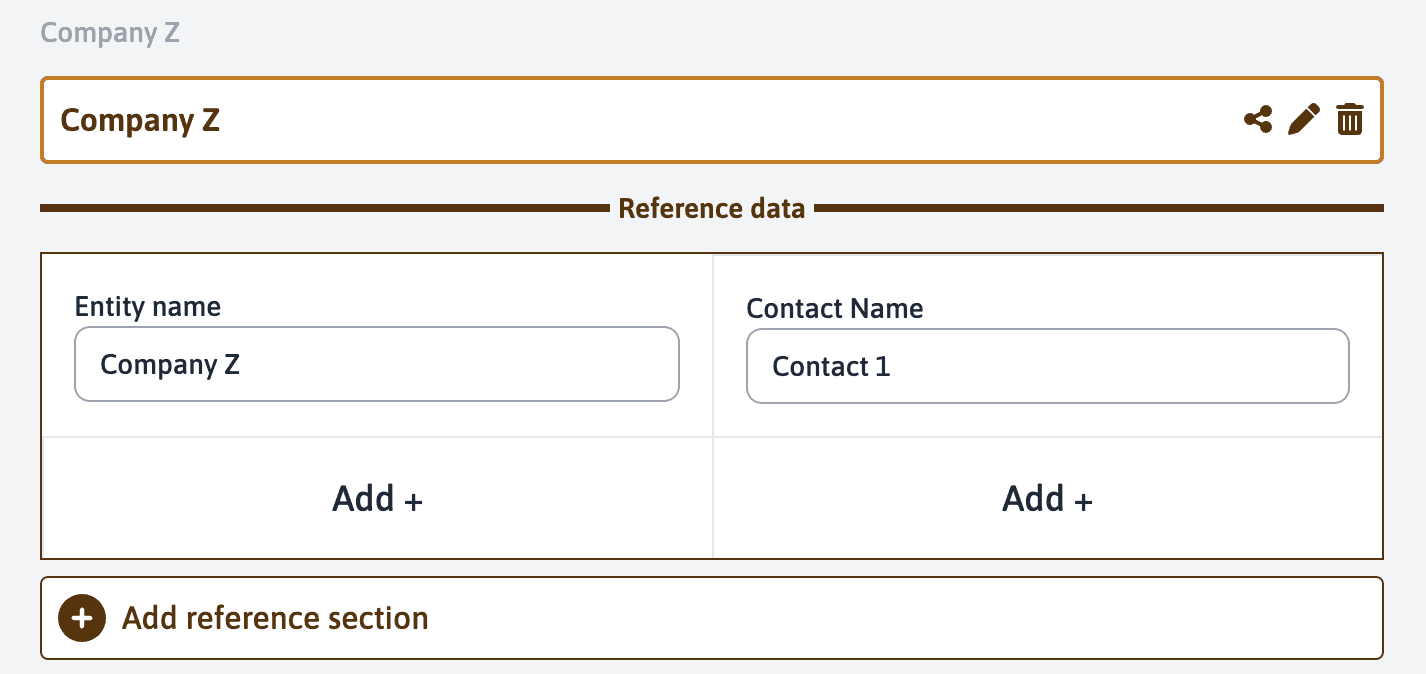
Once the field is selected, it appears in the list of the entity’s fields.
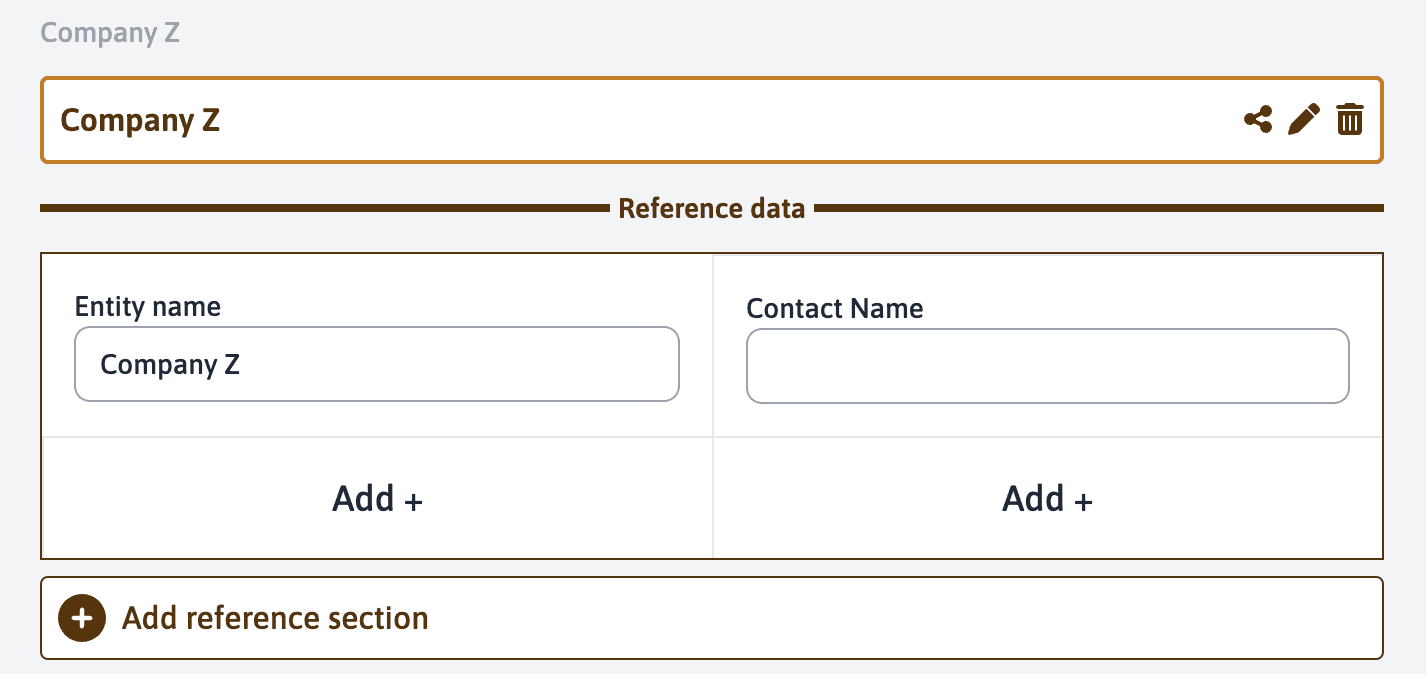
You can fill in the information in the field if it is available. They will be automatically synchronized with the templates when preparing an assessment.