Prepare Multiple Assessments at Once
When you need to create several assessments using the same template, you can use the batch creation feature to save time.
Selecting Multiple Entities
-
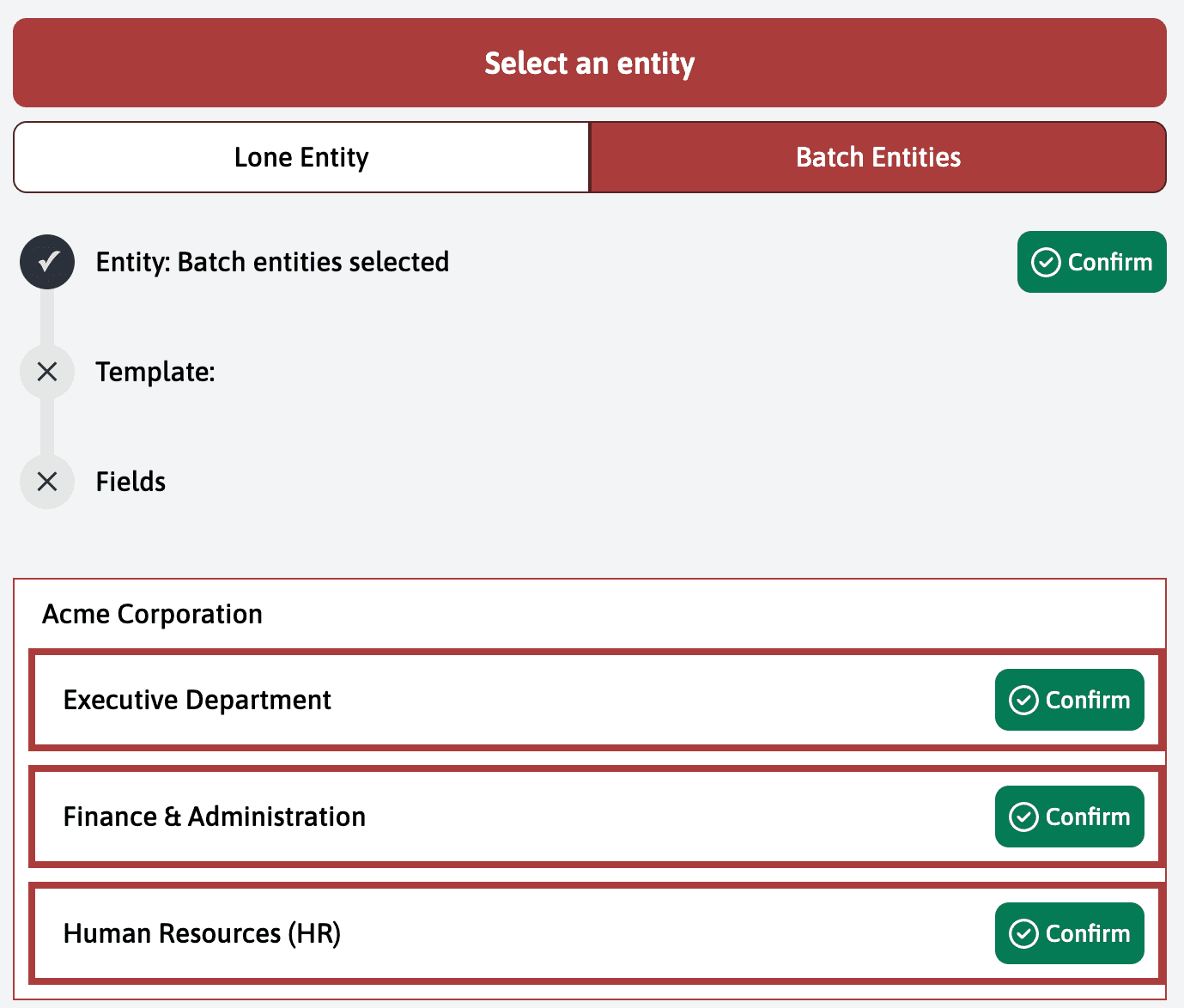
On the entity selection screen, you’ll see two options at the top:
- Lone Entity: For creating a single assessment
- Batch Entities: For creating multiple assessments at once
-
Click on “Batch Entities” to enable multiple selection mode
-
You’ll see your organization’s structure with all available entities. Each entity has a “Confirm” button on the right side. Select all the departments that need to be inspected:
- Executive Department
- Finance & Administration
- Human Resources (HR)
Entering Details
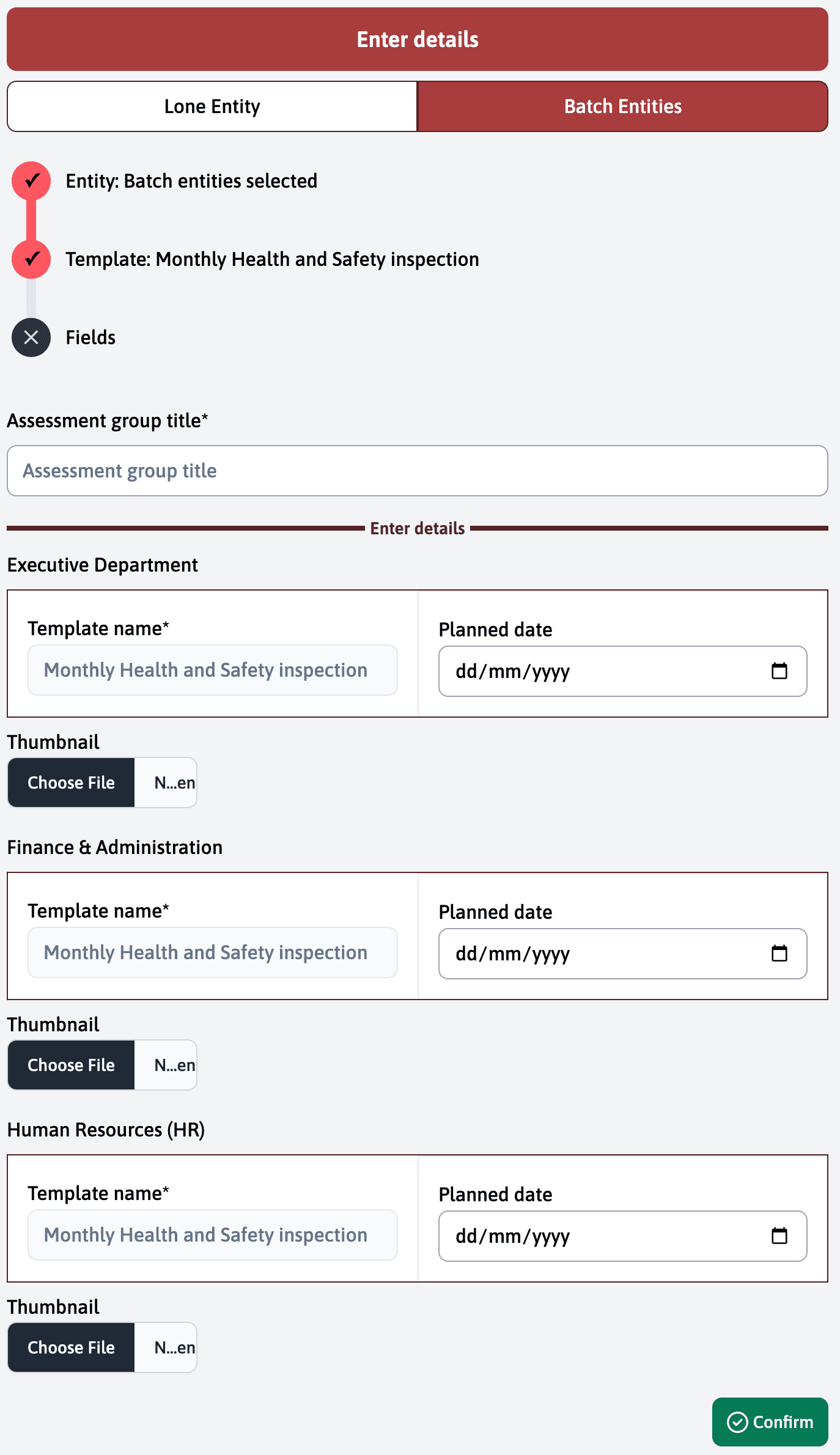
After selecting your entities and template, you’ll need to fill in the required information:
-
First, enter the common details that apply to all assessments:
- Assessment group title: This will be used as the title of the group of assessments
-
Then, for each selected entity, you’ll see a section containing:
- Template name (automatically filled)
- Planned date: Select when the assessment should take place (this is an example field, you can choose any field from the template)
- Thumbnail: Option to add an image for the assessment
If an entity already has information stored (like contact details or specific parameters), these fields will be automatically pre-filled to save time. You can still modify any pre-filled information if needed.
Once you’ve filled in all the required fields, click “Confirm” at the bottom to create all the assessments at once.
Managing Your Batch Assessments
After creation, you’ll see an overview screen of all your assessments:
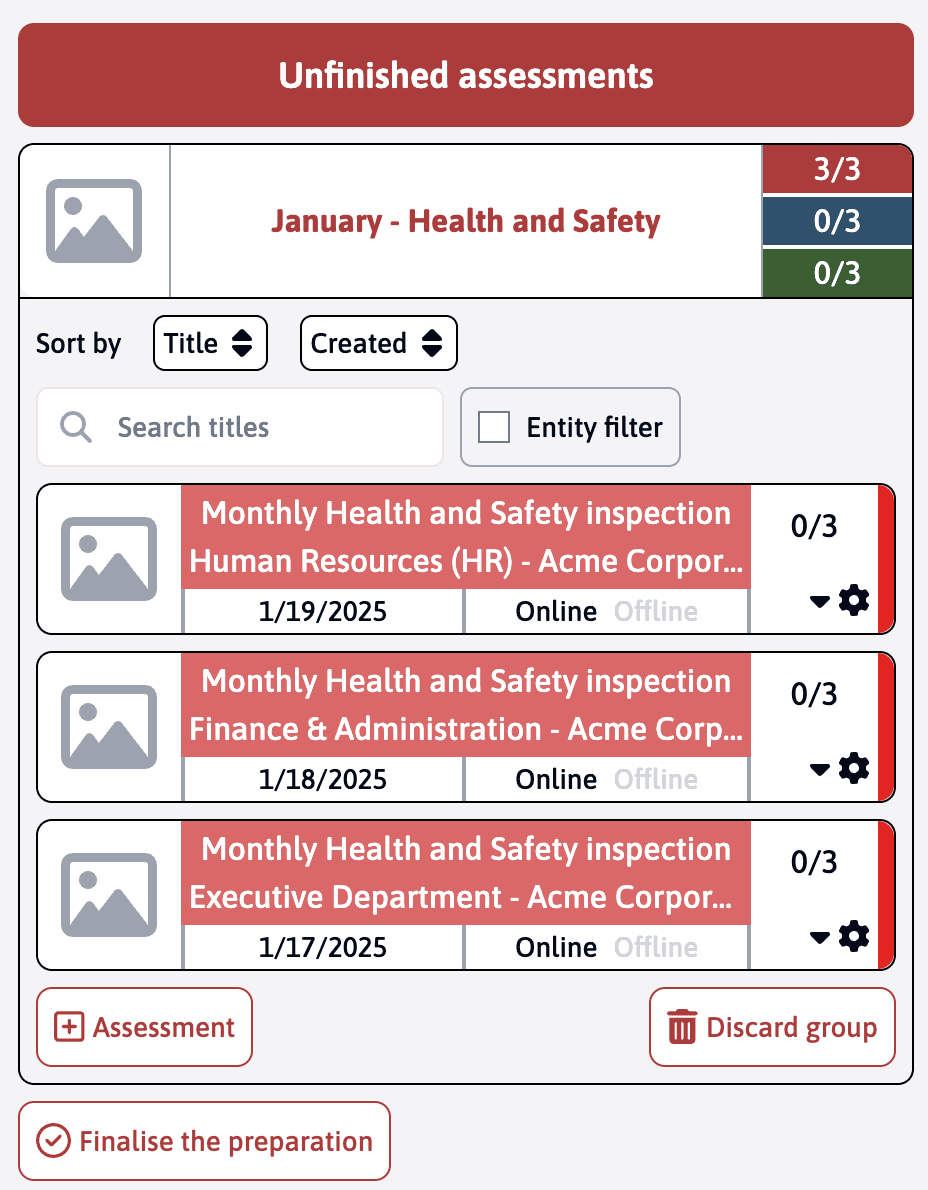
The overview screen shows:
- The group title at the top with a progress indicator (e.g., “January - Health and Safety”)
- A list of all created assessments with:
- The assessment title
- The entity name
- The planned date
- Online/Offline status
- Progress indicator (0/3)
You can:
- Sort assessments by title or creation date
- Search for specific titles
- Filter by entity
- Add more assessments to the group
- Discard the entire group if needed
When ready to proceed, click “Finalise the preparation” at the bottom to move all assessments to the next phase. You can also click on an individual assessment to edit it and finalise them individually.
Tracking Progress
At the top of the group overview, you’ll see three progress indicators that help you track the status of your assessments:
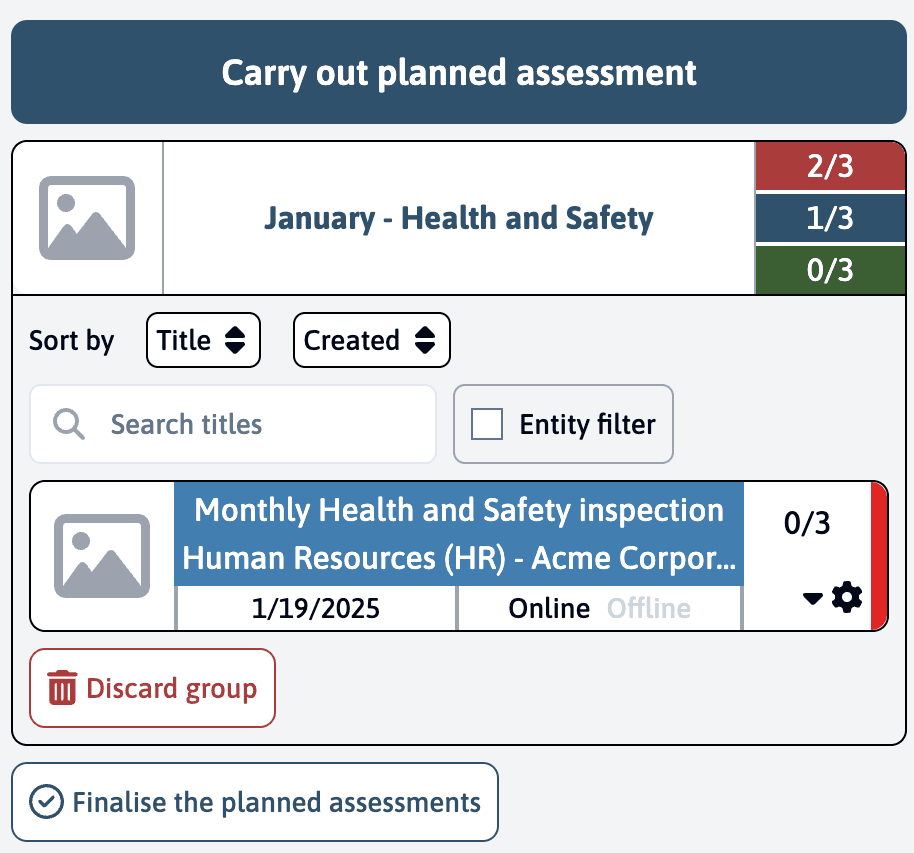
The indicators show:
- Red (Preparation): Number of assessments still in preparation phase
- Blue (In Progress): Number of assessments being carried out
- Green (Completed): Number of finalised assessments
For example, if you see:
- 2/3 in red
- 1/3 in blue
- 0/3 in green
This means that out of your 3 assessments:
- 2 are still being prepared
- 1 has been moved to the assessment phase
- None have been completed yet
You can finalise assessments individually or as a group, allowing you to progress at different rates for different entities while keeping track of the overall progress.
Group Results Analysis
Once all assessments in a group are completed (3/3 in green), you can analyze the combined results:
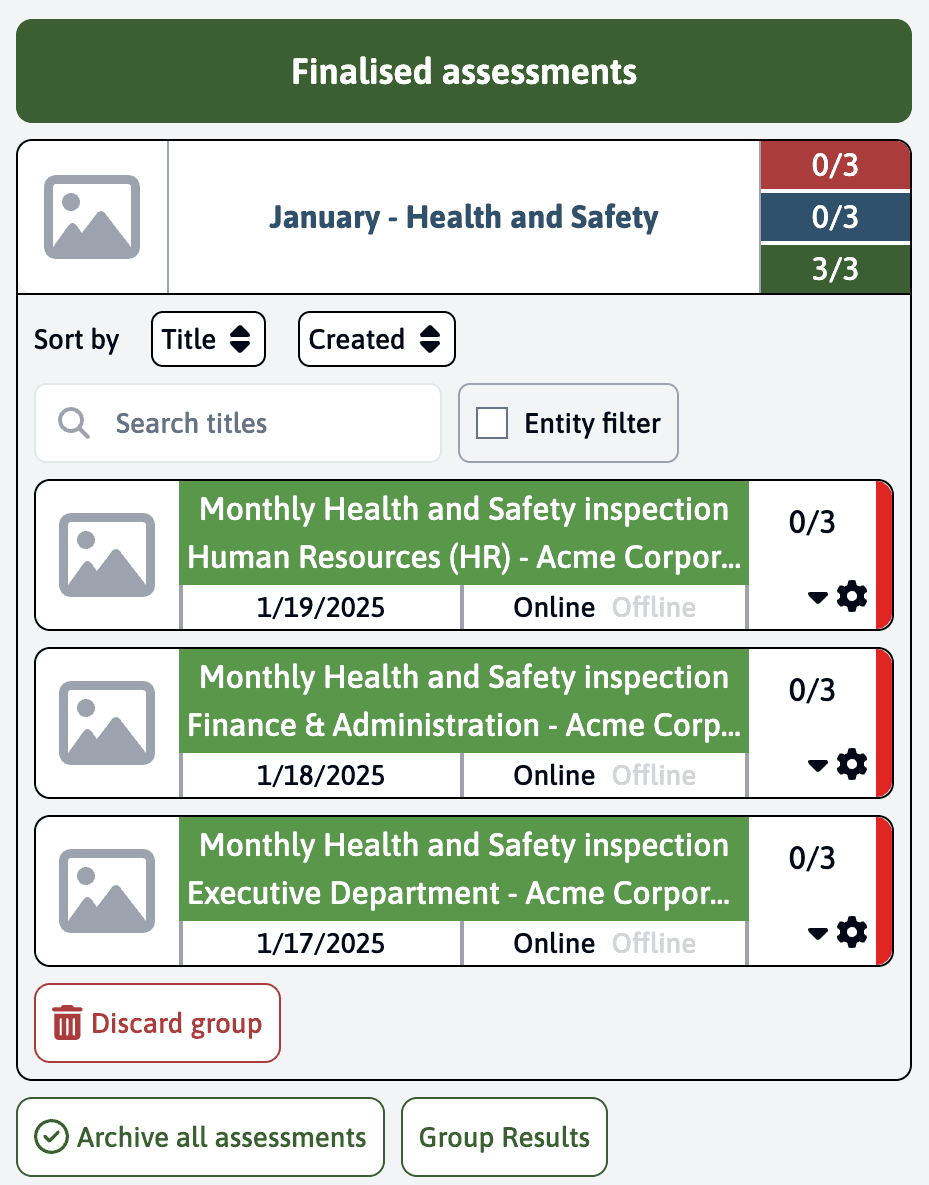
The “Group Results” button becomes available, allowing you to:
- View aggregated data from all assessments in the group
- Compare results across different entities
- Generate comprehensive reports for the entire assessment group
The Group Results feature is only available if your template includes the Results module. This module needs to be configured when creating the template to enable data aggregation and comparative analysis.
Common uses for group results include:
- Calculating average scores across departments
- Identifying trends or patterns across different entities
- Creating consolidated reports for management review
- Comparing performance between different organizational units
You can also archive all assessments once you’ve completed your analysis using the “Archive all assessments” button.