Prepare a Mailing
The screenshots in this tutorial are taken from our French demo application. The English version is very similar and will be available soon.
The “External mailing and survey” module is itself made up of two tabs, “Messages” and “Campaigns”

The “Messages” tab contains two sections: “Email Templates” for the content of the email that will be received by the respondents. “Messages in the application” for the content of the messages visible by the respondents in the online application.
As templates are usually prepared for several clients, we advise you not to include specific information about a client or a service in the emails or messages. The module is also accessible and configurable in the red section, “Preparation of a service”.
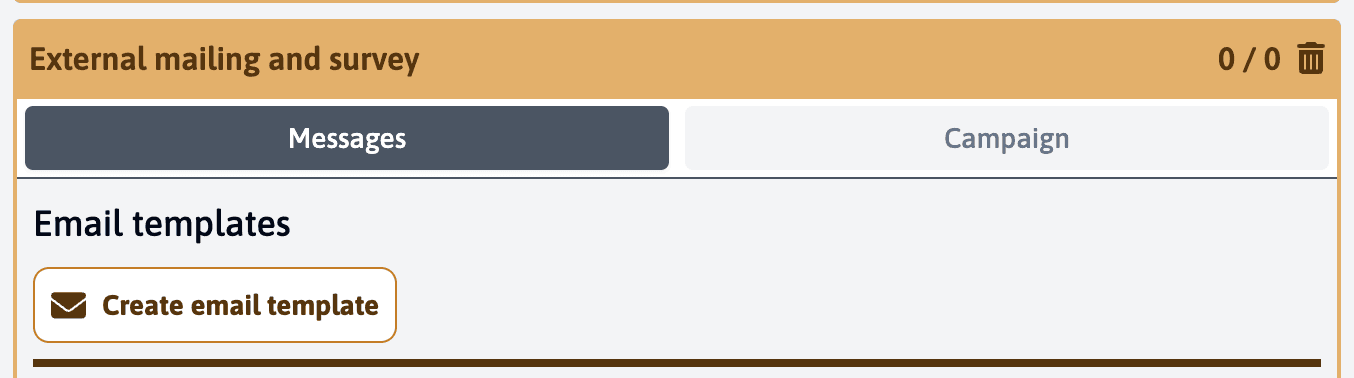
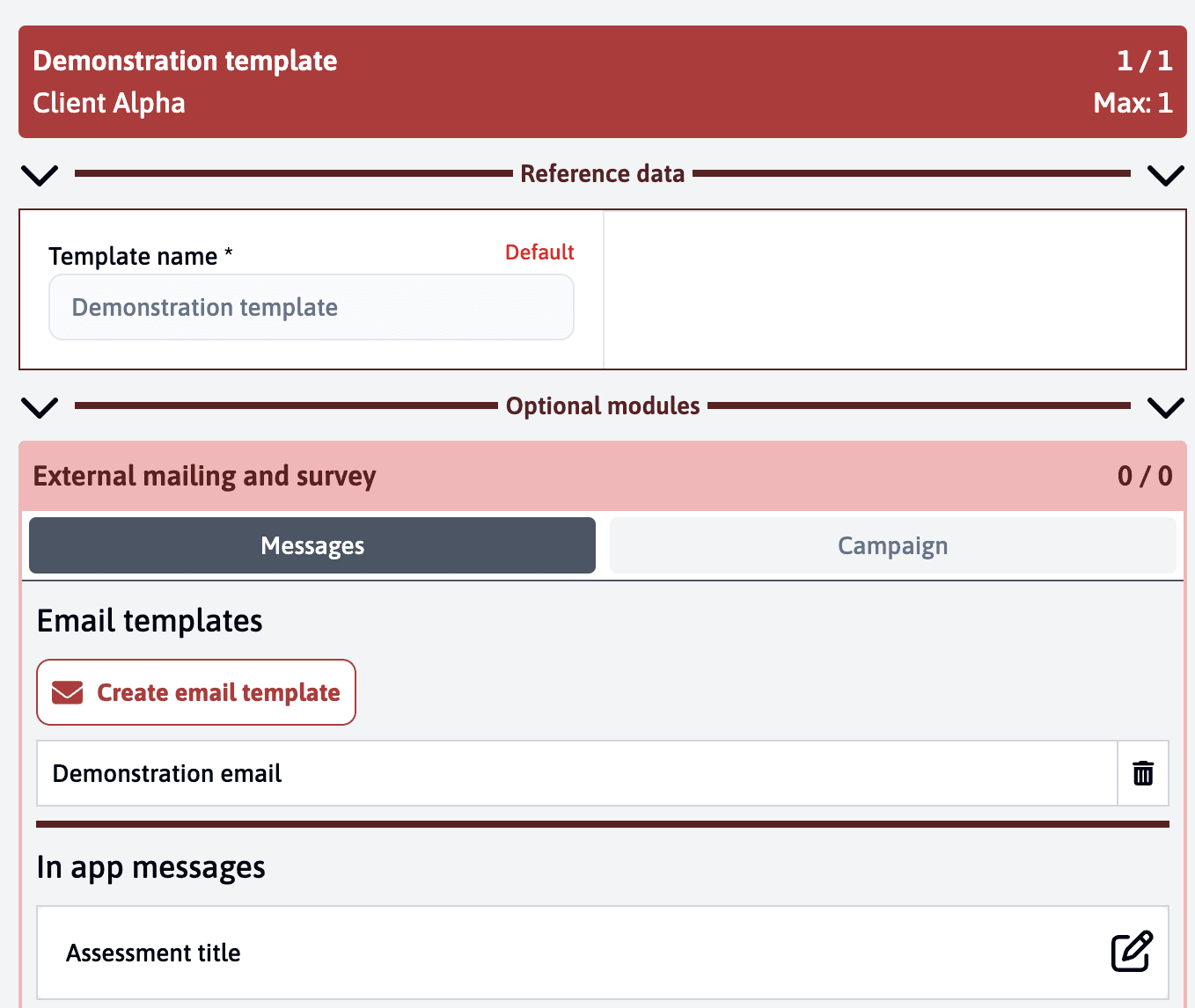
The “Email Templates” section consists of a button that, when you click on it, allows you to create a new template.
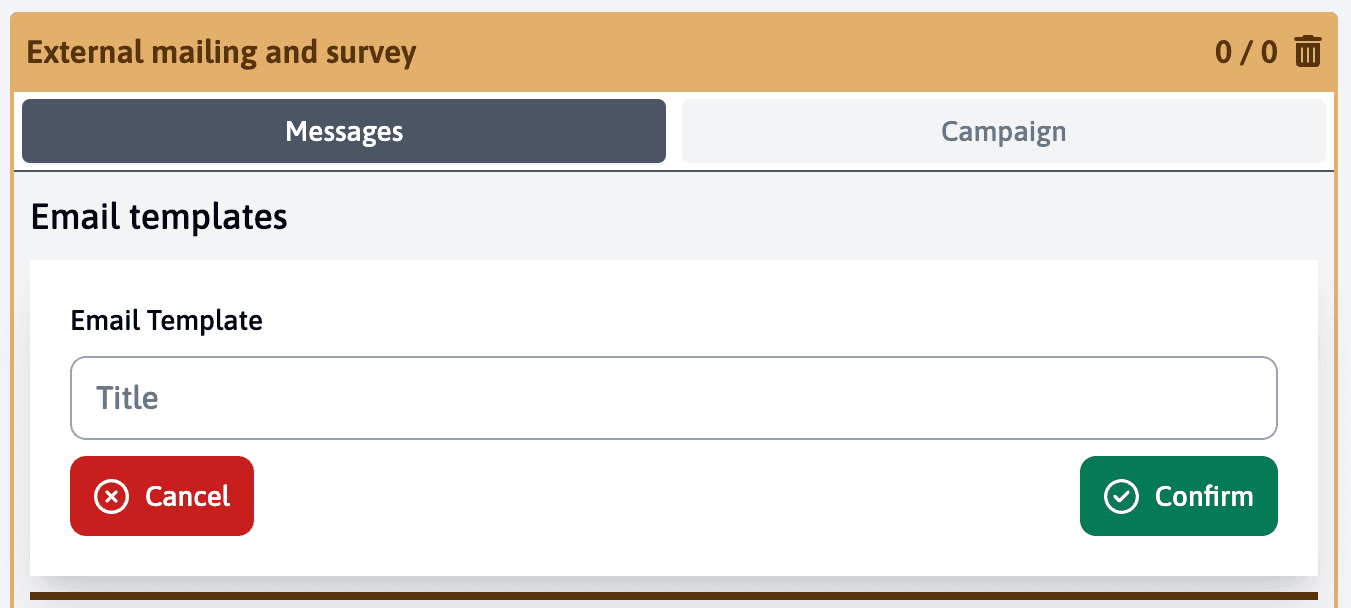
First give it a name and confirm.
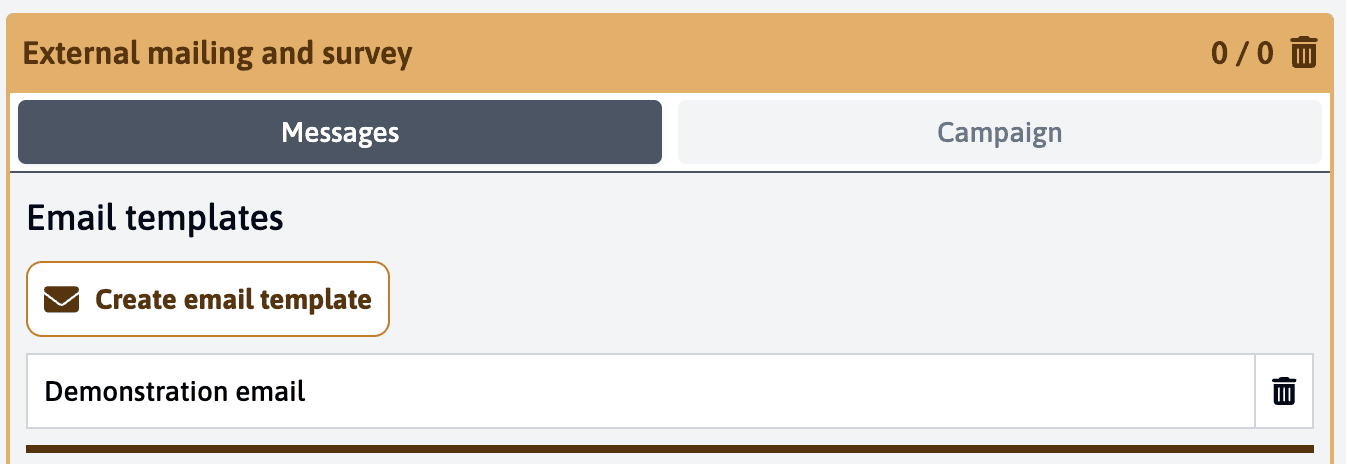
It appears in the subsection and to edit it, you can click directly on it.
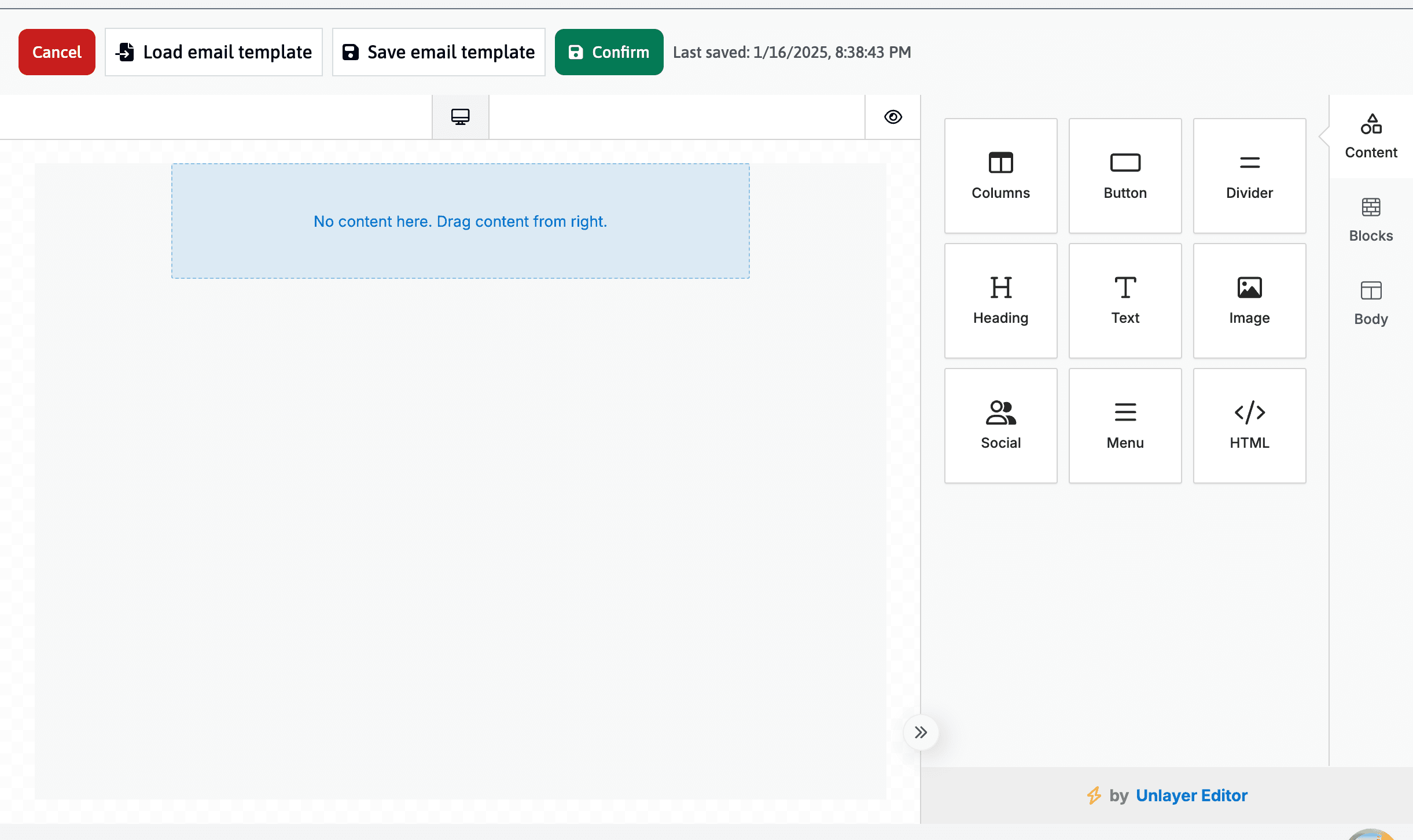
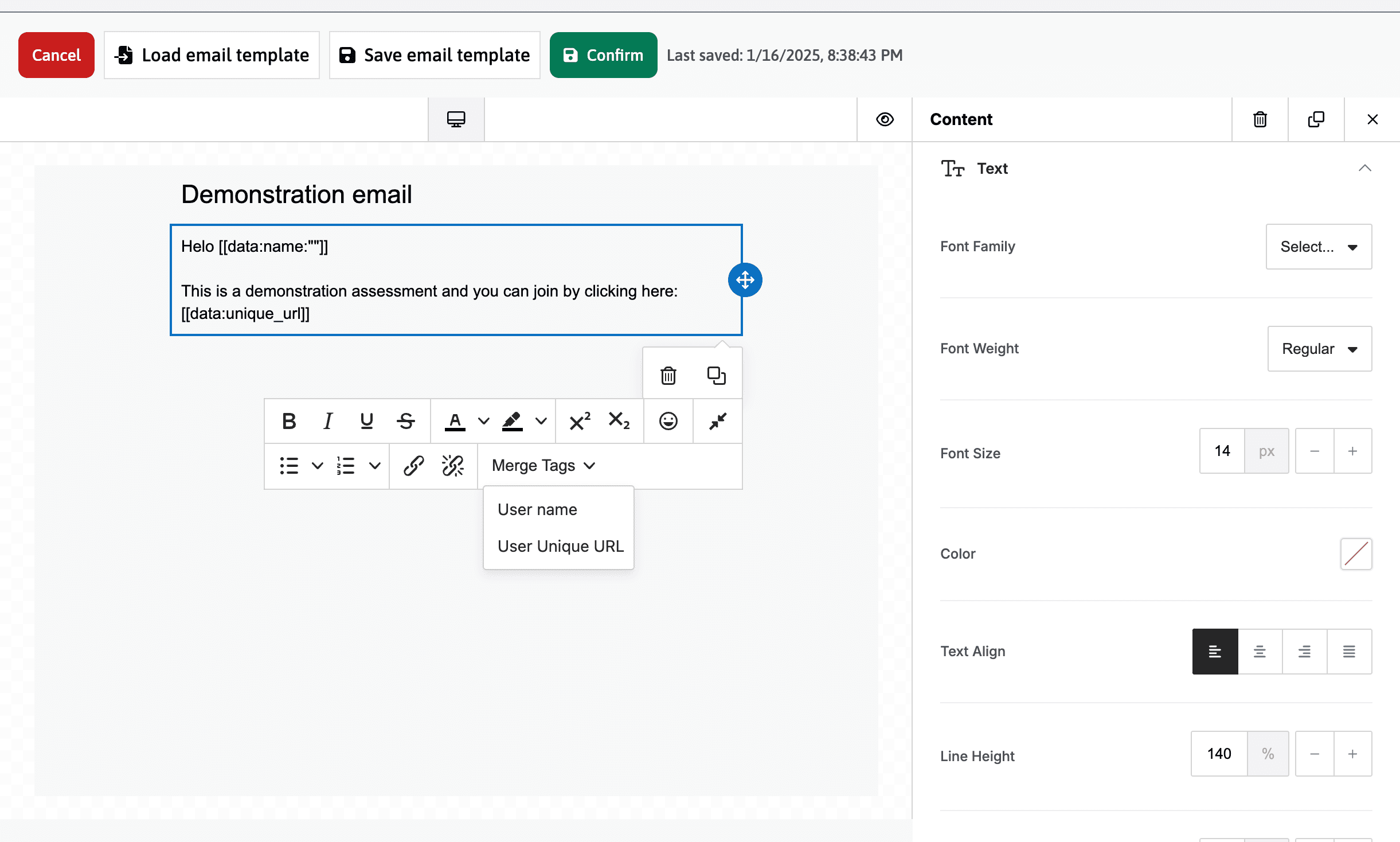
You find yourself in an email editor that allows you to fully customize your email.
You can import an existing email or create one from scratch. For this, you can add different parts: columns, titles, text, images thanks to the interactive “drag and drop” menu located on the right.
In the example opposite, a title has been added as well as a text area.
In this text area you must add the “Merge tags” so that each participant receives a unique link.
“User name” corresponds to the name of the participant, this tag is optional.
“User unique url” is mandatory, it generates a unique link to participate in the survey.
Once finished, click on confirm to save and exit the editor.
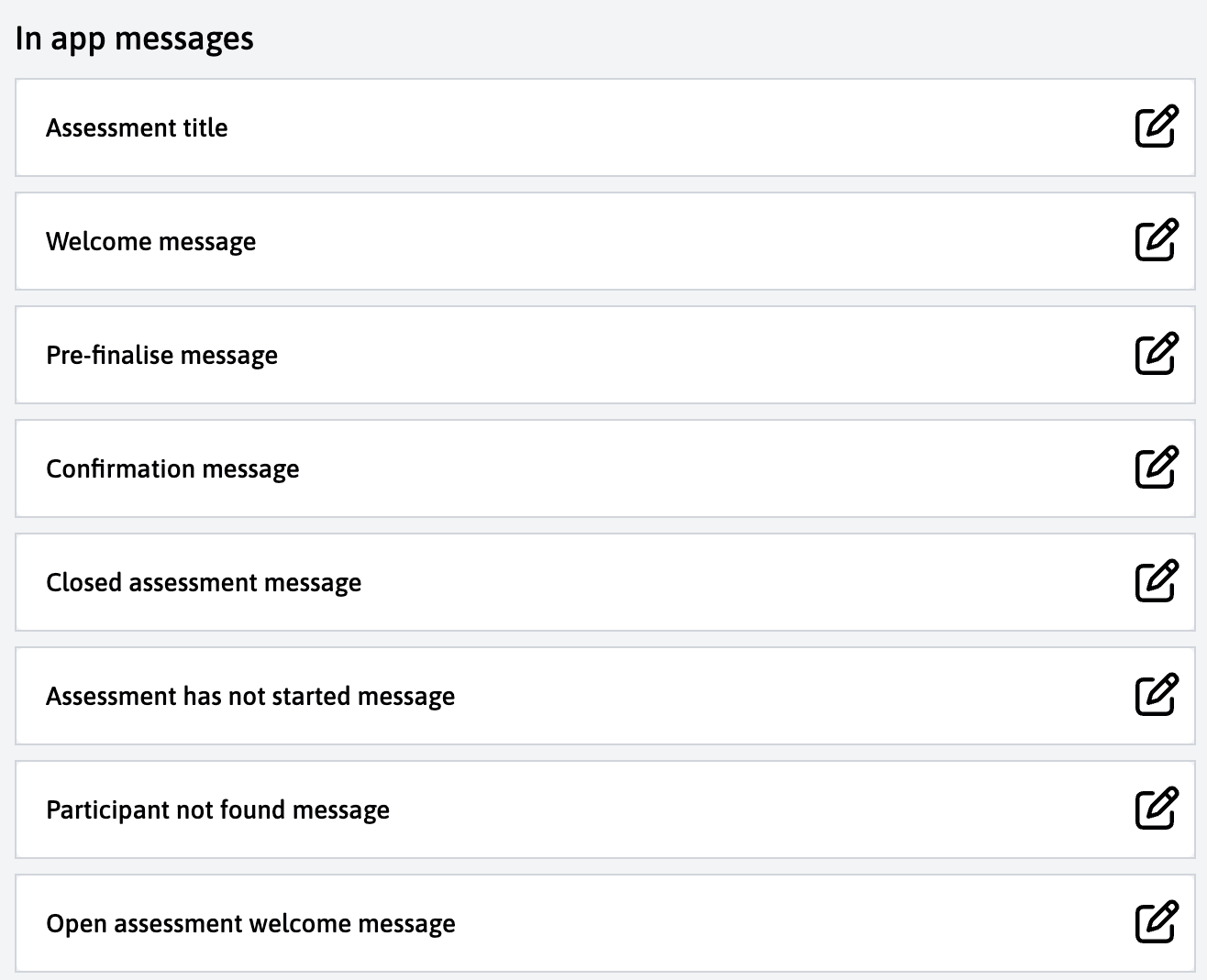
The “Messages in the application” section consists of several subsections each representing a different message.
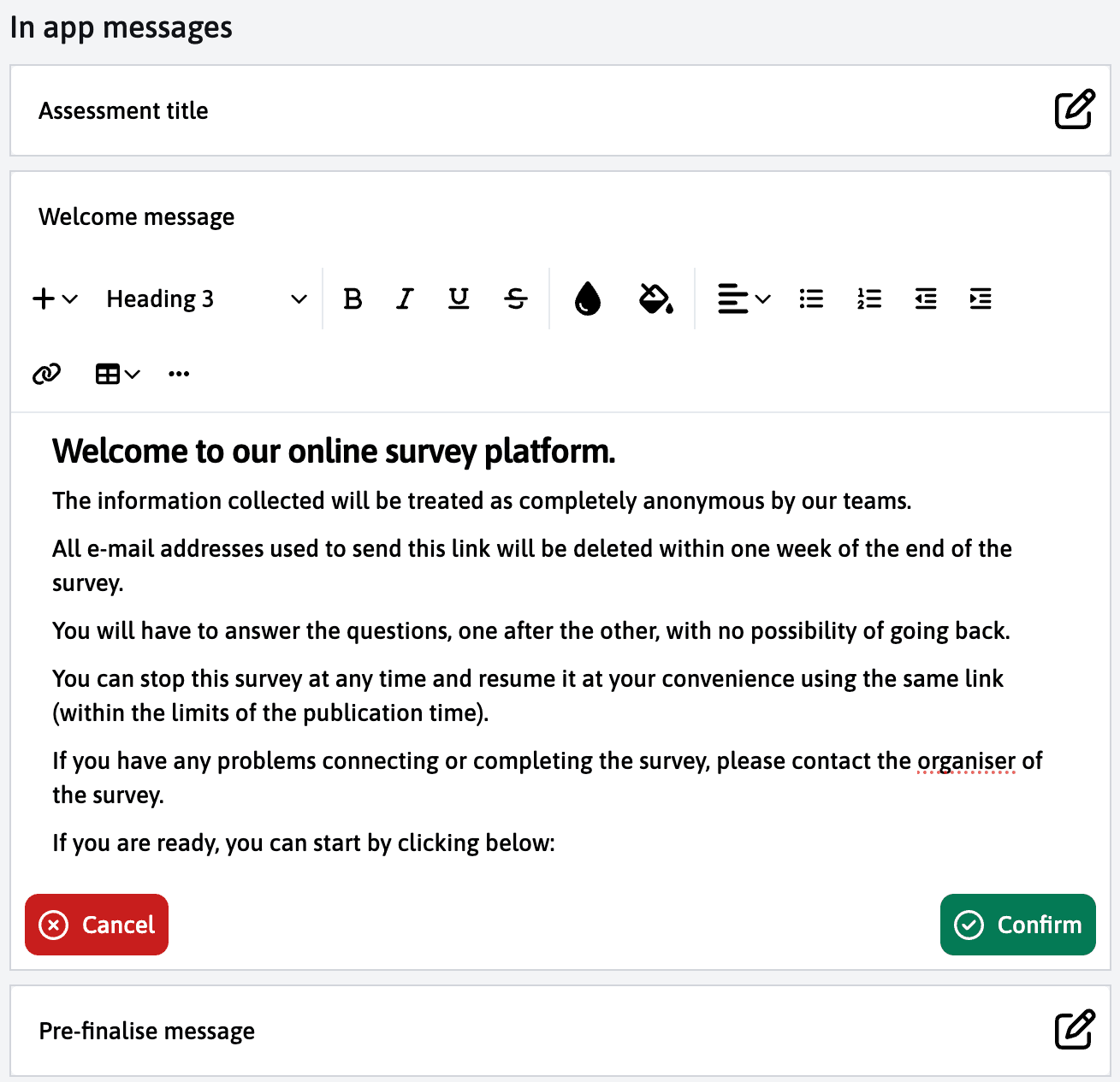
Each subsection can be edited and modified thanks to the integrated editor.
An example message is proposed as a suggestion, you have the possibility to completely modify it.
Each line can be modified, deleted and rearranged thanks to the menu that appears on the right.
Changes are saved automatically.
The preparation of a service for a specific client is done in the red section.
After selecting the client and the corresponding templte you will find the “External mailing and survey” module. This offers the same features as in the orange section, this time however, you can write messages and emails specifically for your client.
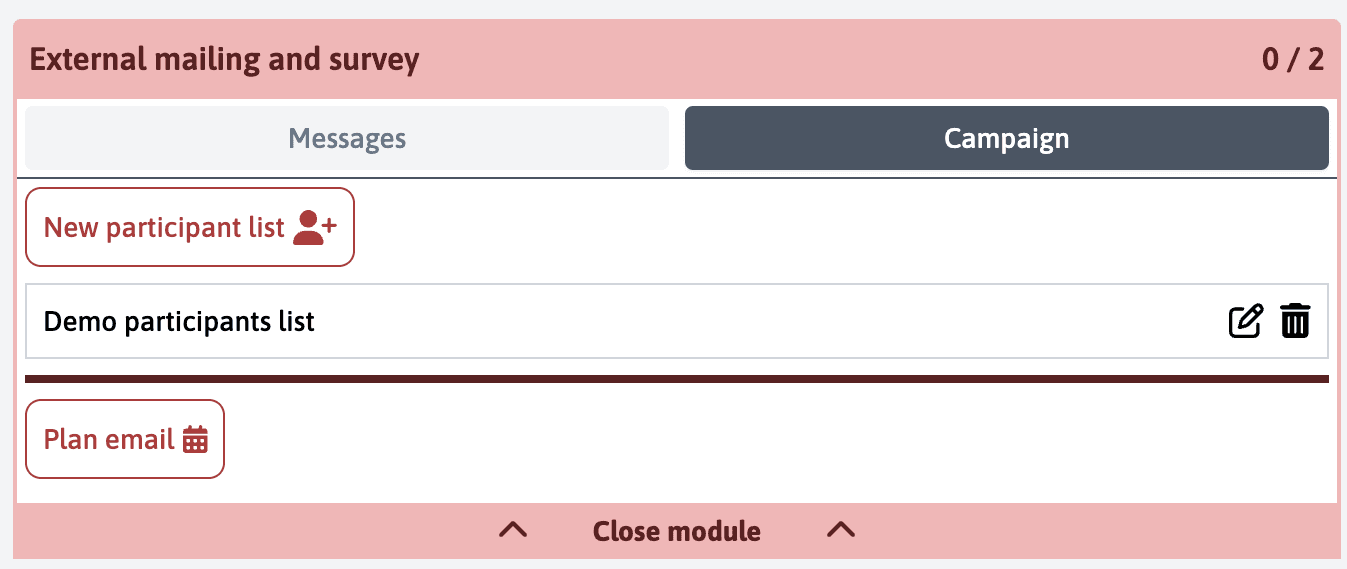
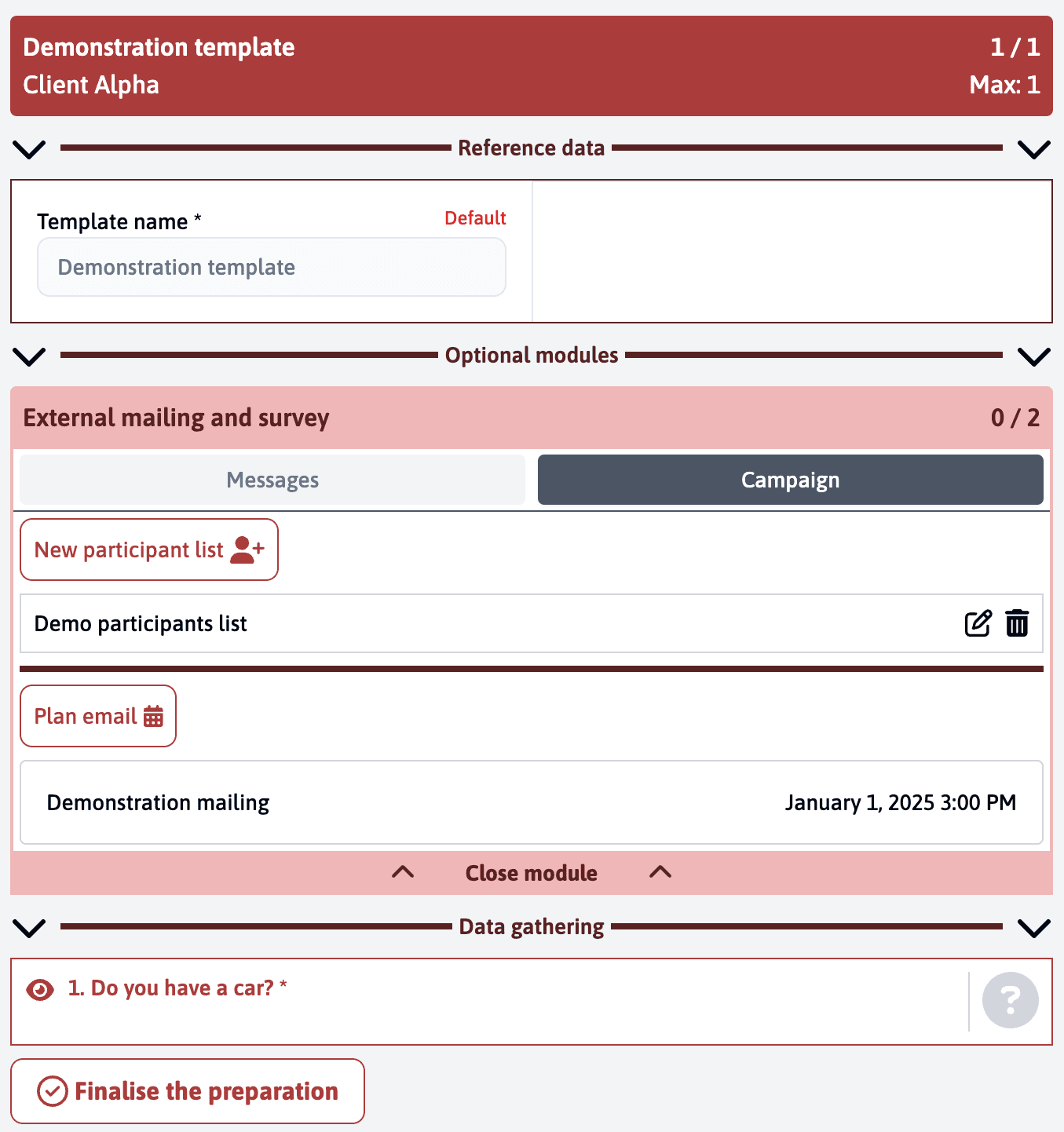
Once the messages are finalised, you can go to the “Campaign” tab.
This tab is composed of two subsections:
The participant list and email scheduling.
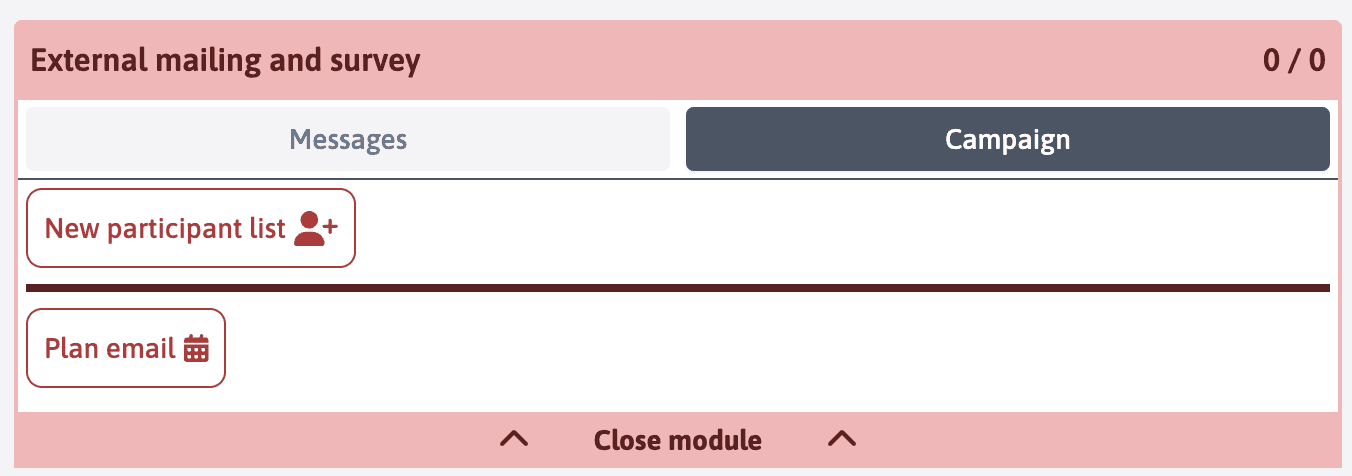
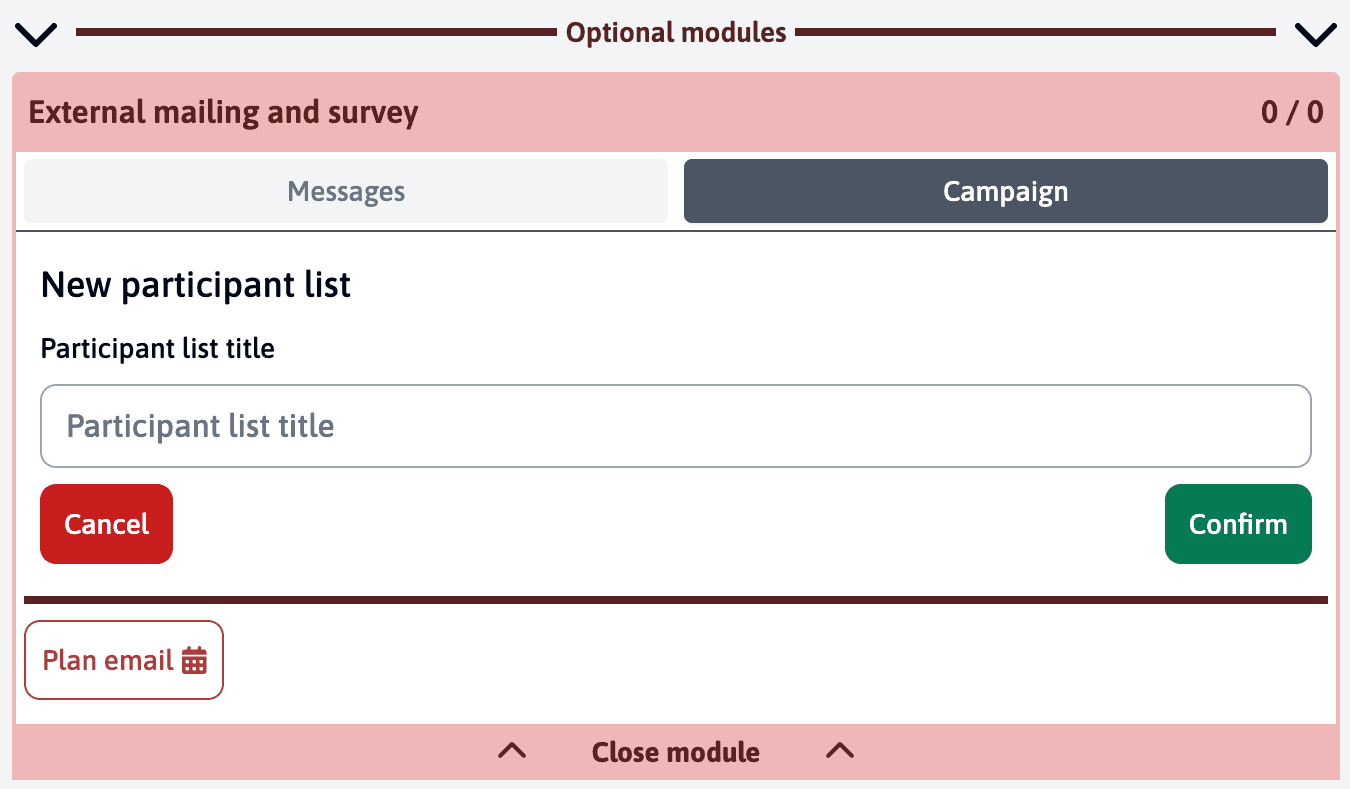
When you click on “New participant list” you must first give it a title.
It is important to note that you can create several lists for the same survey. In case of receipt of data in several times or to add participants during the service.
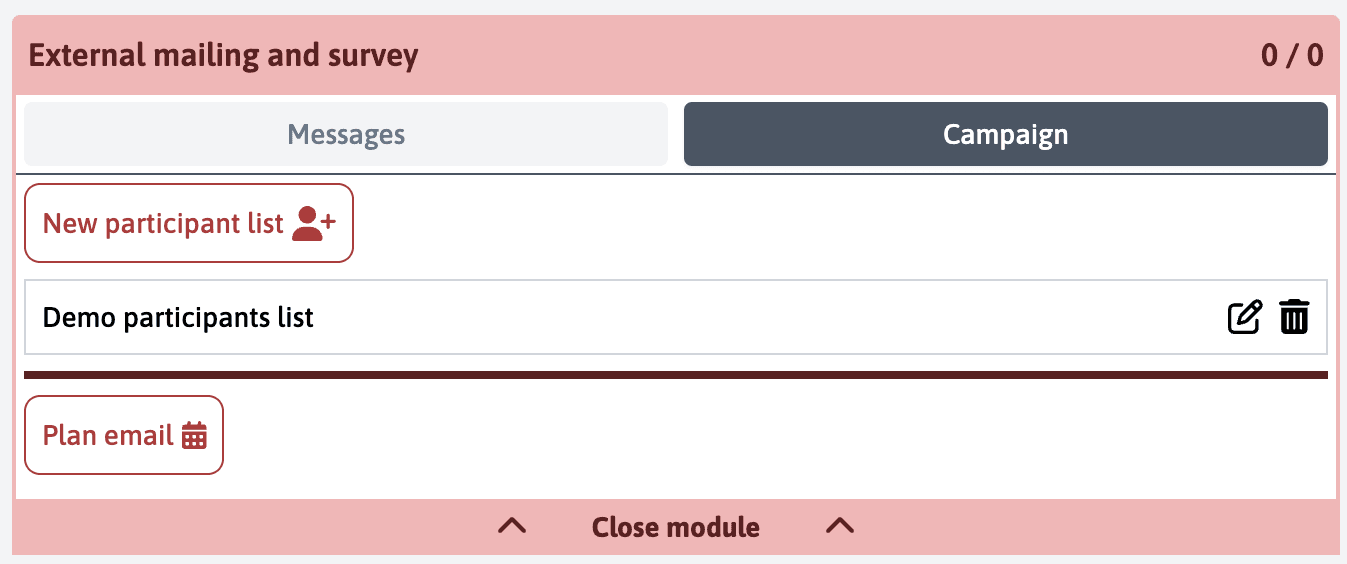
The list “Demo participant list” has been created. You can edit its name or delete it thanks to the icons located on the right.
To add participants, click on the name of the list.
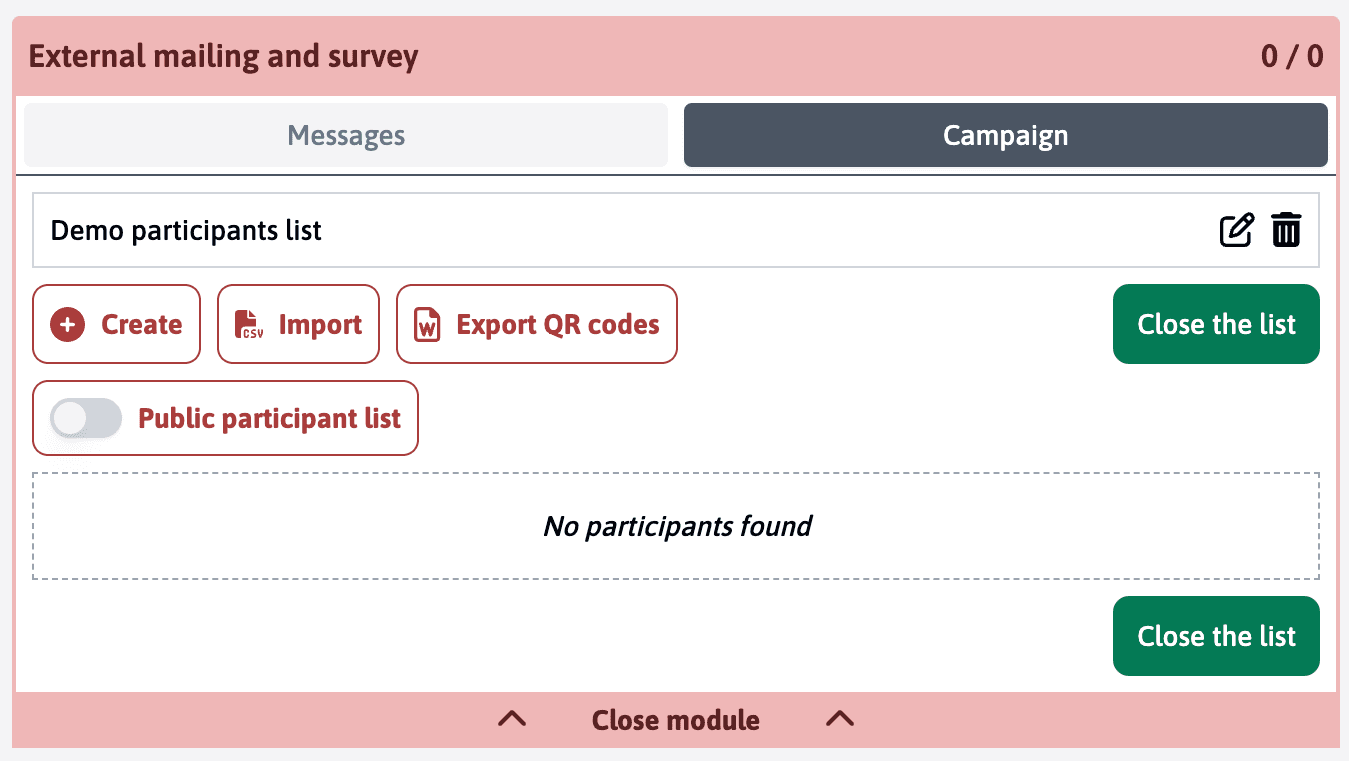
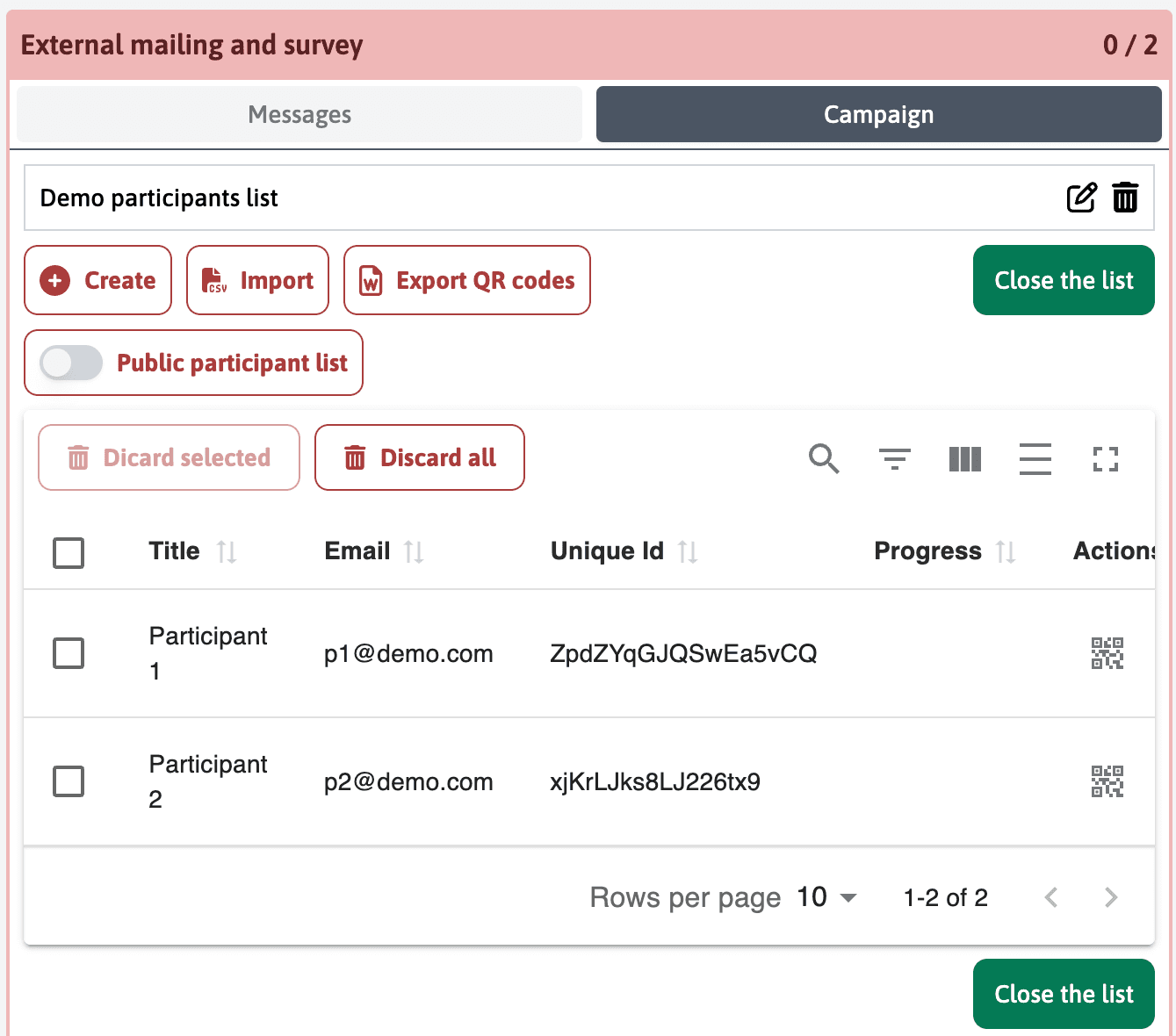
A series of buttons appear allowing you to:
- Add participants manually;
- Import participants from a CSV file;
- Export the list;
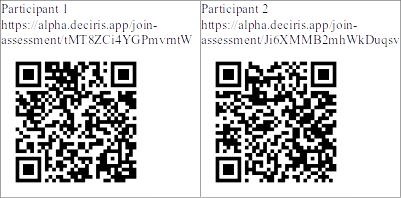
- Export the QR codes associated with each participant.
The “Add” button gives you access to several options.
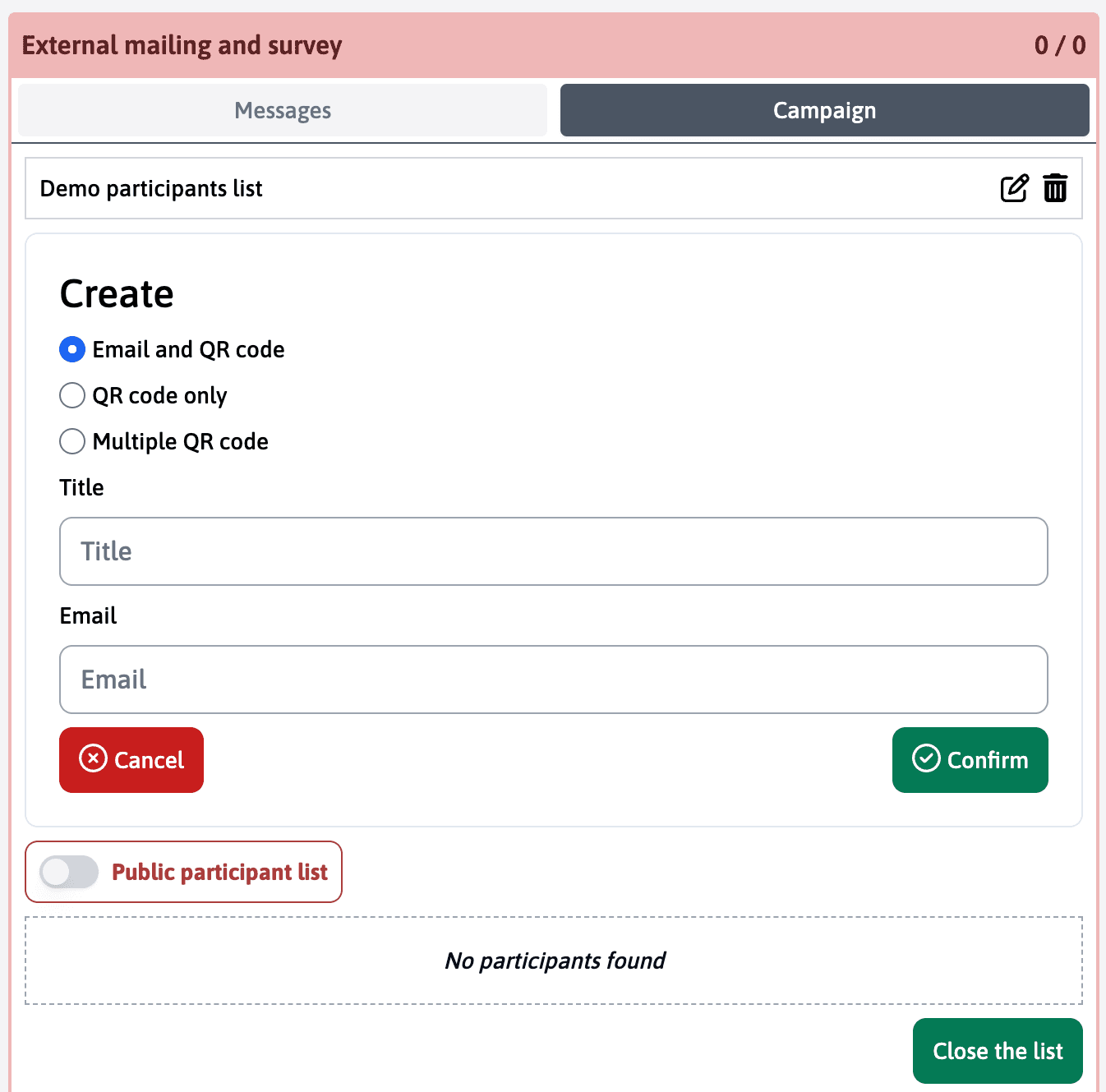
“E-mail and QR code”
To create participant profiles one by one by entering their name “Title” and their email address “E-mail”.
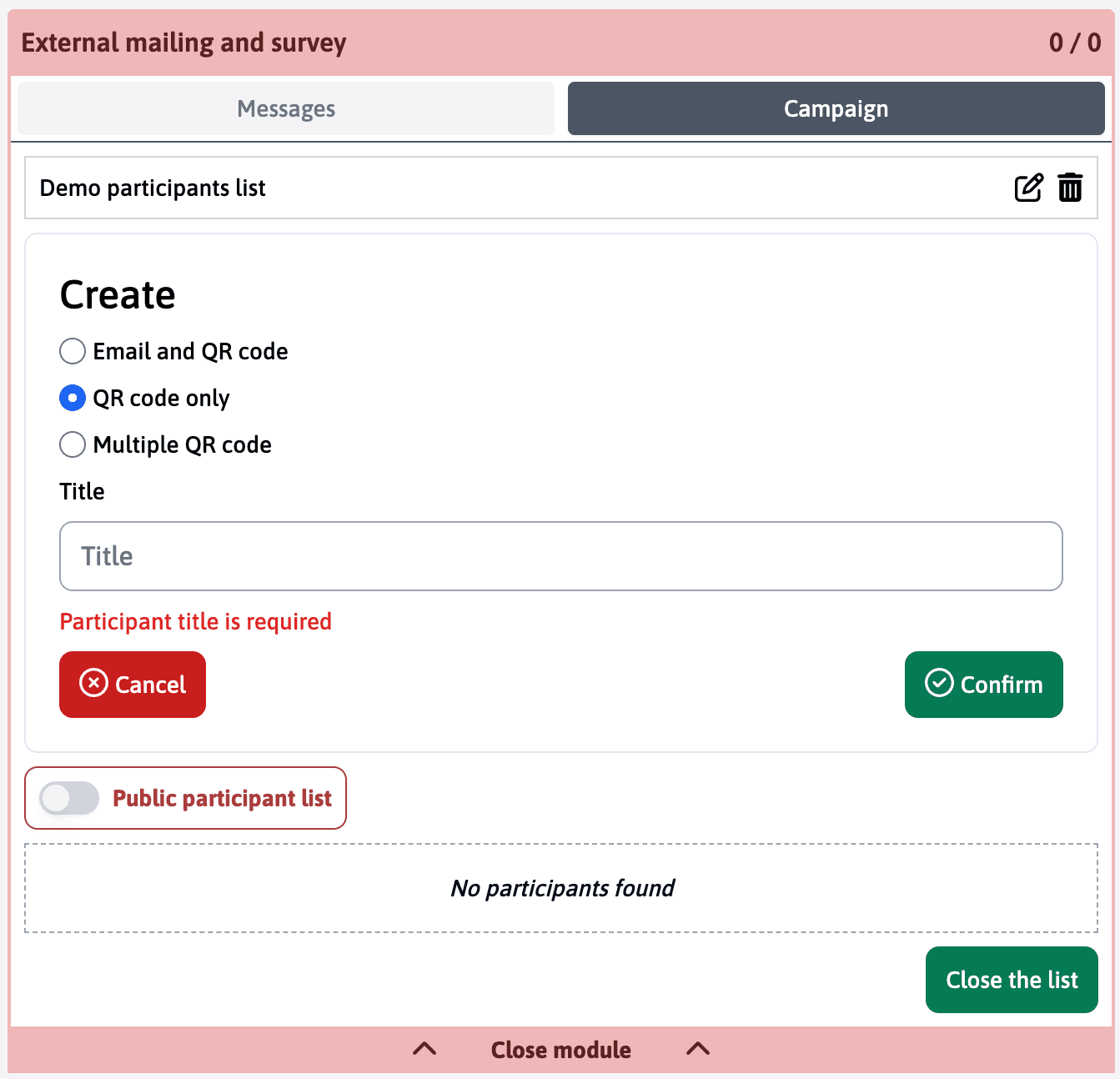
“QR code only”
To create generic profiles one by one by only filling in the “Title” field.
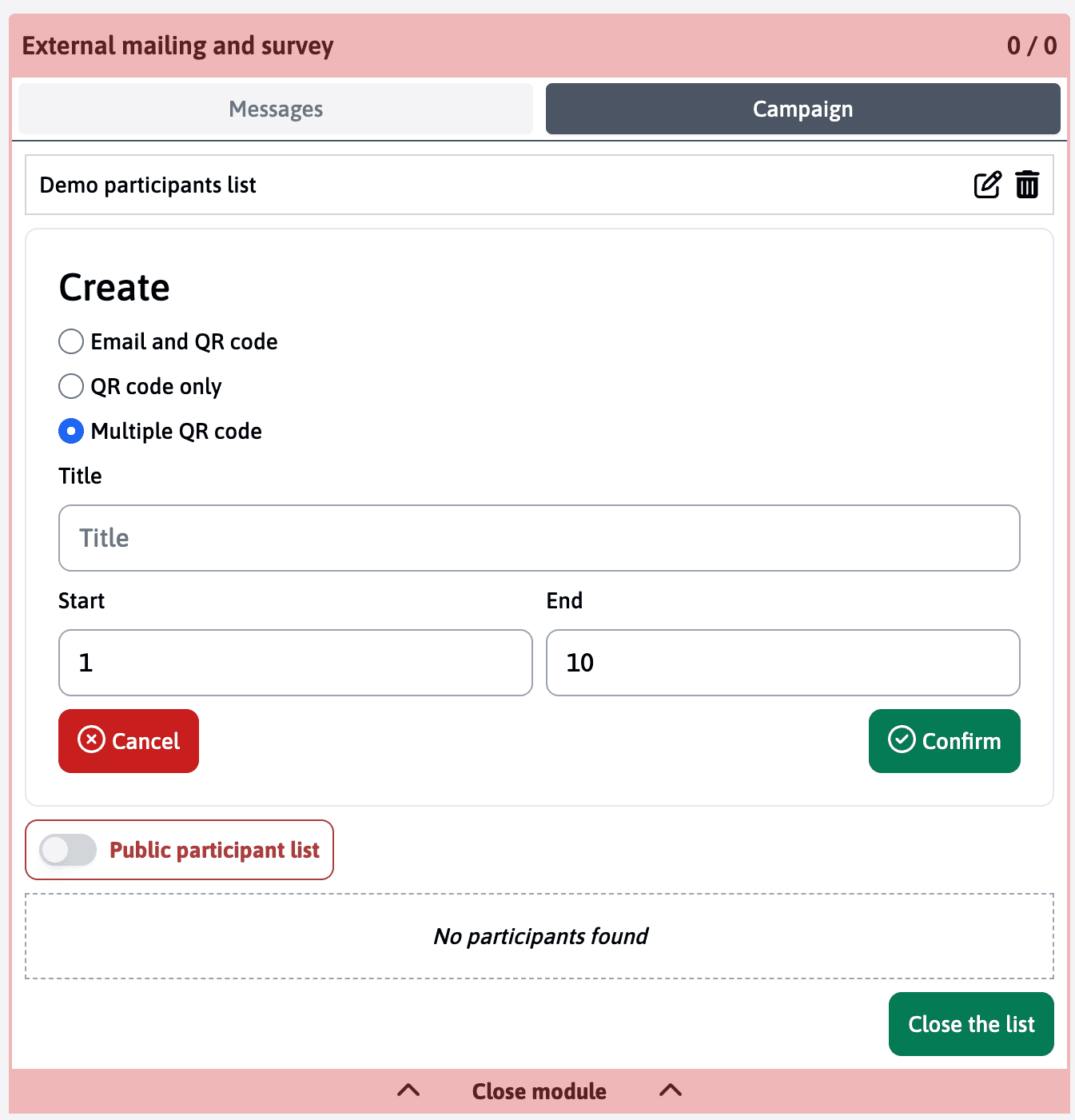
“Multiple QR codes”
To create a series of generic profiles by filling in the “Title” field and the number of desired profiles “Start” “End”.
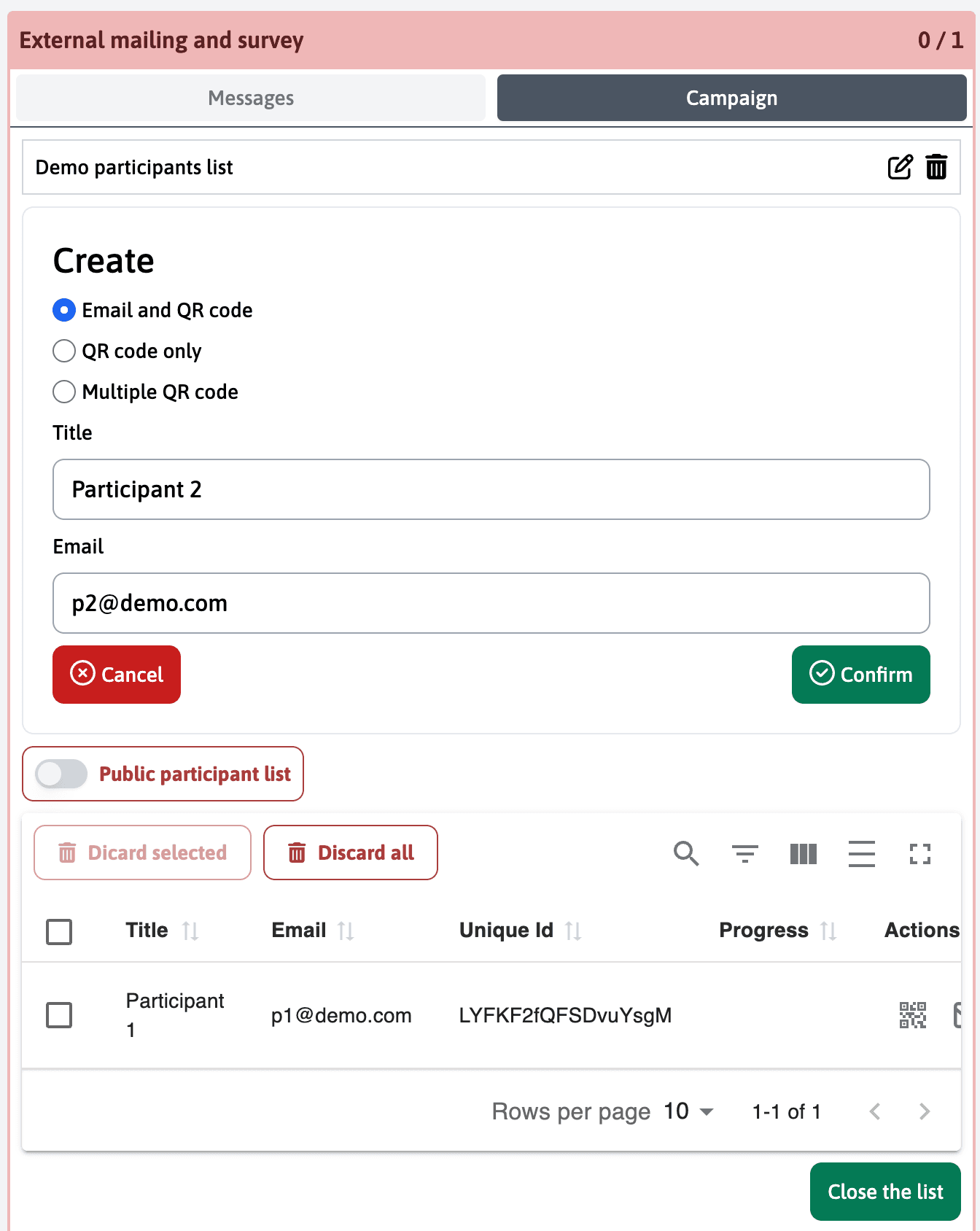
With the “E-mail and QR code” option, you can add specific participants. They appear in a table with
- “Title” or the name.
- “E-mail” to which the message with the link will be sent.
- “Unique Id” which will be inserted in the email.
- “Progress” which will allow you to see who has completed the survey;
- “Actions” which contains the QR code and on which you can click to display it in large.
If you choose to import participants from a CSV file, click on the “Import” button
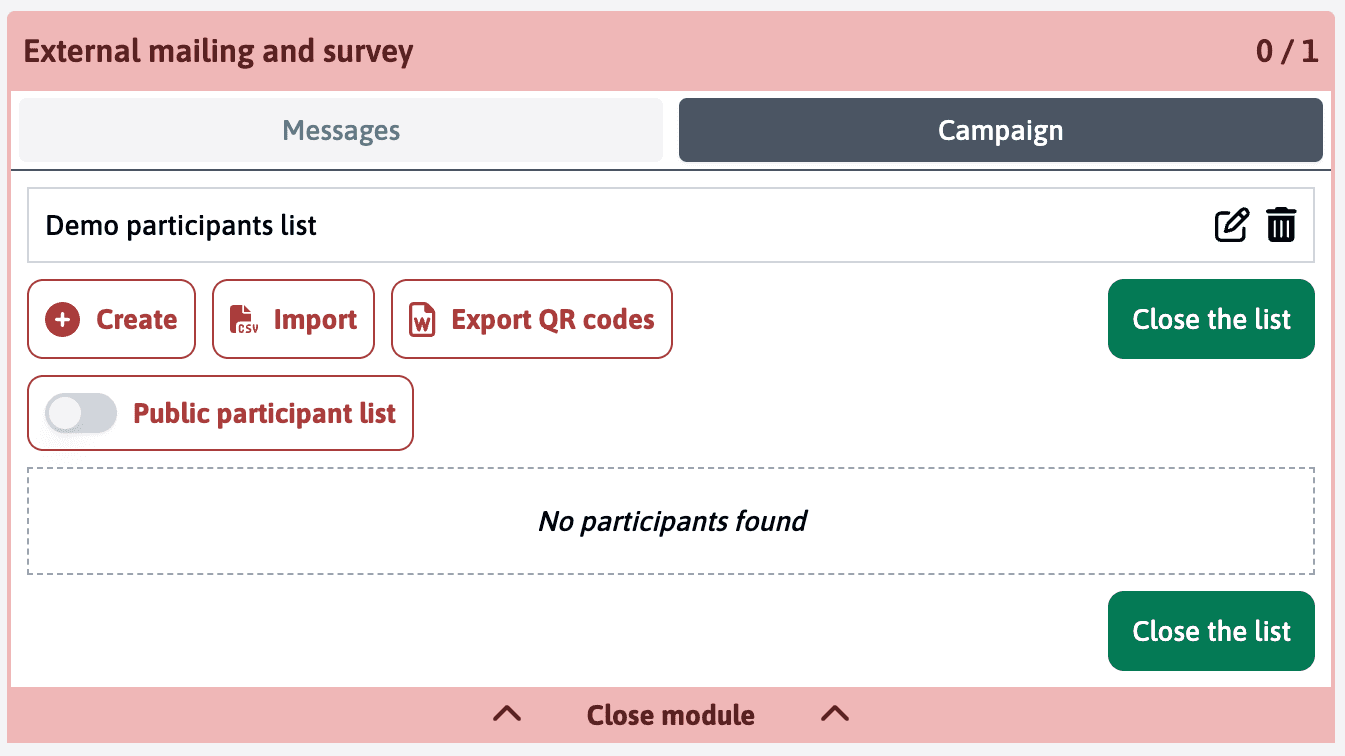
You must choose the file in which the list of participants is located, which must be built according to the following format:
| Name | |
|---|---|
| Participant 1 | p1@demo.com |
| Participant 2 | p2@demo.com |
| Participant 3 | p3@demo.com |
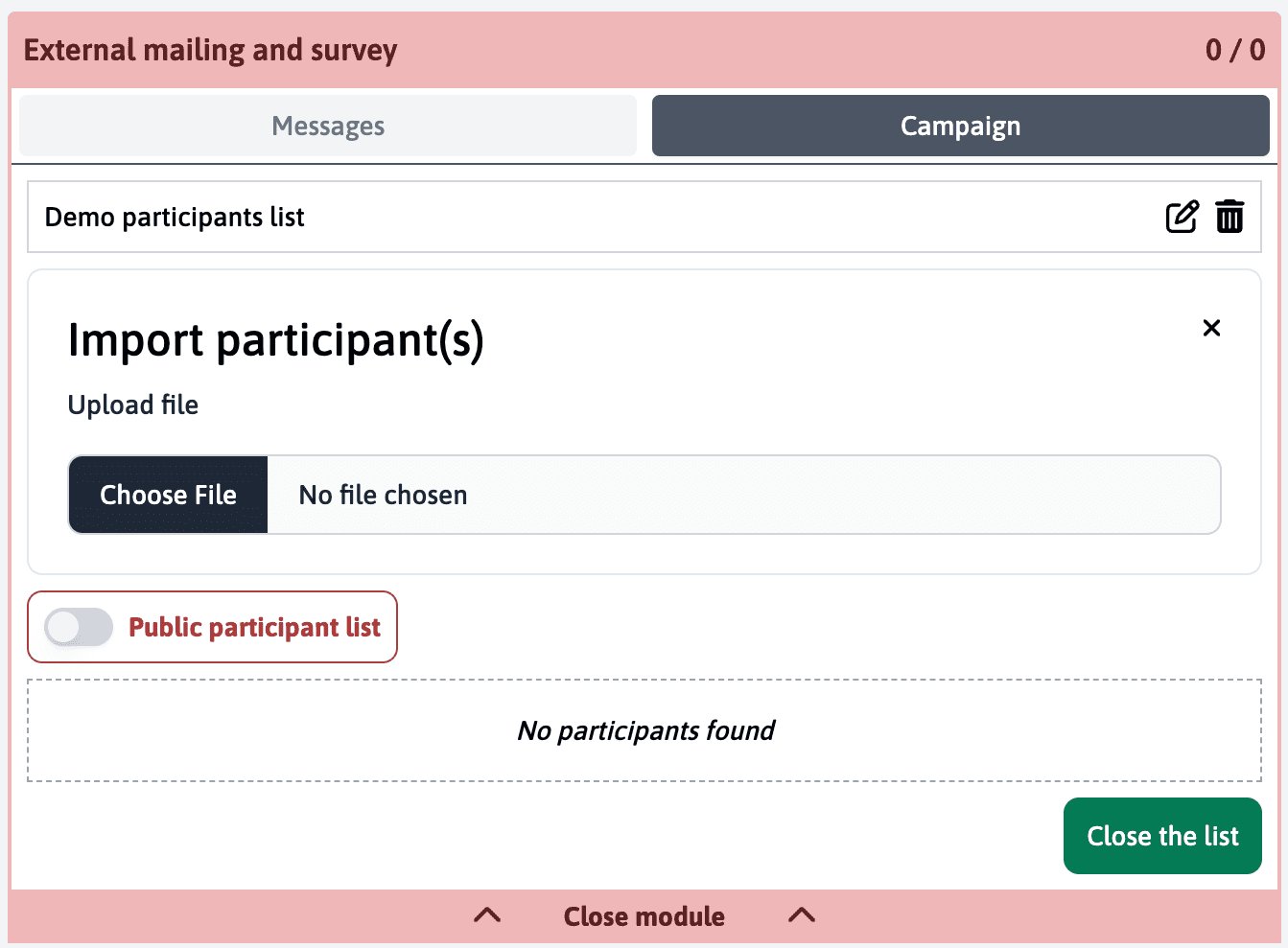
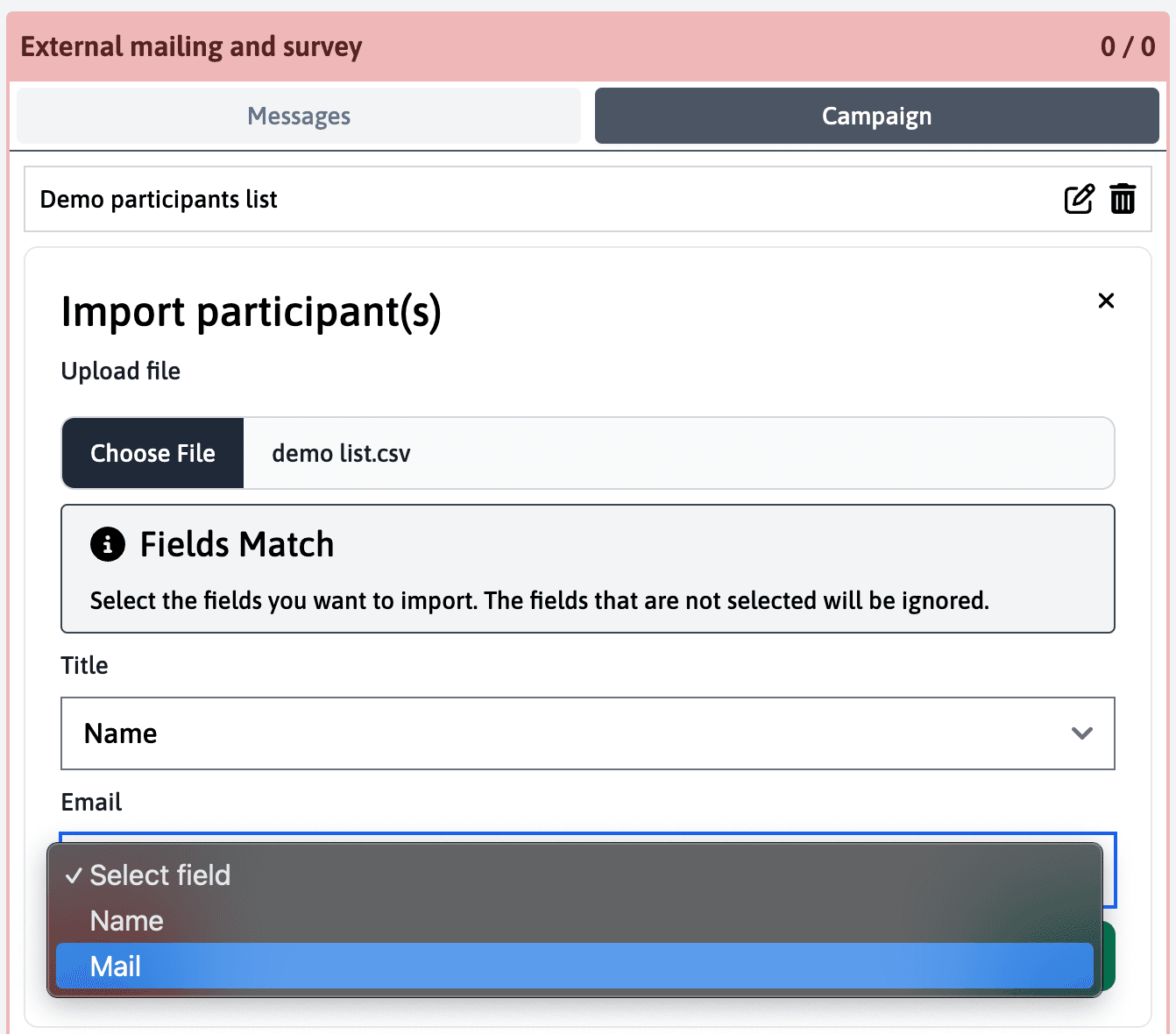
Once imported, you will need to match the “Title” field of the application with the file column that contains the names of the participants.
Then you will need to do the same with the “E-mail” field of the application with the file column that contains the email addresses of each participant.
Once the list is finalised, you can view all the participants.
You can export it in CSV format or export the QR codes.
This could be useful in case the participants do not have access to a personal mailbox.
Once the list(s) are prepared, you can schedule your mail merge campaign by clicking on the “Schedule an email” button.
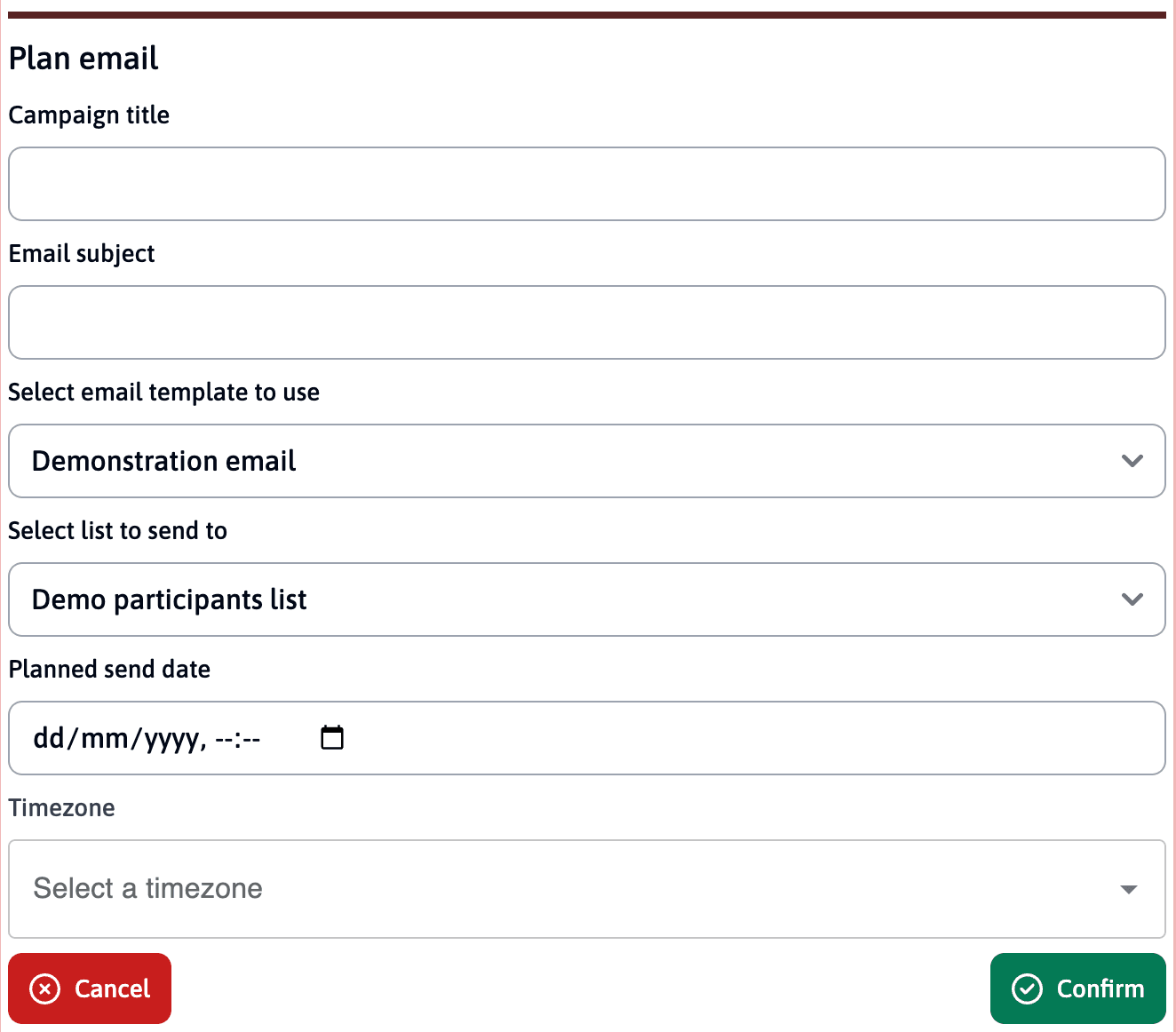
The menu contains several fields:
- “Campaign title”: This title will only be seen by you.
- “Email subject”: This subject will appear as the title of the message received by the participants.
- “Email template”: a drop-down menu allowing you to choose the email template you previously created.
- “List to send to”: a drop-down menu allowing you to choose a list of participants you previously created.
- “Scheduled send date”: Allows you to schedule the date and time of sending.
- “Time zone”: allows you to choose the time zone to avoid any confusion.
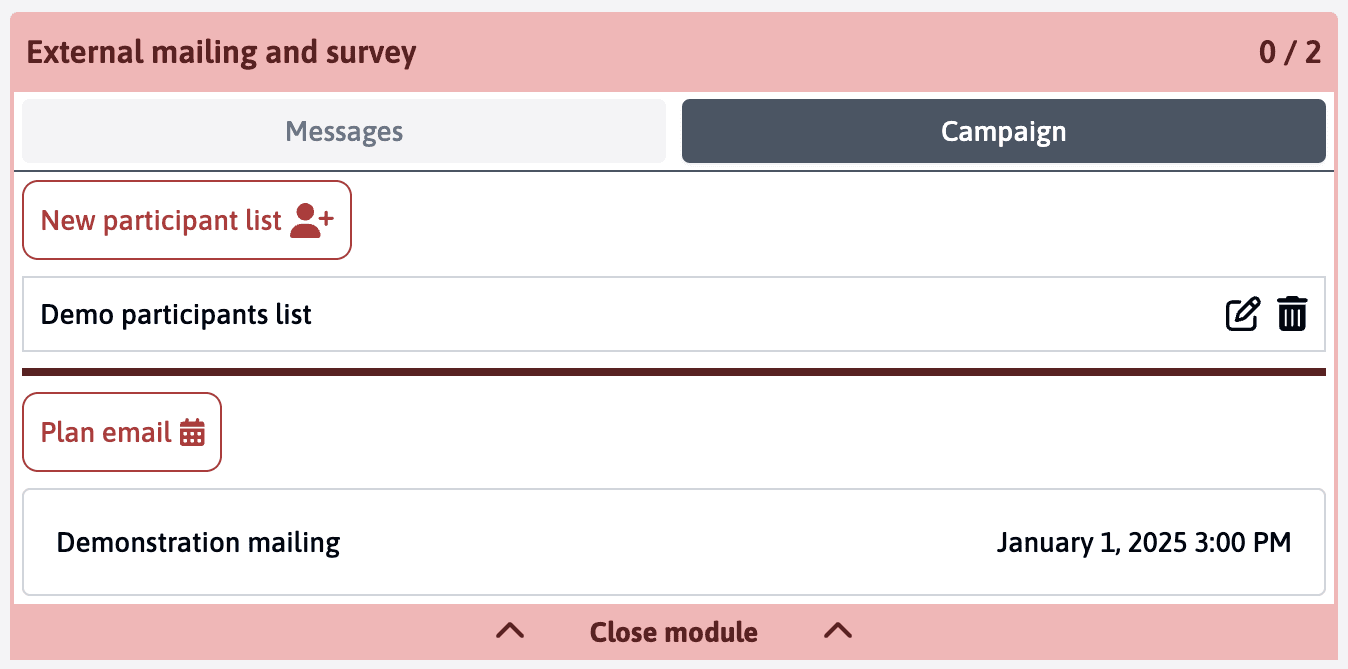
Once confirmed, the campaign is scheduled and the emails will be sent at the chosen date and time.
In order for the survey to be open and for participants to be able to respond, you must finalise the preparation of the service. This is then transferred to the blue section of the application where you can follow its progress.
Important: Follow-up Mailings Currently, it is not possible to send follow-up emails only to participants who have not responded. This feature is under development. To send a follow-up mailing, you must use the original participant list and send the message to all participants. Do not create a new list as this would generate new unique links.
Individual Mailings
For small lists of participants, you can also send mailings individually using the envelope icon in the participant table. Note that it is currently not possible to select multiple participants and send them all at once.