Generate a PDF Report
Overview
To generate a PDF of your assessment in Deciris, follow these steps:
Step-by-Step Guide
1. Access the Final assessment
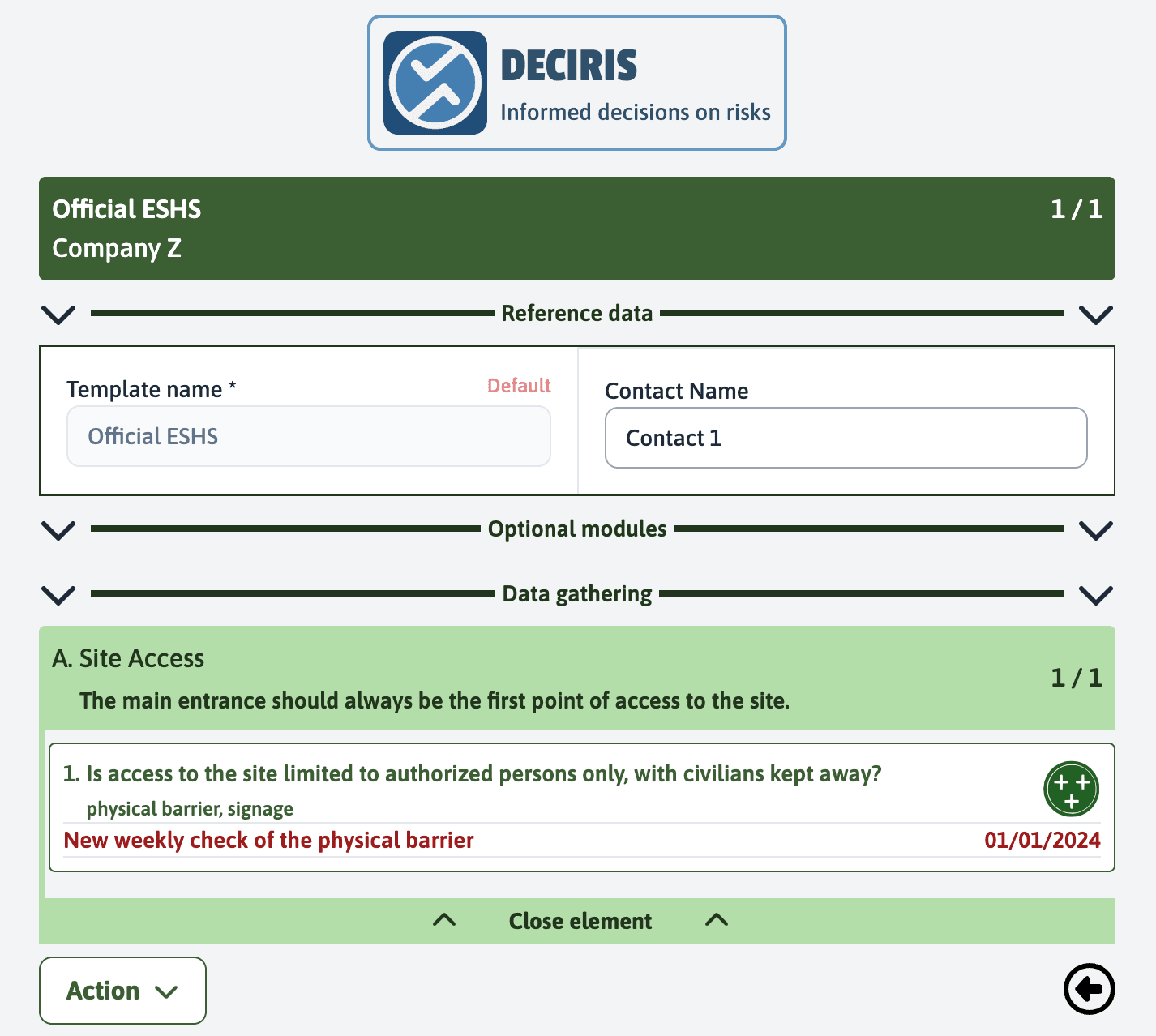
Access the final assessment: Once you have completed the assessment and are in the green section, ensure that all items are completed.
2. Generate the PDF
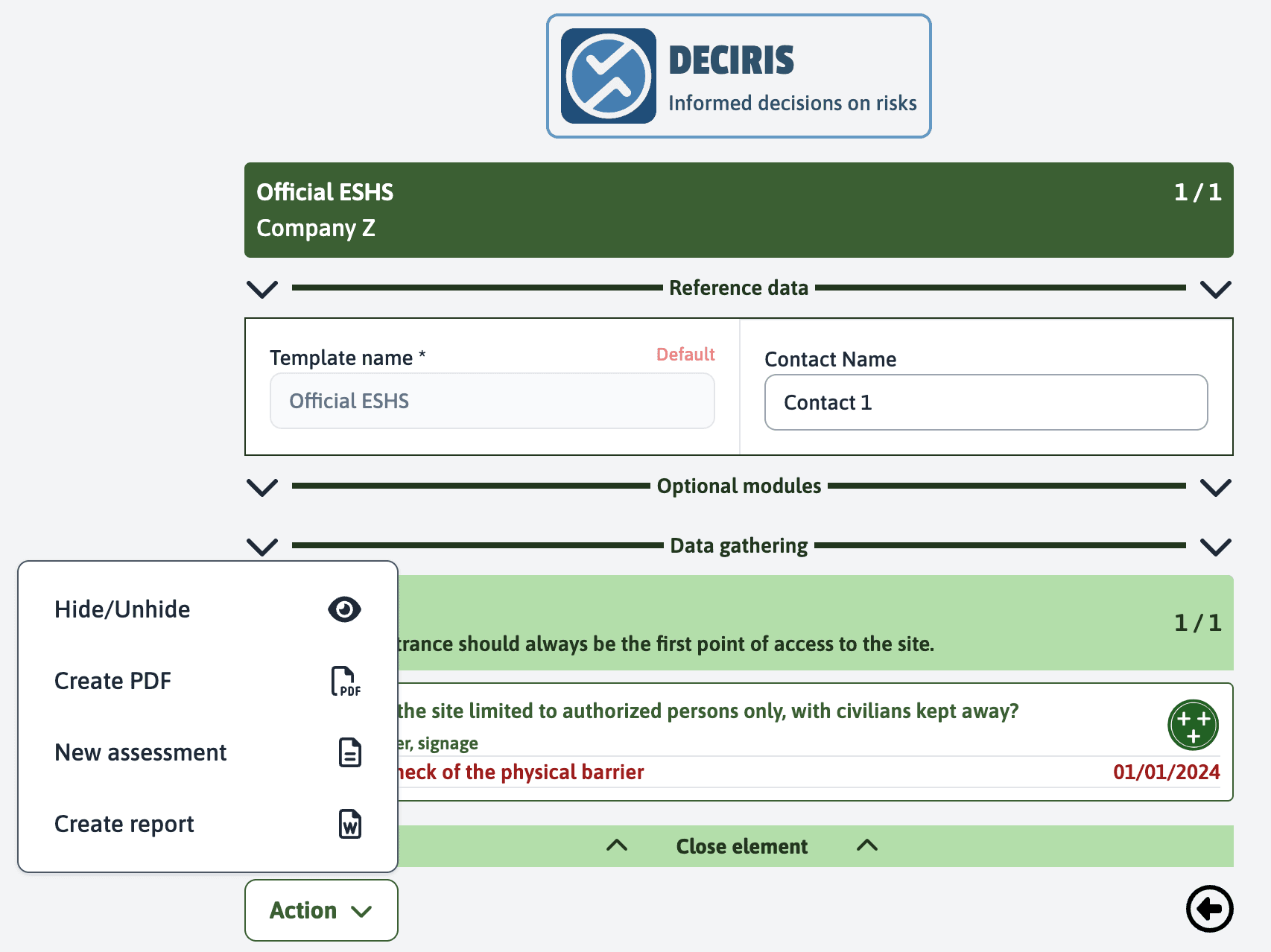
Generate the PDF: Look for the “Create a PDF” option located in the action menu. Click on this option to start generating the PDF.
3. Save and View
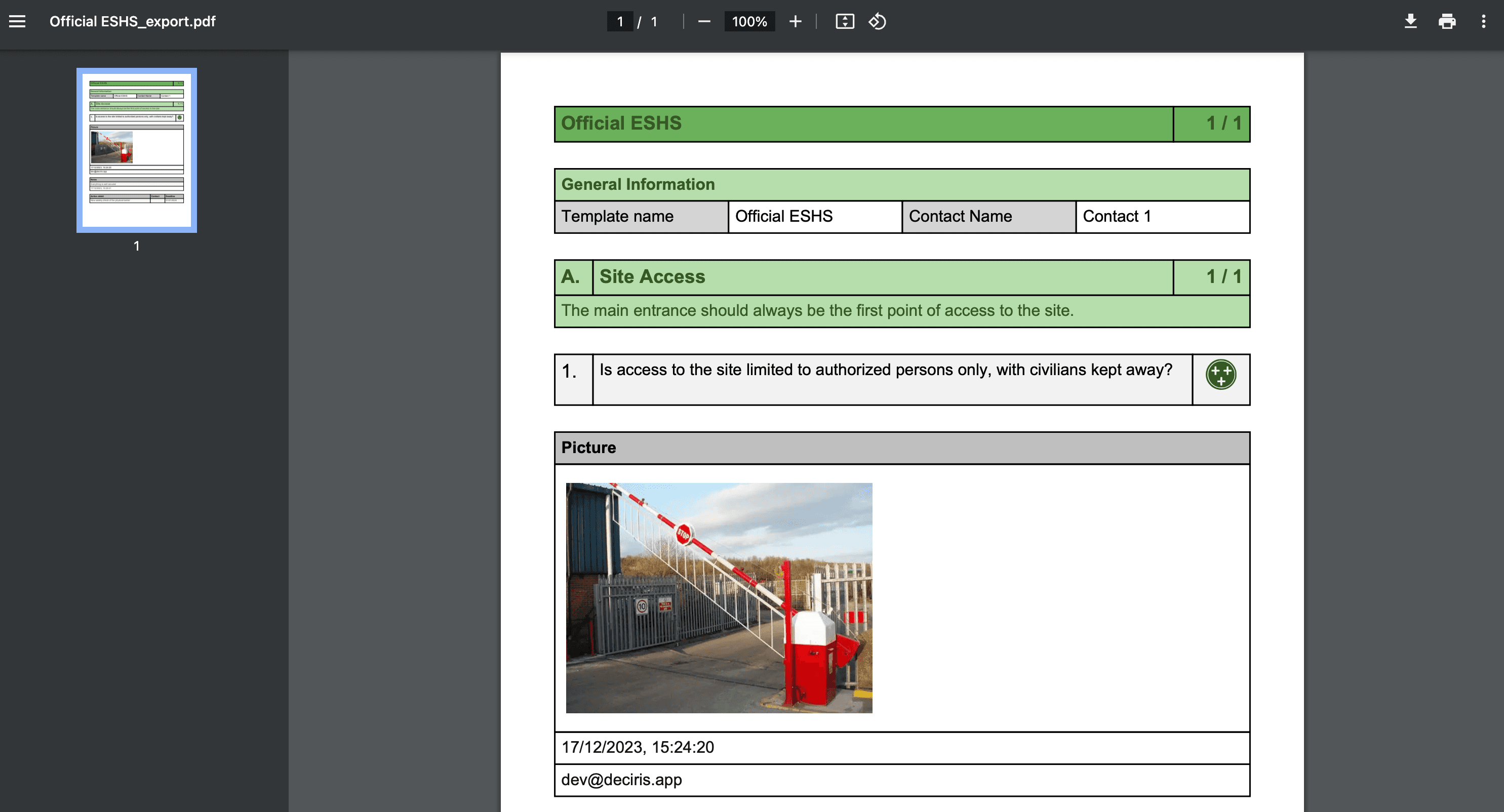
Confirmation and saving: After clicking on “Create a PDF”, the document will be generated and opened in your default PDF viewer, which could be Chrome or another PDF reader.
PDF Content and Usage
Using the PDF: The generated PDF can be used to archive the results of the assessment or to share them with external parties. It will contain all the information entered during the assessment, including:
- assessment details and metadata
- All responses and observations
- Attached images and documents
- Notes and comments
- Planned actions and follow-ups
Best Practices
This process ensures that you have a digital copy of the assessment that can be easily accessed or shared for future reference. It is recommended to:
- Save the PDF in a secure location
- Use consistent file naming conventions
- Keep backups of important assessments
- Consider access permissions when sharing PDFs