AI chat
Add the AI chat module to a Template before using it.
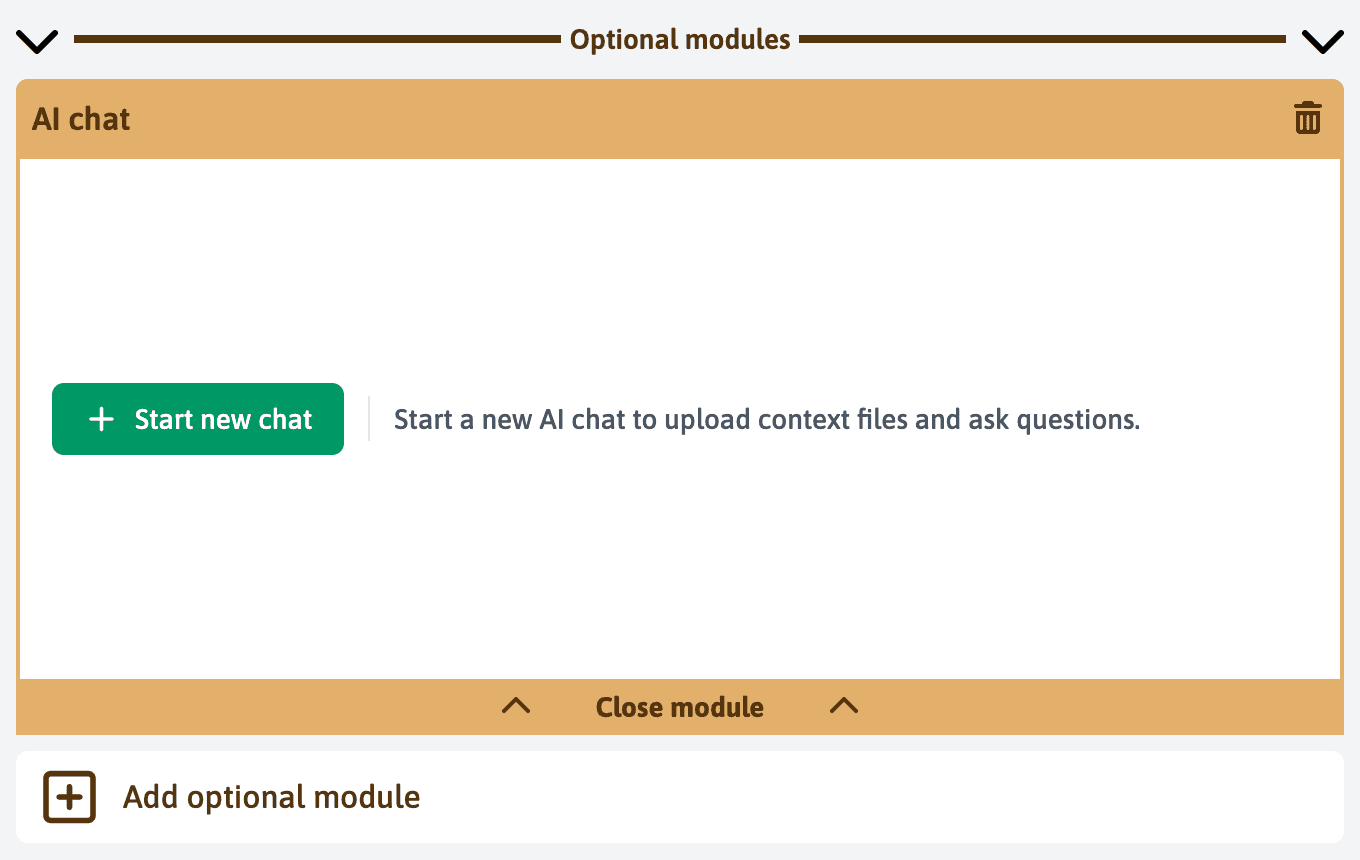
Start a conversation
Open the AI chat module, select Start new chat, and send a request.
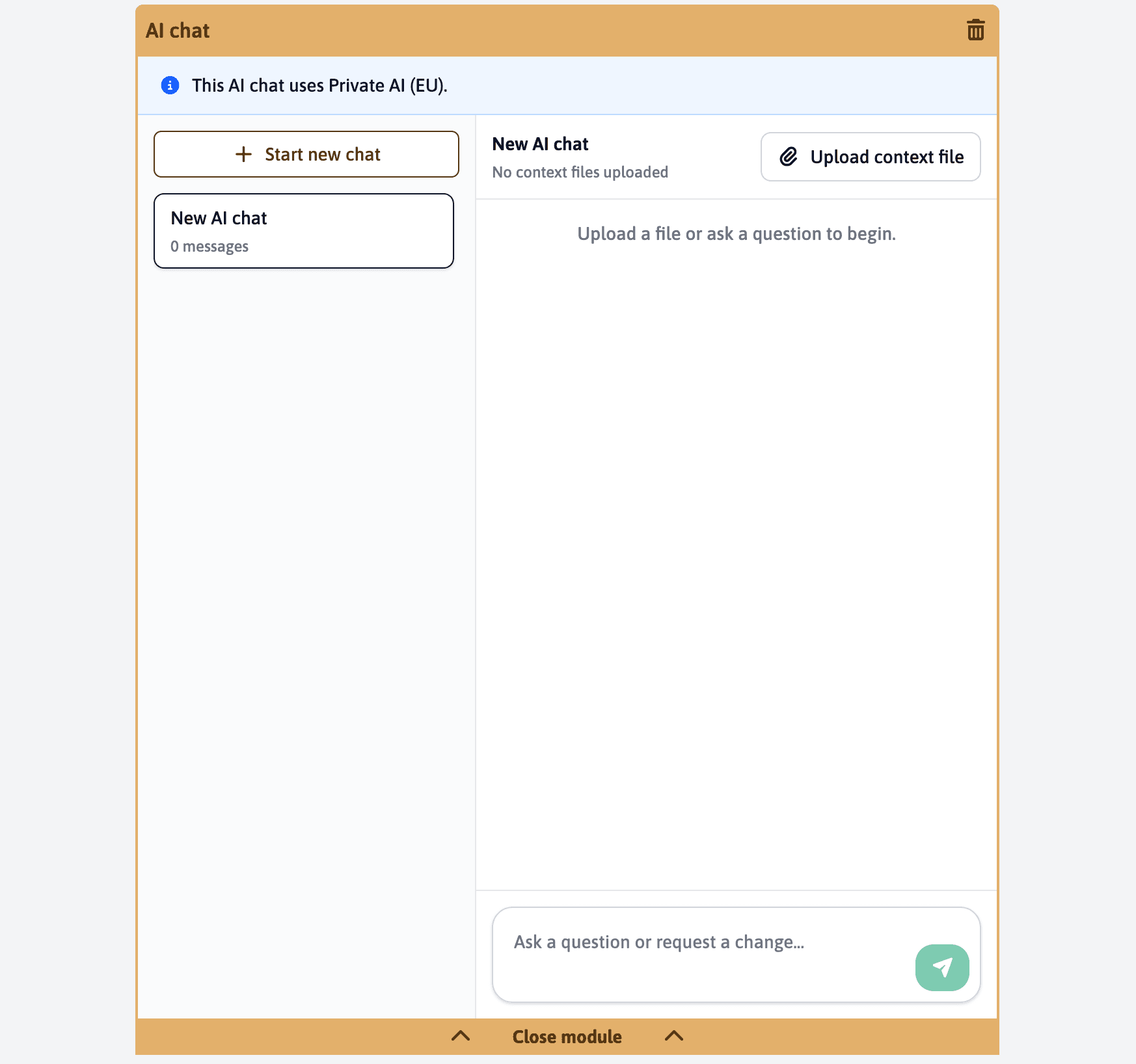
Give the assistant context
You can attach PDF, CSV, and plain-text files to a chat. The files remain available as context for later messages in that chat.
For example, attach a checklist, policy, CSV export, or existing questionnaire. Then ask the assistant to turn it into Template elements or compare it with the current Template.
The available AI provider is chosen by your organisation. Organisations using Private AI (EU) can currently use text and CSV attachments only. Do not attach information that your organisation is not allowed to send to its chosen AI provider.
What AI chat can do
AI chat inspects the current Template before it changes it. It can inspect header elements, active elements, hidden elements, settings, enabled modules, calculations, and available tags.
It can make changes such as:
- Create header elements and active elements, including several active elements inside a new header element.
- Change an active element’s title, guidance, answer options, ratings, and other supported settings.
- Move a header element or active element. It only removes an element when you explicitly ask it to do so.
- Create conditional active elements. Conditions use OR logic, so an active element appears when any selected source answer matches.
- Add or edit guidance and support tabs on active elements, including Picture, Comment, File, and Action tabs.
- Inspect and change safe Template settings, such as the title, navigation and completion settings, default support tabs, participant settings, order identifiers, and custom settings.
- Enable a module needed for a requested feature. Removing a module may clear related data, so the assistant only does that after an explicit request.
- Work with element tags when you ask for tags, categories, or filtering.
In a Template, AI chat can also create and update calculations. It finds the elements and calculations you name, checks the formula, then applies the change. It supports averages, sums, multiplication, subtraction, and division. It can also test whether a checkbox or radio-button answer was selected, then add conditional styles or indicator columns.
Questions you can ask
Be specific about the audience, the information you need, and any rules that matter. The following requests are good starting points.
Build or improve a Template
- “Create a workplace safety Template with header elements for entrance, fire safety, equipment, and corrective actions. Add five practical active elements to each header element.”
- “Turn this attached checklist into active elements in the current Template. Keep the same header elements and use Yes, No, and Not applicable where it fits.”
- “Review this Template for duplicate active elements and unclear wording. Suggest changes before changing anything.”
- “Rewrite the active elements under the ‘Reception’ header element so a first-time inspector can answer them quickly.”
- “Add a Guidance tab to the electrical active elements with a short reminder about the safety procedure.”
Create element logic
- “Create an active element that asks whether a fire extinguisher is present. Only show the follow-up active elements when the answer is No.”
- “Create a Vehicle checks header element and place its active elements after the Equipment header element.”
- “Move ‘Photo of the defect’ below ‘Describe the defect’. Only show both active elements when the condition is marked unsafe.”
- “Add the Comment and Picture tabs to every active element in the Damage header element.”
Configure the Template
- “What modules are enabled on this Template, and which one do I need to share it with external participants?”
- “Enable the Results module so I can create calculations and charts.”
- “Change the Template title to ‘2026 site safety inspection’ and keep the existing navigation settings.”
- “Show me the tag groups available for active elements. Then add the ‘Electrical’ tag to the relevant active elements.”
Create calculations
- “Create an average score for the five active elements in the ‘Customer service’ header element.”
- “Create a total risk score from the risk-rating active elements under every header element.”
- “If ‘Emergency exit clear?’ is No, show an alert calculation with a red conditional style.”
- “Change the passing threshold of the existing compliance score from 80 to 85, but keep its formula and current styles.”
Review important changes
The assistant shows how many tool actions it used in a reply. Read its summary after any change, especially when it has created conditions, calculations, or changed Template settings. Check the active elements, logic, and calculations before you use the Template.