Respond to an Item
To respond to an item during an assessment in Deciris, you need to follow these steps:
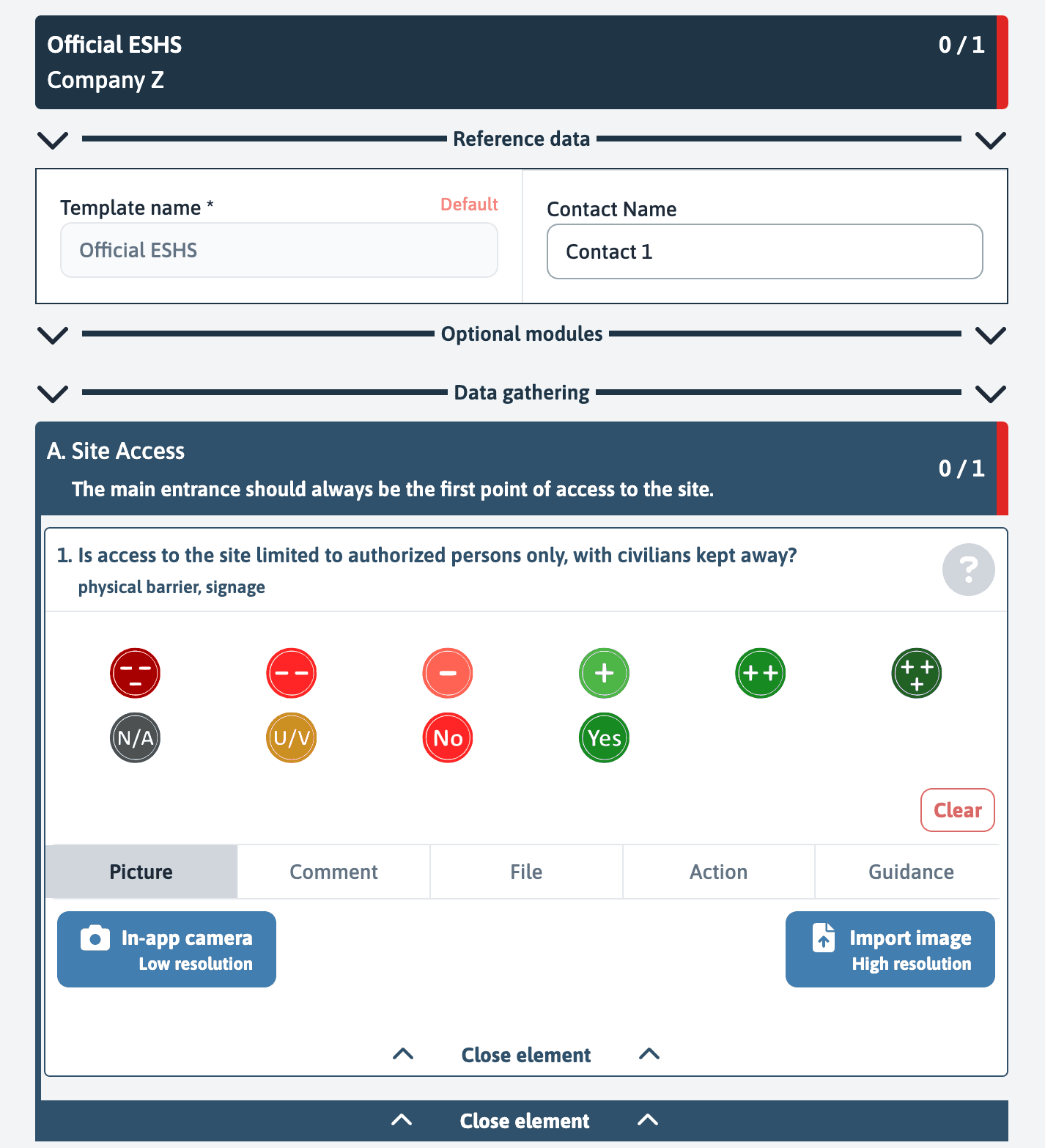
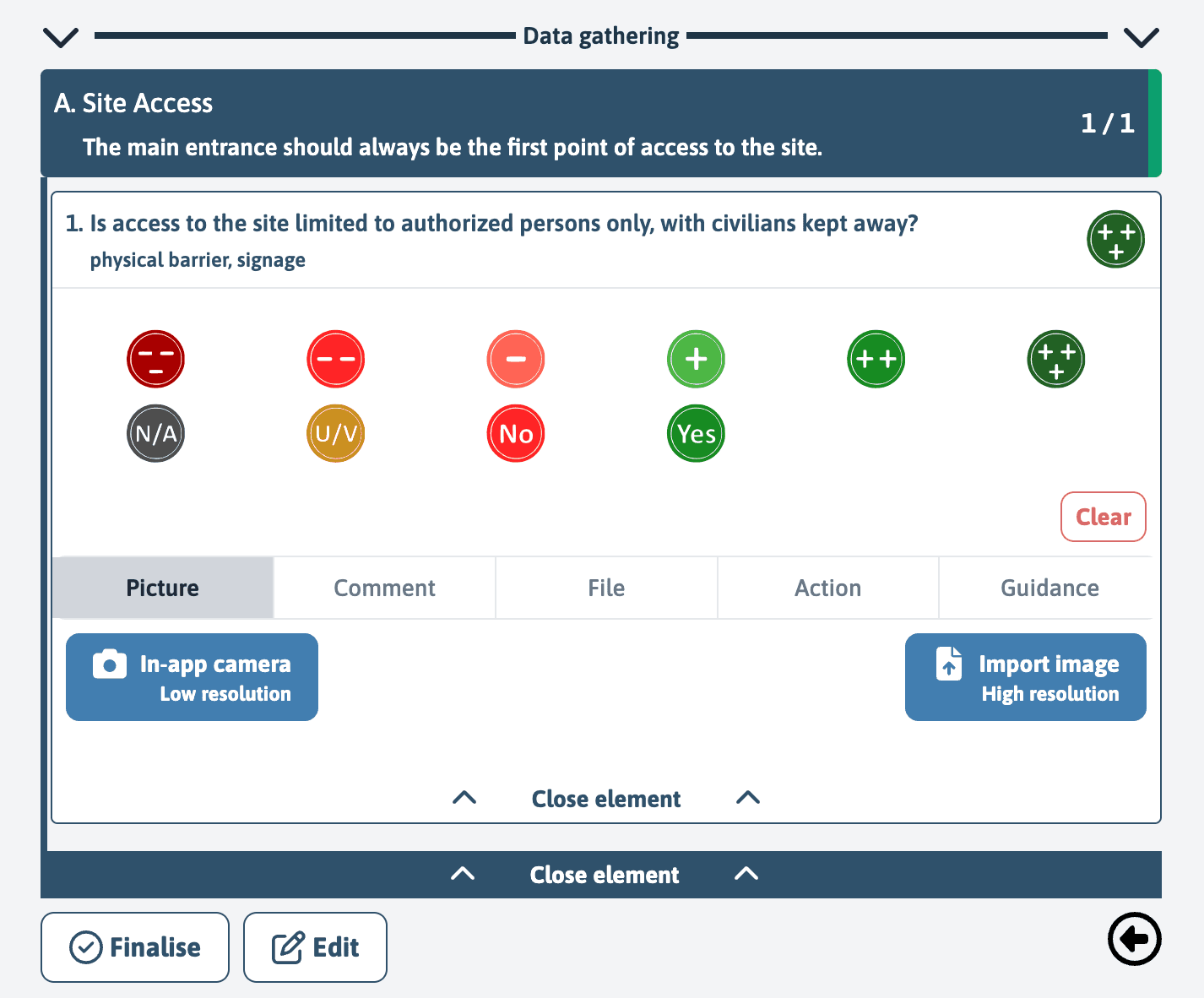
Choose a Rating
Select the appropriate rating for the item. In the given example, the ”+++” option was chosen, which could signify full compliance or excellent condition.
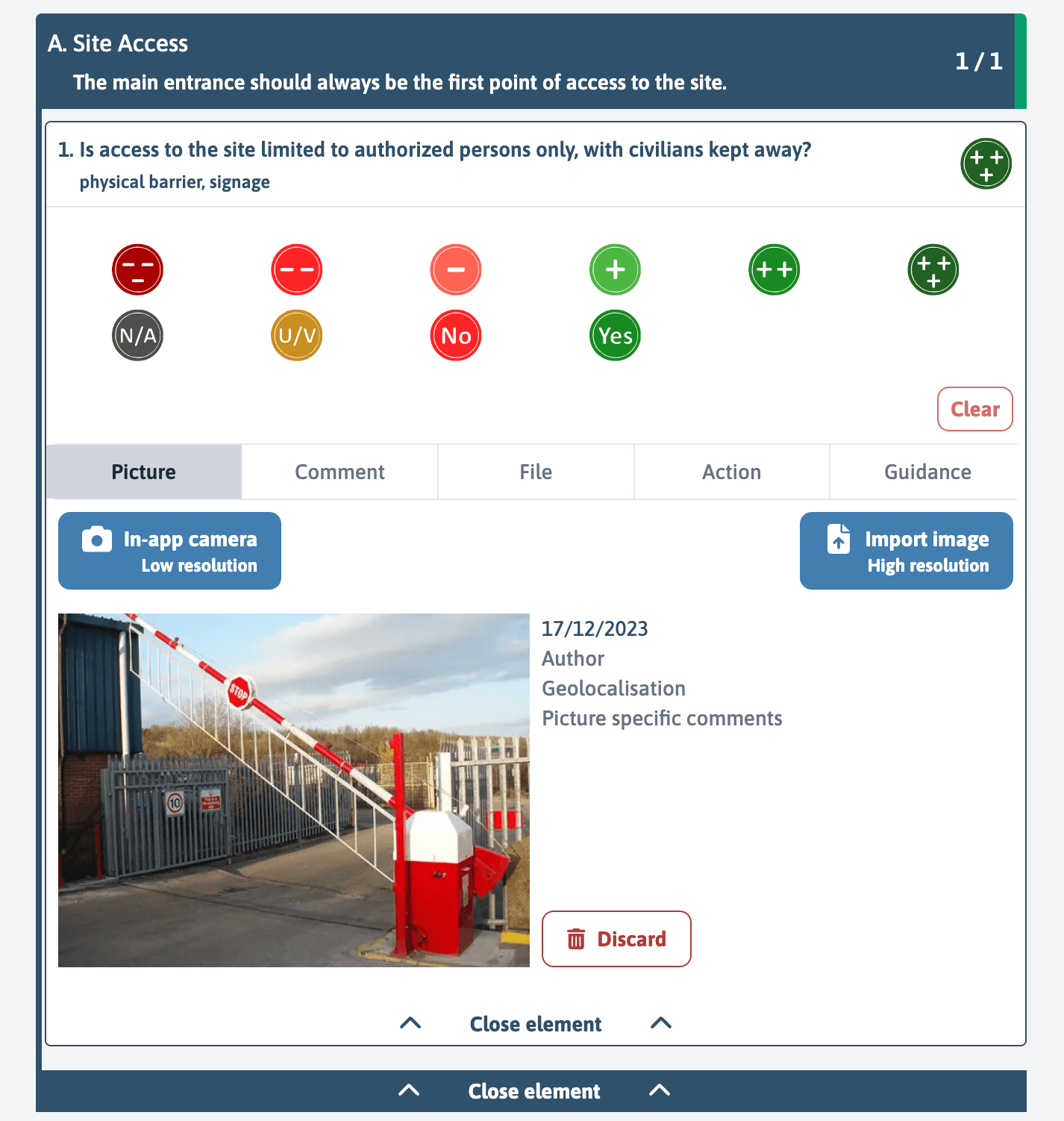
Add an Image
Click on “Import image” to add a high-resolution image that documents the state or condition of the inspected item.
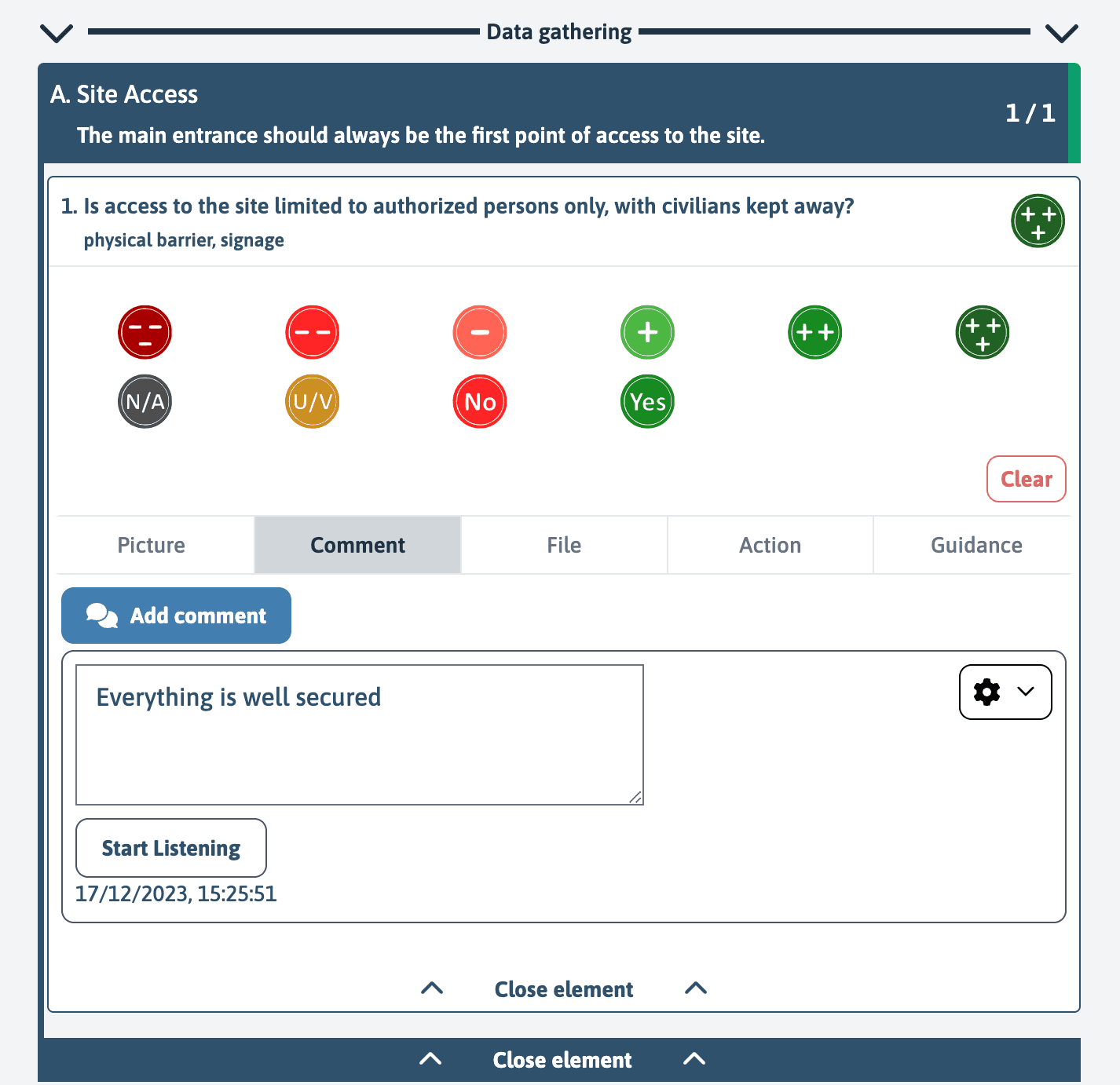
Write a Comment
Under the “Comment” tab, you have the option to enter additional comments or observations. In the example, the comment “Everything is well secured” was added.
Upload a File
If necessary, you can attach additional files using the “Files” option. This can include documents, certificates, or other types of relevant evidence.
Create an Action
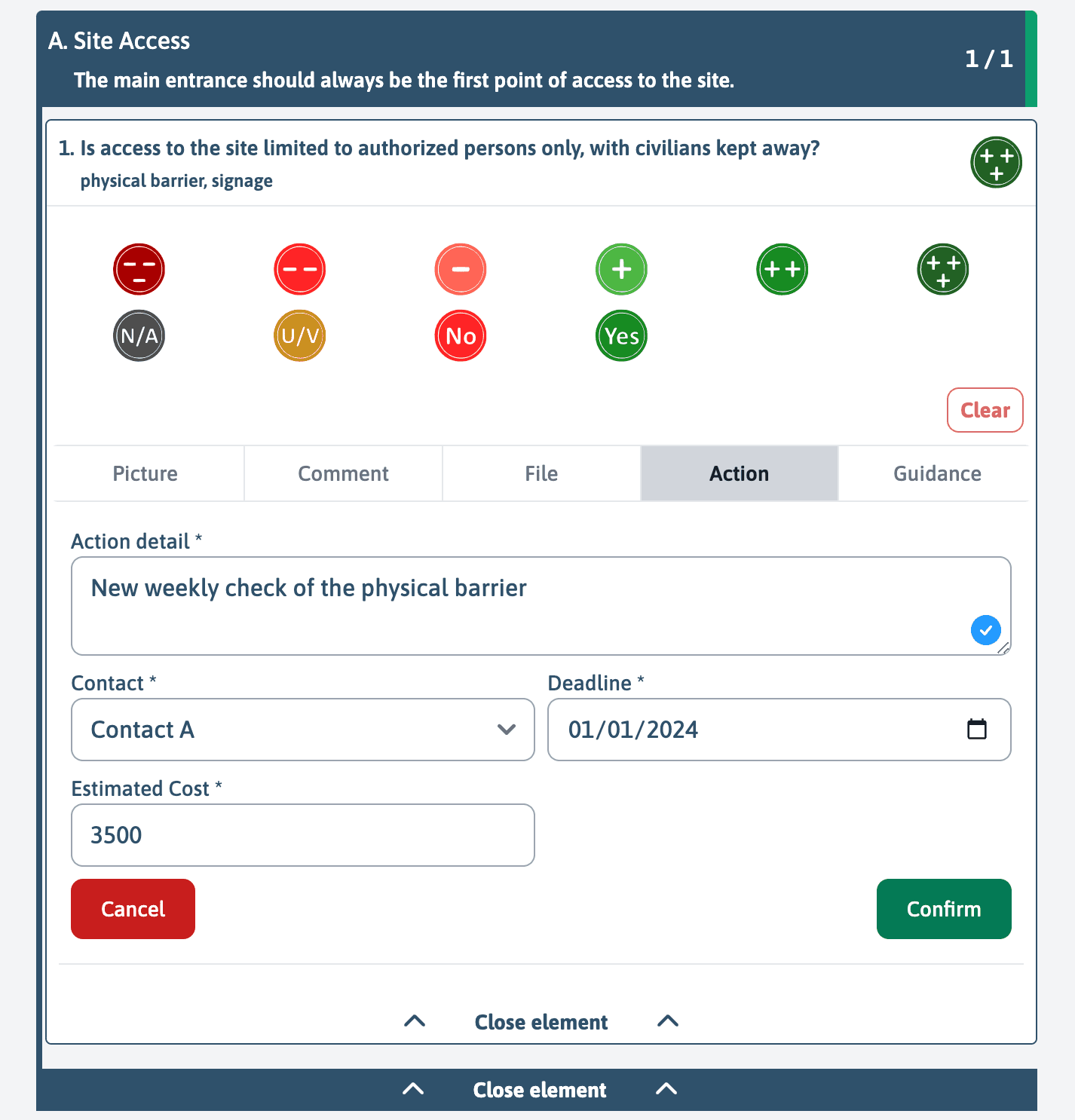
If the item requires a follow-up action, fill in the details under the “Action” tab.
For example, you can schedule a “New weekly check of the physical barrier”, indicate the responsible contact (Contact A), the due date (01/01/2024), and the estimated cost (3500).
Read the Guide
If you need clarifications or instructions on how to respond to an item, use the “Guide” option to access specific guidelines.
These features together allow for comprehensive and detailed documentation of each inspected item, ensuring that all necessary information is recorded and easily accessible for the next steps of the assessment.