Pie / Donut Chart
Before creating this chart, make sure the question you want to visualize is already available in the results table.
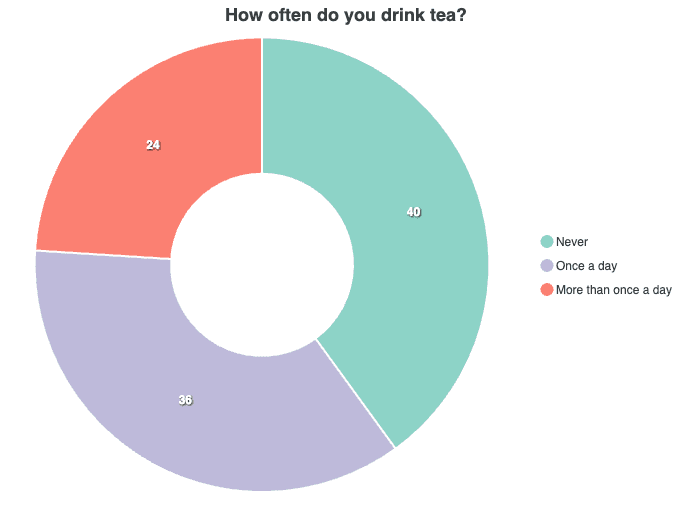
This guide shows how to create a pie or donut chart for a single question. In this example, the chart displays how often participants drink tea, without any grouping.
Goal
By the end of this guide, you will have a donut chart that shows the response distribution for a single question.
Starting Point
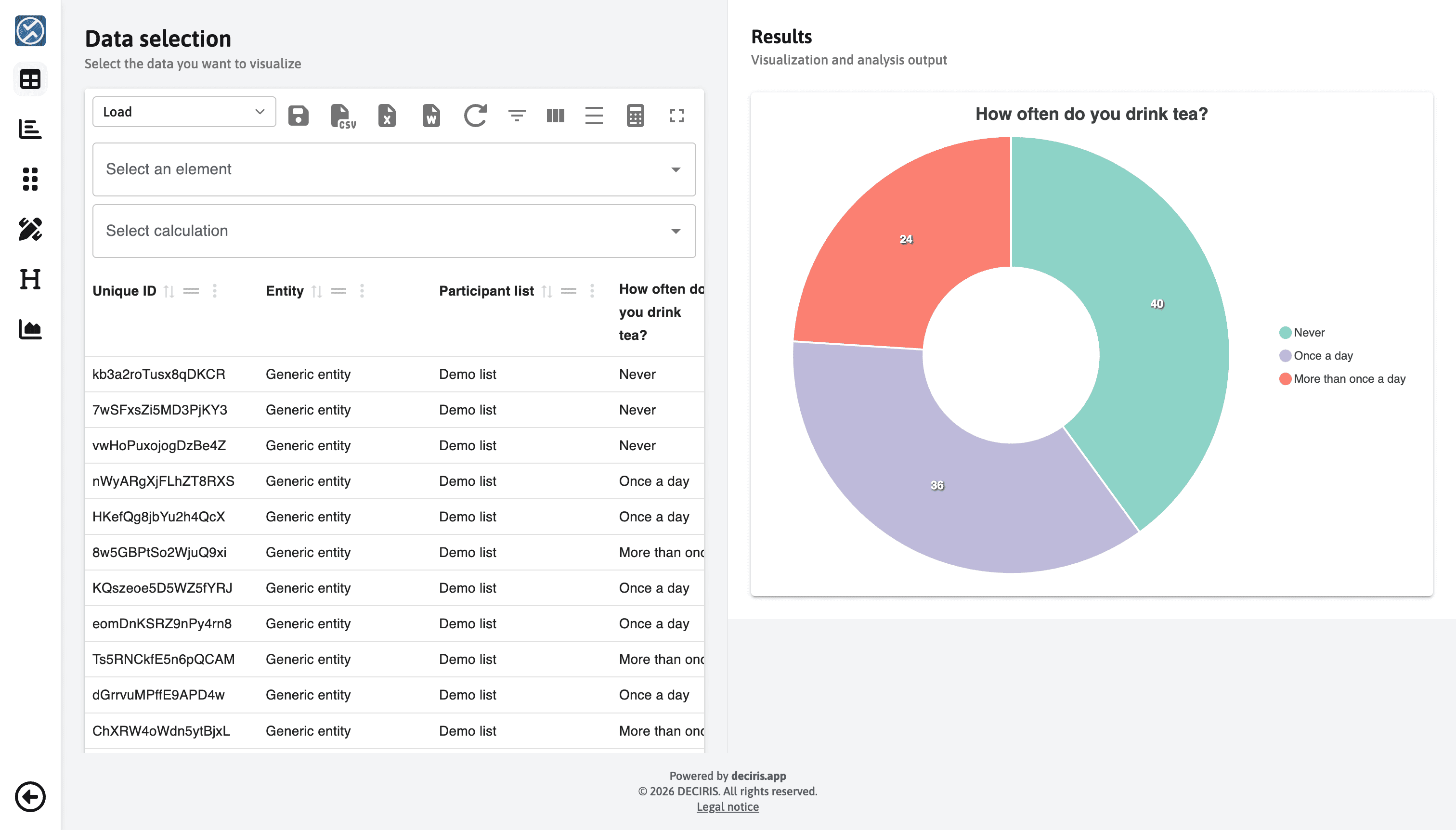
Begin from the results table and load the question you want to visualize. Here,
the table includes the question How often do you drink tea?, which will be
used as the source for the chart.
Selecting the Chart Type and Source Question
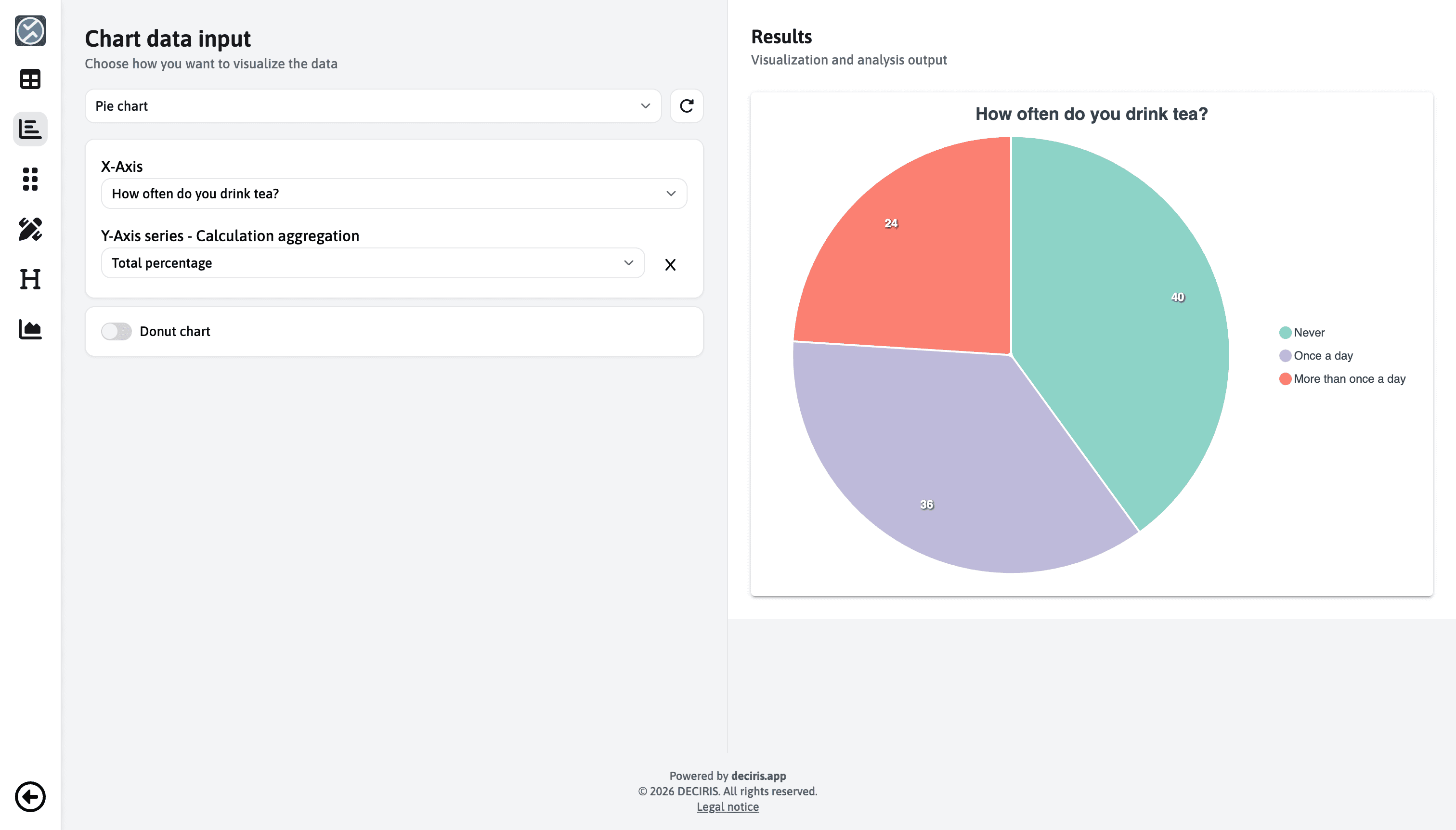
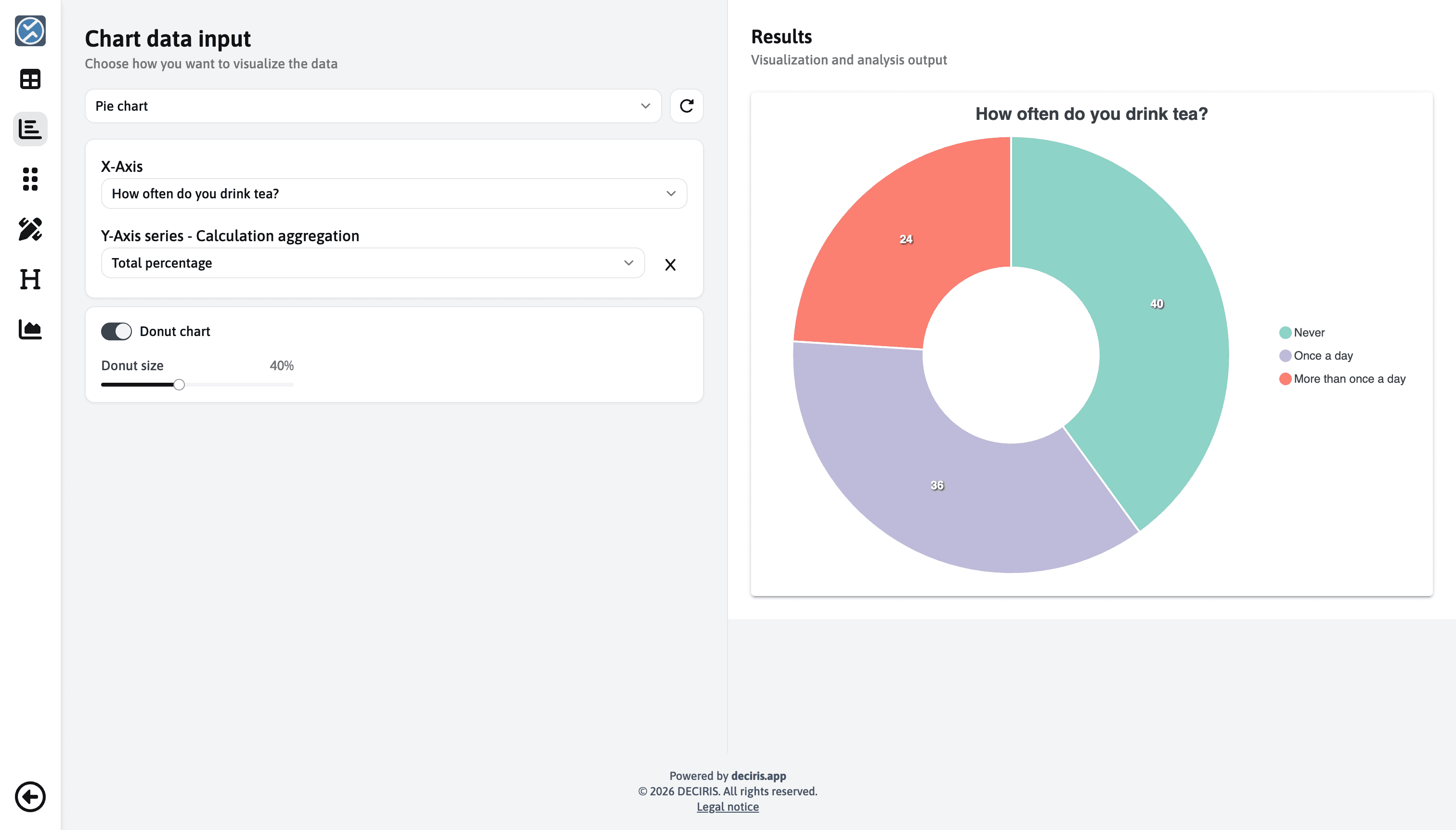
Open the chart editor, choose Pie chart, and select the question on the X-axis. For single-question charts like this one, the question itself provides the categories that will become the chart slices.
Choosing the Aggregation
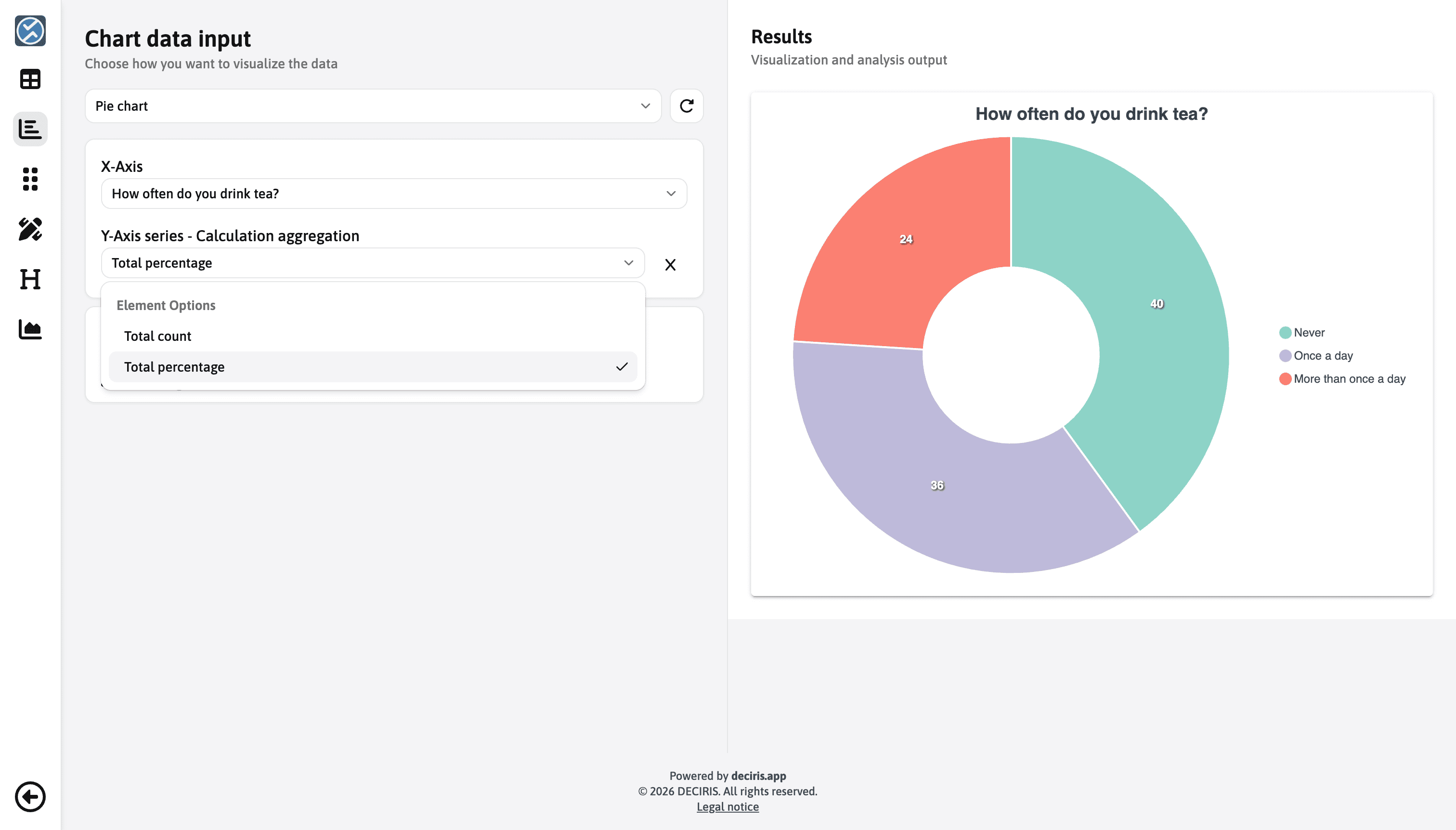
In the Y-axis field, choose Total percentage. This makes each slice represent the share of responses for one answer option, which is usually the most readable format for pie and donut charts.
Turning the Pie Chart into a Donut Chart
If you want a donut chart instead of a classic pie chart, enable Donut chart. You can also adjust the donut size to control how large the center opening should be.
Reviewing the Labels
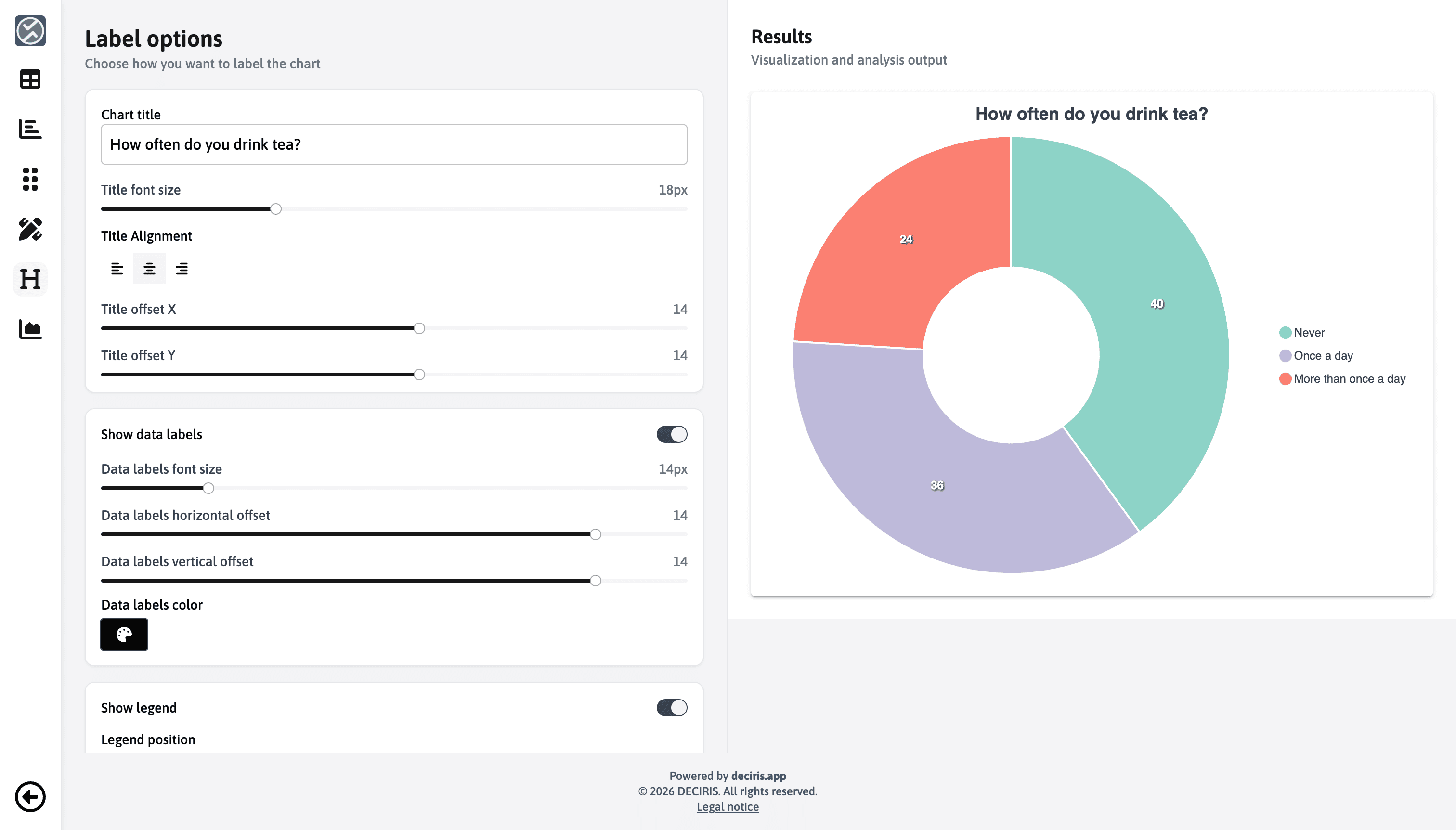
In Label options, you can edit the chart title, toggle data labels, and adjust the legend. This helps you keep the chart clear and readable without changing the underlying data selection.
Final Result
If your chart matches the example below, the workflow is complete.