Calculations
To use the calculation functions, responses associated with each active element must have a numerical score assigned. See the “Different types of elements” section for more details.
The Calculations feature allows you to create complex mathematical and logical operations by combining scores from different elements. You can also combine multiple calculations together to create more sophisticated analyses.
Creating a New Calculation
To create a new calculation:
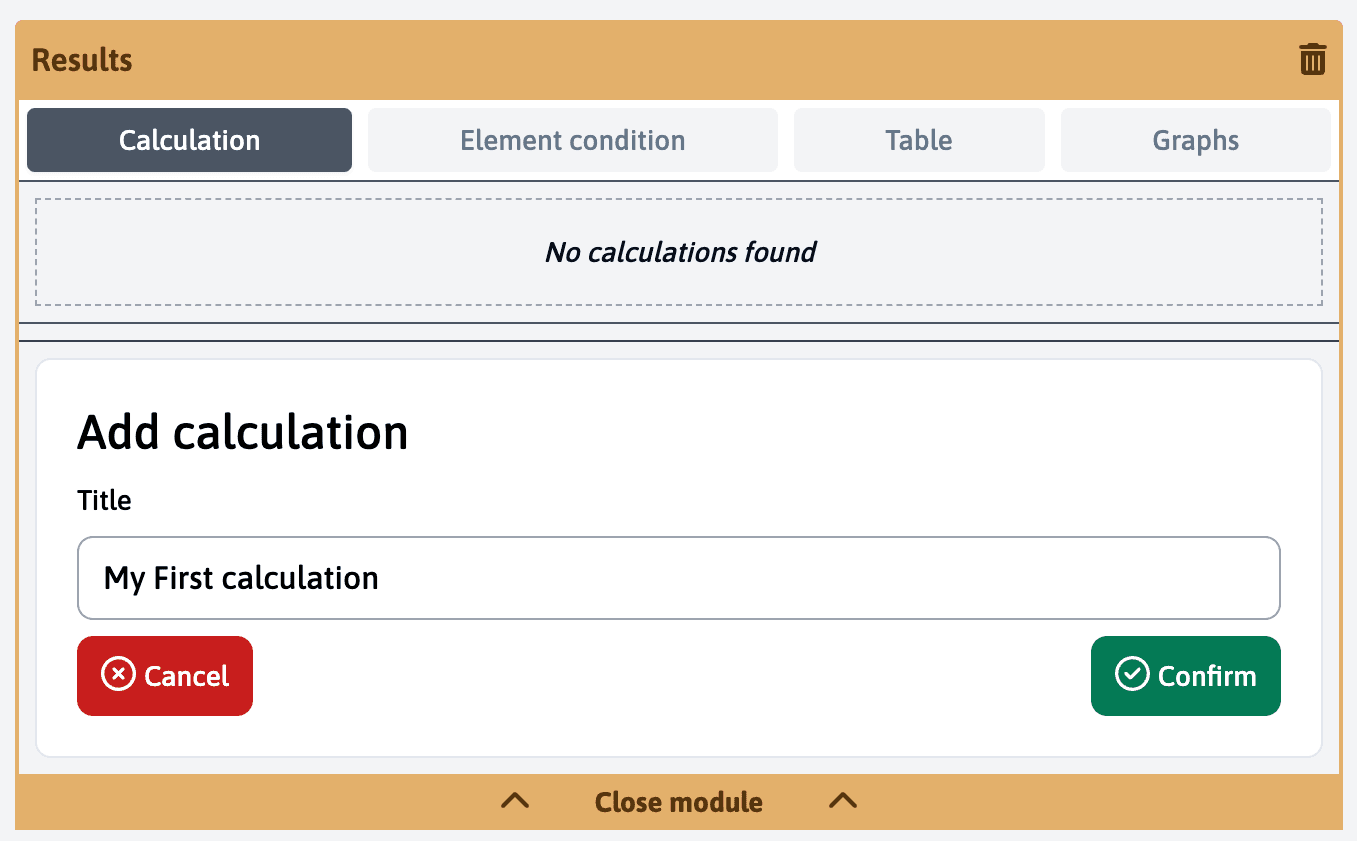
- Click on “Add calculation”
- Give it a unique name
- Click on the newly created calculation to open it
Building Your Calculation
The calculation builder provides several components that you can use to create your formula:
Mathematical Operations
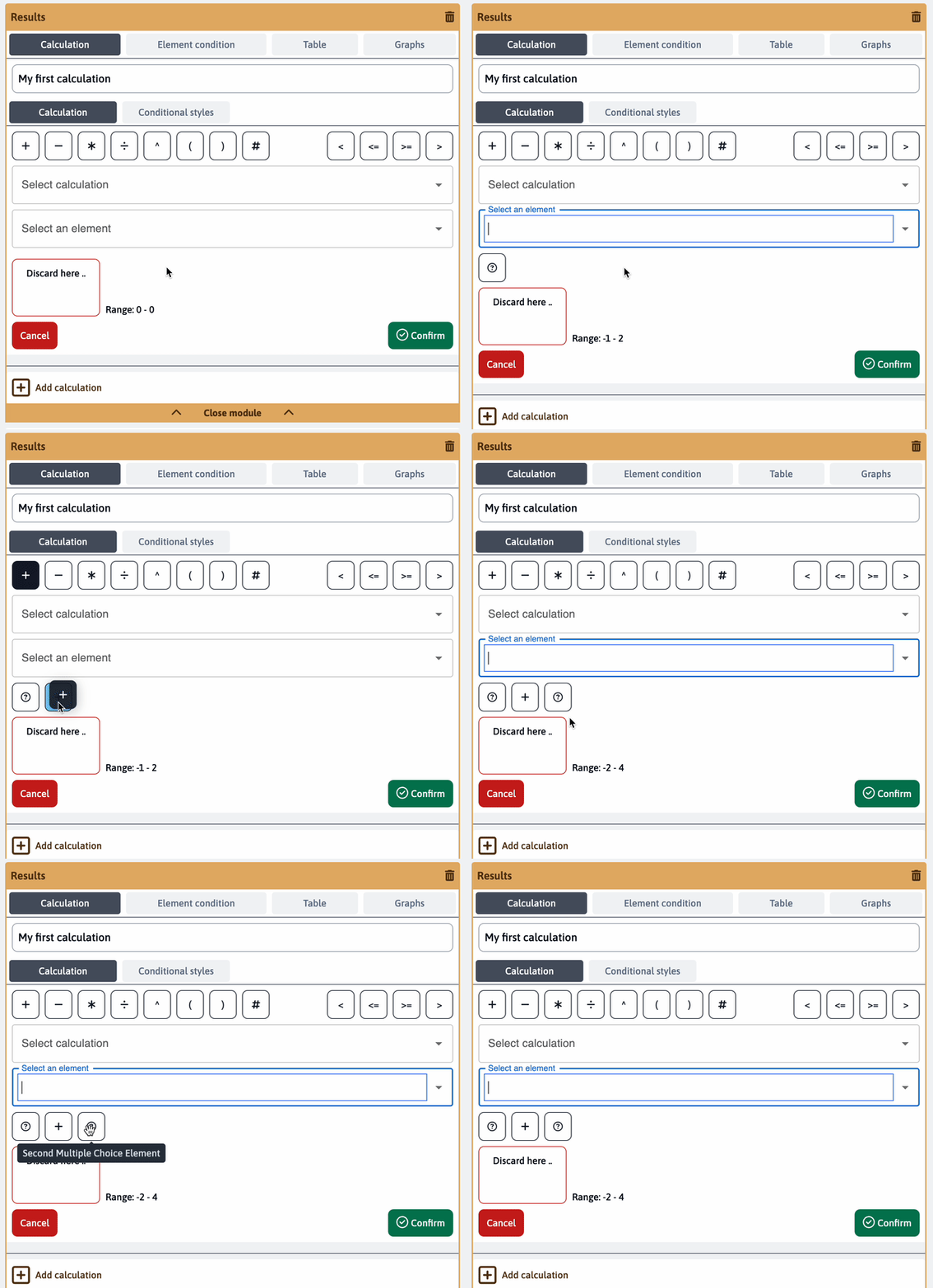
You can drag and drop mathematical operators to build your calculations:
- Basic operators
+,-,*,/ - Parentheses for grouping operations
- Fixed numerical values (e.g.
100)
Logical Operations
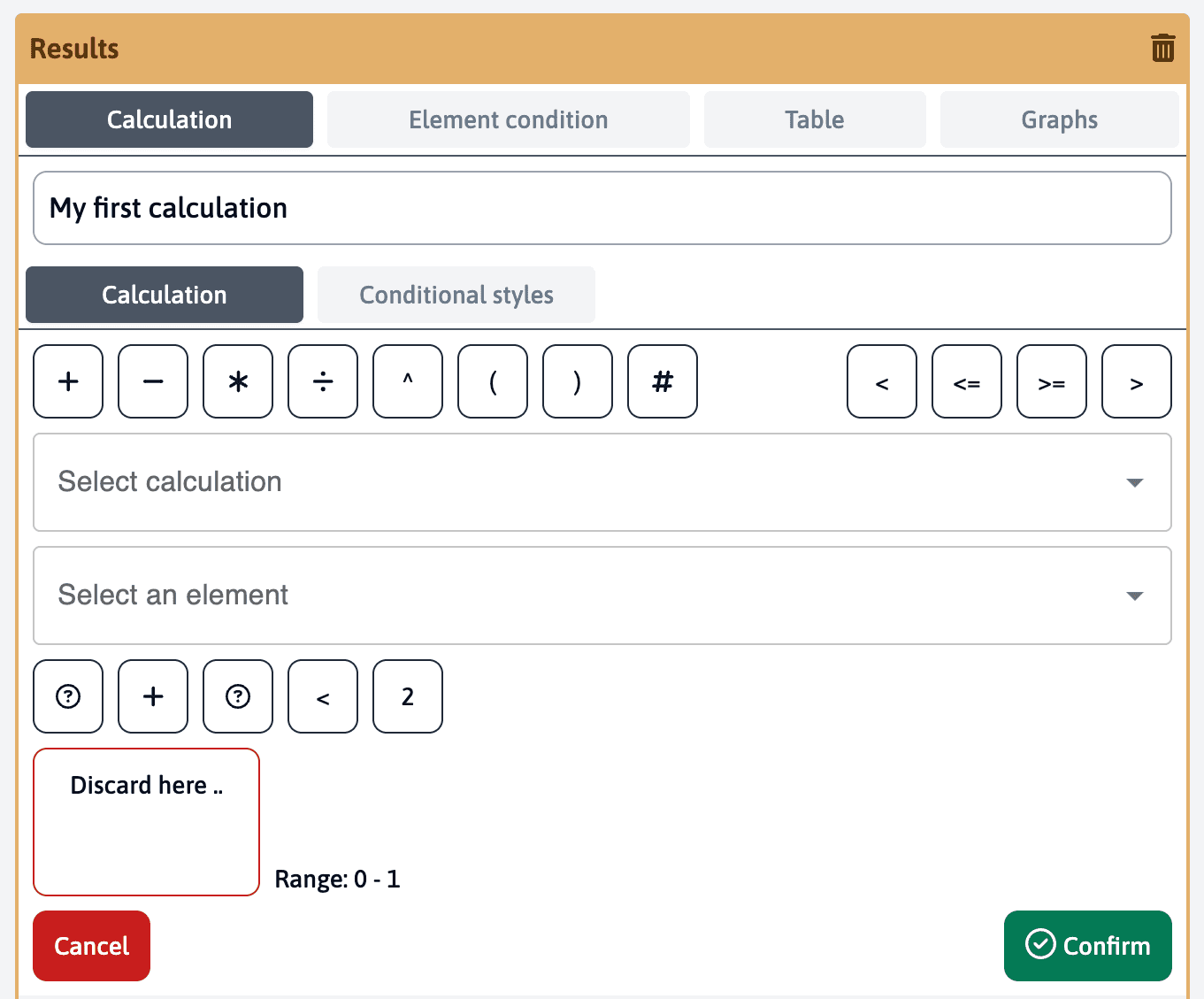
Create conditional logic using comparison operators:
- Greater than / Less than
><>=<= - Returns “True” (1) or “False” (0) values
Calculation and element Selection
Use the dropdown menu to select other calculations and active elements from your template:
- Access previous calculation results
- Choose any element with numerical scores
- Combine multiple elements in a single formula
Make sure to properly separate calculations (addition, multiplication) using parentheses to ensure correct mathematical order of operations.
Verifying Results
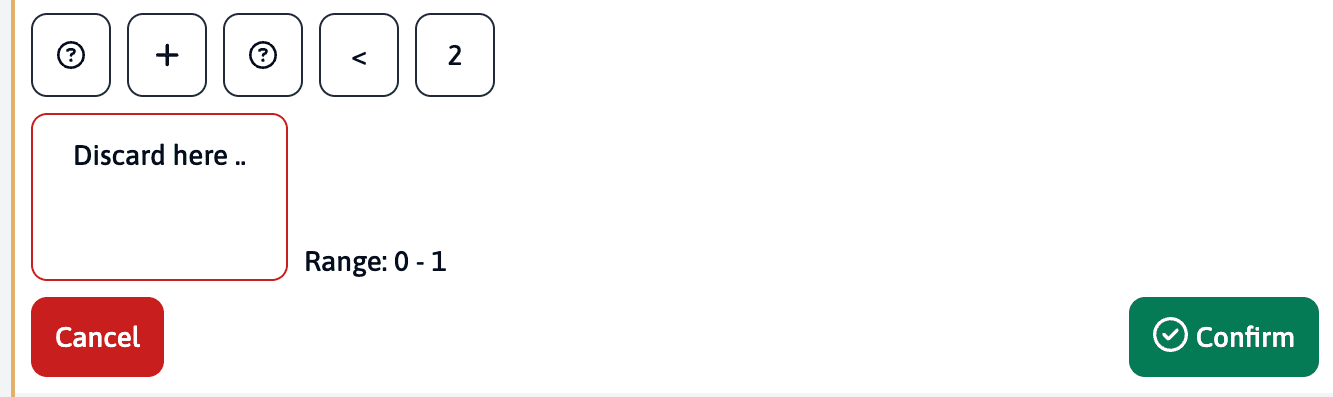
As you build your calculation, a result range appears at the bottom of the screen. This allows you to:
- Verify that your calculation works as intended
- See immediate feedback on your changes
- Test different combinations of values
Conditional Formatting
Each calculation can be enhanced with conditional formatting to:
- Click on “Add conditional style”
- Give it a title (this will appear in tables and charts)
- Add a description (this will only be visible to template editors)
- Set the upper and lower values that trigger the condition
For each conditional style, you can:
- Define precise threshold values
- Choose between “greater than”
>or “greater than or equal to”>= - Associate a specific color with the condition
- Add an icon for visual identification
You can repeat this process as many times as needed to cover your entire result range with different conditions.
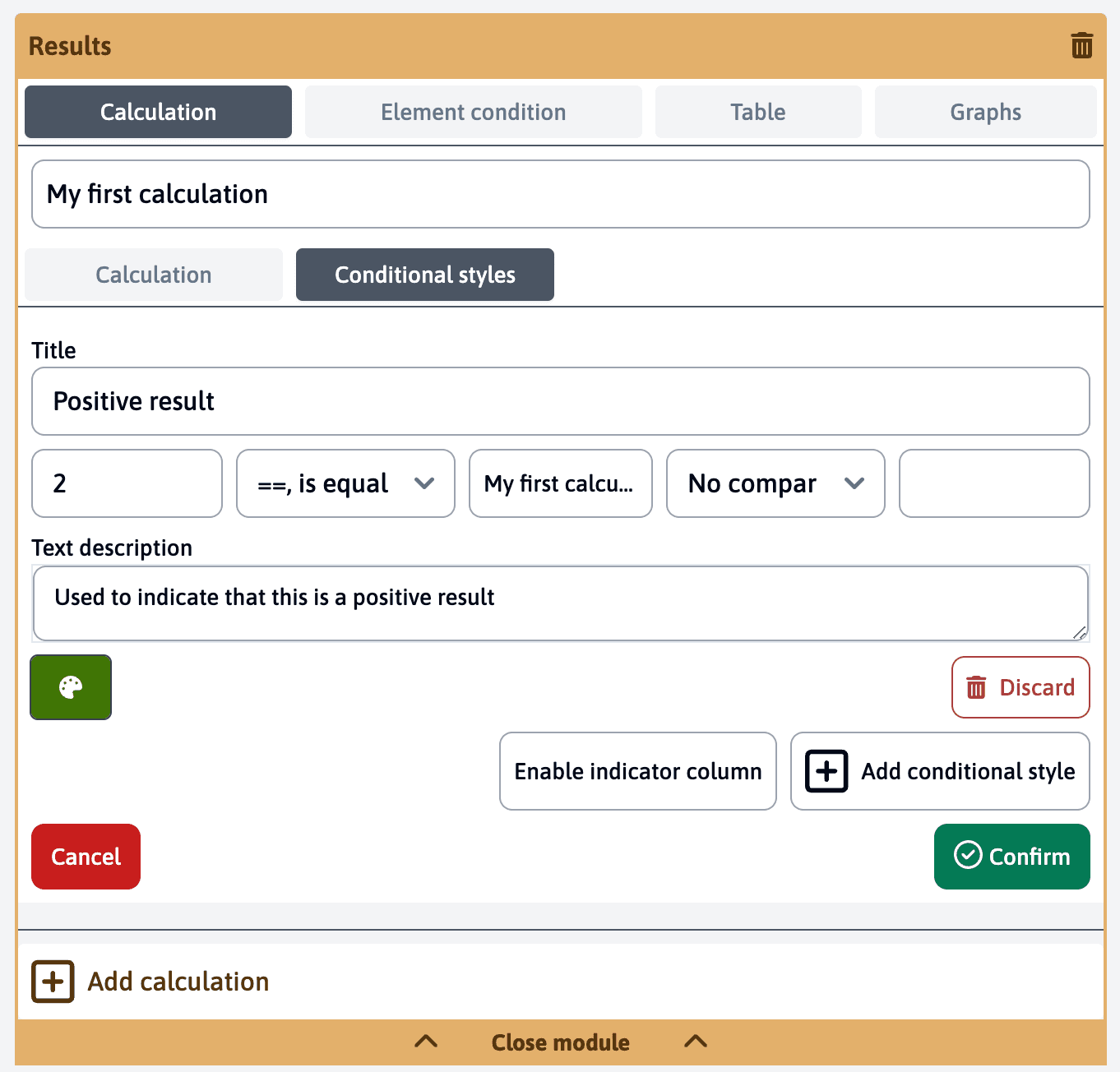
Make sure your conditional styles cover the entire range of possible results to ensure all values are properly formatted in your visualizations.
Example Calculations
Here are some common calculation examples to help you get started:
Basic Average
(Element1 + Element2 + Element3) / 3This simple calculation adds three elements and divides by the number of elements to get an average score.
Weighted Score
(Element1 * 0.4) + (Element2 * 0.6)This calculation gives 40% weight to Element1 and 60% weight to Element2.
Karasek Model
The Karasek model evaluates work-related stress based on two main factors:
- Psychological Demands (PD)
- Decision Latitude (DL)
First, calculate the Decision Latitude by combining skill discretion and decision authority elements:
// Skill Discretion calculation (SD)
(Learn_New_Things + Requires_Skill + Different_Skills + Creative +
 Repetitive_Work - 5 + High_Skill_Level) / 6

// Decision Authority calculation (DA)
(Freedom_Decisions + Choose_How_To_Work + Have_Say_At_Work) / 3

// Final Decision Latitude calculation (DL)
(Skill_Discretion * 2 + Decision_Authority * 4) / 6
Note how reversed elements (like Repetitive_Work and Enough_Time) are subtracted by 5 to properly invert their scale. The final calculations combine multiple sub-calculations to create the complete model.