Element Conditional Styling
⚠️
To use element conditional styling, you must first create response groups for your active elements. See the Response Groups section for more details.
Element conditional styling allows you to apply visual formatting to your results based on response values. Once you’ve created response groups, they automatically appear in the “Element Conditions” submenu.
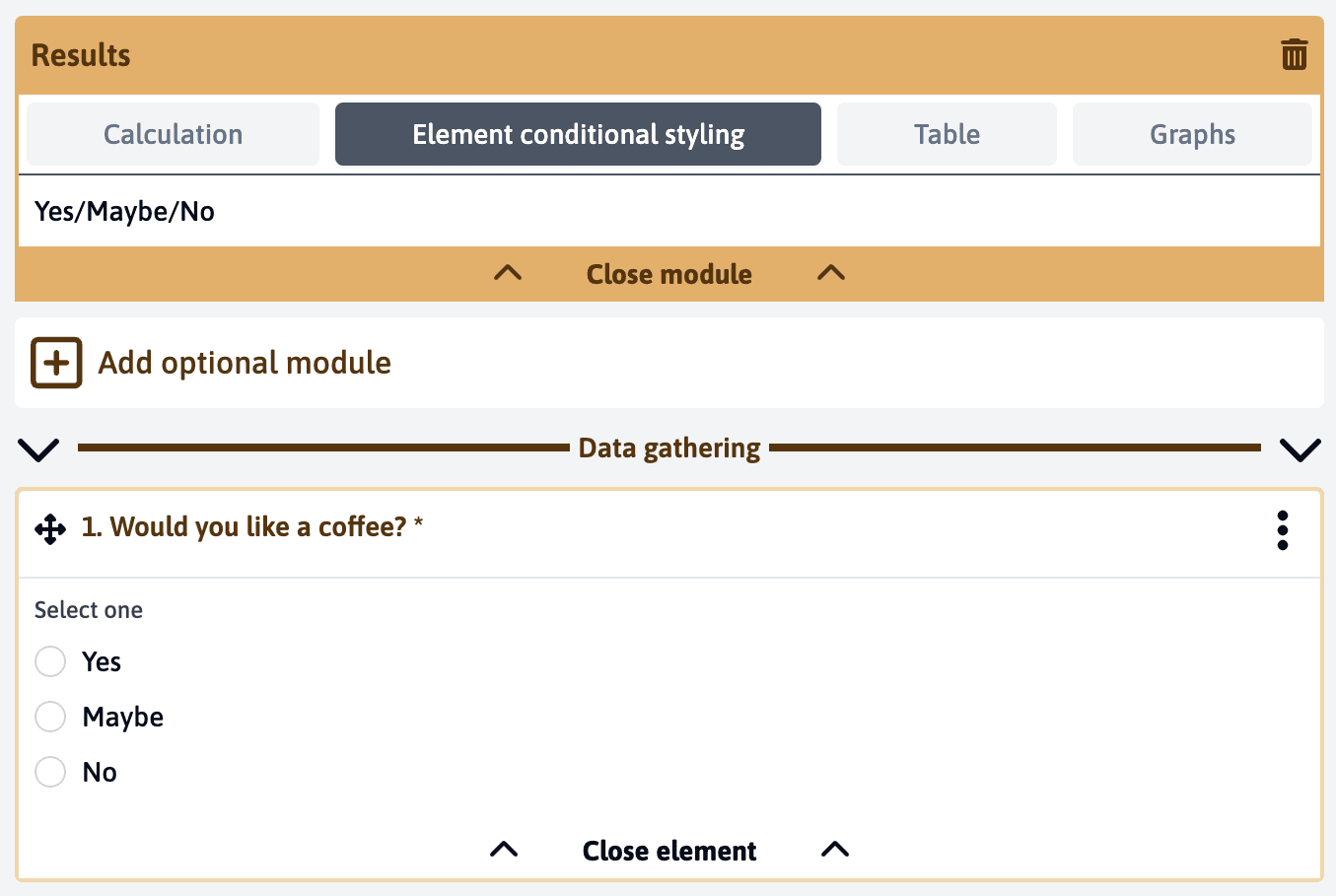
Setting Up Conditional Styles
To configure conditional styling for your elements:
- Click on “Element Conditions”
- Select the response group you want to configure
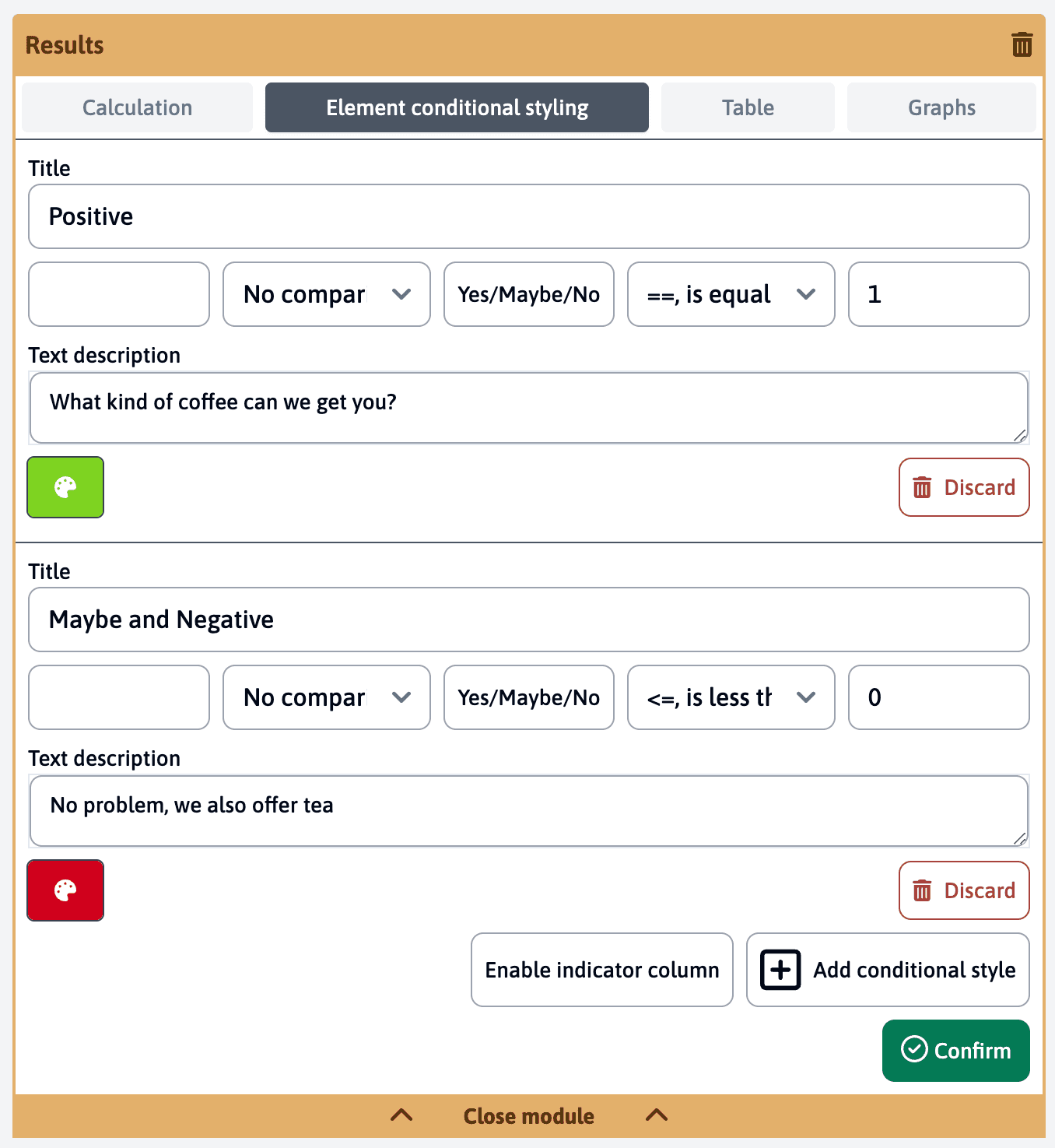
- Assign a name that will be displayed in result tables and chart editors
- Define the upper and lower values that trigger the condition
Configuring Conditions
For each condition, you can:
- Set precise threshold values
- Choose between “greater than”
>or “greater than or equal to”>=or other operators - Associate a specific color with the condition
- Add an icon for visual identification (optional)
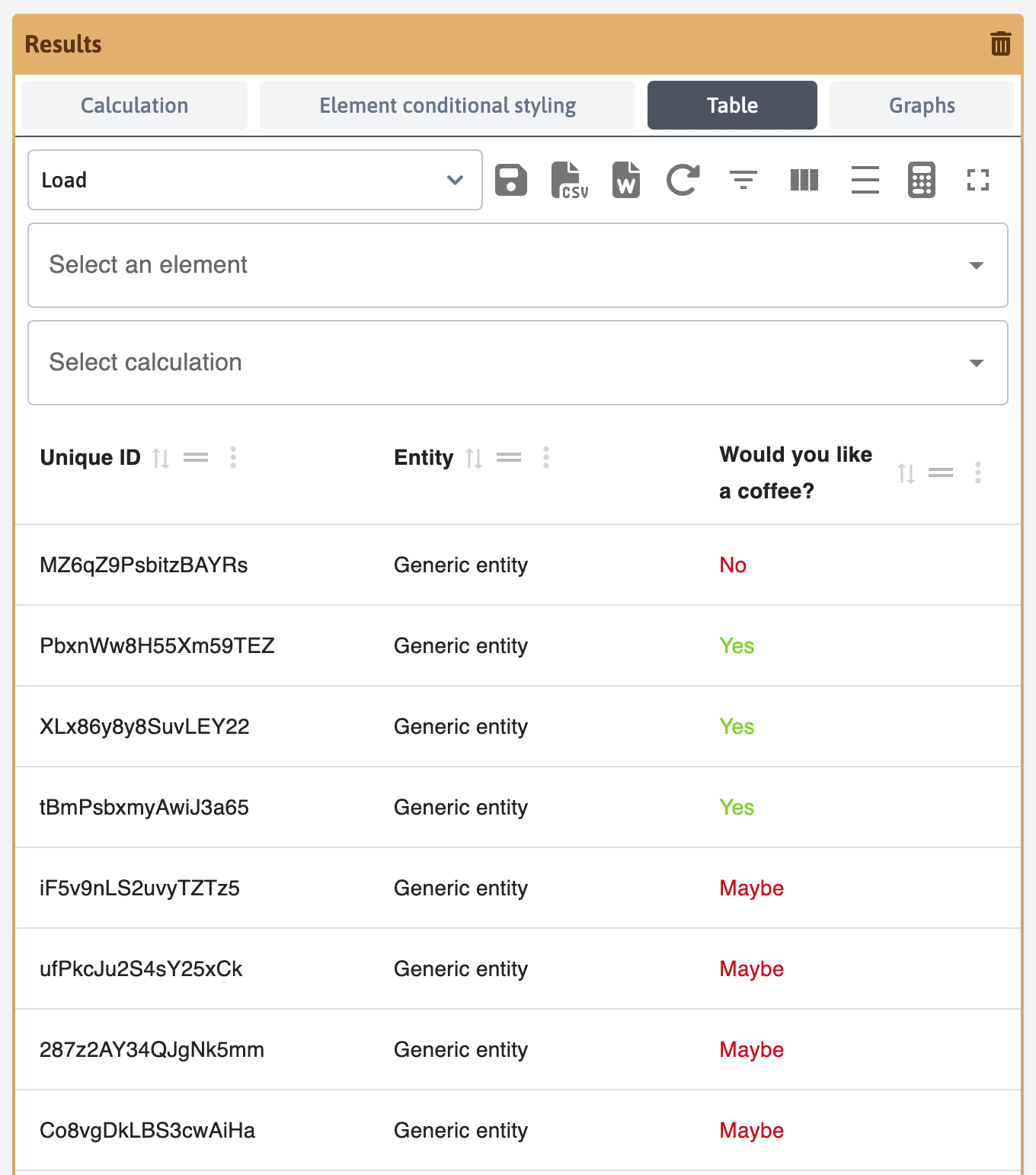
Verification Table
The results module includes a verification table that displays responses from 100 random generated participants. This helps you:
- Verify your conditional styling settings
- Preview how the formatting will appear
- Identify any gaps or overlaps in your conditions
You can repeat this process for as many response groups as needed, creating a comprehensive set of conditional styles for your results.
Last updated on