Results Table
You must have created at least one active element to use the table feature.
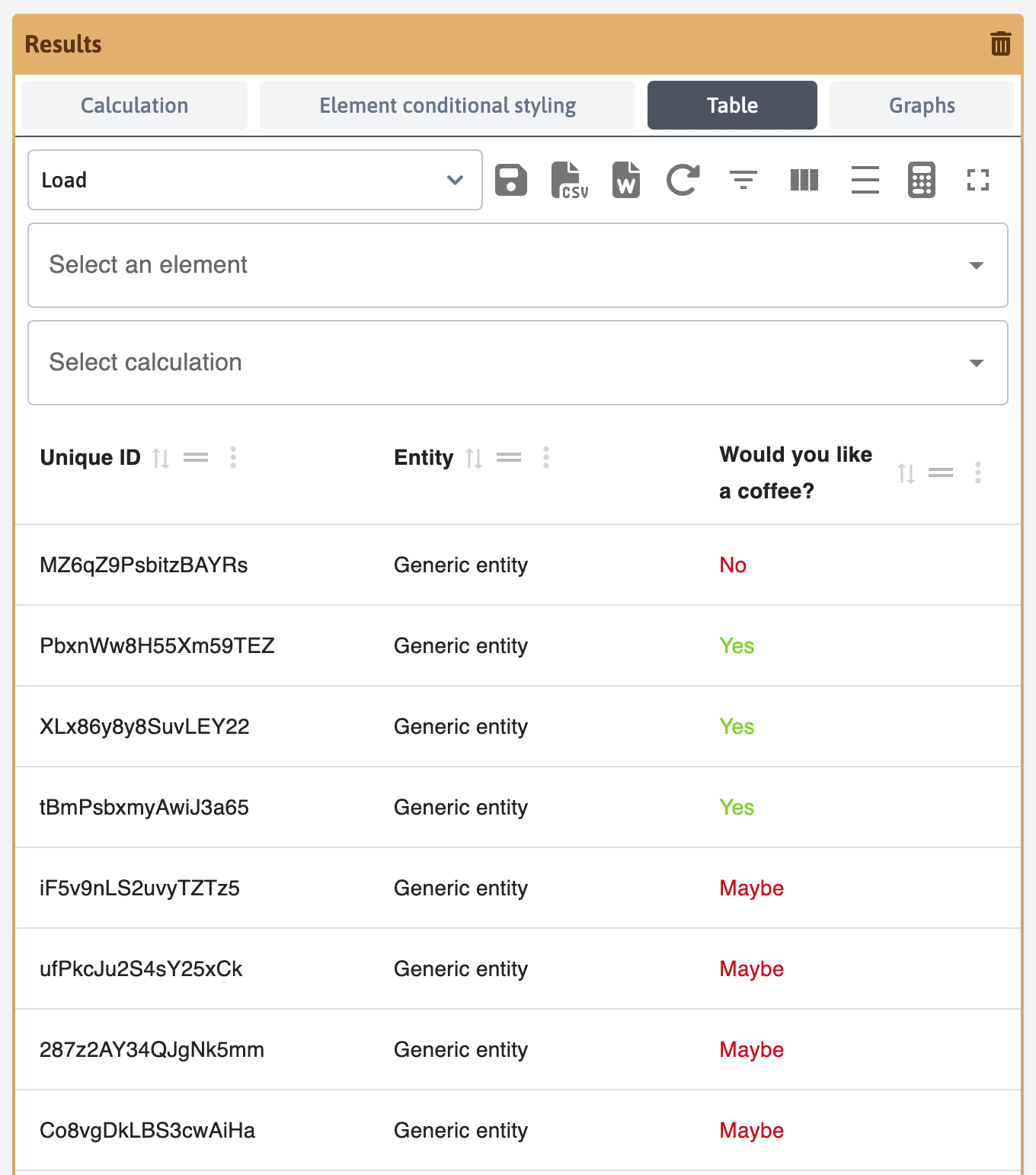
The results table is the primary tool for visualizing collected data. It displays all responses to active elements, associated calculations, and conditional formatting.
Development Mode
During template development, you can access the table at any time, and the application will automatically generate 100 random participants. This allows you to verify your configuration settings.
Basic Usage
When you first access the table, only participant IDs and their associated entities are visible. To display active elements or calculations, you must select them from two dropdown menus.
Adding Elements
There are two ways to add active elements:
- Select elements individually by clicking directly on them
- Load them by group by clicking on the header title
Adding Calculations
You can add calculations one by one by selecting them from the dropdown menu.
Table Tools
Once data is loaded, several tools are available through the menus:
Save and Export
- Save Current Table State: Save your elements, calculations, filters, and column organization for quick loading during future data analysis
- Export to CSV: Export the table content as displayed on screen in Excel-compatible format
- Export to DOCX: Export the table content to a DOCX document (limited functionality - contact us for more information)
Table Management
- Reset Table: Clear all added elements and calculations to start fresh
Consider saving your configuration before resetting, as complex setups can be time-consuming to recreate.
Display Options
- Show/Hide Filters: Filter data using various methods (greater than, less than, contains, etc.)
- Show/Hide Columns: Modify column organization by moving, showing, or hiding them
- Change Density: Adjust data density for better visibility
- Show/Hide Calculations: Toggle visibility of default table calculations
- Fullscreen Mode: Expand the table for easier configuration and analysis with large datasets
Advanced Features
Data Grouping
The table allows you to group data by elements for in-depth analysis of results. For example, if you collected data by region using a demographic question like “Select your region (North, Central, South)”, you can group by region by dragging and dropping the column header to the top of the table.
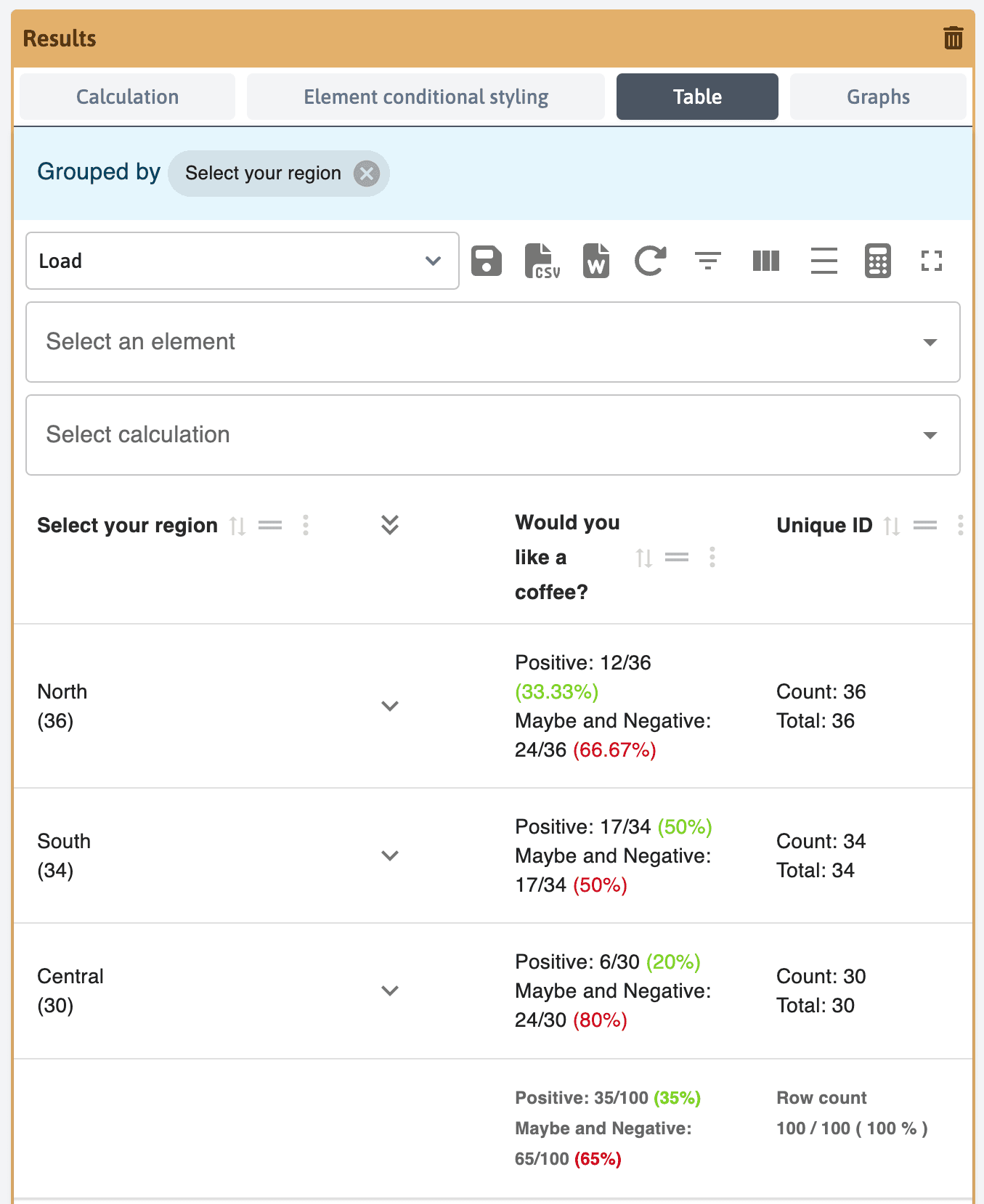
The table will reorganize to present data by region, including calculations and conditional formatting.
You can create multiple grouping levels. For instance, if you also included a demographic question about status (manager, non-manager), you can group first by region and then by status.