Sub-organisations
Sub-organisations give a client, site, department, or partner their own workspace inside one entity.
A sub-organisation user does not get access to your full organisation. They only see the workspace linked to the entity you invite them to, and they can only use the templates you make available for that workspace.
When to use a sub-organisation
Use a sub-organisation when one group should only work in its own workspace, for example:
- a client company;
- a business unit or site;
- a subcontractor, supplier, or partner.
Each workspace can have its own name, logo, users, and templates. Your organisation still controls which entity, users, and finalised templates are available.
What sub-organisation users can do
When a user is invited as a sub-user, they access DECIRIS through the sub-organisation portal. They can:
- choose the workspace they were invited to, if they have access to more than one;
- see only the templates linked to that workspace;
- start a new assessment from an available template;
- follow ongoing assessments;
- view finalised assessment results for their workspace.
Sub-users do not get access to your full organisation, your internal template library, or assessments from other clients.
How to set up a sub-organisation
Set up the sub-organisation from the entity that should act as the client or workspace reference.
- Open the entity.
- Open the module selector for the entity.
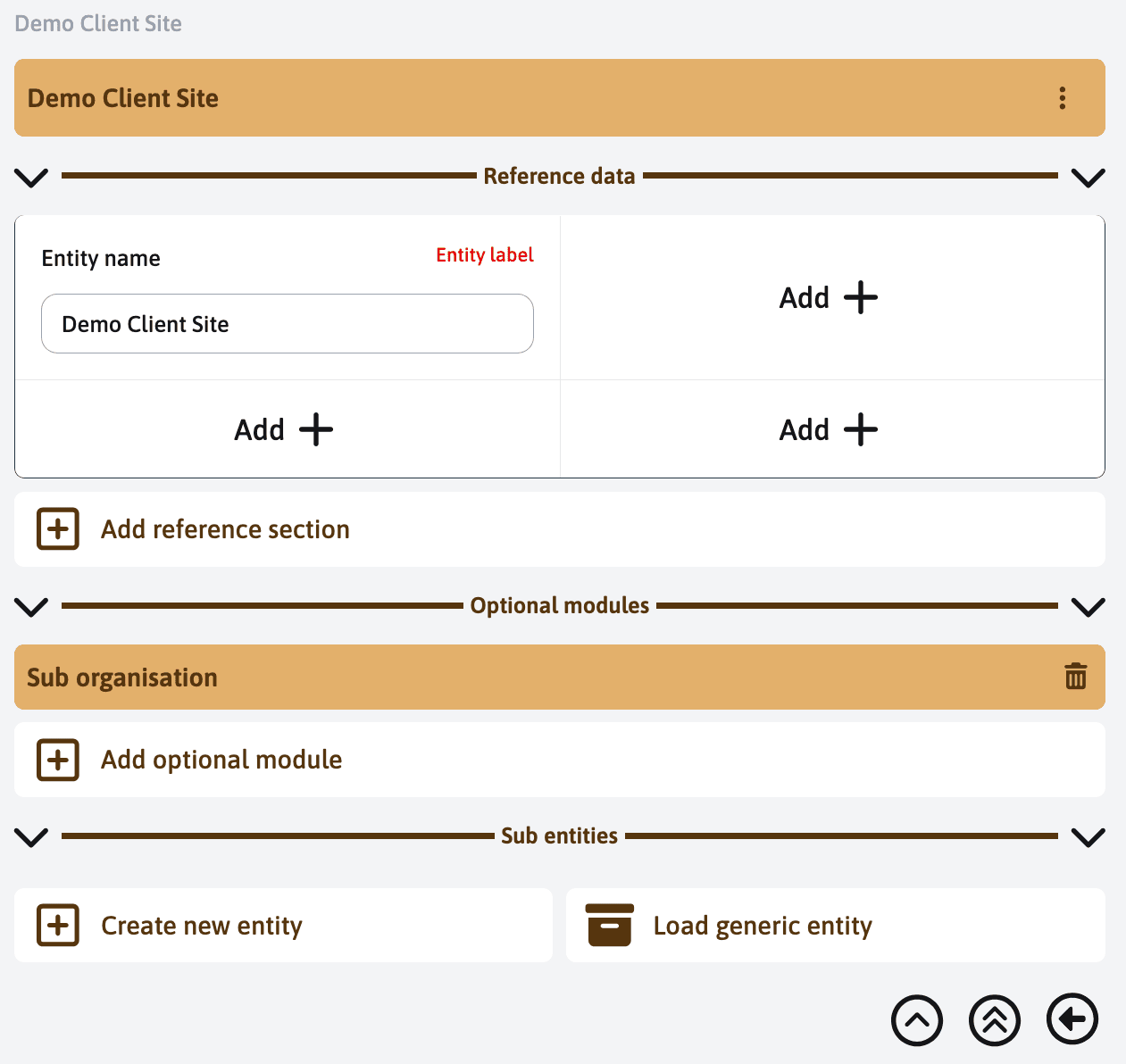
- Add the “Sub organisation” module.
- Return to the entity page and open the new sub-organisation module.
Once the module has been added, it appears in the optional modules area of the entity.
Configure client access
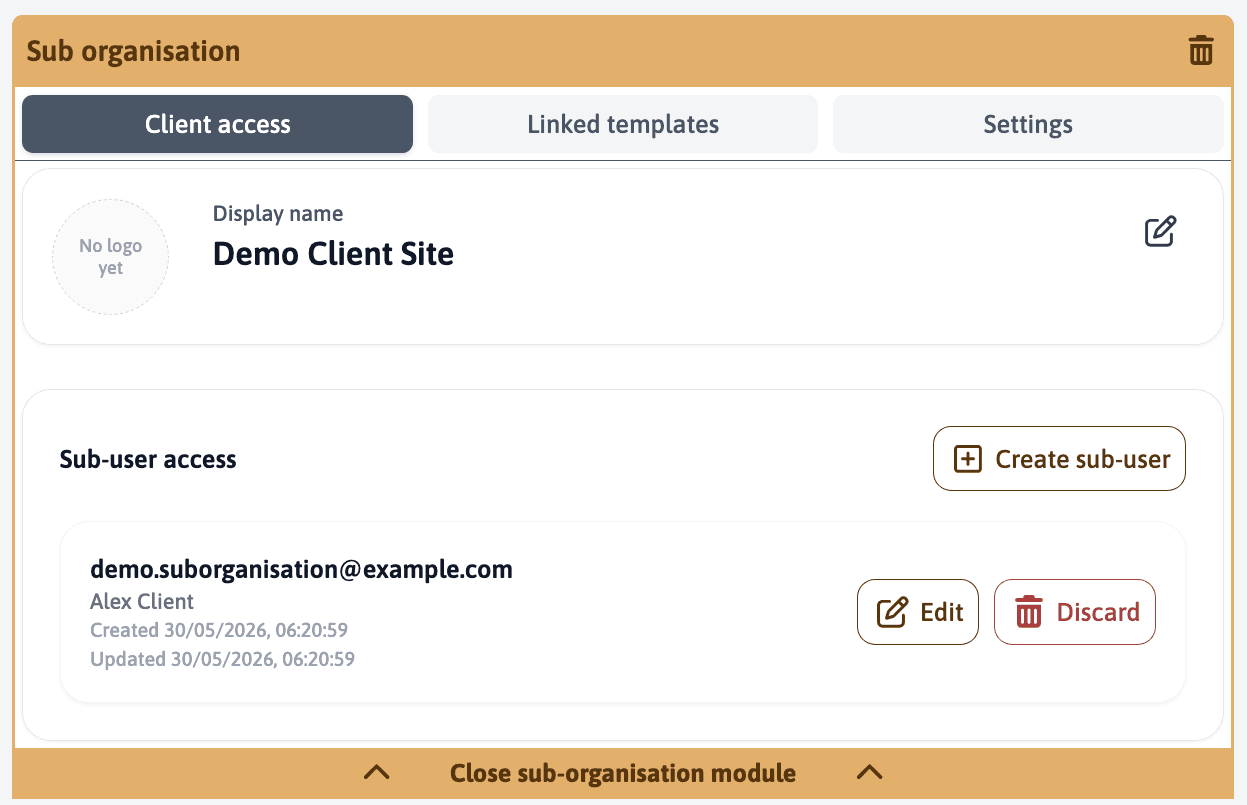
Use “Client access” to prepare how the workspace appears to invited users.
Set a clear display name. This is the name users see in the client portal. Use the client name, site name, or project name instead of an internal code.
You can also upload a workspace logo. This helps users recognise the right workspace, especially if they have access to several workspaces.
Then create sub-users for the workspace. Each sub-user is linked to the current entity and receives access to the sub-organisation portal. Add their email address and, when useful, their first name, last name, and function.
Link templates
In “Linked templates”, choose which finalised templates are available to the sub-organisation.
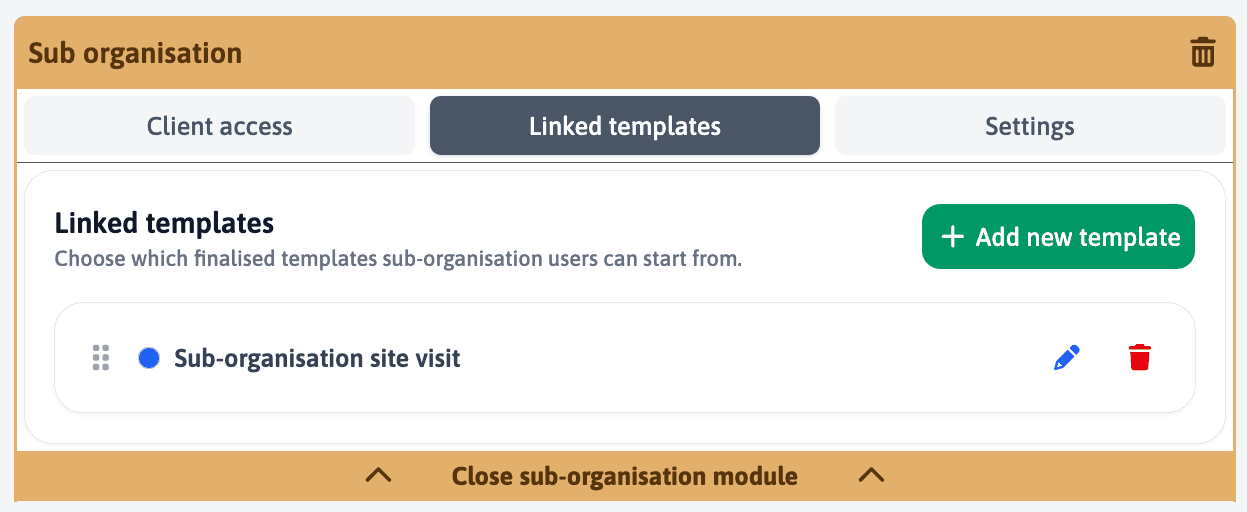
Only linked templates appear in the client portal. You can add templates, change their display title, set a colour, reorder them, or remove them later.
A template must be finalised before it can be linked to a sub-organisation.
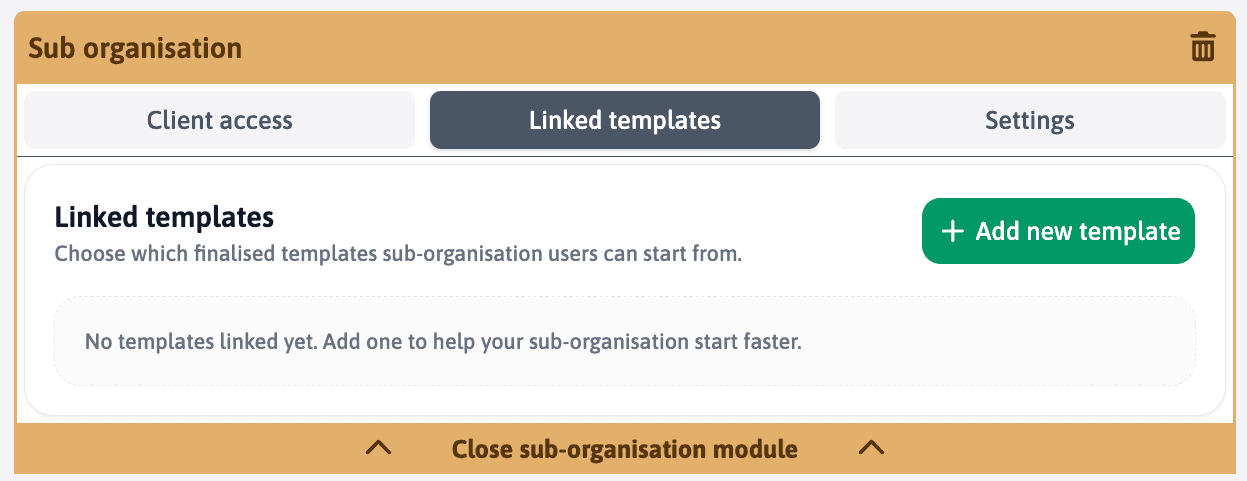
When adding a template, select one of your finalised templates from the list and confirm.
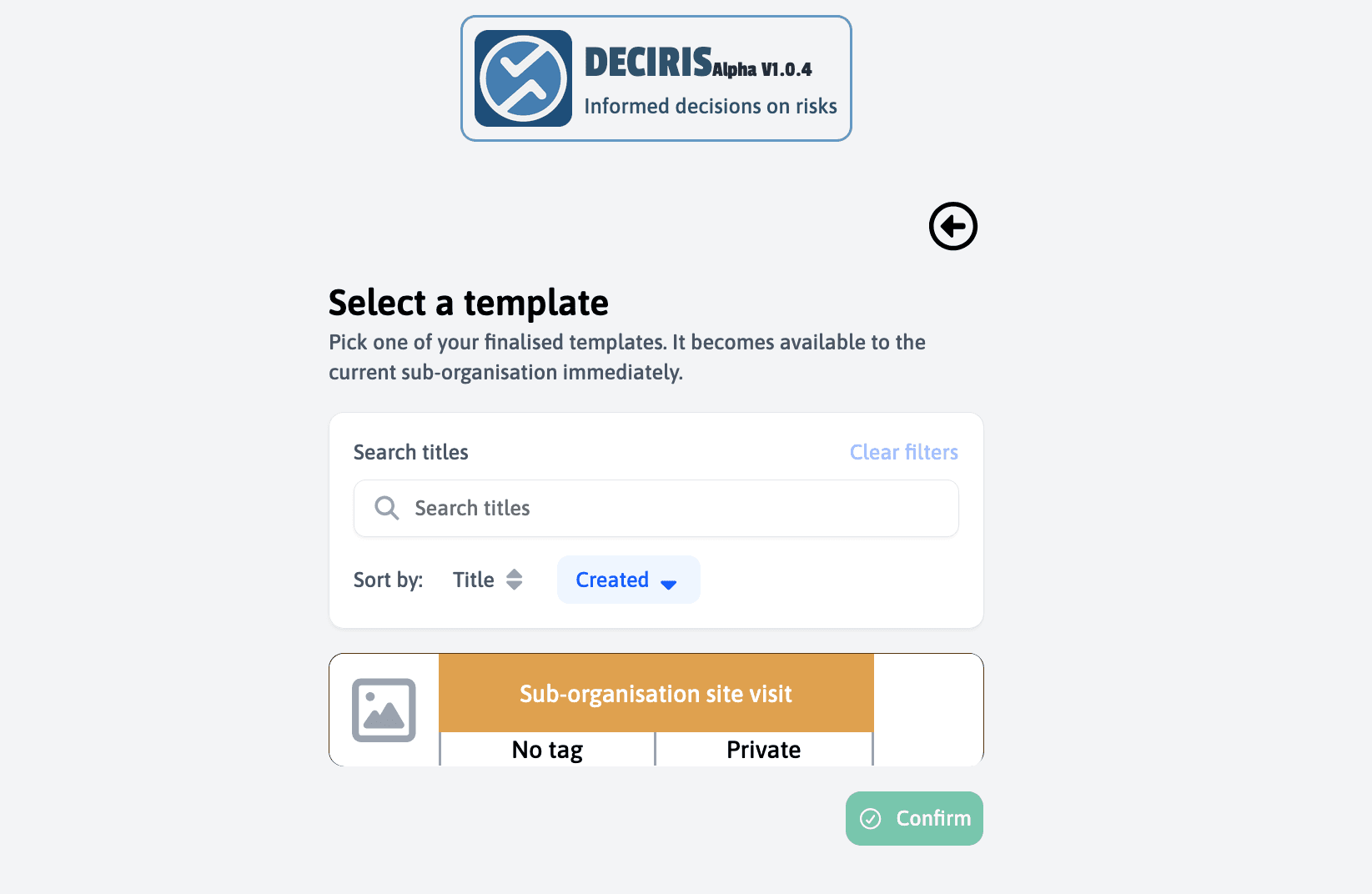
The template then appears in the sub-organisation module. From this list, you can edit the display title, remove the template, or reorder templates.
Client workflow
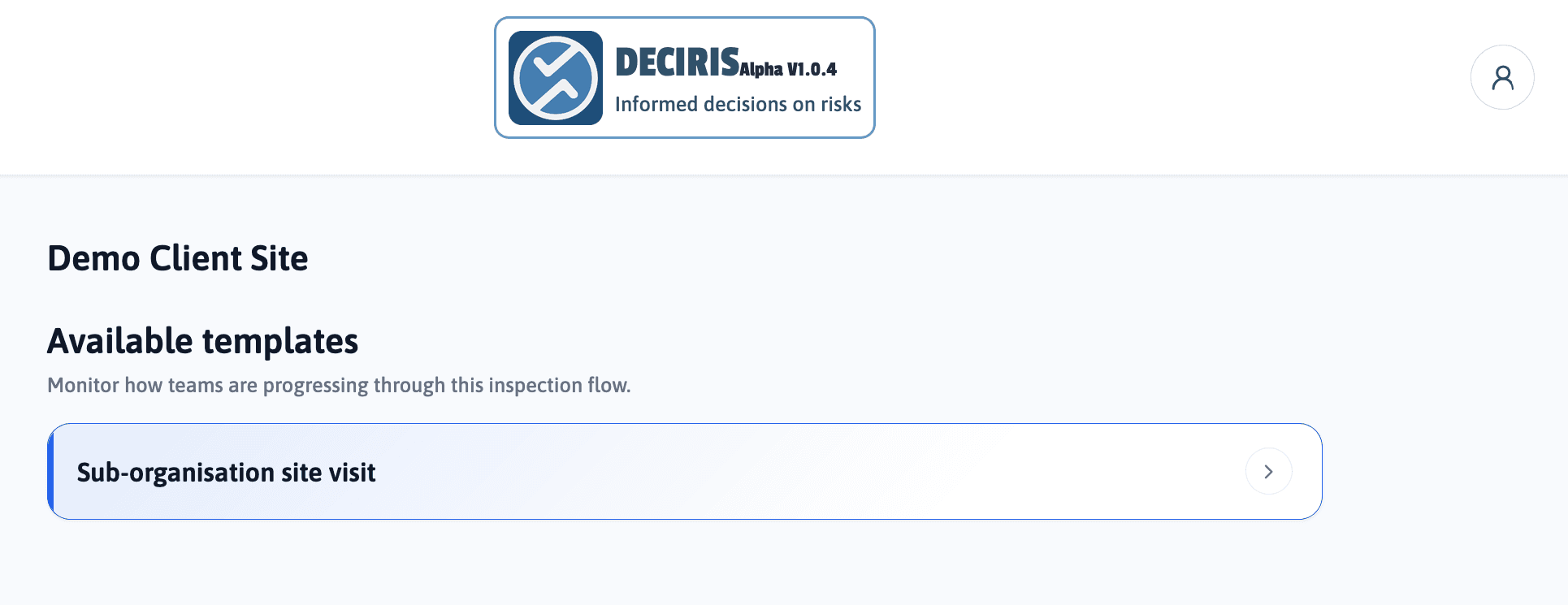
When a sub-user logs in, DECIRIS sends them to the sub-organisation portal. If they have access to several workspaces, they choose the relevant workspace first. If they only have one workspace, they go directly to it.
Inside the workspace, the user sees the templates linked by the main organisation. They can open a template, start a new assessment, follow ongoing assessments, and view finalised results.
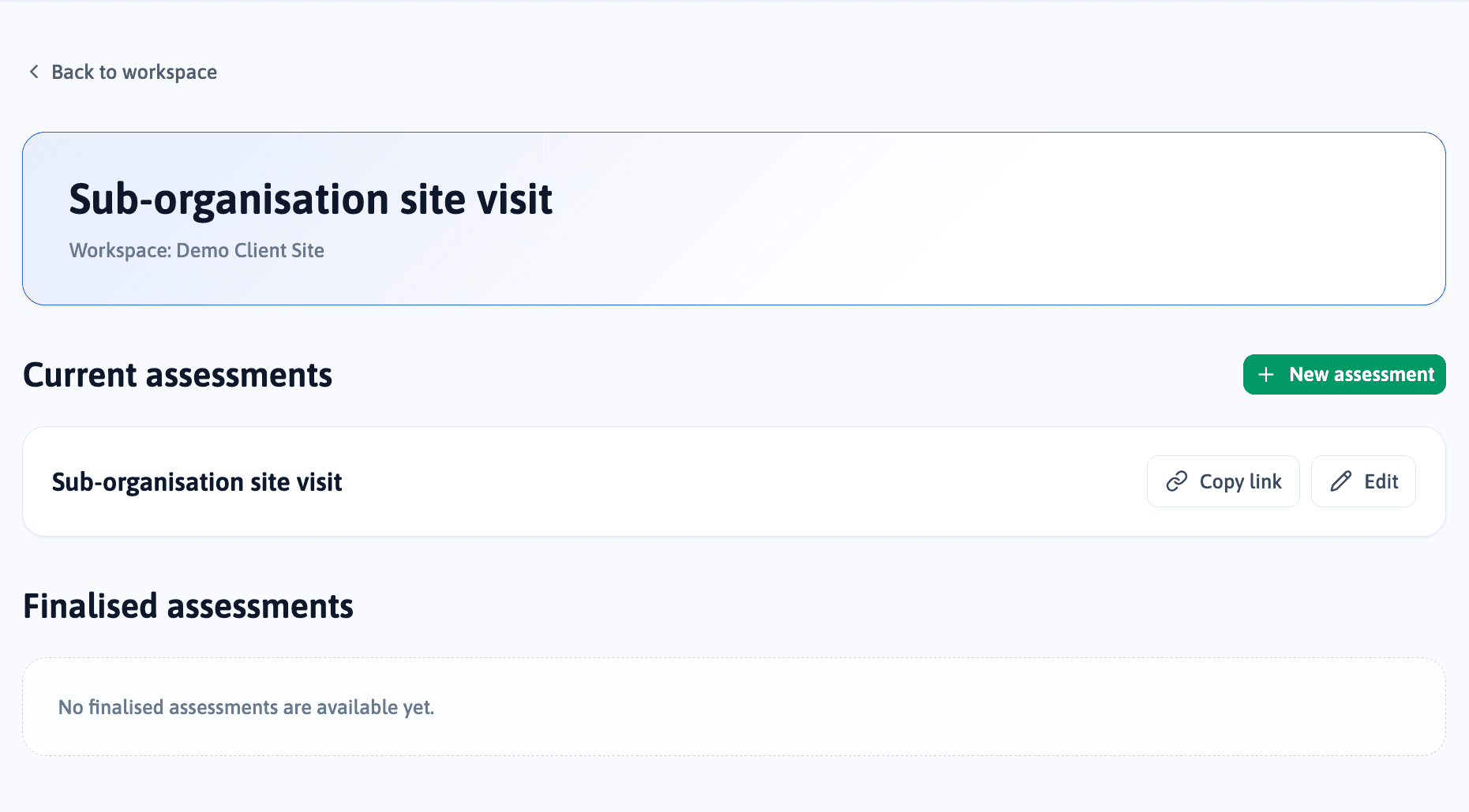
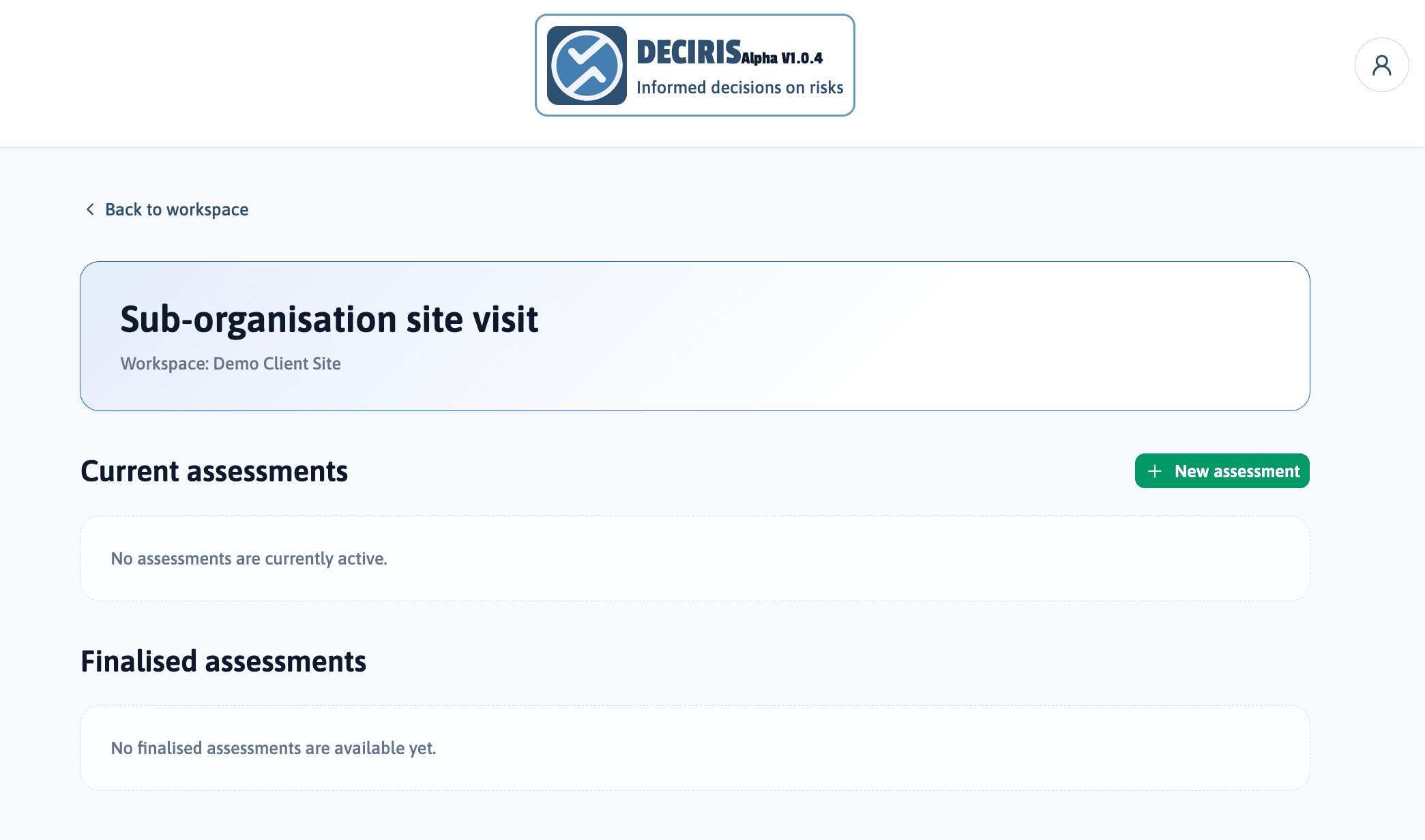
Opening a template shows the current assessments for that template and any finalised results available to the workspace.
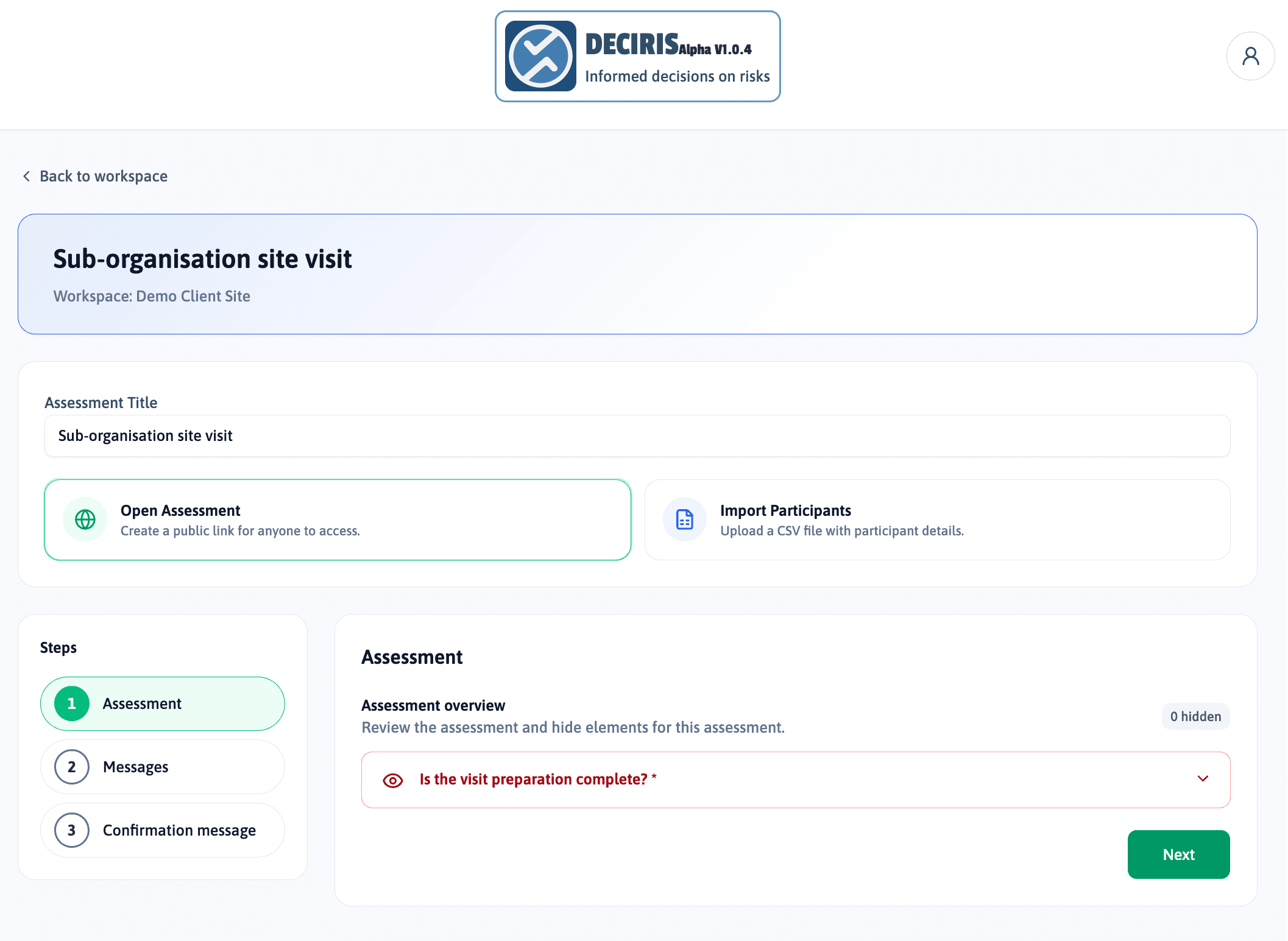
When the user starts a new assessment, they choose how to prepare it. For example, they can create an open assessment link or import participants from a CSV file.
The user can then review the questionnaire and prepare the assessment before sharing it.
After the assessment is created, it appears under “Current assessments”. The sub-user can copy the assessment link or edit the assessment if changes are needed.