Image Icon Library
The image icon library is a collection of images and icons that you can use in your assessments for multiple choice elements.
The image icon library is available through “Set the reference framework” => “Libraries and modules” => “Library” => “Library image icons”
Creating Groups
Before adding images to the library, you must first create a group to organize them. Groups help you categorize and manage your images effectively.
How to Create a Group:
- Click on the “Create new group” button
- Enter a descriptive name for your group (e.g., “Work safety symbols”, “PPE icons”, “Warning signs”)
- Click “Confirm” to create the group
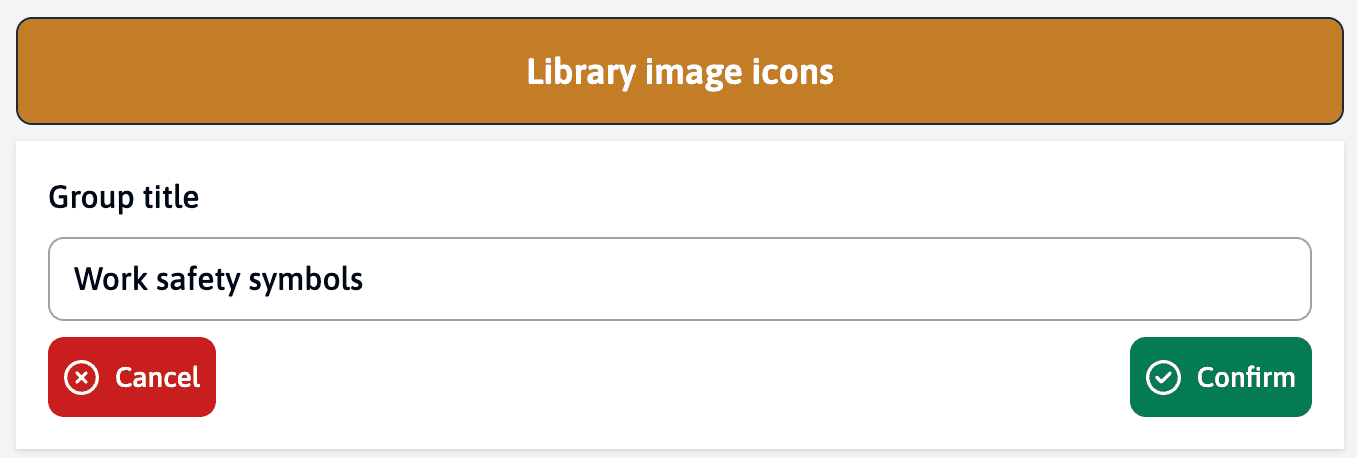
Use clear, specific group names that reflect the type of images they will contain. This makes it easier to find the right images when creating assessments.
Adding Images
Once you’ve created a group, you can start adding images to it. Each image requires a title and the image file itself.
How to Add an Image:
- Click on your desired group
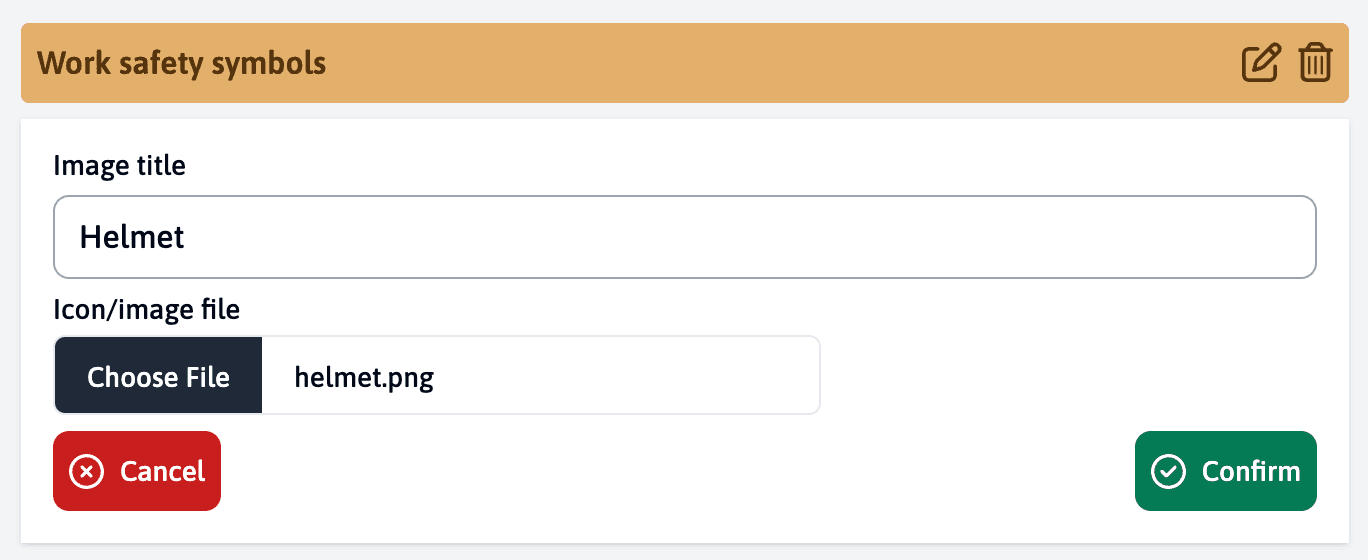
- Fill in the following fields:
- Image title: Enter a descriptive name for the image (e.g., “Helmet”, “Safety Goggles”)
- Icon/image file: Click “Choose File” to upload an image from your computer
Supported File Types
- PNG (recommended)
- JPG/JPEG
- SVG
For best results, use clear, high-contrast images with transparent backgrounds (PNG format). This ensures they will look good in your assessments regardless of the display settings.
Image Requirements
- Maximum file size: 5MB
- Recommended dimensions: 256x256 pixels
- Clear, recognizable imagery
- Consistent style within groups
Managing Your Library
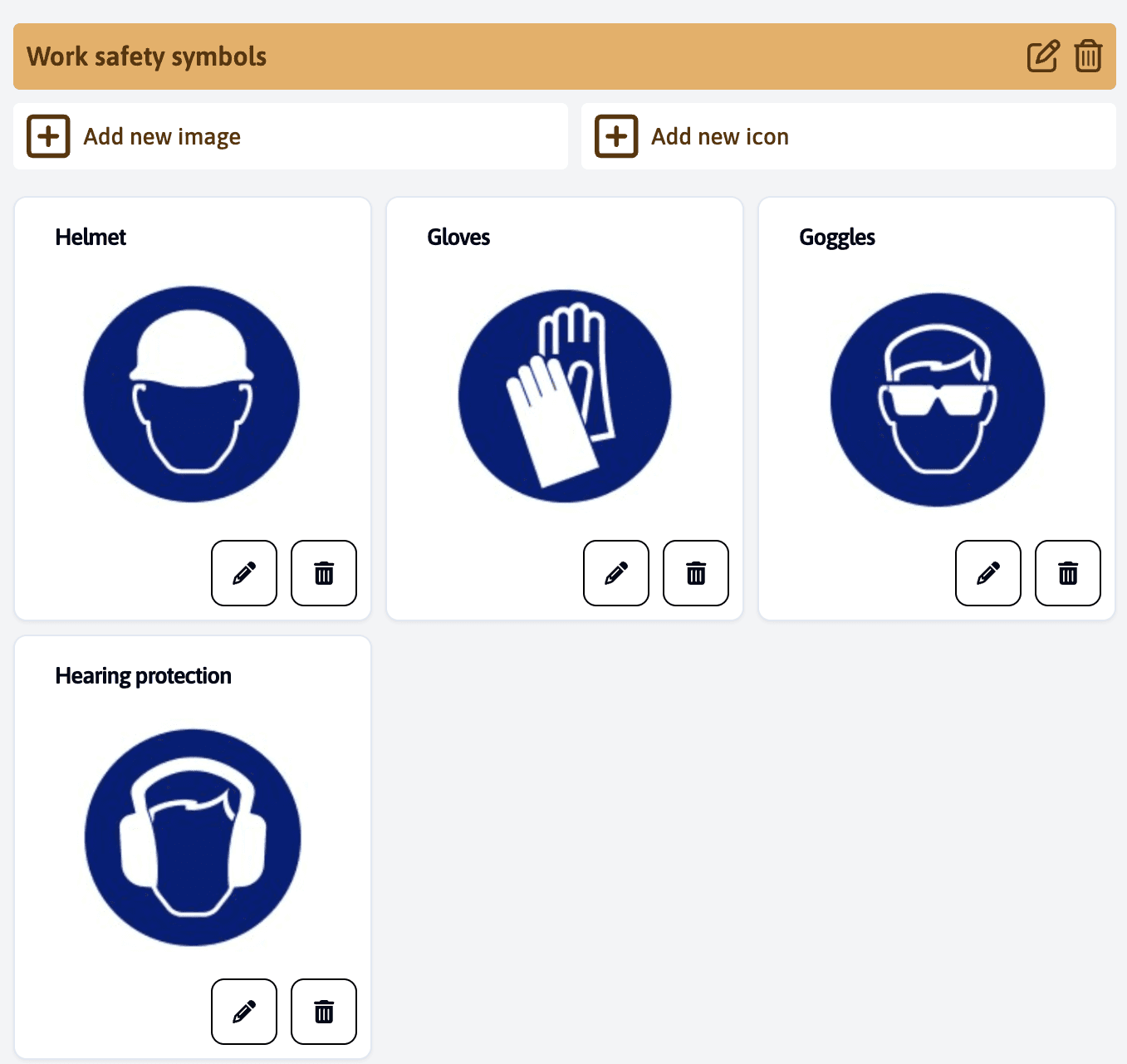
After adding images to your group, you’ll see them displayed in a grid layout. Each image shows its title and thumbnail, along with management options.
Available Actions
At the top of the group, you’ll find:
- Add new image: Upload additional images to the group
- Add new icon: Alternative way to add images to the group
- Edit group: Modify the group name (pencil icon)
- Delete group: Remove the entire group and its contents (trash icon)
For each individual image, you can:
- Edit: Modify the image title or replace the image file (pencil icon)
- Delete: Remove the image from the group (trash icon)
Creating Icons
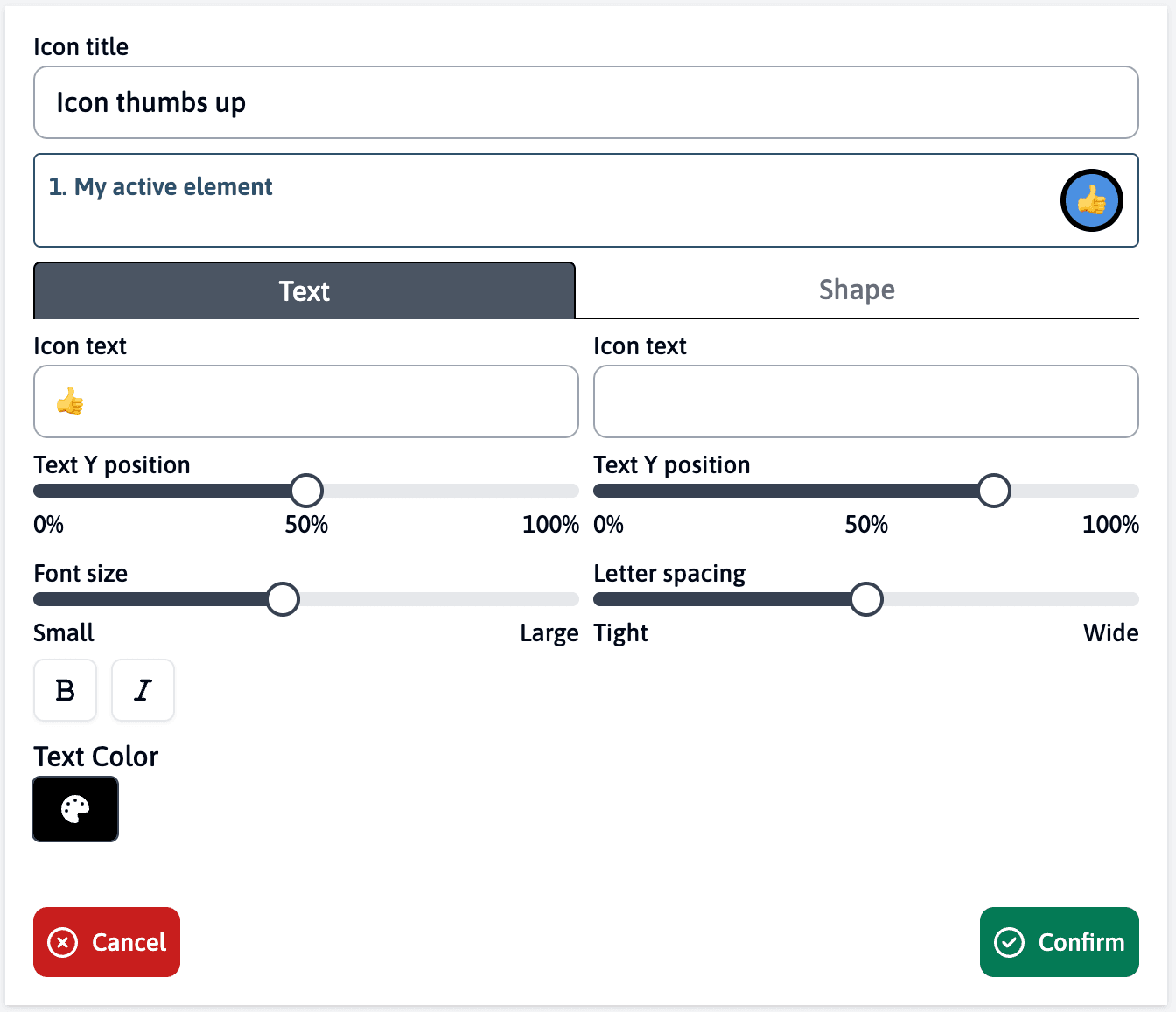
In addition to uploading images, you can create custom text-based icons. These icons can be customized with various text and styling options, and you’ll see a live preview of how they’ll appear in your assessments.
Icon Creation Options
The interface is divided into two main sections:
Text Options
- Icon title: Name for your icon
- Icon text: The text or character that will appear in the icon
- Text Y position: Adjust vertical alignment (0-100%)
- Font size: Scale from Small to Large
- Text formatting: Bold (B) and Italic (I) options
- Text Color: Choose any color for the text
Shape Options
- Circle: A round border around your icon
- Square: A rectangular border around your icon
- Triangle: A triangular border shape
- Border color: Choose the color of the shape’s border
- Background color: Set the fill color for the shape
- Border Style: Choose from 8 different border styles (solid, dashed, dotted)
- Border width: Adjust the thickness of the border
- Double line: Option to add a secondary border line
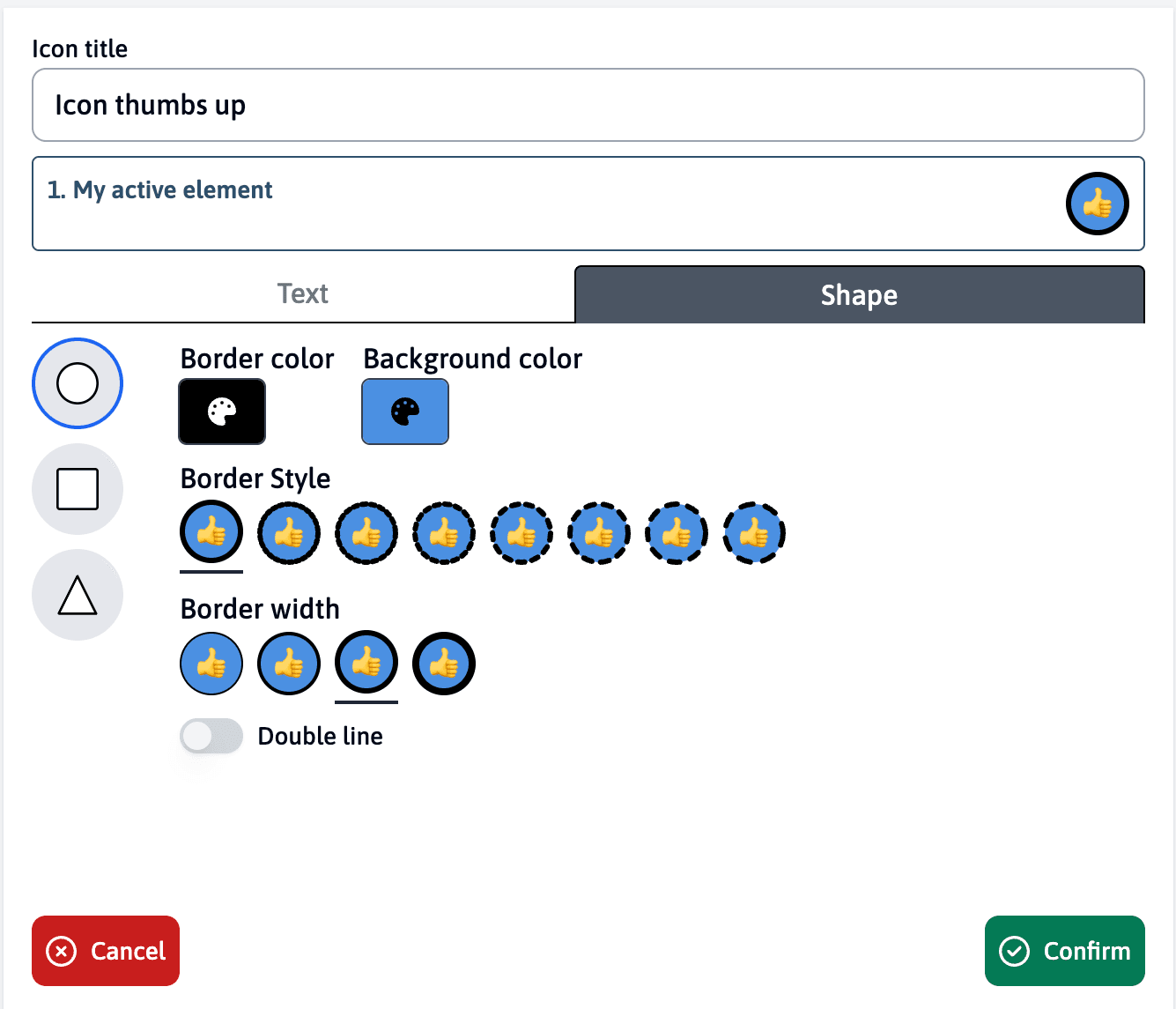
Experiment with different shape options and border styles to create visually distinct icons that match your assessment needs. The live preview helps you see exactly how your choices affect the final appearance.
Managing Icons
Once you’ve created icons, they appear in your group alongside uploaded images. Each icon has several management options available.
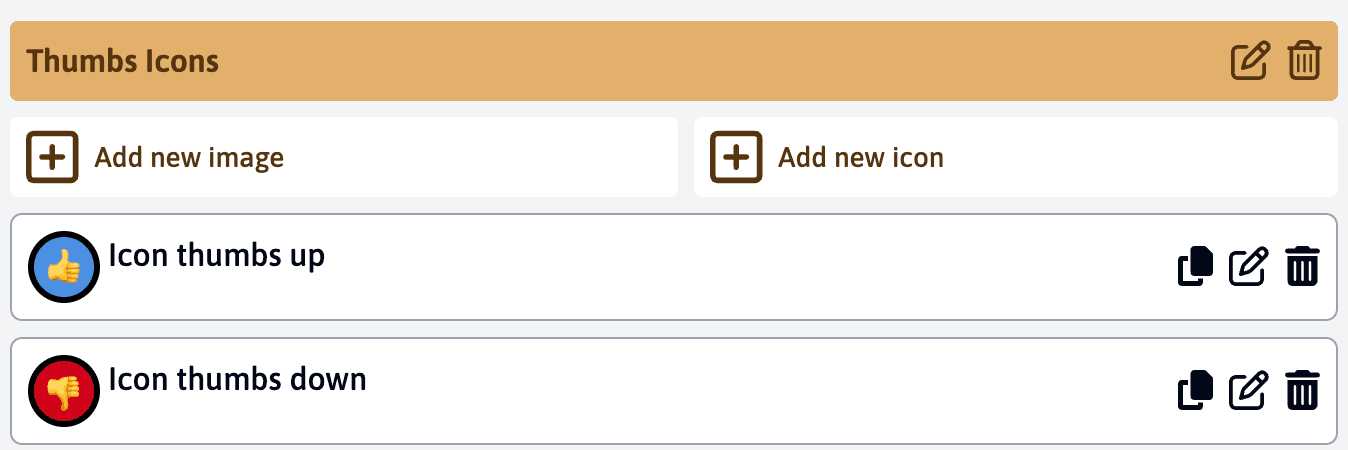
For each icon, you have three actions available:
- Duplicate (copy icon): Create an exact copy of an existing icon, preserving all styling settings.
- Edit (pencil icon): Modify the icon’s settings, text, or styling
- Delete (trash icon): Remove the icon from the group
Use the duplicate feature when creating a series of related icons. For example, if you’re creating a set of numbered icons or similar symbols with different letters, duplicate the first icon to maintain consistent styling across the set.
Using Images in Templates
Before you can use your image library in assessments, you’ll need to:
- Add the “Image and icon library” module to your template
- Select the appropriate image group within the module
- Configure how images appear in your active elements
For detailed instructions on configuring image options in multiple choice elements, including how to customize their appearance for end-users, please refer to the Multiple Choice Advanced Features documentation.
The way images and icons are displayed in the active element can be customized to best suit your assessment needs. This includes options for layout, sizing, and whether to show labels alongside the images.