Library Elements
The library elements feature allows you to save and reuse template elements across different templates. These elements can be loaded either directly into templates during design or dynamically through library active elements during assessments.
The library elements can be accessed through “Set the reference framework” => “Libraries and modules” => “Library” => “Library elements”
Creating Library Elements
There are two ways to add elements to your library:
1. Save from Template
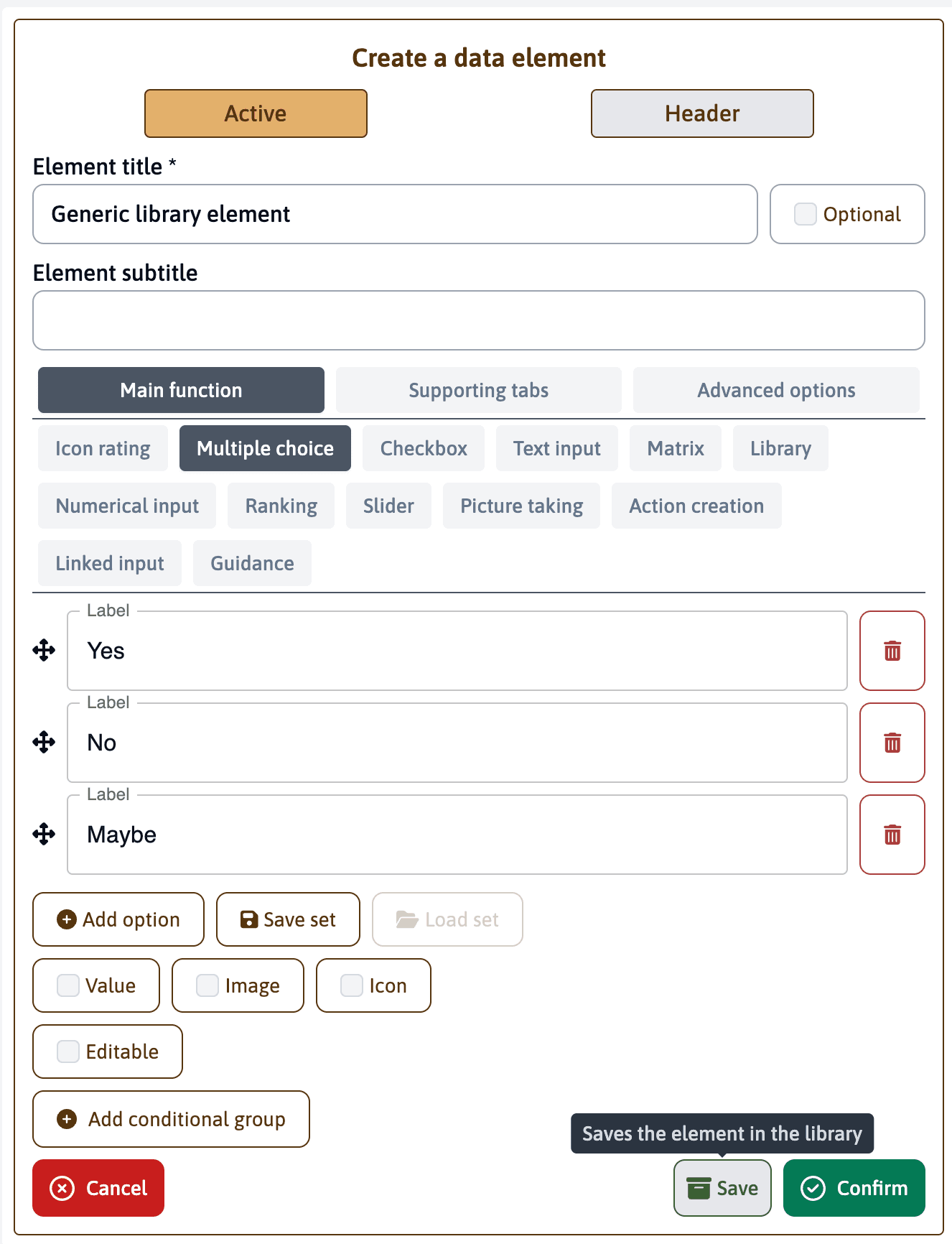
While working in a template, you can save any element to the library:
- Click the “Save” button next to the “Confirm” button of the element
- Click “Confirm” to save
2. Create in Library
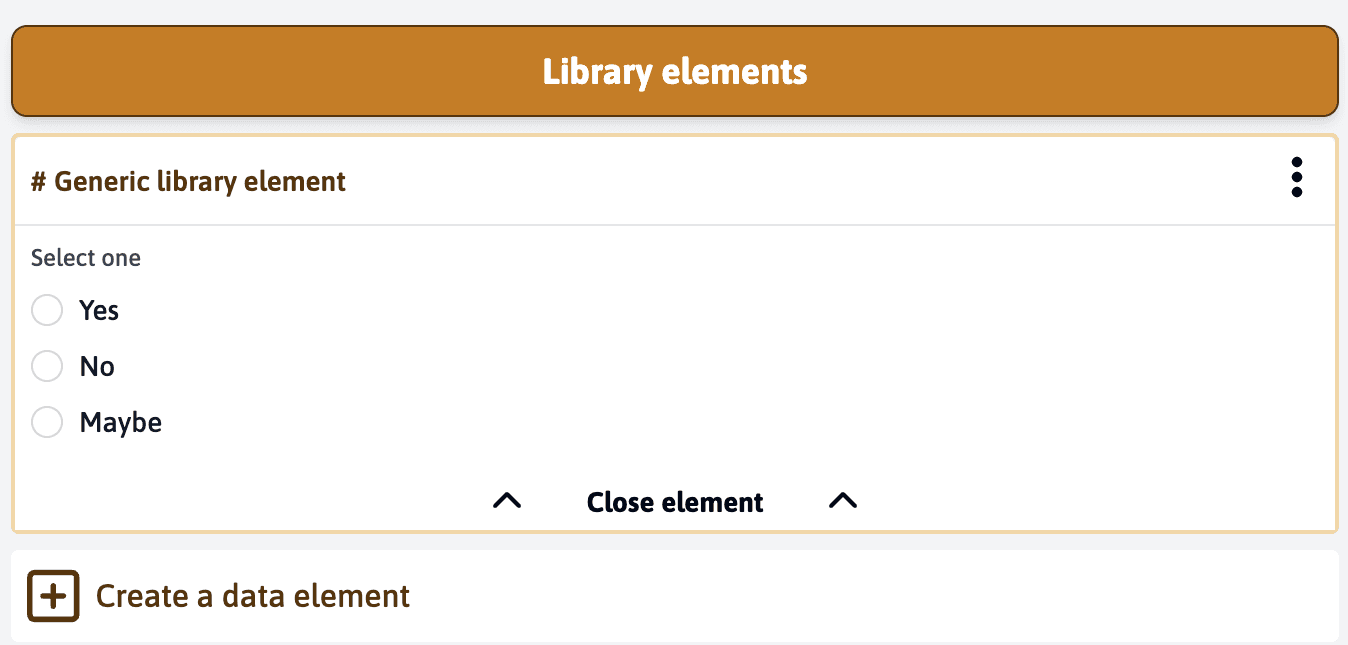
You can also create elements directly in the library:
- Navigate to the library elements page
- Click “Create a data element” at the bottom of the page
- Configure the element as you would in a template
- Save with appropriate categorization
Managing Library Elements
Elements in the library can be:
- Edited to update configurations
- Duplicated to create variations
- Deleted when no longer needed
Using Library Elements
There are two main ways to use library elements:
1. Direct Template Integration
When designing a template:
- Click “Load element from library”
- Choose the desired element
- The element is copied into your template with all its configuration

2. Dynamic Loading
Using the library active element, you can:
- Allow users to add library elements during assessment
- Configure whether single or multiple elements can be added
- Restrict available elements to specific categories
- Enable free selection or limit to predefined choices
The dynamic loading approach is particularly useful when the number of elements needed isn’t known in advance, such as when documenting multiple findings or observations.