Create a template
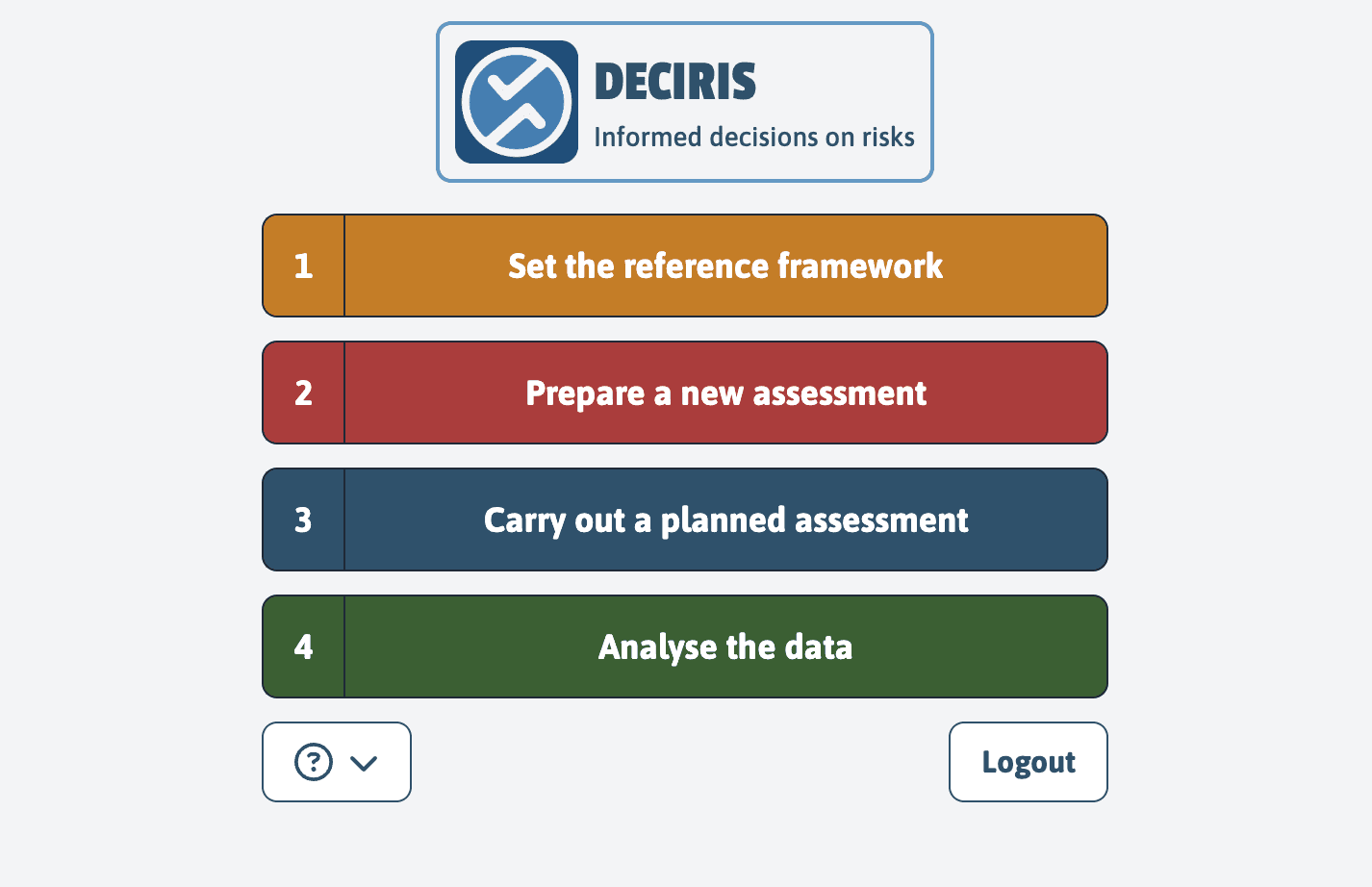
To create a template, click on the orange section “Set the reference framework”
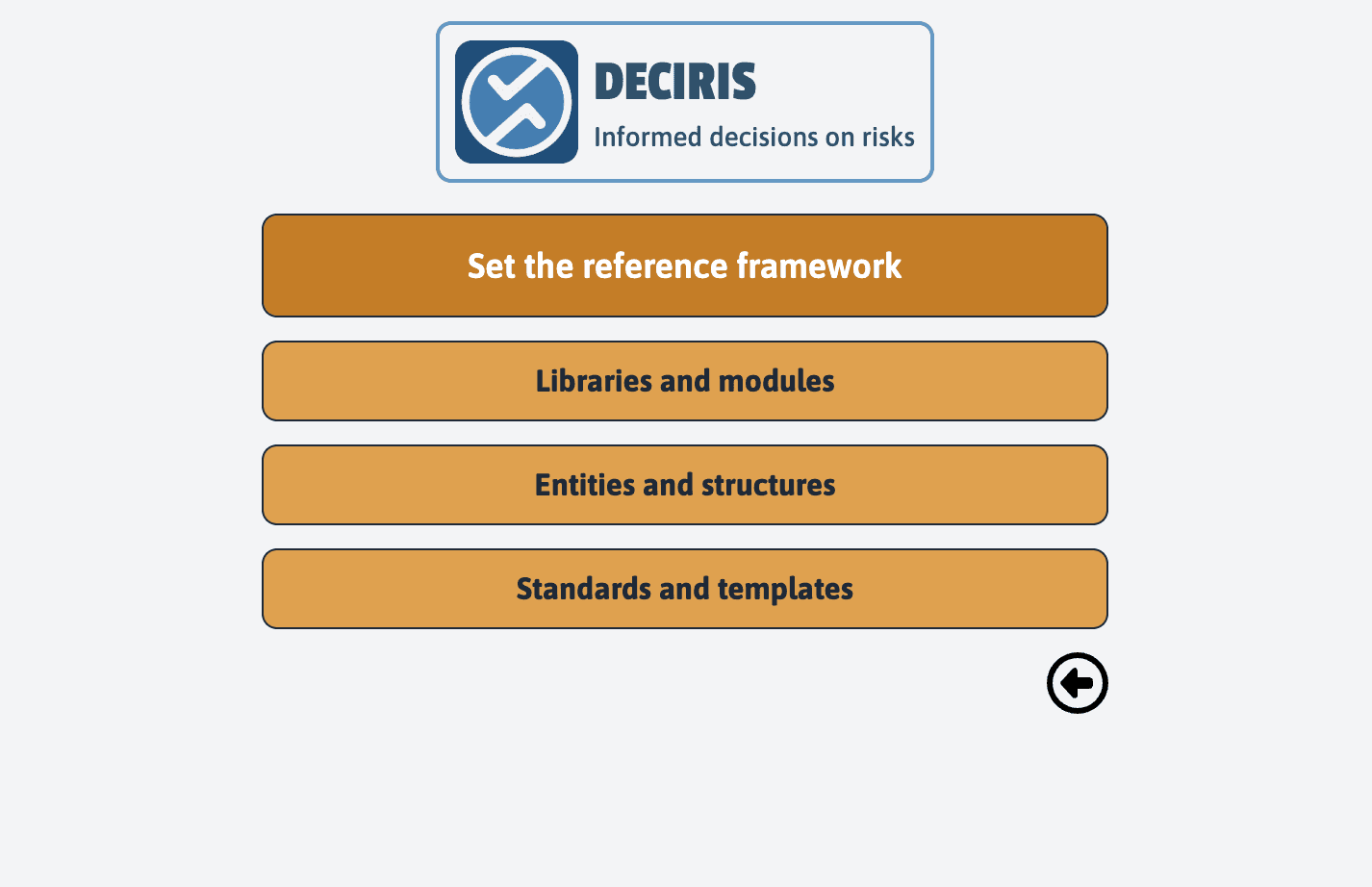
Then click on “Standards and templates”
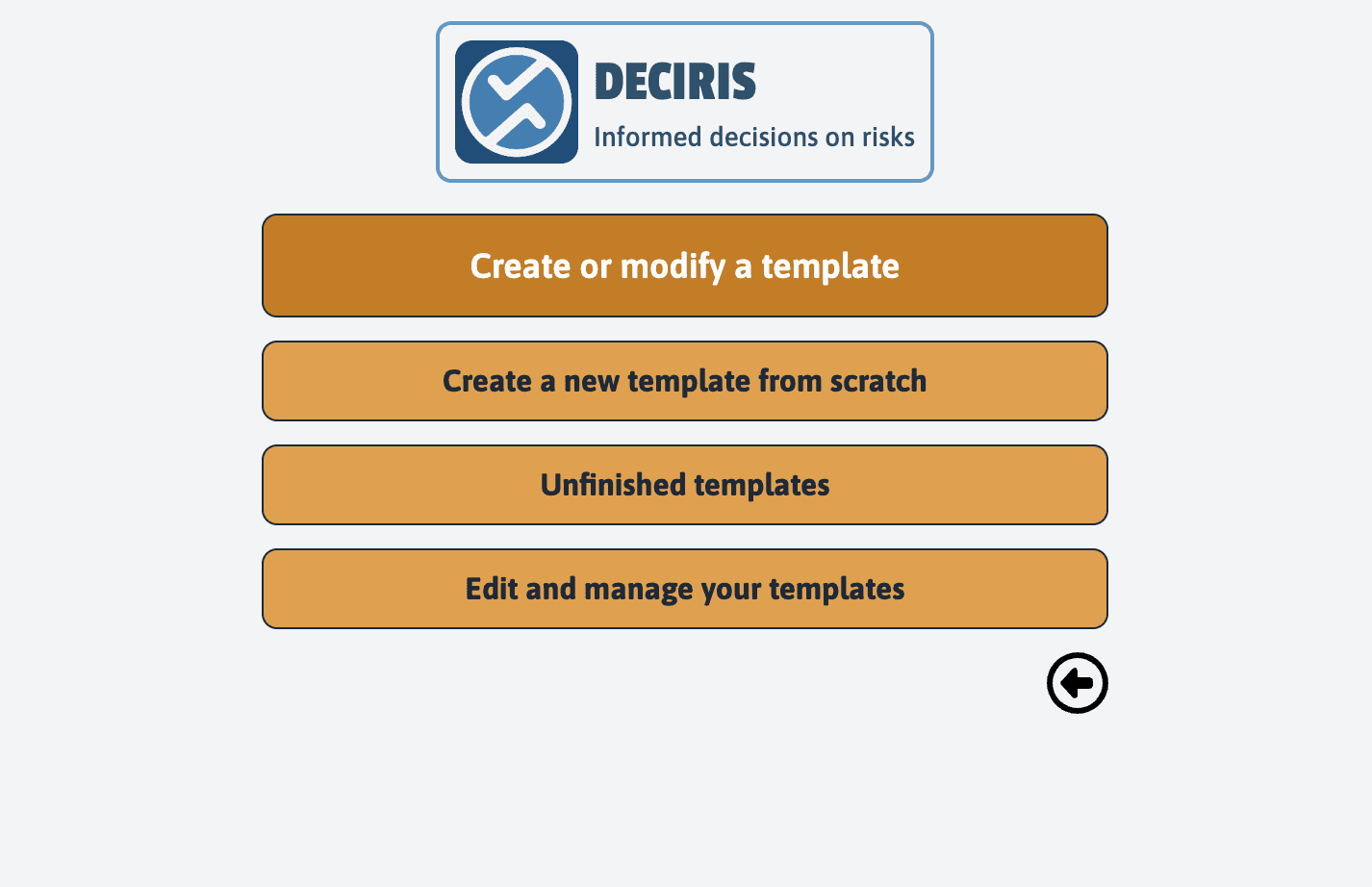
In this submenu of the orange section, we find the possibility to create a new template from scratch. This is the main feature that we will describe below.
We find access to unfinished templates, therefore in the process of creation, and access to finalised templates in order to be able to edit them, delete them or export them.
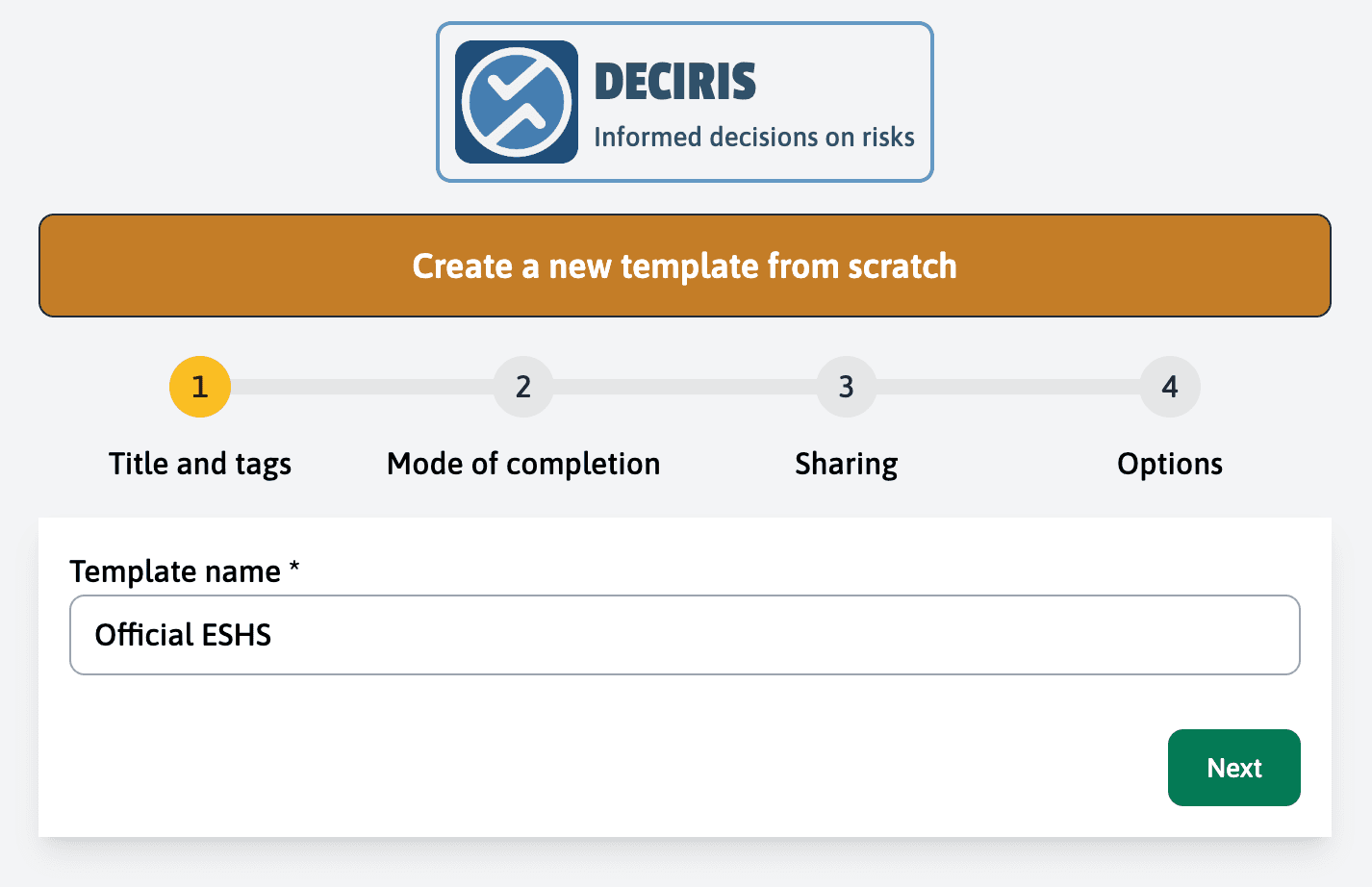
Start by entering the name of your template, for example “Official ESHS”, then click on “Next”.
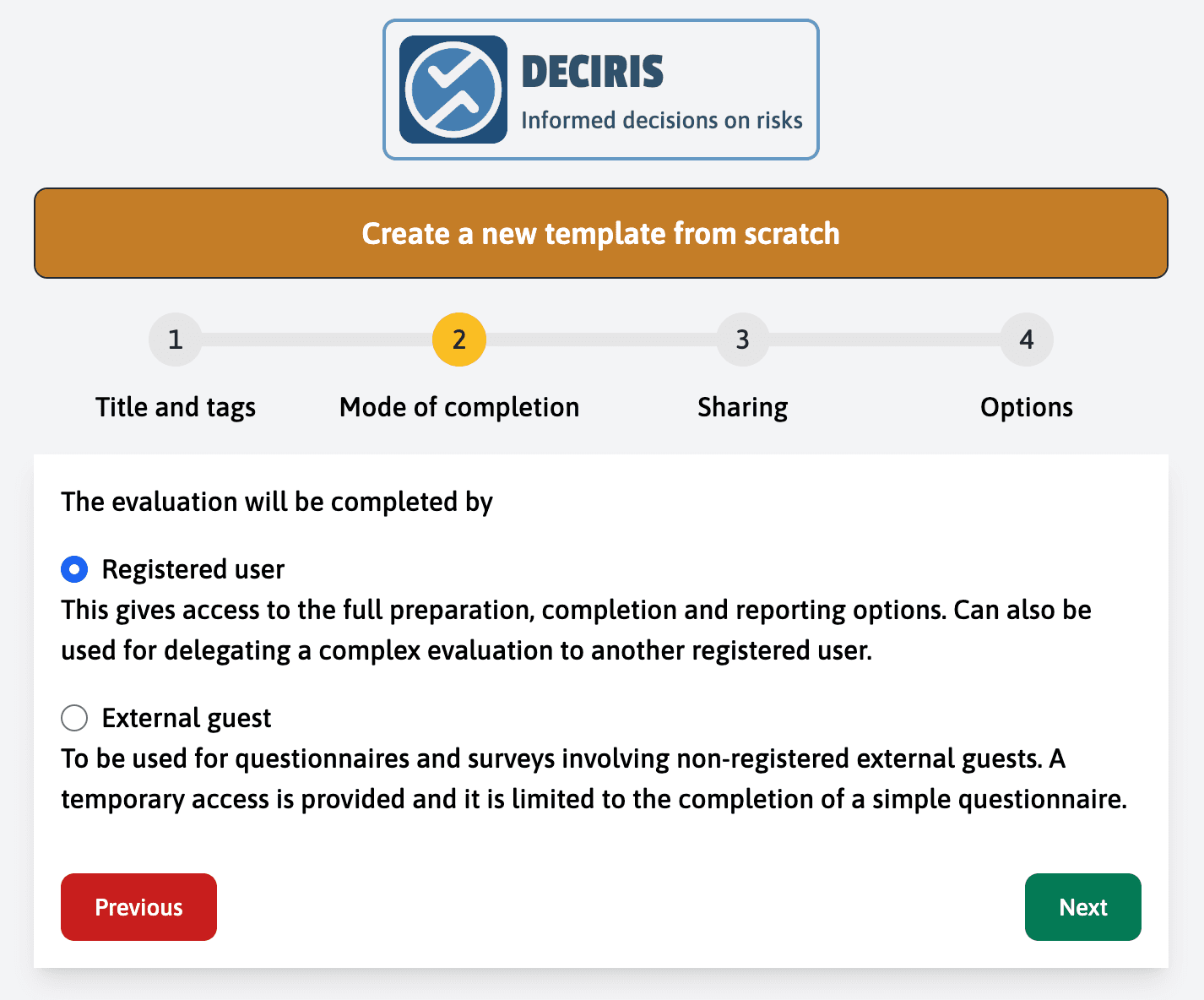
Choose who will complete the evaluation by selecting “Registered user” to access all the preparation and report realization options, or “External guest” for a simple evaluation by unregistered users. After making your choice, click on “Next”.
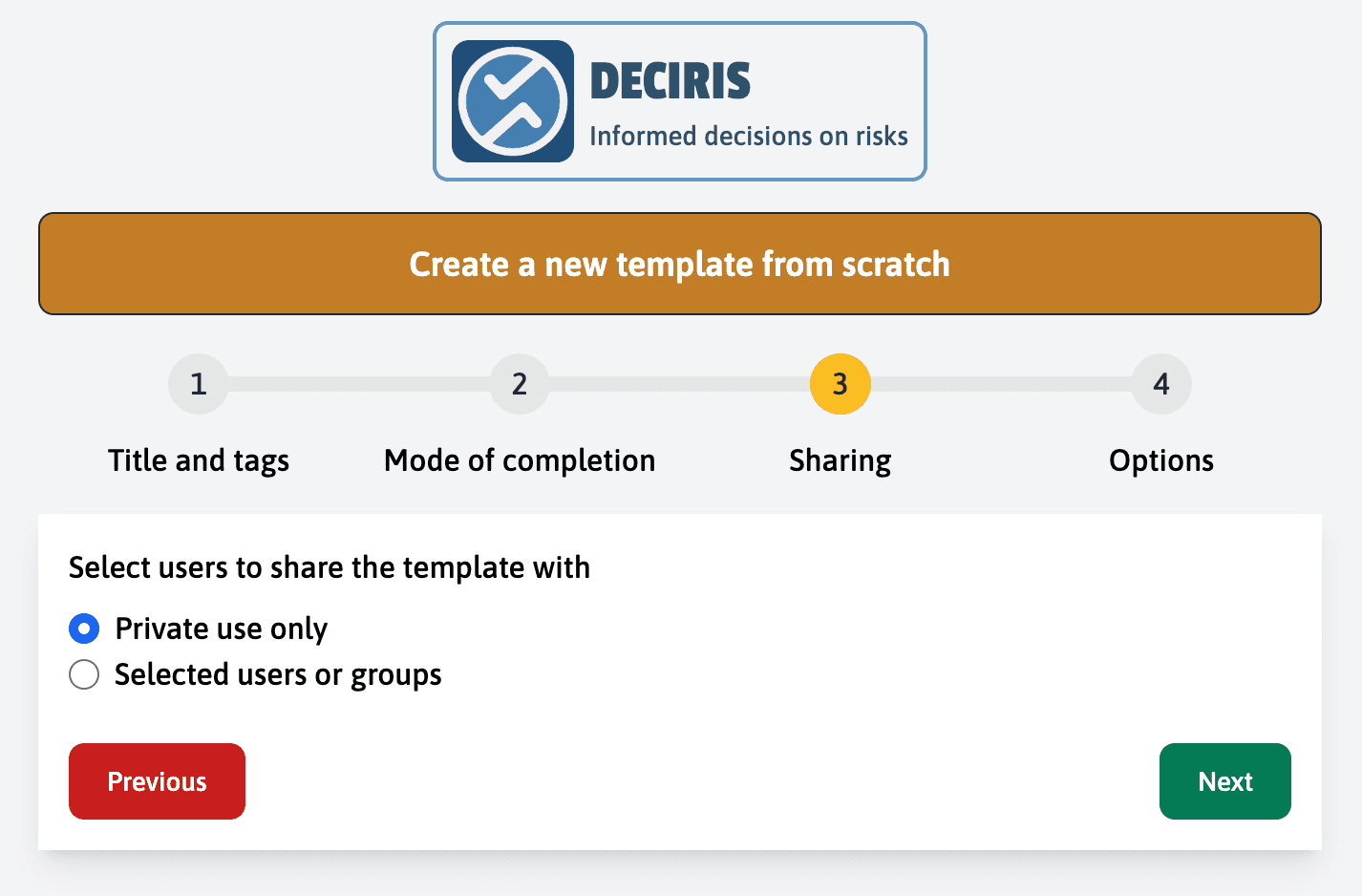
Determine the level of sharing of your template by opting for “Private” to keep it for personal use only, or choose to share it with specific users or groups. Once the selection is made, click on “Next”.
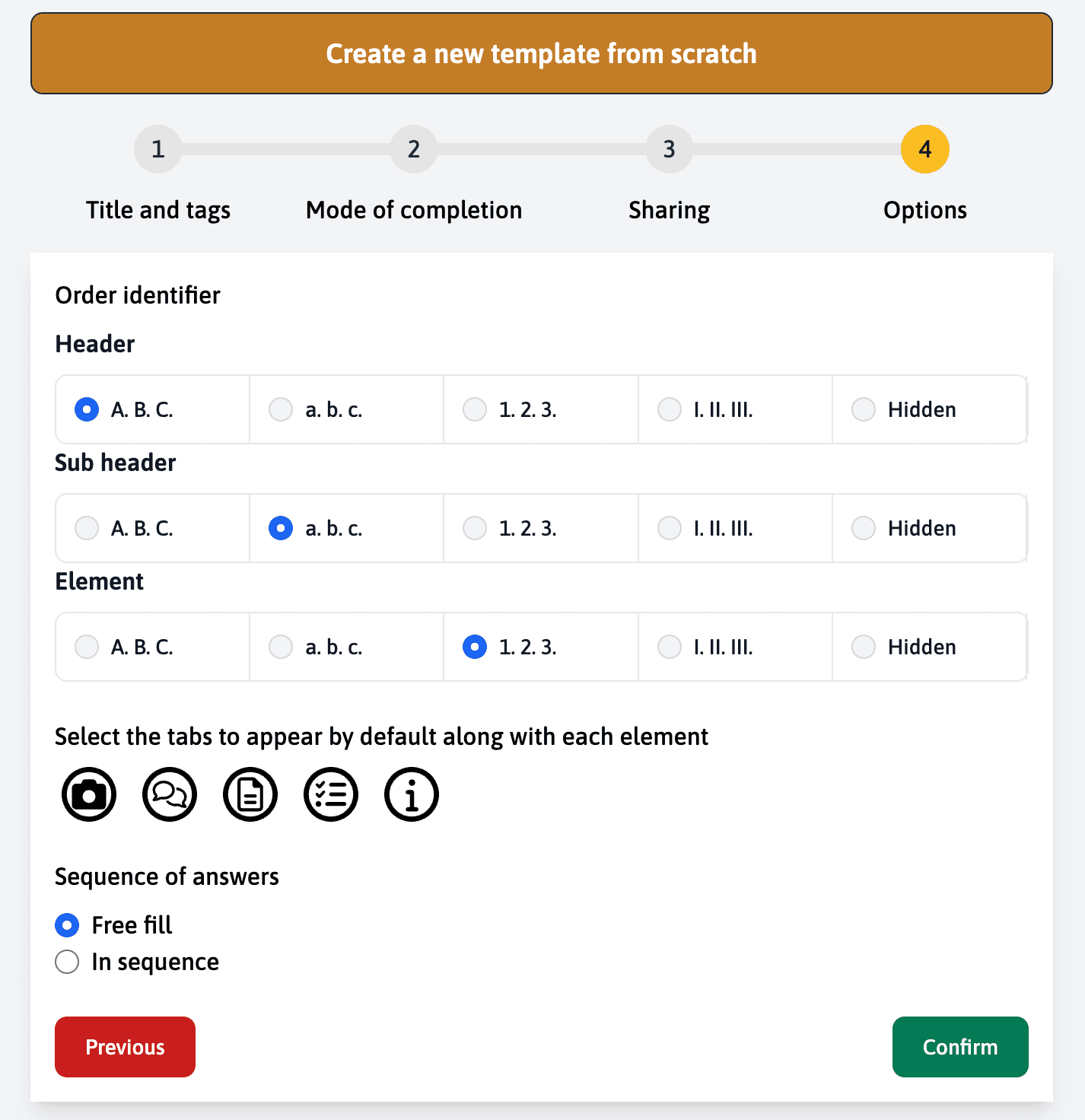
Customize the options of your template by selecting the numbering templateat for headers and subheaders and decide which tabs will appear by default. You can also choose the response sequence, either in “Free fill” or “In sequence”. Confirm your choices by clicking on “Confirm”.
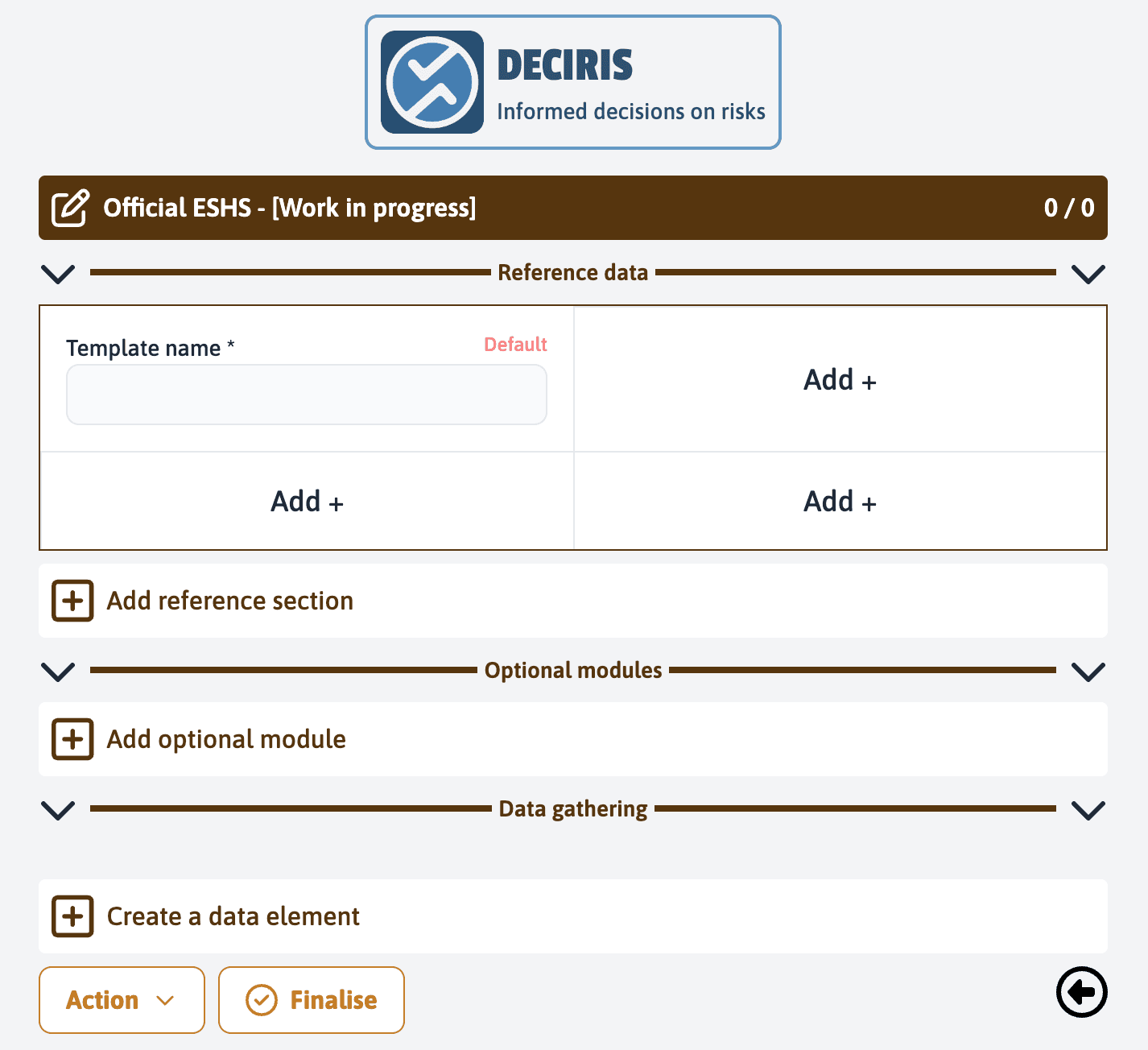
You will then be directed to the design page of your template. It is organized into 3 sections “Reference data”, “Optional modules”, and “Data gathering”. It is in the “Data gathering” section that you will be able to create your first elements.
Template Tags (optional)
When creating a new template, you can also add tags to help categorize and organize your templates:
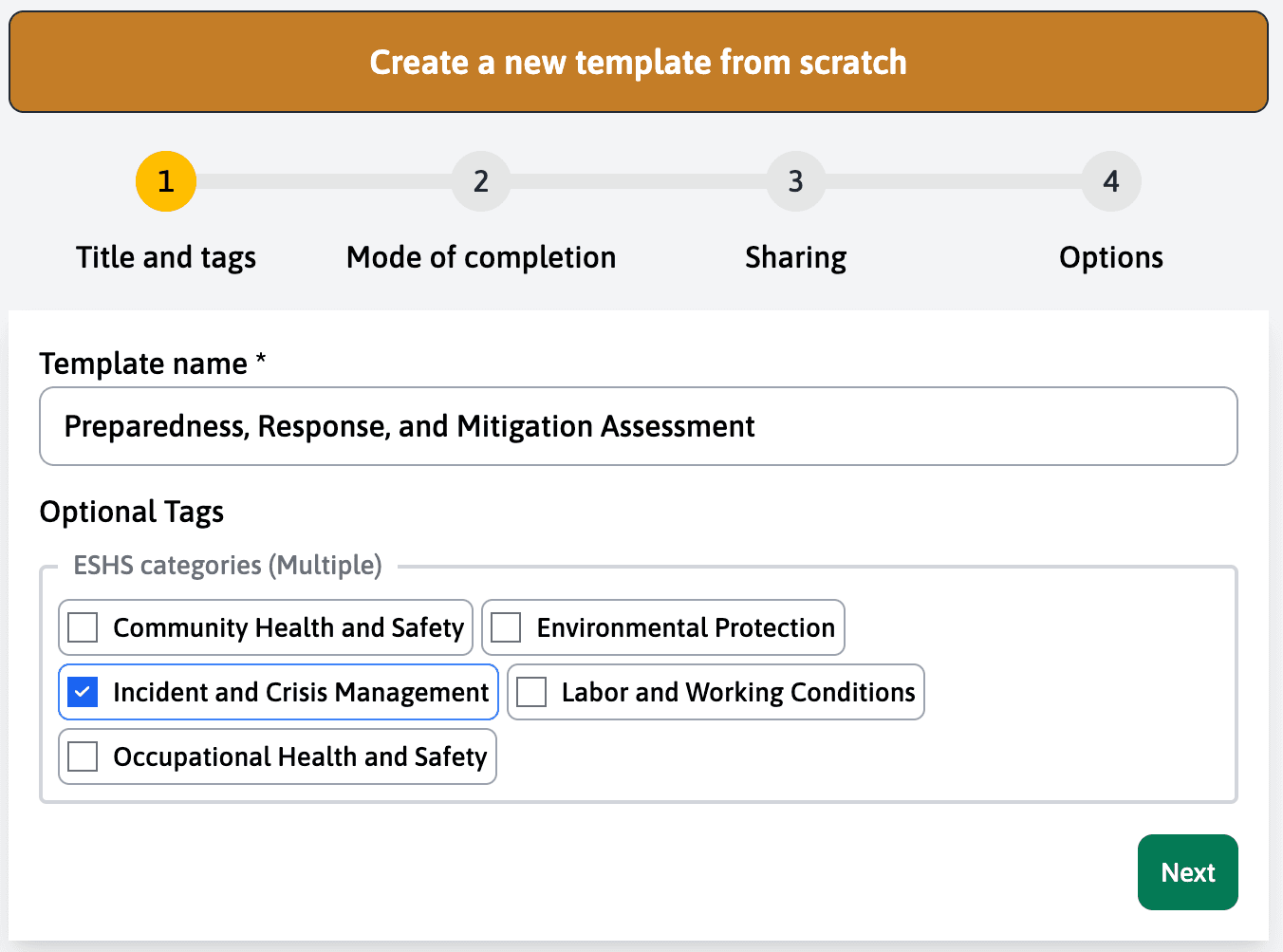
Before using template tags, make sure you have configured your tag groups in the Tag Library. Tags need to be enabled for templates in their configuration to appear here.
These template-level tags can help you:
- Organize templates by category (e.g., ESHS categories)
- Filter templates in the template library
- Group related templates together