Adding Tags to Elements
Before using tags in your templates, make sure you have configured your tag groups in the Tag Library.
Enabling Tags in Templates
To use tags in your template:
- Navigate to the “Optional modules” section of your template
- Add the “Element tag” module
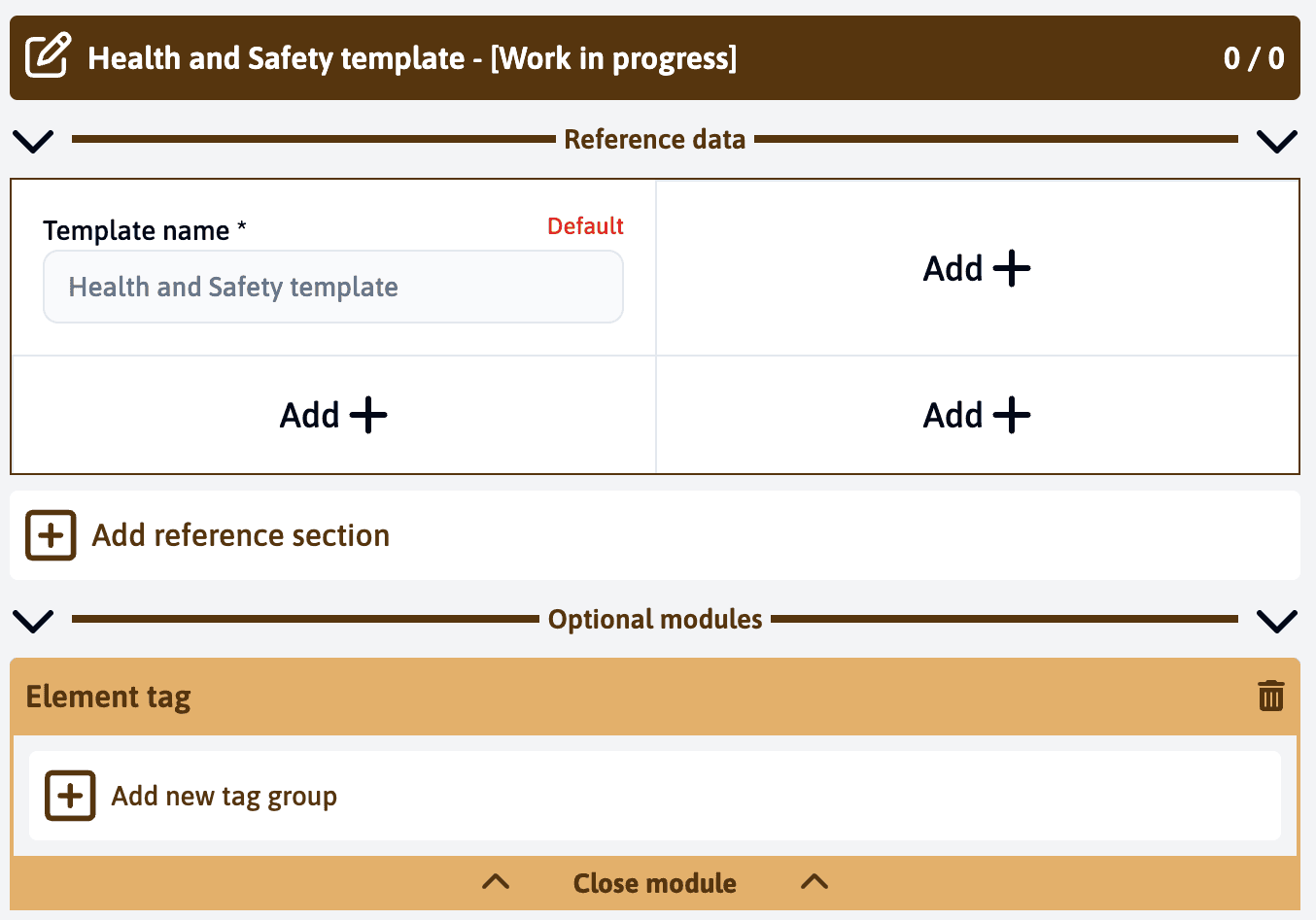
Once enabled, you can:
- Add tag groups to your template
- Apply tags to various elements
- Use tags for filtering and organization
Adding Tag Groups
After enabling the module:
- Click “Add new tag group” in the Element tag module
- Select from your predefined tag groups
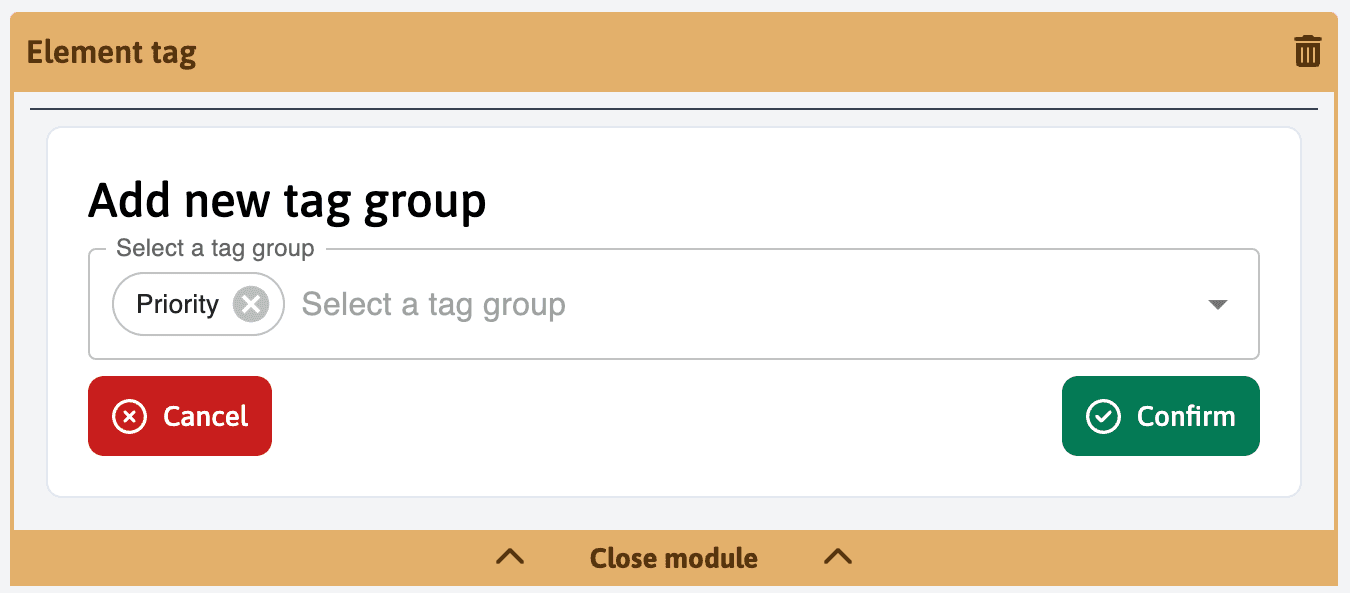
- Configure how tags will be used in this template
Only tag groups that were enabled for active and header element types in the library will be available for selection.
Using Tags in Elements
When tag groups are added to your template:
- Each compatible element will show available tag options
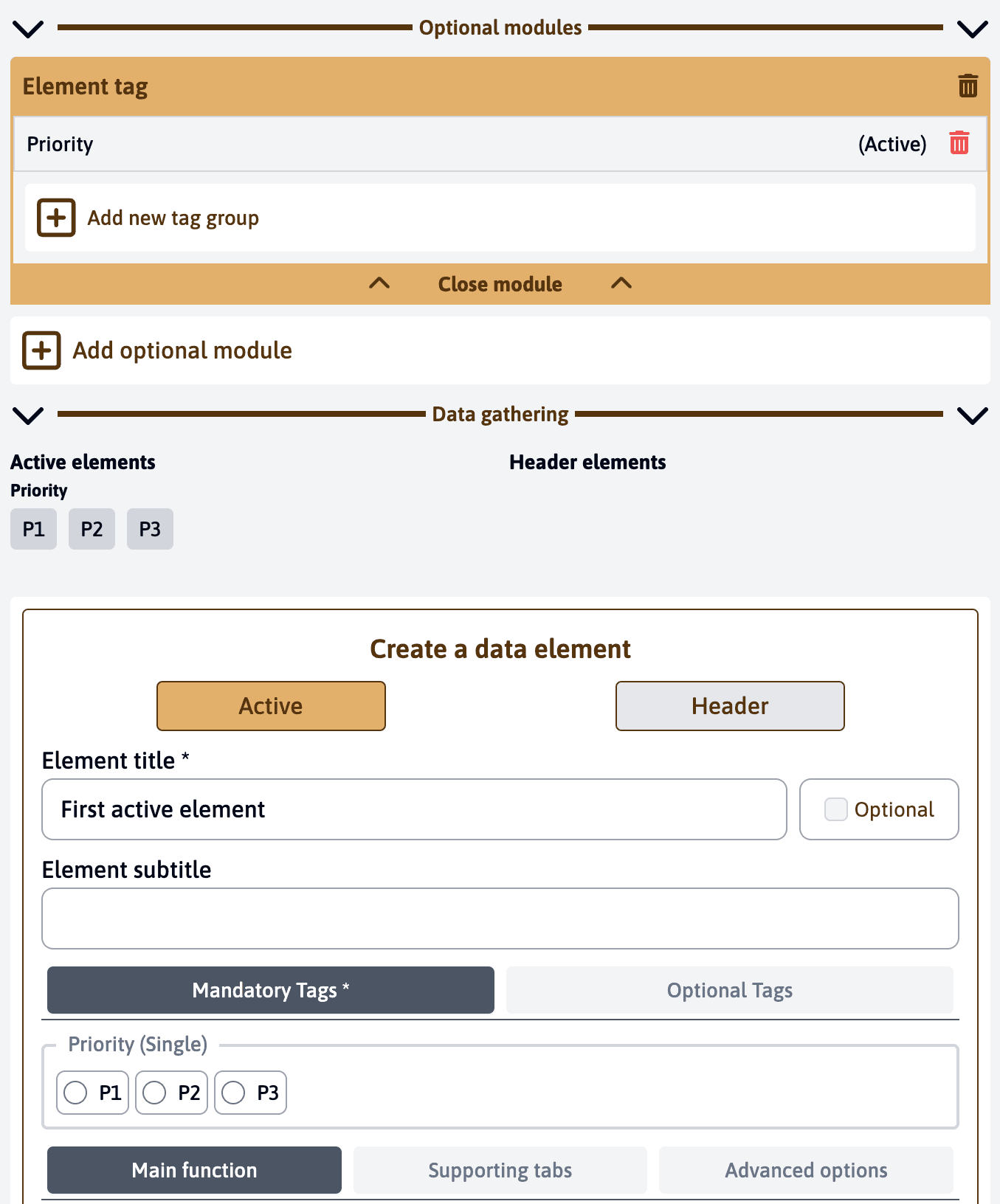
- Select tags according to the group’s configuration:
- For mandatory groups, you must select a tag
- For optional groups, tag selection is not required
- Single selection groups allow one tag
- Multiple selection groups allow several tags
Tags appear in the element’s configuration panel and can be modified at any time during template creation.
Benefits of Tagging
Using tags in your templates allows you to:
- Categorize elements consistently
- Filter elements during assessments
- Generate reports based on tag criteria
- Organize and find content more efficiently
Using Tags in Assessments
When conducting an assessment, tags become powerful filtering tools:
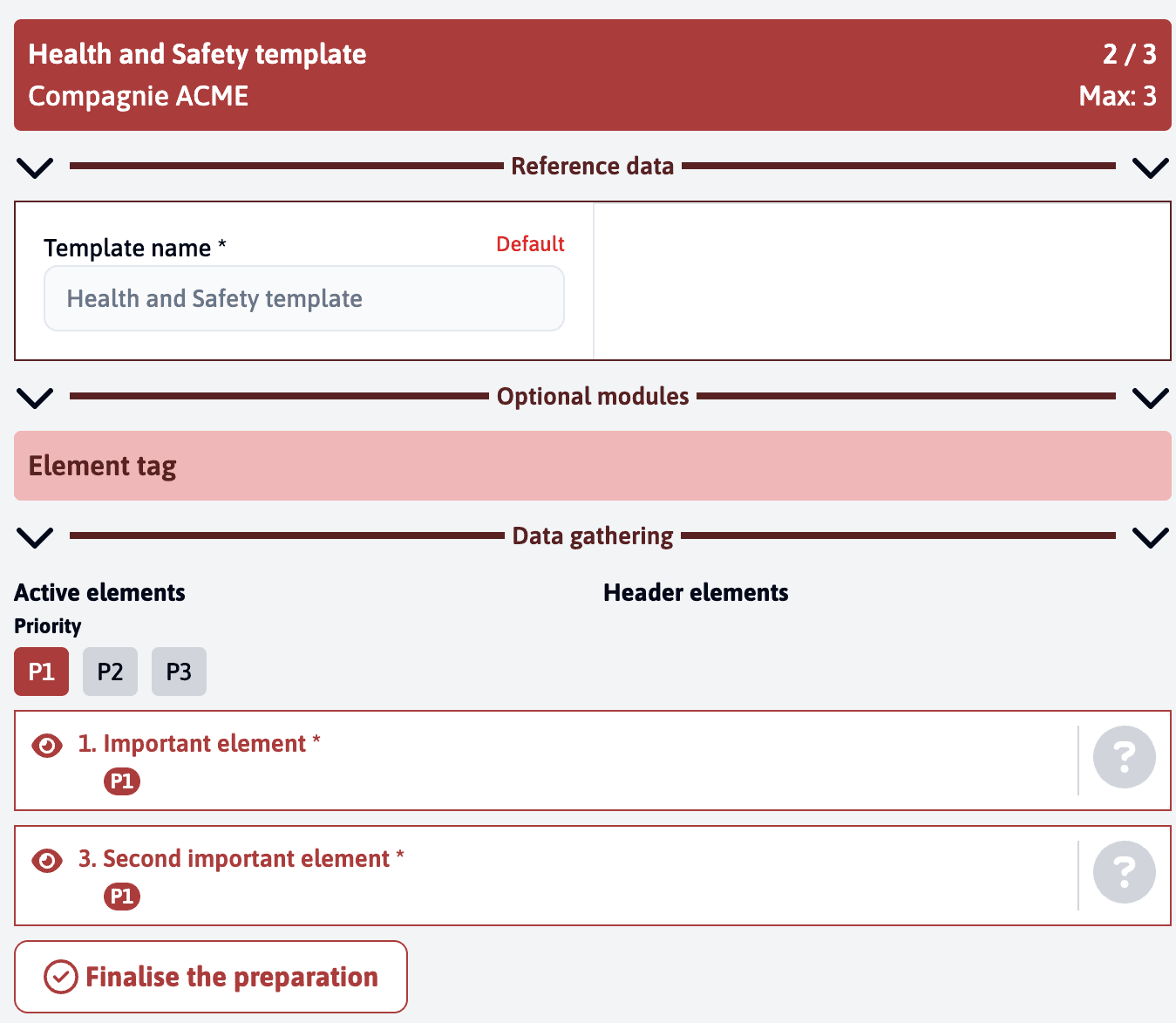
Filtering Elements
- Tags appear at the top of the assessment interface
- Click on a tag to filter elements with that specific tag
- Multiple tags can be selected to refine your view
- The counter in the top right (e.g., “2/3”) shows:
- First number: Currently visible elements based on tag filters
- Second number: Total elements in the assessment
Counter Display During Assessment

The counter system provides different information during the assessment phase:
-
Current/Visible ratio (e.g., “0/2”):
- First number: Completed elements
- Second number: Currently visible elements (based on active filters)
-
Max indicator (e.g., “Max: 3”):
- Shows the total number of elements in the assessment
- Helps users understand there are additional elements beyond the current filters
This dual counter system helps users prioritize their work while remaining aware of the full assessment scope. For example, you might focus on high-priority elements first (filtered view) but know there are additional elements to assess if time permits.
This filtering capability is particularly useful in large assessments where you need to focus on specific types of elements, such as viewing only high-priority items or elements of a particular category.