Multiple Choice Advanced Features
The multiple choice active element includes several advanced features that can help you create more efficient and consistent templates. Let’s explore these features in detail.
Saving Option Sets
One of the most powerful features of multiple choice elements is the ability to save and reuse sets of options.
How to Save a Set
- Create your multiple choice options as needed
- Click the “Save set” button
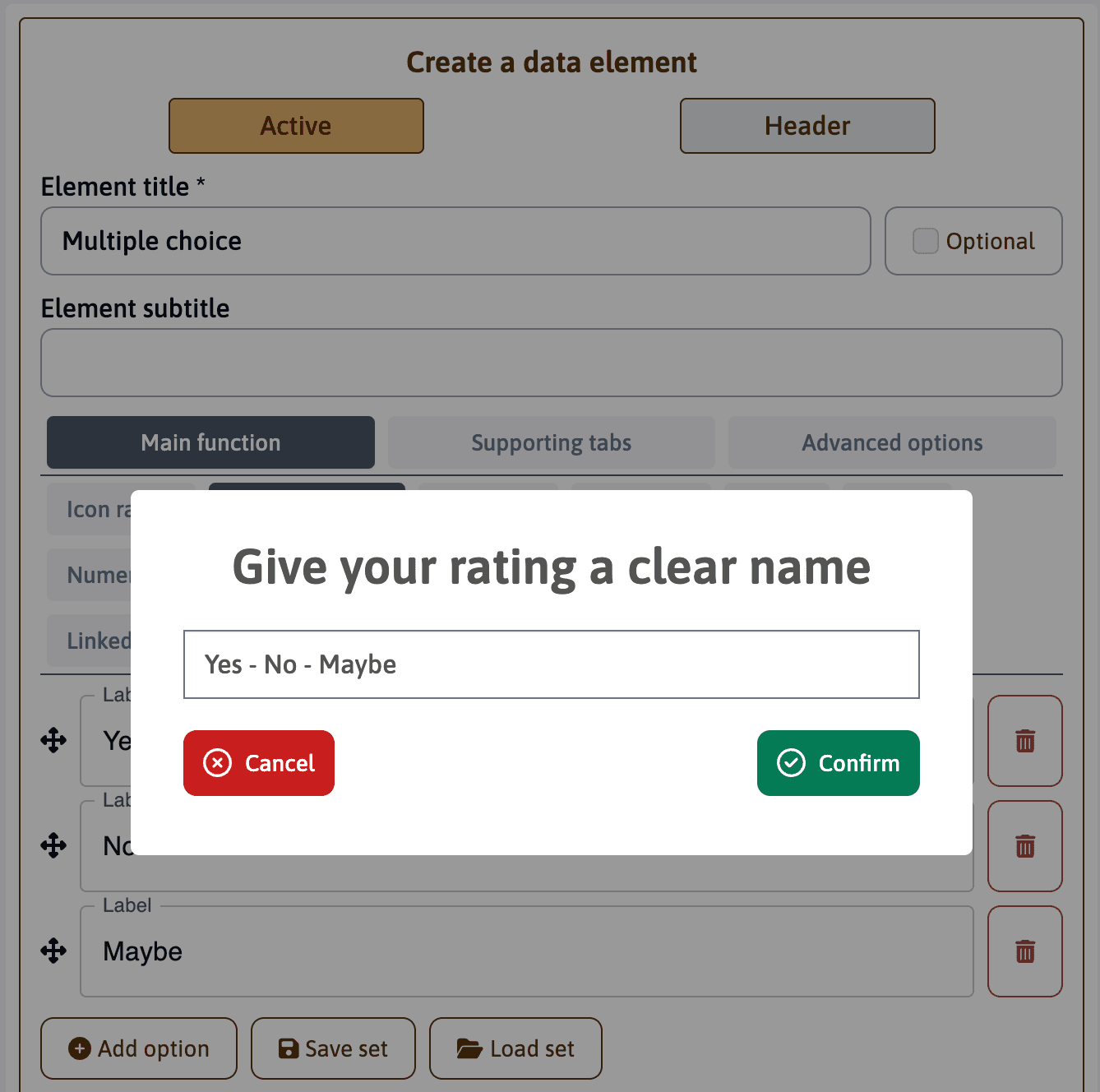
- Give your set a clear, descriptive name
- Confirm to save the set with your template
Benefits of Using Sets
When you save options as a set, they become part of your template’s configuration. This provides several advantages:
- Consistency: Use the exact same options across multiple elements
- Efficiency: Quickly load pre-configured options instead of recreating them
- Reporting: Sets enable advanced filtering and conditional styling in the results module
Use descriptive names for your sets that reflect their purpose, such as “Risk Levels” or “Compliance Status”. This makes them easier to identify when loading sets in other elements.
Numerical Values
The value checkbox enables you to assign numerical values to multiple choice options. This powerful feature enhances the analytical capabilities of your assessments.
Setting Up Values
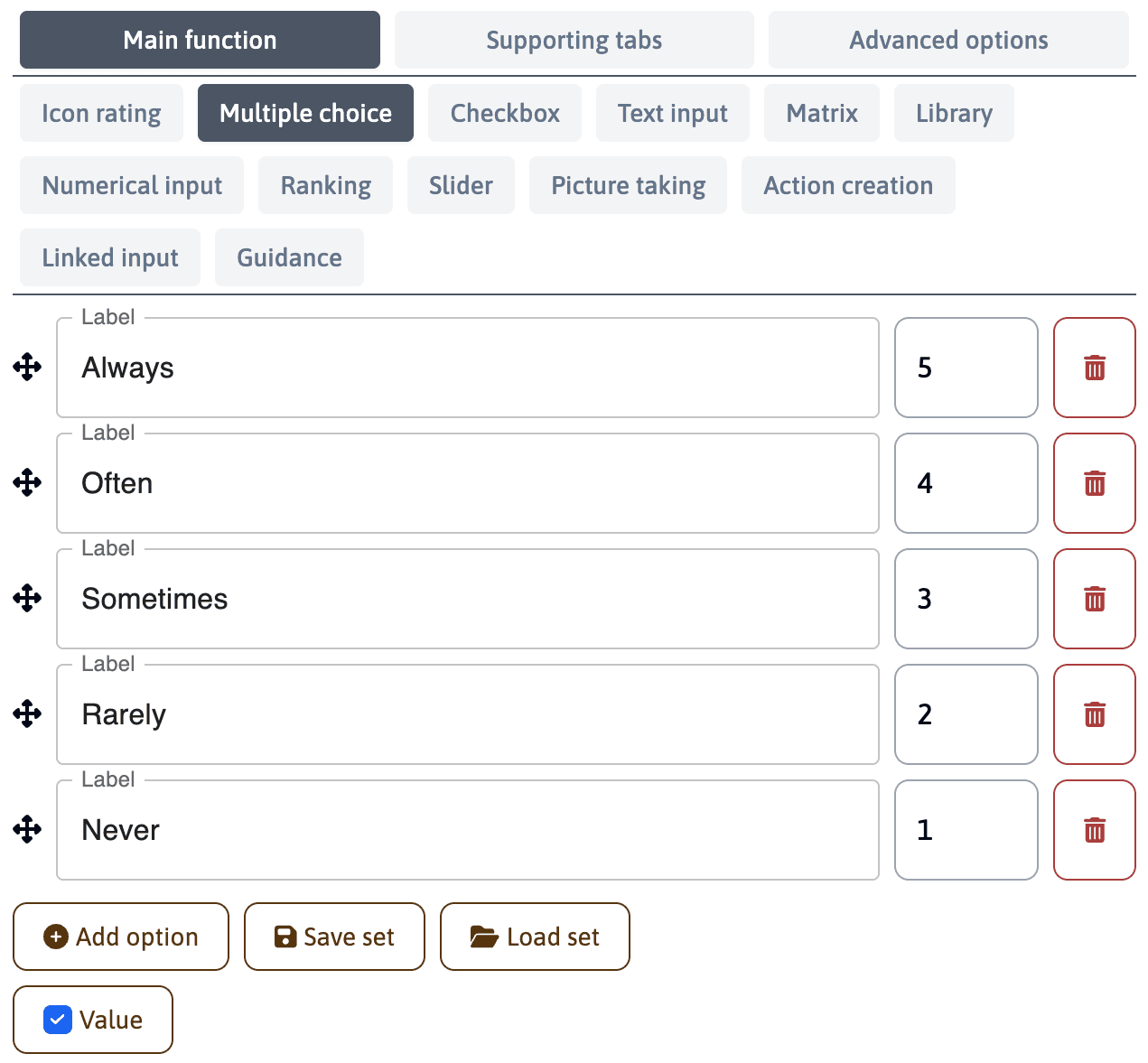
- Check the “Value” checkbox at the bottom of the element configuration
- Enter numerical values for each option
- Values are automatically saved when you save the element or create a set
Using Values in Results
With numerical values assigned, you can add the elements to a calculation where you can:
- Calculate averages for individual elements
- Combine multiple elements for broader analysis
- Create weighted scoring systems
- Generate quantitative reports
For example, in a frequency assessment:
Always = 5
Often = 4
Sometimes = 3
Rarely = 2
Never = 1
When saving a set with numerical values, both the options and their associated values are preserved. This ensures consistency in scoring across your template.
Editable Options
The “editable” checkbox gives end-users the flexibility to modify the list of options during their assessment. This feature is particularly useful when you want to provide a default set of options while allowing users to add situation-specific choices.
How It Works
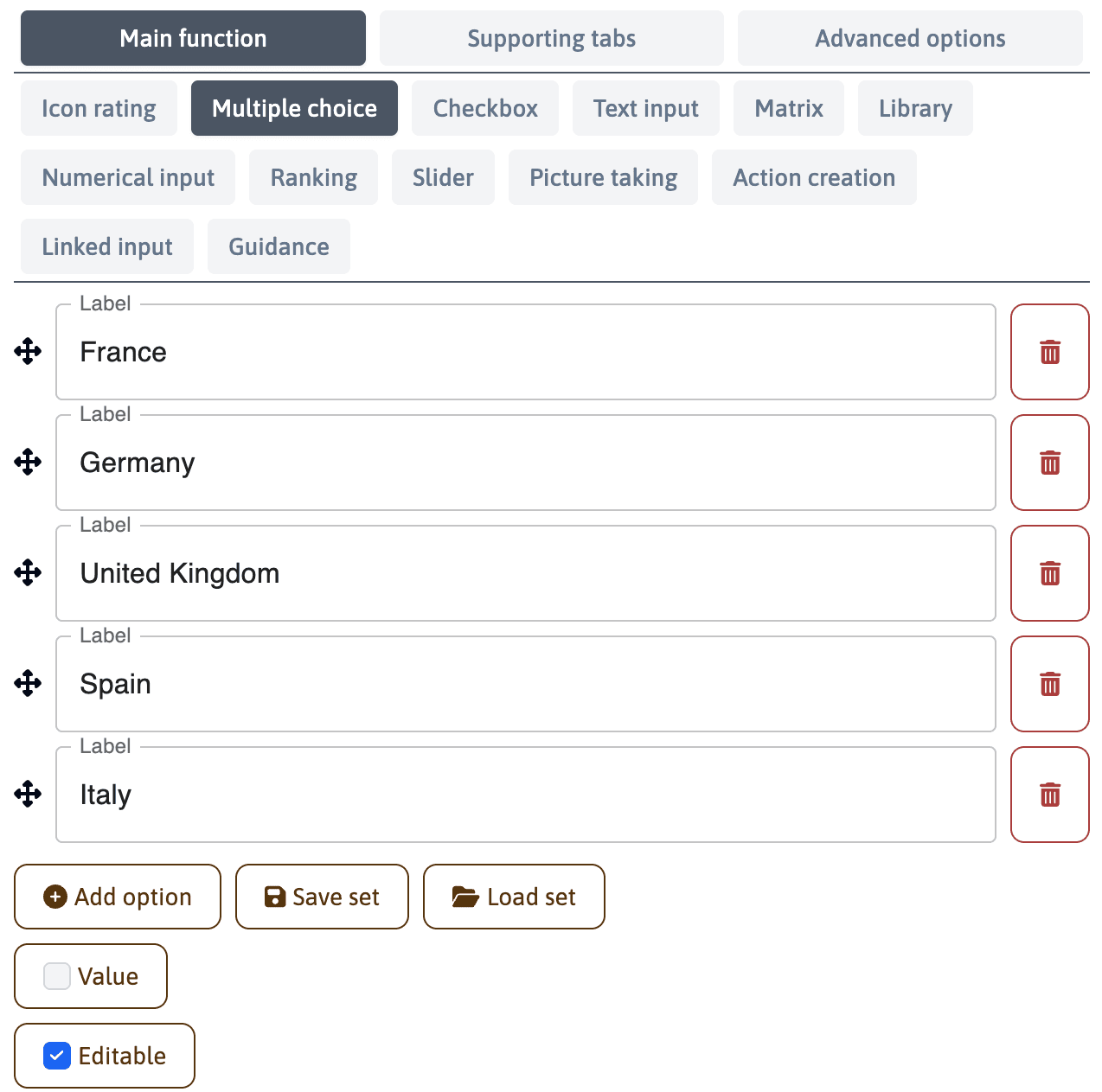
- Check the “Editable” checkbox at the bottom of the element configuration
- Provide your default list of options
- During the assessment, users can:
- Add new options to the list
- Customize the options to their specific context
- Choose from both default and custom options
When to Use Editable Options
This feature is valuable when:
- Your default list might not cover all possible scenarios
- Different locations or departments might have unique options
- You want to avoid an overly long predefined list
- You need to capture site-specific information
Conditional Groups
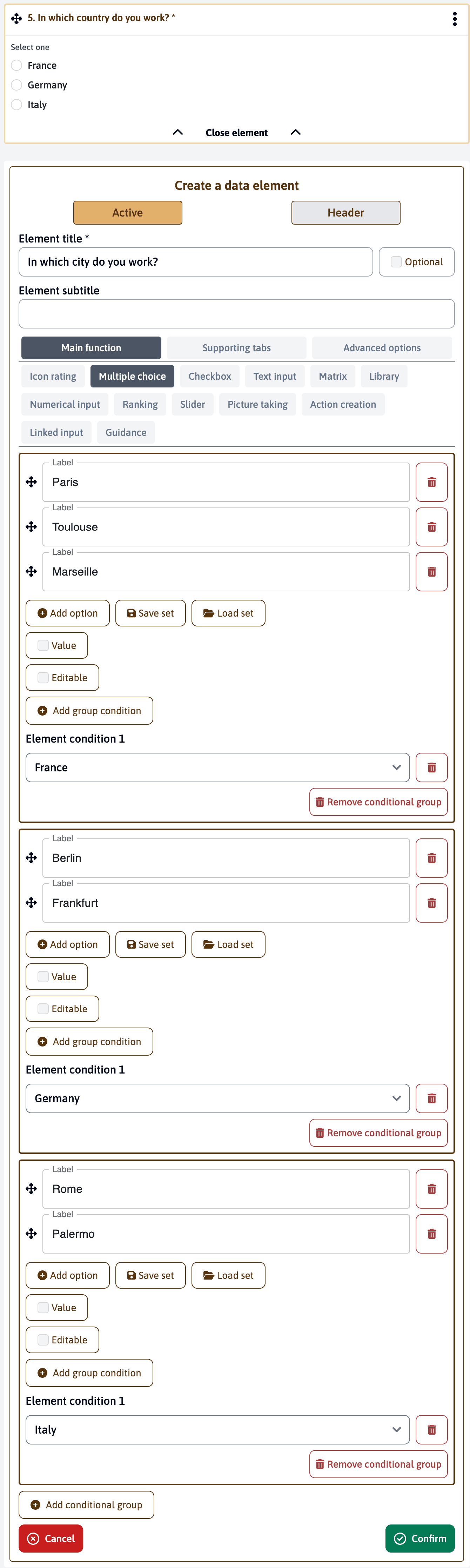
Conditional groups allow you to display different sets of options based on answers from previous multiple choice elements. This creates a dynamic, context-sensitive assessment experience.
This feature allows you to simplify the structure of your template by not having to create a new element for each possible answer and setup conditions for each element. Instead, you can create a single element and use conditional groups to display different sets of options based on answers from previous multiple choice elements. In the results table, all answers are shown in the same column.
How Conditional Groups Work
- Create a multiple choice element for the initial question
- In the following element, add conditional groups
- For each group:
- Select the condition (answer from previous question)
- Add the specific options for that condition
- Options will only appear when the condition is met
Geographic Example
As shown in the image:
- First question: “In which country do you work?”
- Second question: “In which city do you work?”
- If France is selected: Shows Paris, Toulouse, Marseille
- If Germany is selected: Shows Berlin, Frankfurt
- If Italy is selected: Shows Rome, Palermo
ESHS Application Example
Consider a chemical safety assessment:
-
First question: “What type of chemical storage do you manage?”
- Flammable liquids
- Corrosive materials
- Toxic substances
- Compressed gases
-
Second question: “Which specific safety measures need verification?”
- For Flammable liquids:
- Fire suppression systems
- Ventilation requirements
- Static electricity controls
- For Corrosive materials:
- Acid-resistant containment
- Emergency shower locations
- pH neutralization stations
- For Toxic substances:
- Gas detection systems
- Negative pressure verification
- PPE storage conditions
- For Compressed gases:
- Cylinder securing methods
- Pressure relief systems
- Valve protection measures
- For Flammable liquids:
This feature ensures users only see relevant questions, streamlining the assessment process and improving data quality by eliminating irrelevant options.
Image and Icons Library Module
The Image and Icons Library module allows you to enhance your multiple choice elements with visual options. Before using images in your elements, you’ll need to have created image groups in the Image Icon Library.
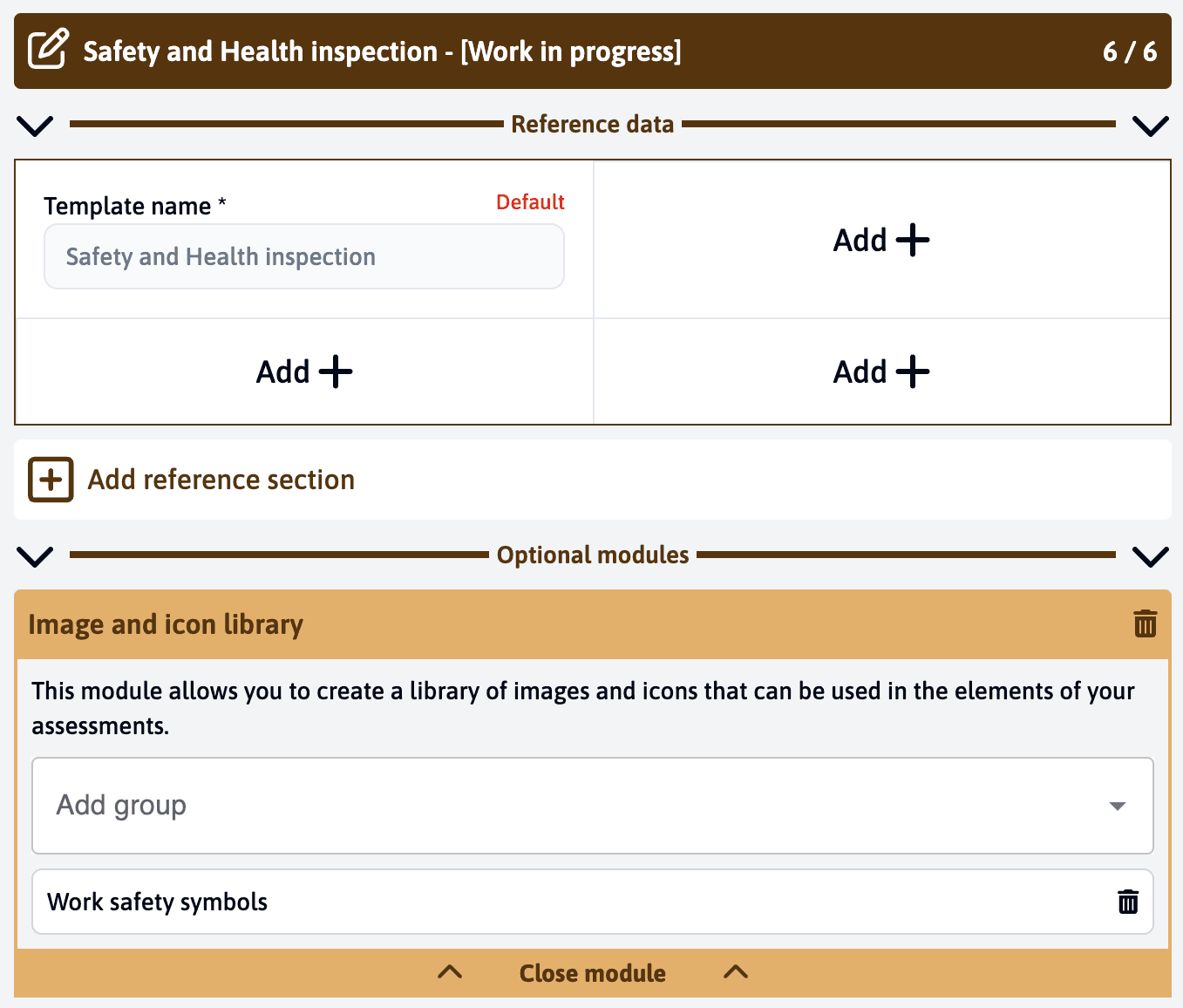
Adding Image Groups to Your Template
- First, add the “Image and icon library” module to your template
- Select which image groups you want to make available in your template
- Save your module configuration
You can add multiple image groups to your template, allowing you to use different sets of images for different types of questions.
Using Images in Multiple Choice Elements
Once you’ve added image groups to your template, you can configure how they appear in your multiple choice elements:
- Create a new multiple choice element
- Add your options and their corresponding labels
- For each option, select an image/icon from your configured groups using the dropdown menu
- Configure the display options at the bottom:
- Image: Enable to show the images
- Icon: Enable to show text-based icons
- Show labels: Display the text labels alongside images
- Show checkbox: Add checkboxes next to each option
- Columns: Adjust the number of columns for the layout
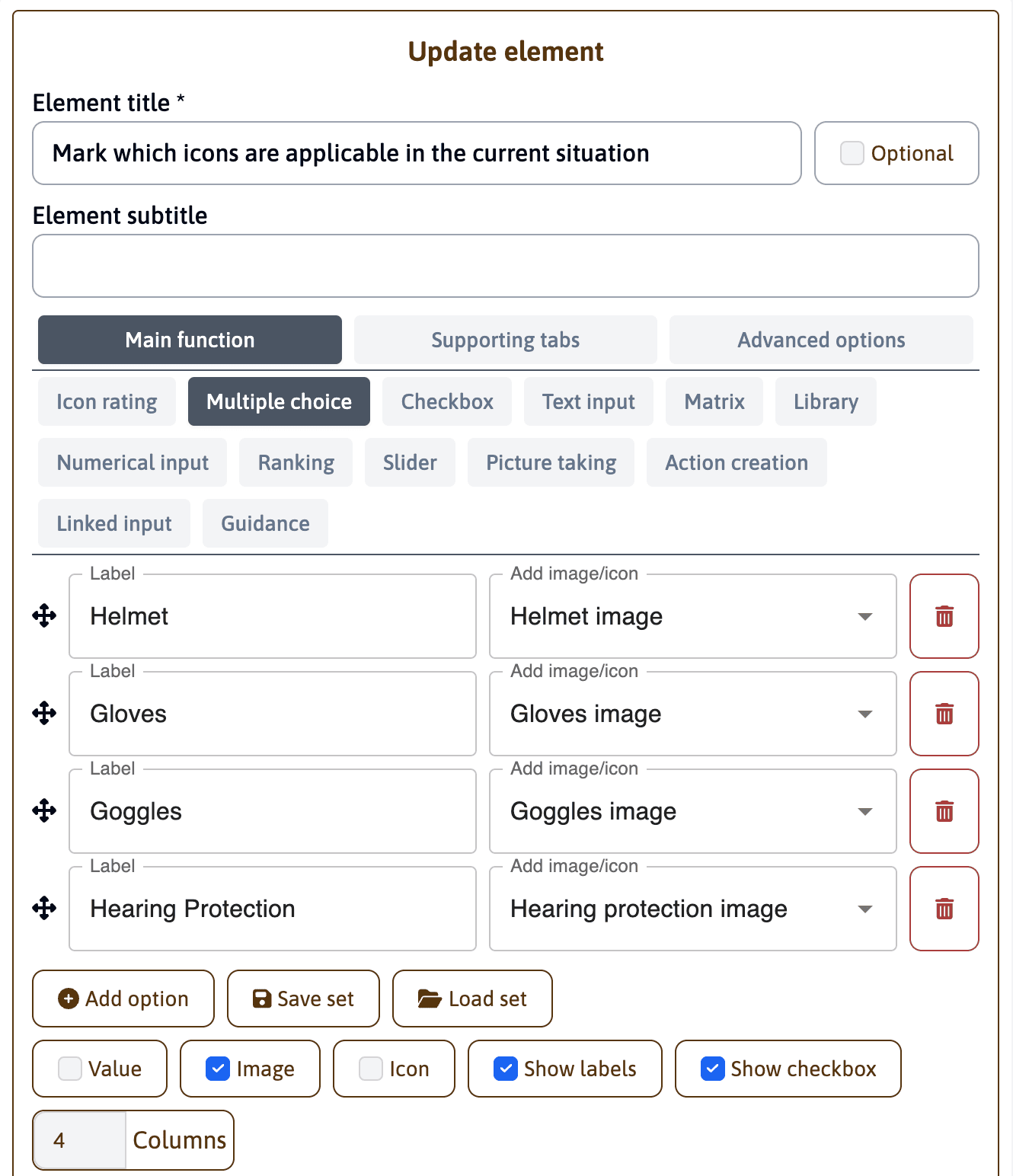
The column setting helps you create an organized layout when using images. Adjust the number of columns based on your screen size requirements and the number of options.
End-User View
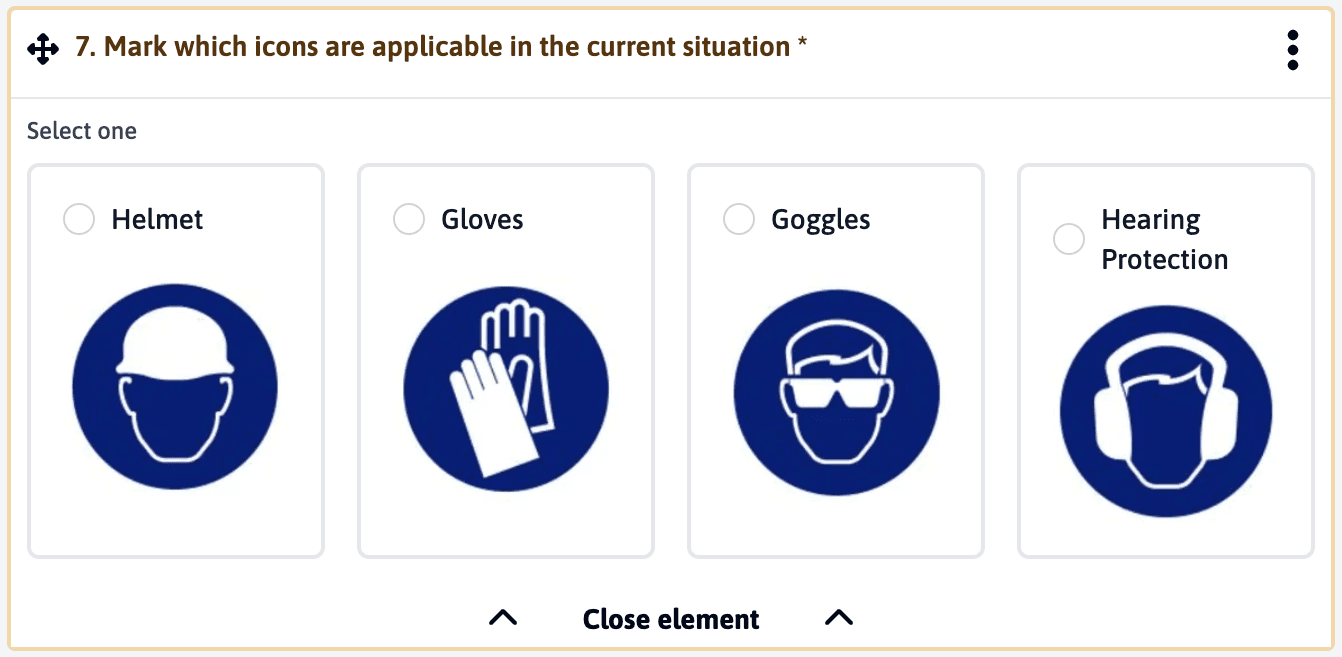
This is how the multiple choice element will appear to users during the assessment. The images are displayed in a grid layout with checkboxes, making it easy for users to select the applicable options.