Create a New Assessment from a Previous One
This page demonstrates using a previous assessment completed by following the rest of this guide. Return here after fully completing your first assessment.
Overview
To create a new assessment from a previous one in Deciris, which allows you to retain previous results or the same status of hidden elements, follow these steps:
Step-by-Step Guide
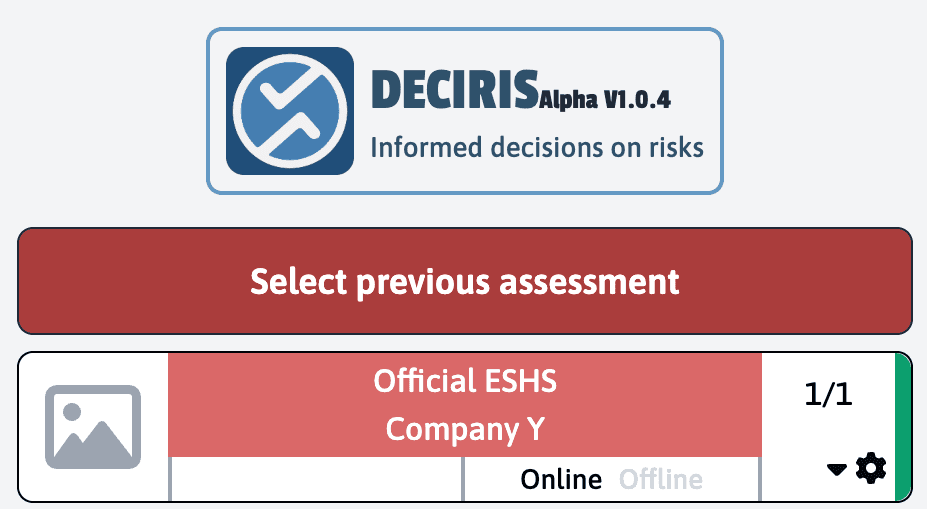
1. Select the Source assessment
Access the assessment you want to use as a base for the new one. This can be done by selecting the assessment from the list of finalized services.
2. Choose the Site
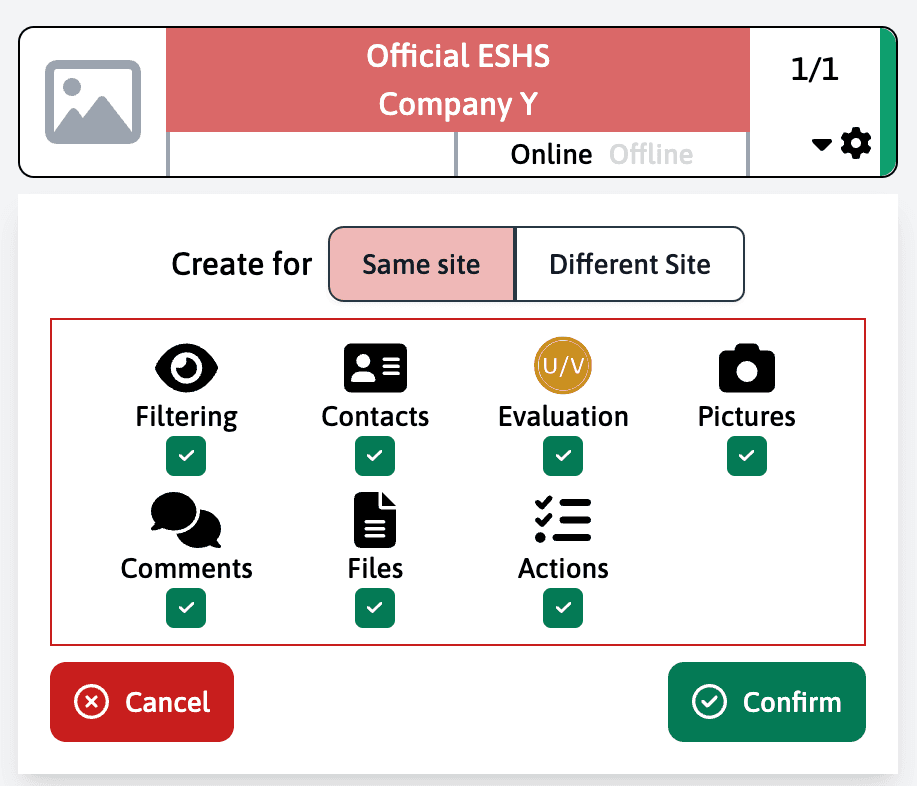
If you create an assessment for the same site, all elements will be copied by default:
- Evaluations
- Actions
- Filters
- Comments
- Files
- Photos
If you choose “Different site”, only filters will be copied by default.
3. Customize the Selection
Before confirming creation, you can customize which elements to copy:
- Contacts
- Evaluations
- Photos
- Comments
- Files
- Actions
4. Create the Assessment
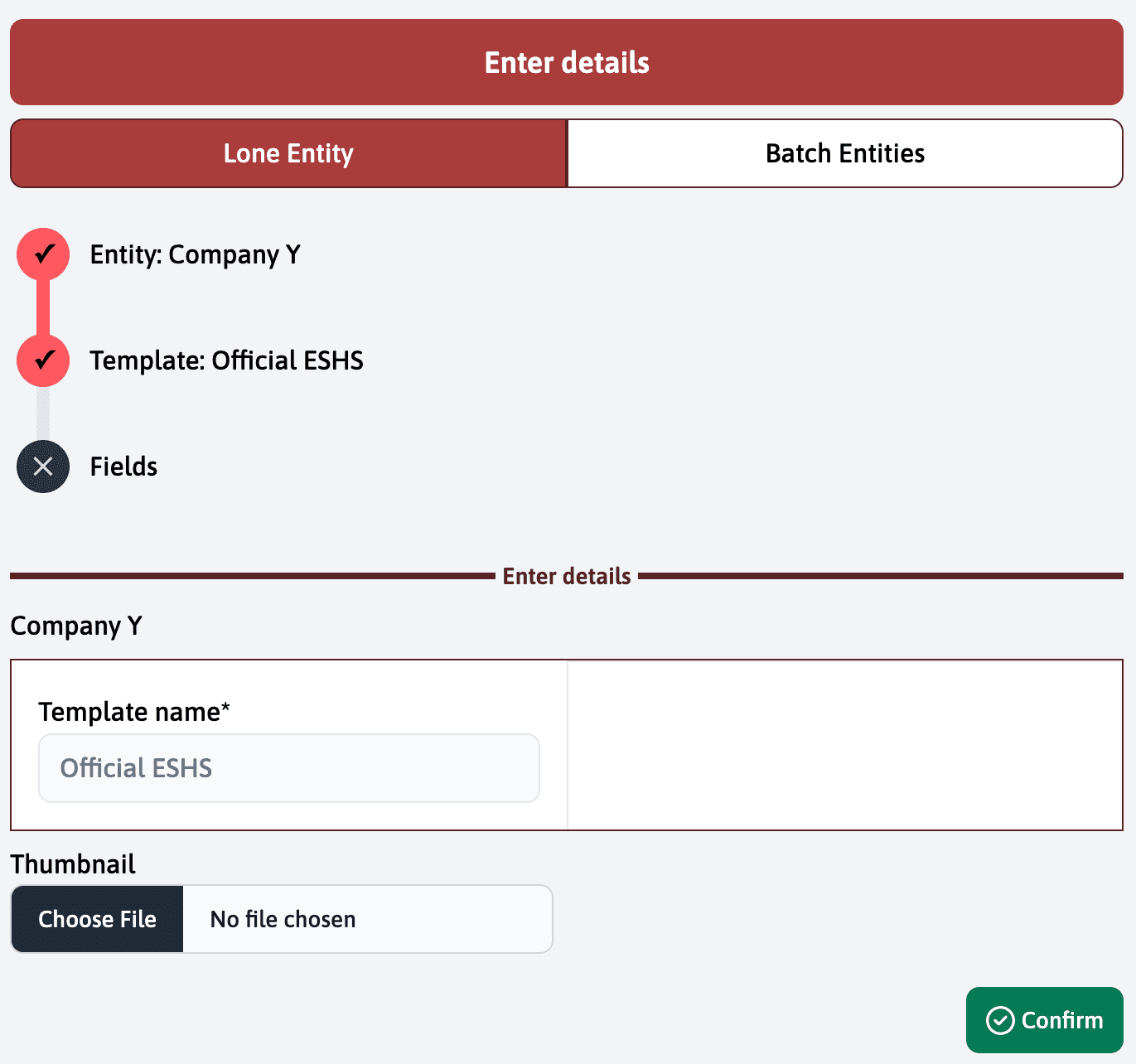
Once you’ve made your selection, click “Confirm” to create the new assessment.
5. Verify the Result
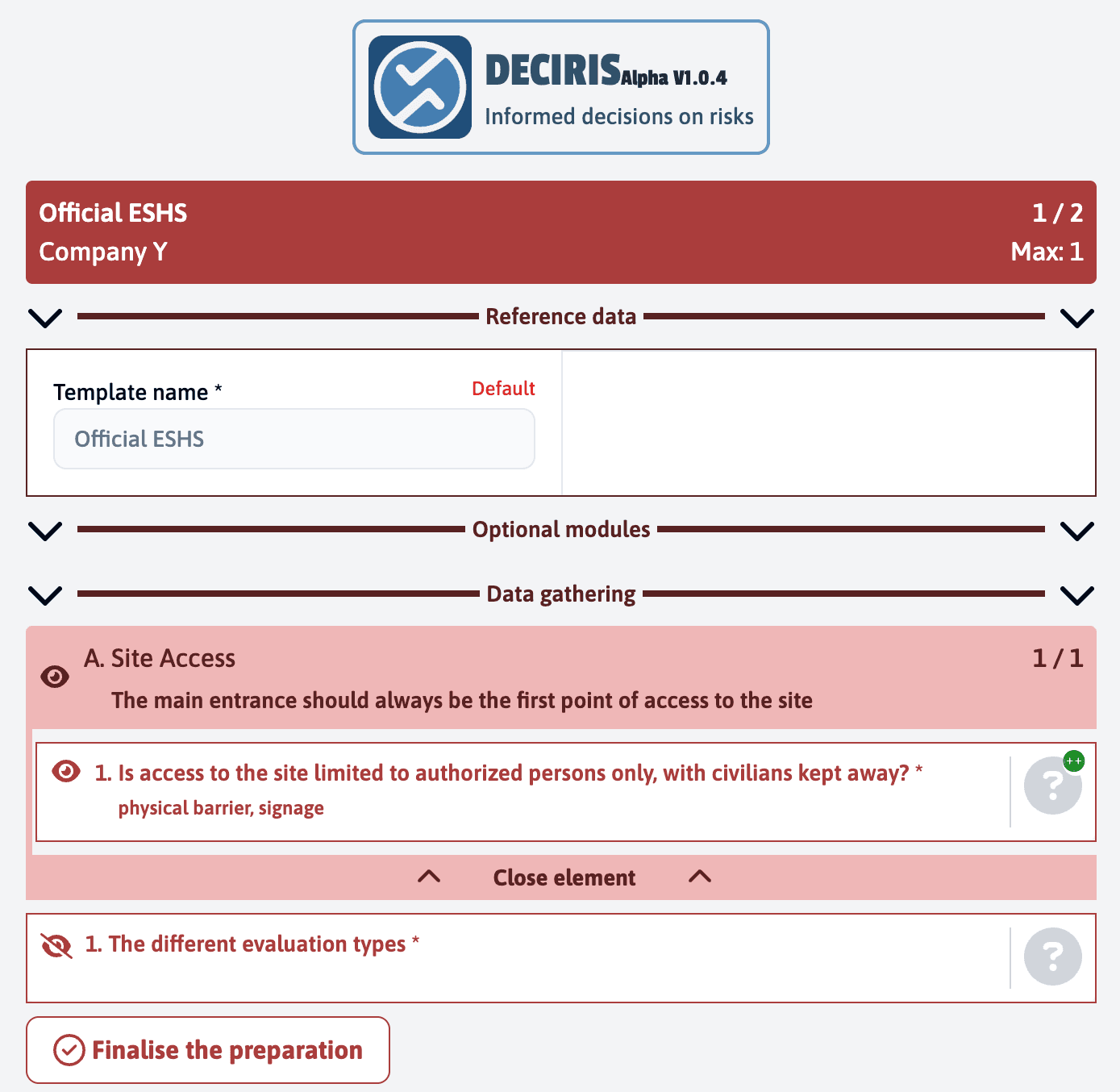
In the new assessment, you will see:
- Previous actions and evaluations
- Preserved hidden elements
- All elements selected during copying
Benefits
This feature is useful for maintaining consistency between assessments, especially when regular assessments are performed on the same site, or to facilitate creating new assessments on different sites while retaining standard parameters.
Recommended Use Cases
- Regular assessments of the same site
- Quick creation of similar assessments
- Maintaining evaluation consistency
- Reusing standard parameters